
Automate using trained model
Preconditions
The feature is intended for the following situations:
- Manual Task created on a DEV (or UAT) environment on a big dataset.
- ML model trained, shows Automation charts.
- ML trained model should be migrated to a PROD instance and linked to some existing task.
Automate with trained model
View workflow
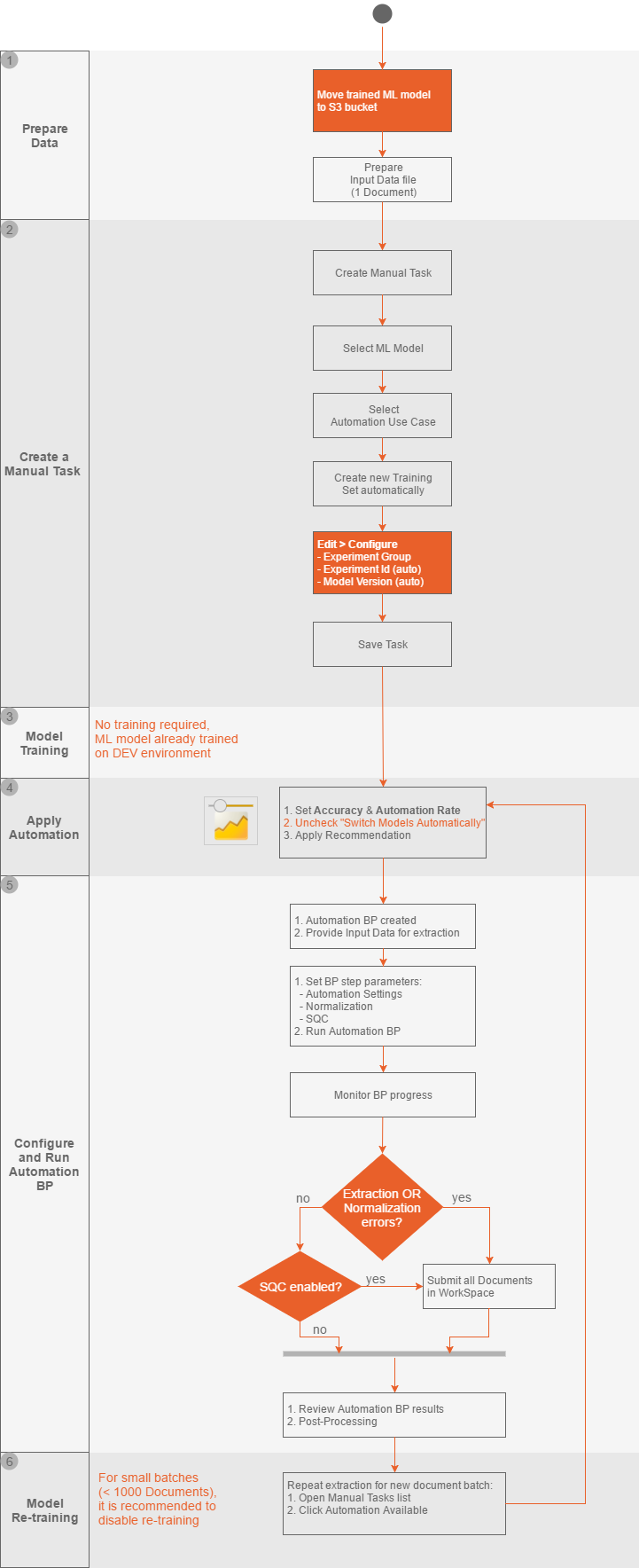
See the following diagram which explains the steps to complete when you have an already trained model.
Apply trained model
To apply a trained model to a task on the production instance, follow the steps:
Copy the Trained Model to the S3 bucket with a
-resourcespostfix.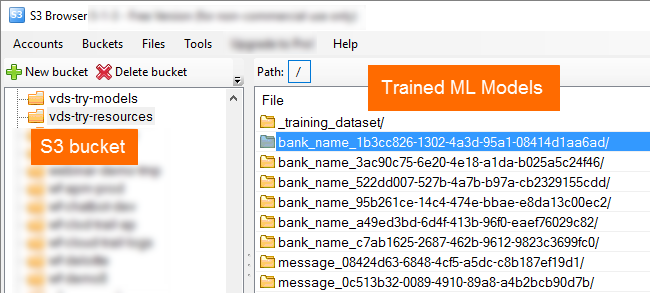
Create a Manual Task and design it. Use one record as Input Data because no training is required.
Set automation parameters for the task: Automation Use Case and ML Model.
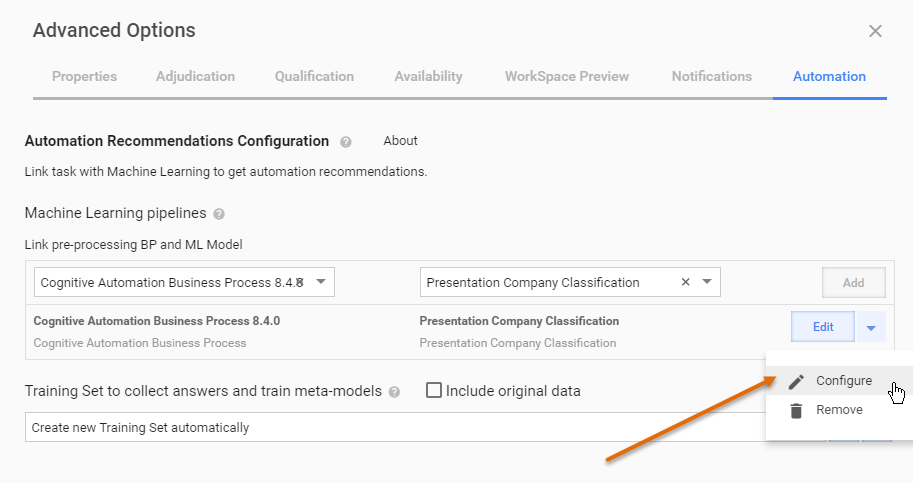
Click the arrow icon (▼) to the right from the Edit button and then Configure.
Start typing the Experiment Group name that is a folder name on S3 from step 1. The auto-complete feature shows all available variants.
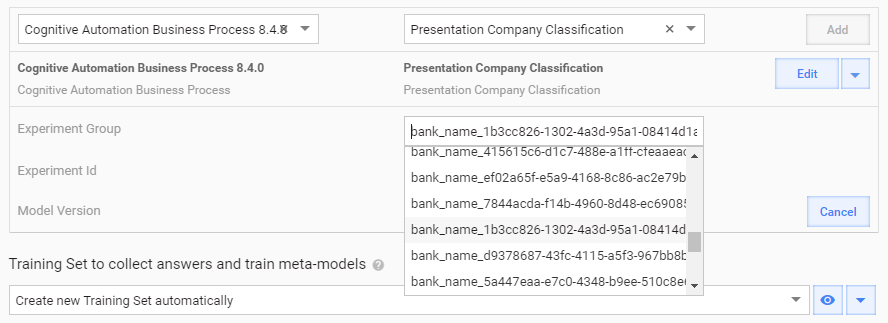
Auto-complete loads only experiment data for the selected model type.
Experiment Id is automatically loaded if Experiment Group was selected from the auto-complete list.
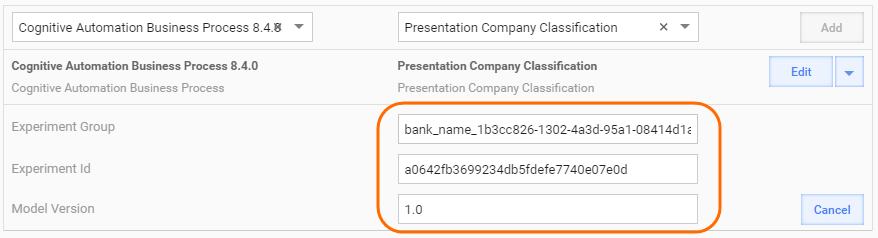
You can find the Experiment ID in the
-resourcesS3 bucket under the following path:${experiment_group}/output/best-experiment.txt.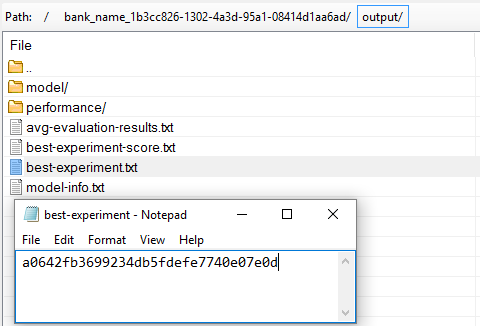
For the extraction task, this file always contains combined-results.
Save the Task.
In this case, you do not need to wait until the model is trained because it has already been trained on a development environment. As a result, Automation chart is displayed on the appropriate tab.
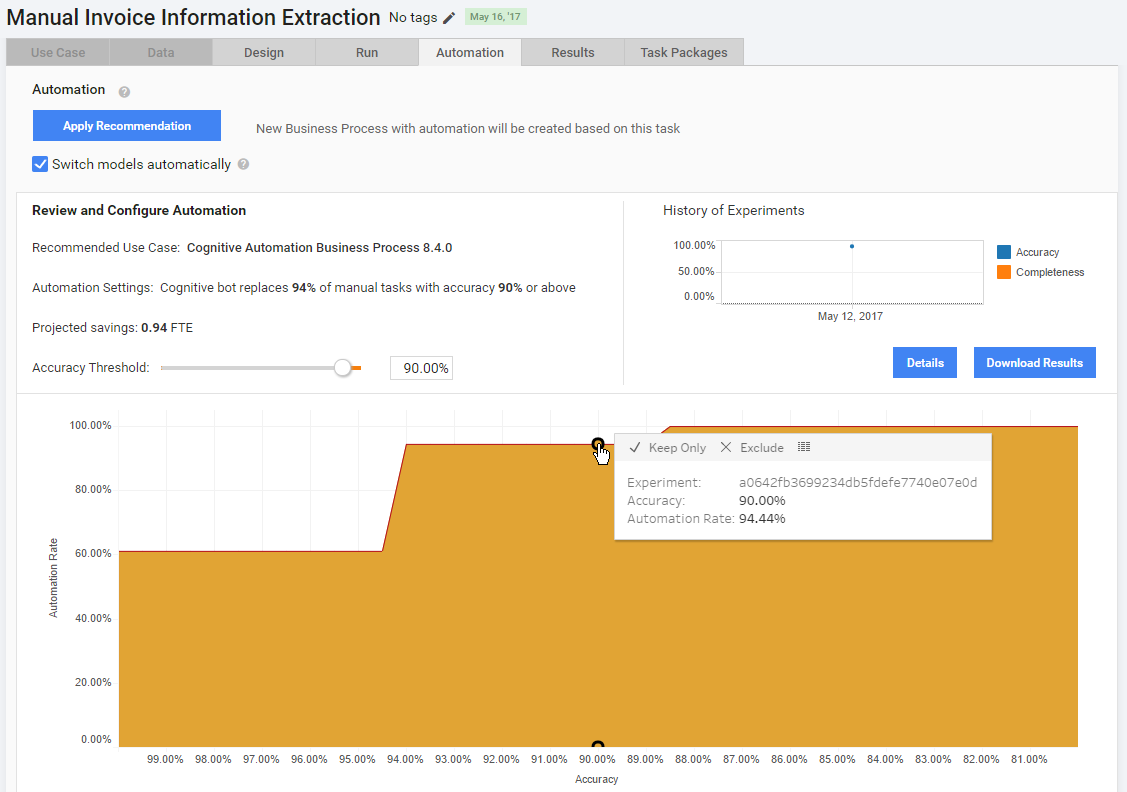
Set the Accuracy Threshold. It is recommended to uncheck the Switch models automatically option if your documents extraction batch is less than 1000.
Click Apply Recommendation.
Configure and run the Automation BP and then model retraining.
Models switching after training completed
WorkFusion lets users decide whether or not to switch models before applying an automation recommendation.
Consider the following case:
Pre-trained ML model (trained on a big dataset and having good automation rate, accuracy and F1 score) was applied to automate a Manual Task.
User uploaded a new document batch, for example, 100 documents.
Task was completed and the Training process started.
When the Training has been completed, the initial pre-trained model is silently substituted with a new one trained on this new batch (100 documents).
This behavior isn't always suitable, because the newly trained model can be worse than the pre-trained one, but will show a better F1 score because of a small dataset.
Therefore, the Automation tab contains the Switch models automatically option next to the Apply Recommendation button:
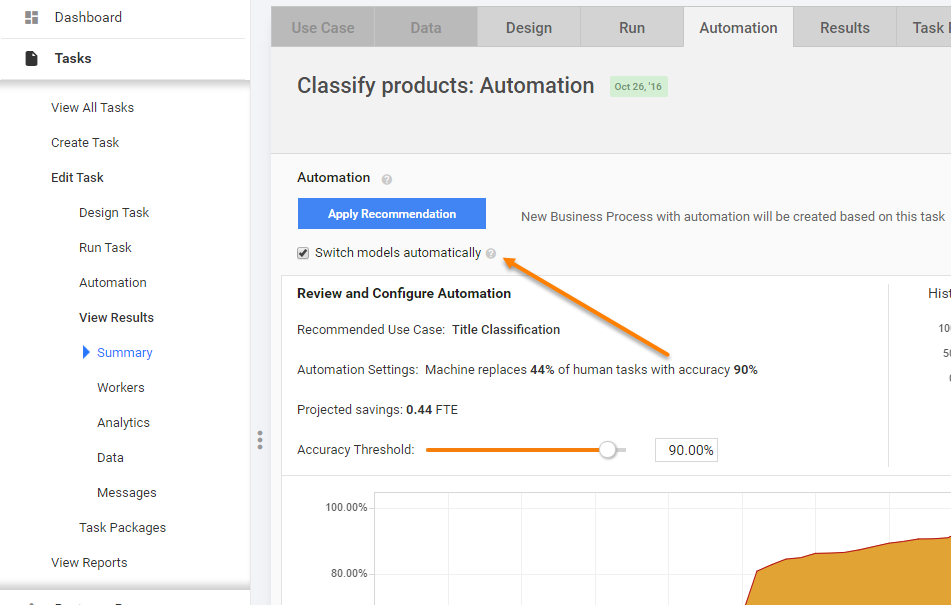
If the Switch models automatically checkbox is checked, the newly trained model will substitute the current model after re-training only if its F1 score is higher.
Otherwise, the newly trained model will NOT substitute the current model (despite higher F1 score).
The Switch models automatically option can be checked or unchecked anytime by going to Automation BP > the Automation tab.