
Deploy DA virtual machine on VMware workstation
tip
For tools included into the virtual machine, see the console tools description.
Credentials
- User: wf_da
- Password: Workfusion1
Prerequisites
- 64-bit Operational System (Windows, Linux, Mac)
- 8+ GB RAM
- 10 GB of free space on HDD
Deployment
Install the VMware Workstation player.
Download an appliance of DA Virtual Machine.
Open VMware Workstation and select Player > File > Open.
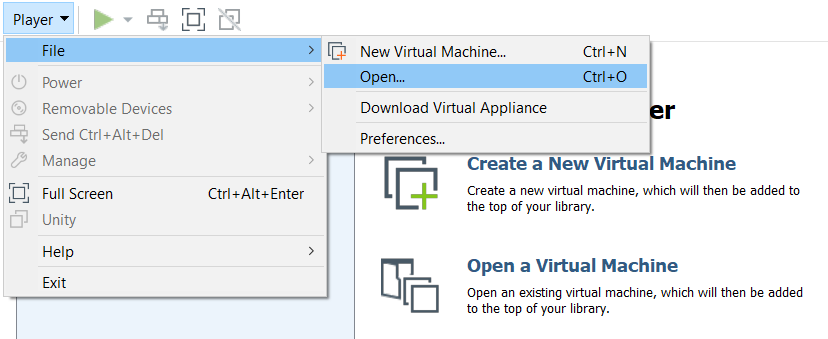
Select the file downloaded on the second step and click Open.
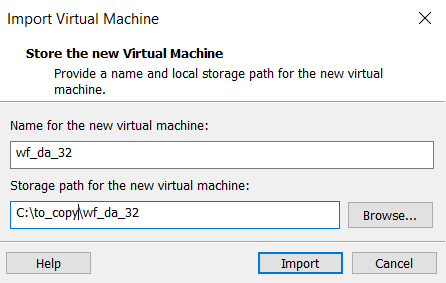
Confirm import by clicking the Import button.
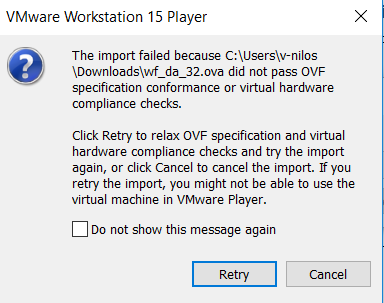
Click Retry if the following validation error appears.
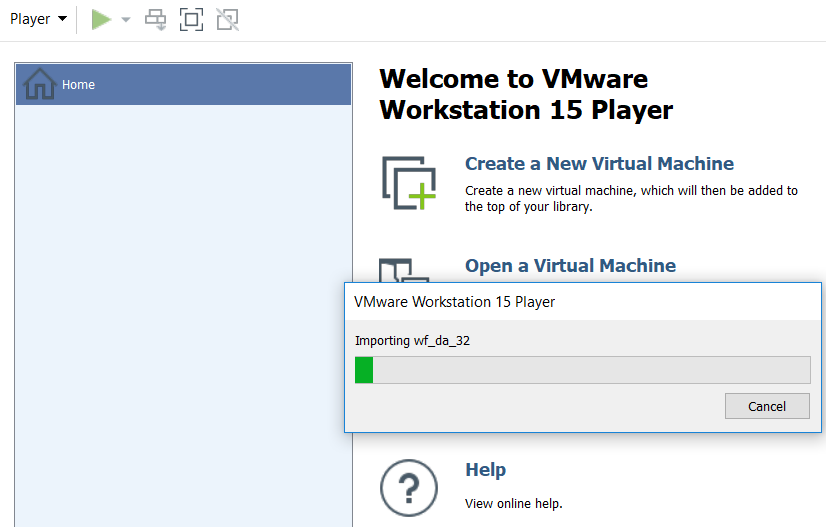
Wait till the import finishes (5-10 mins).
Create shared folders
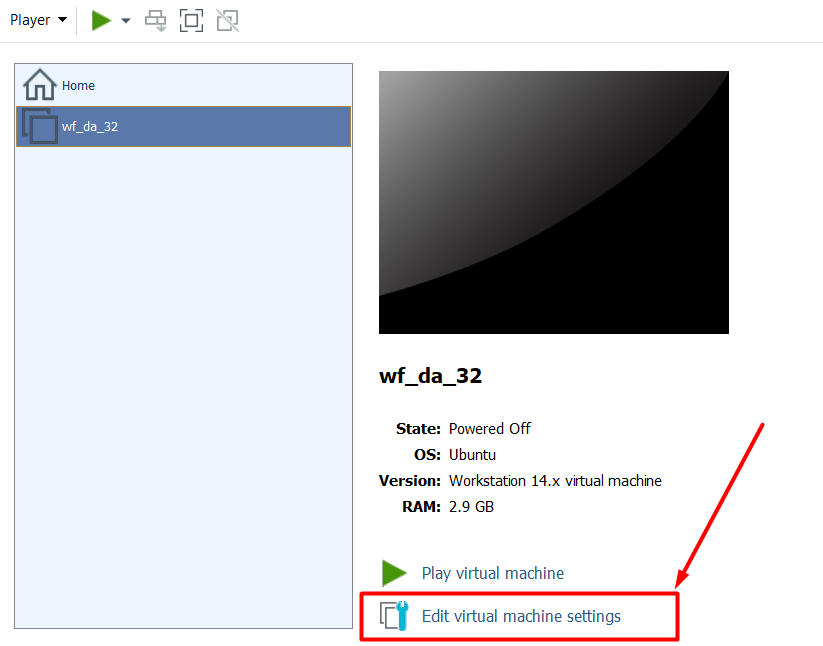
Open VMware Workstation, select DA Virtual Machine, and click Edit virtual machine settings.
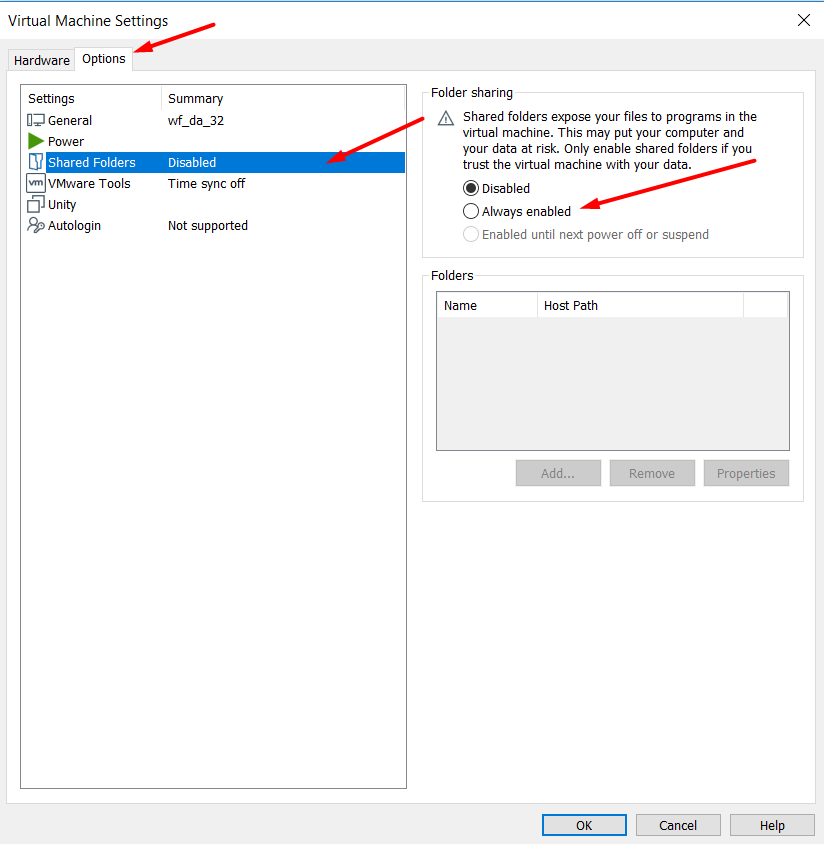
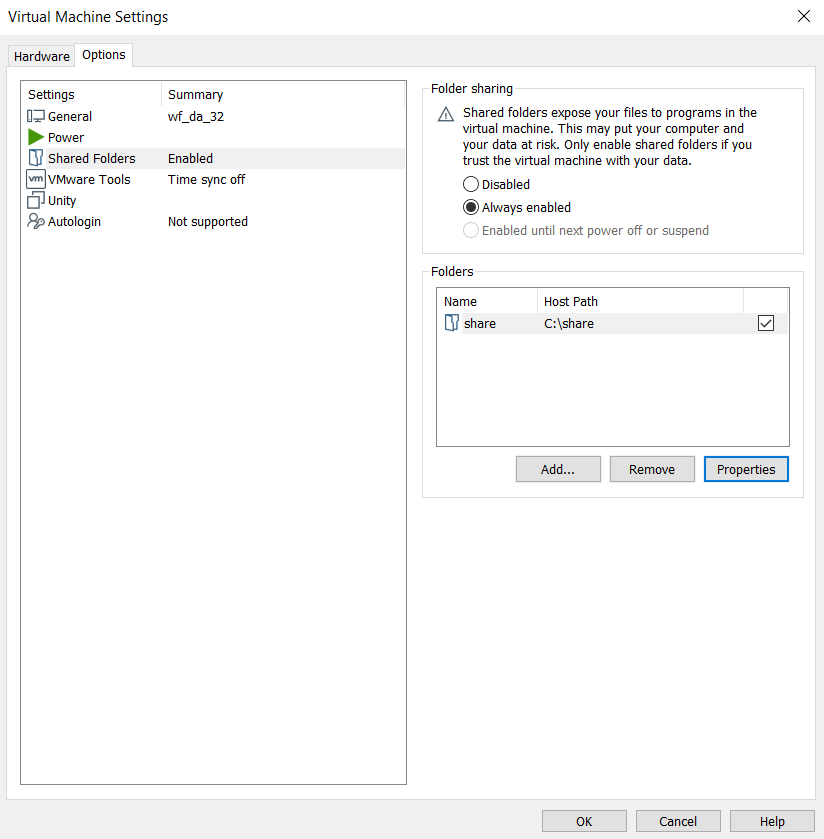
Open the Options tab, select the Shared Folders item and select Always enabled on the right.
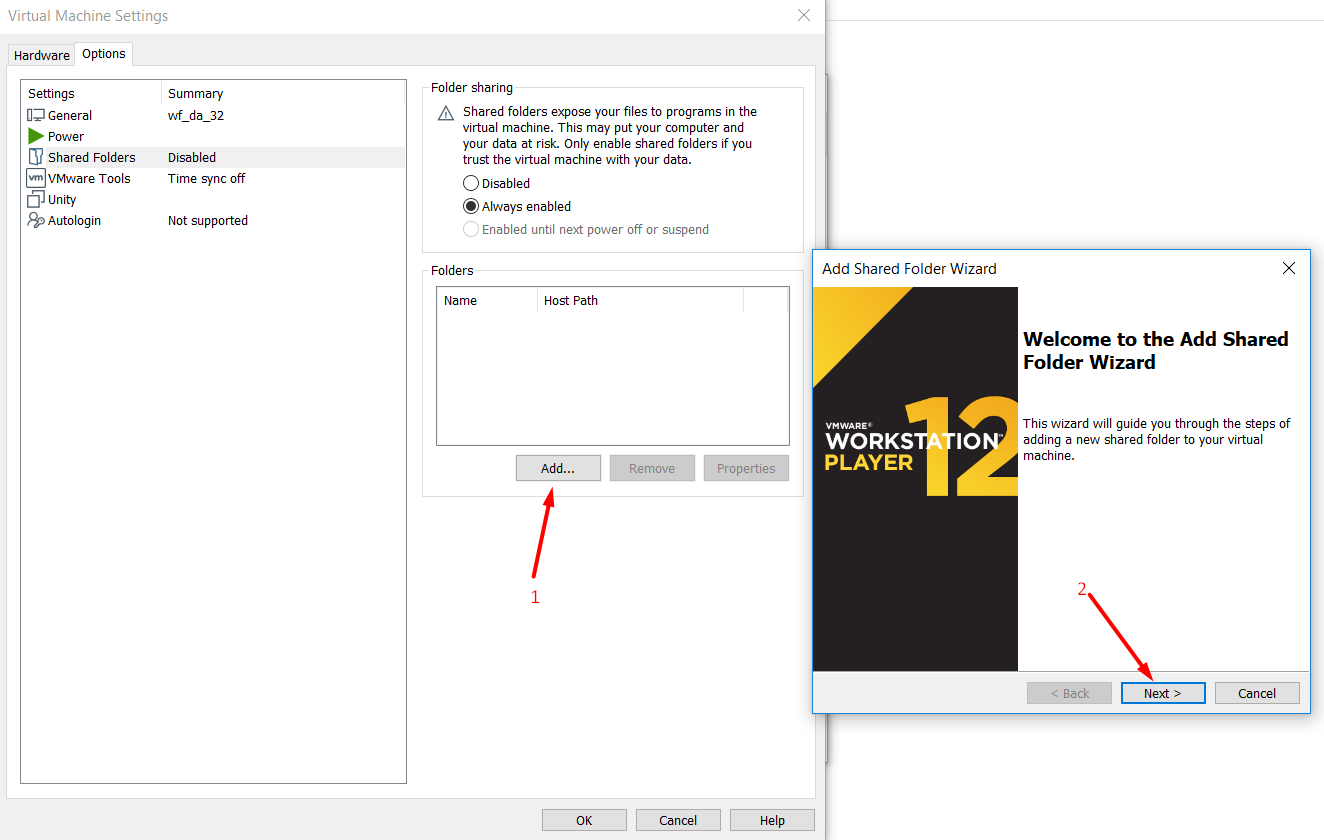
Click Add and then Next > in the popup.
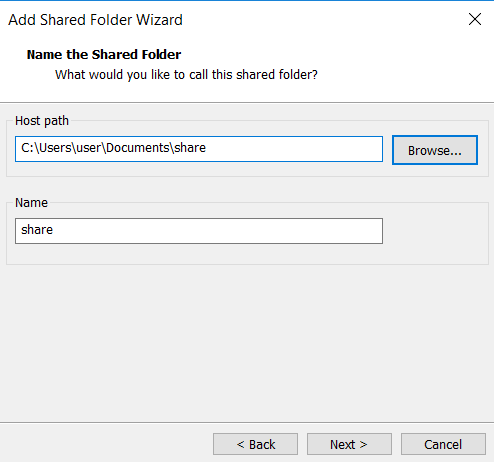
Configure a new shared folder:
- Folder path: choose a folder on your local machine (host) you want to share.
- Folder name: specify a name used to get access to the folder in the virtual machine.
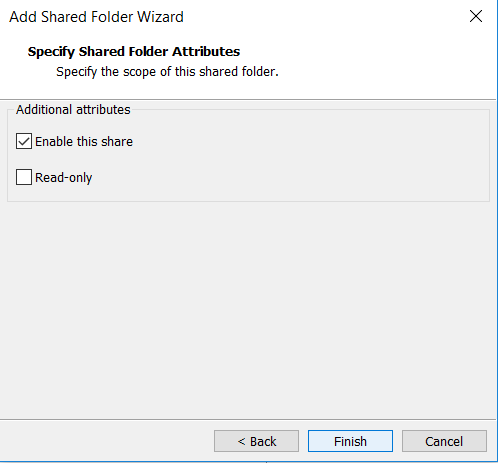
Enable this share and click Finish.
Review configuration of shared folders and click Ok to close the virtual machine settings.
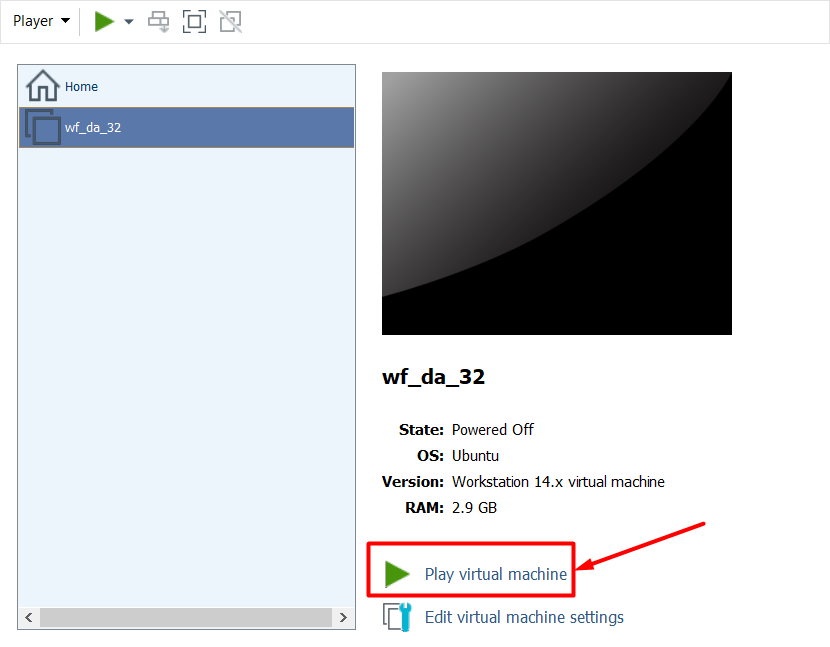
Start the virtual machine.
Log in as a Data Analyst user.
After two minutes, you may see popup asking you to install VMware Tools. Click Install Tools.
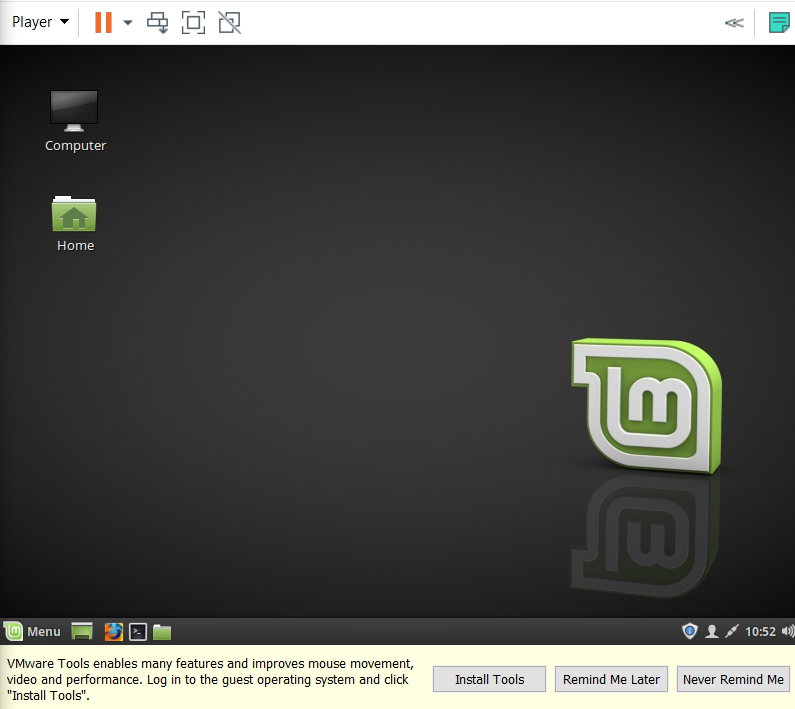
If a popup is not shown, you can manually trigger installation by going to Player > Manage > Install VMware Tools.
After successful mounting, open the VMware Tools mounted folder.
cd /media/wf_da/VMware\ Tools/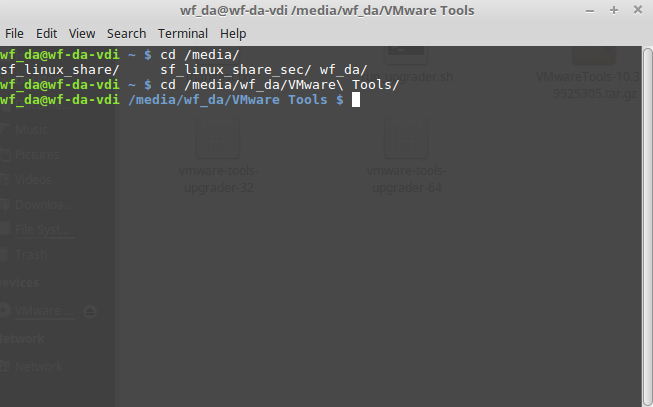
Copy the content to the
/tmp/media/folder.mkdir /tmp/media/ cp * /tmp/media/Unpack the installation TAR.
cd /tmp/media/
tar xzf VMwareTools-XXX.tar.gz
Launch the installation .pl script.
cd vmware-tools-distrib/
sudo ./vmware-install.pl
Press Enter on all questions during installation, choosing recommended settings.
Launch a vmware-user command in the terminal.
vmware-userNow, you can access your shared folder at
/mnt/hgfs/*:cd /mnt/hgfs/
Troubleshooting
Host supports intel vt-x but intel vt-x is disabled
You need to enable virtualisation in your machine (host). For details, refer to the instruction.