Business Process 3: ML Model training and data collection
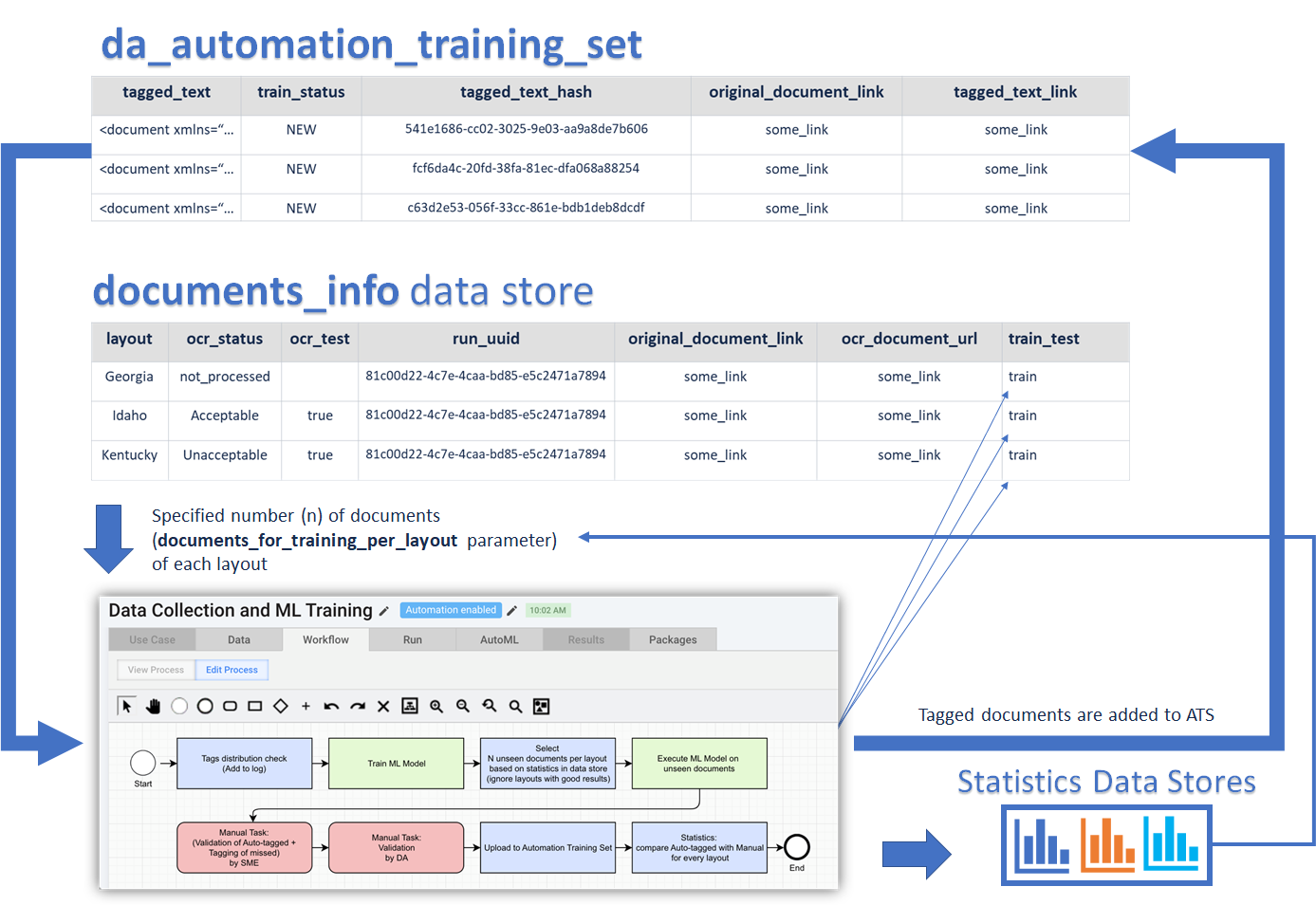
The Business Process is developed to launch model training automatically as well as control extraction statistics.
Several iteration of run will allow DA to improve statistics, as bot steps send to human tasks only those layouts, where statistics doesn't meet success criteria.
Success criteria in this case mean Automation Accuracy and Automation Rate which were set up in the Settings Data Store.
attachments
- BP 3 for 9.1 Package
- BP 3 for 9.2 Package (Production)
- BP 3 for 9.2 Package (Academy instances)
Import package to Control Tower and create deep copy of it (for the first Iteration)
Download BP 3 for 9.1 package or BP 3 for 9.2 package.
Import packages to Control Tower.
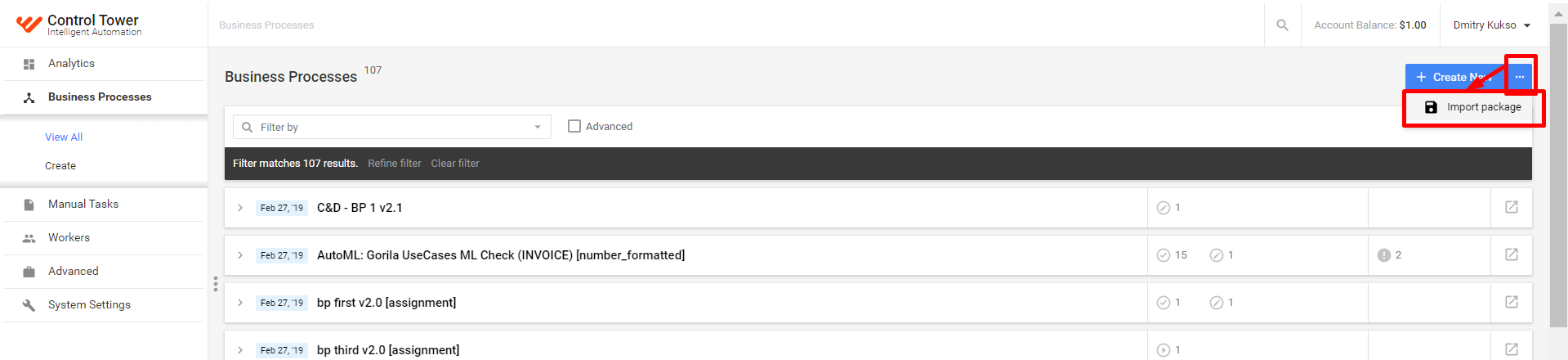
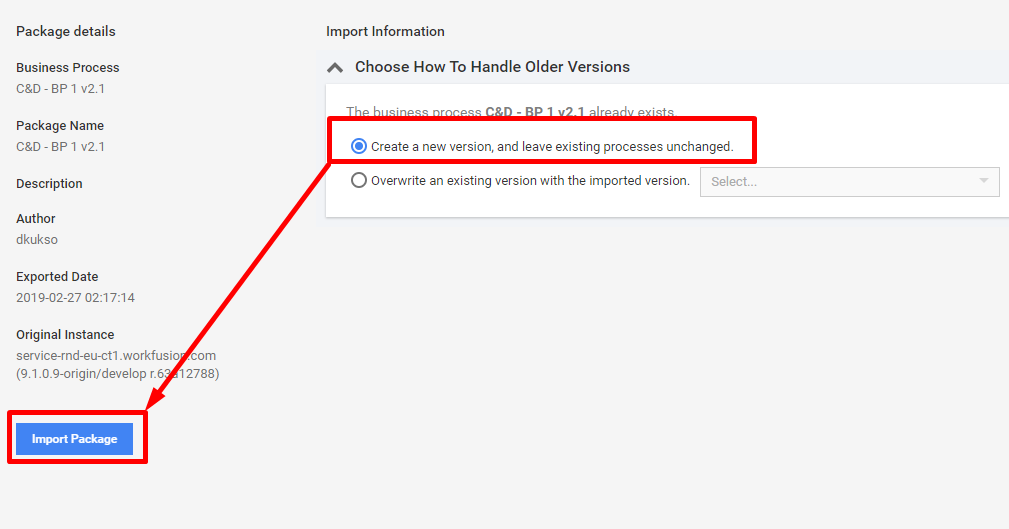
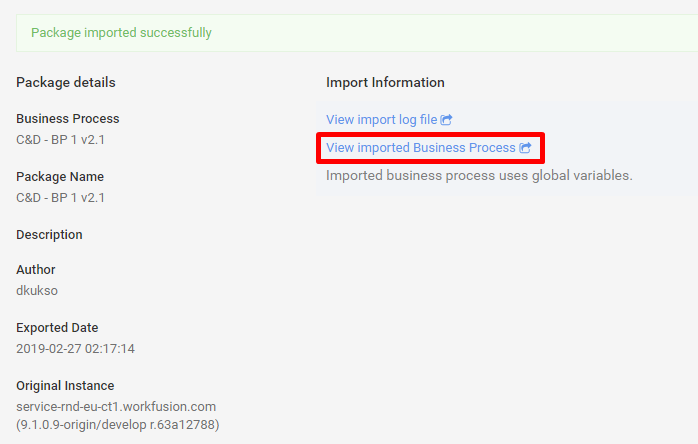
Create deep copies of imported packages to preserve your settings from changing by other users on CT.
When you import the downloaded package on the instance where other users can use the same processes as you do, your Business Process steps have the same name as other users' step names, so when they change some parameter, for example, a name of the Settings Data Store, it is automatically changed in your BP, and vise versa.
To preserve yourself and others from being confused, do as follows:
Import the package to Control Tower.
Provide some data to make the Run tab available:
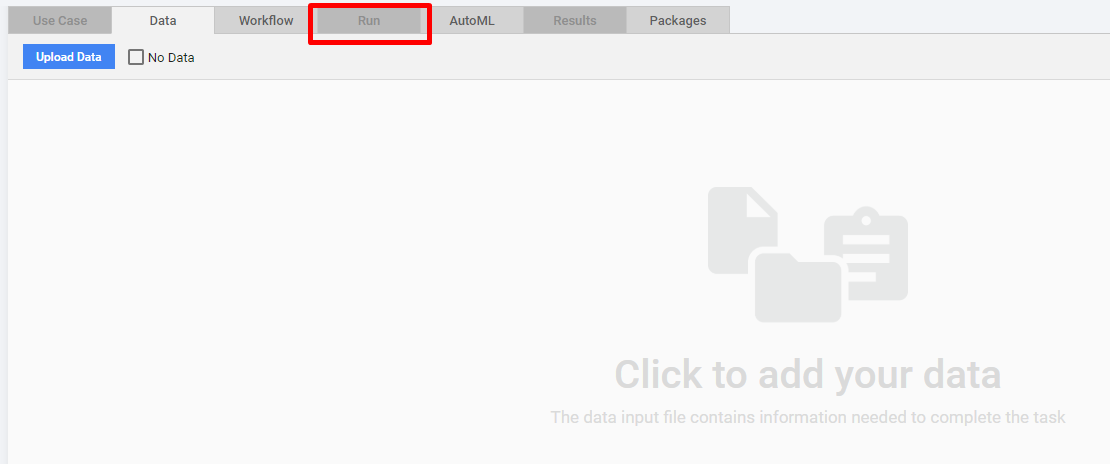
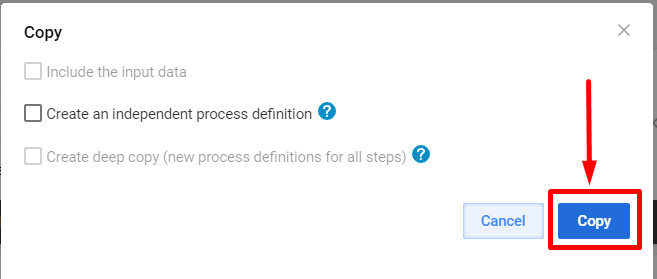
On the Run tab, select Copy from Actions.
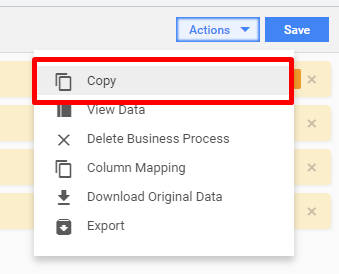
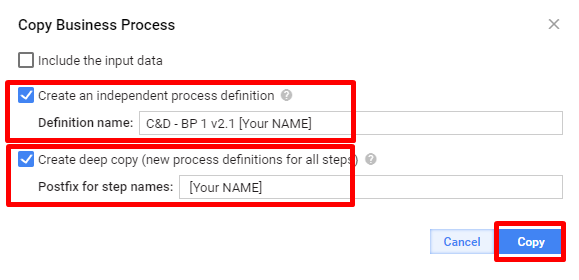
Specify new Process Name and Postfix for step names. Copy the process.
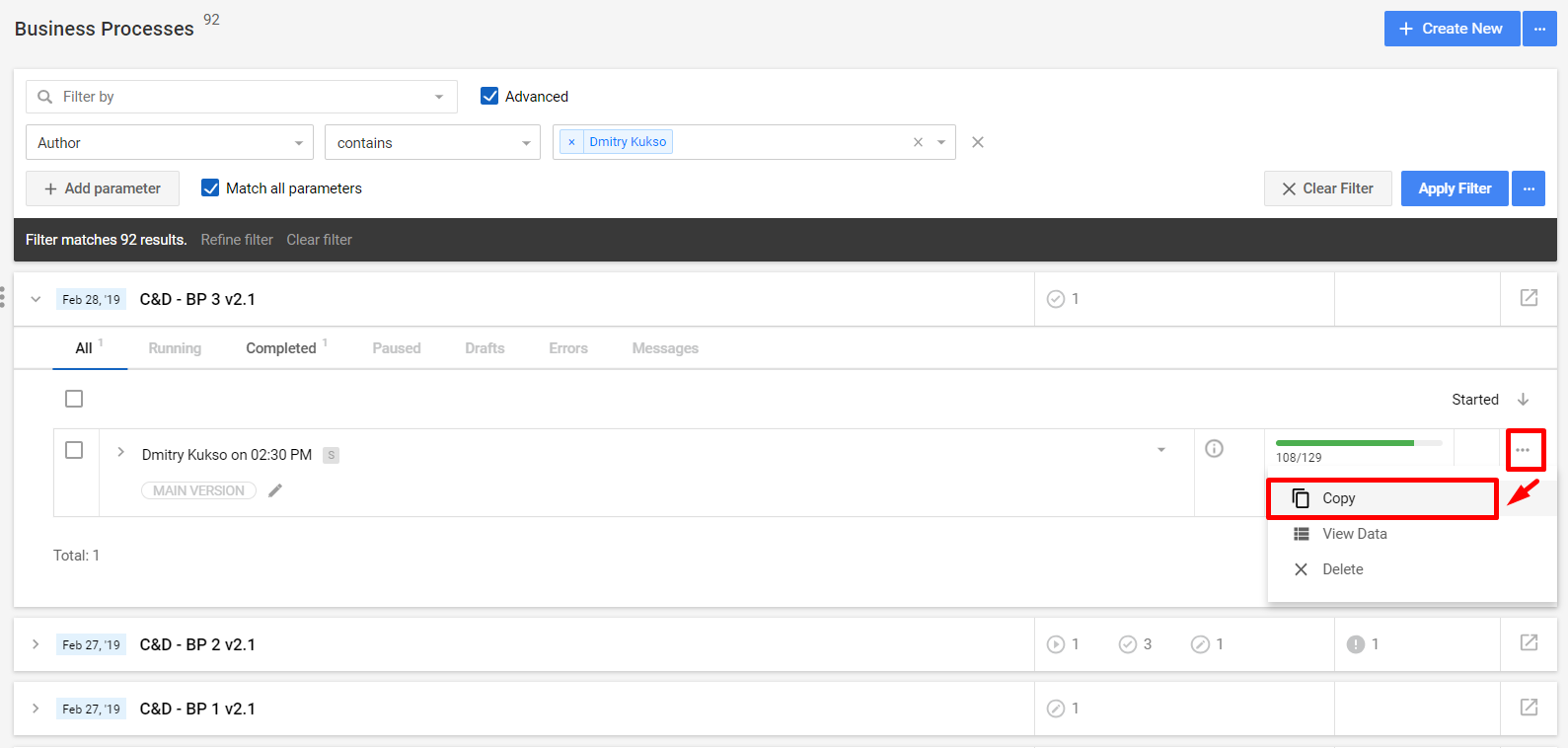
Create simple copy of previous run of your Business Process (for second and further iterations)
If you run your BP for a second time or more often, create a copy of the previous run and start your BP (go to running the Business Process).
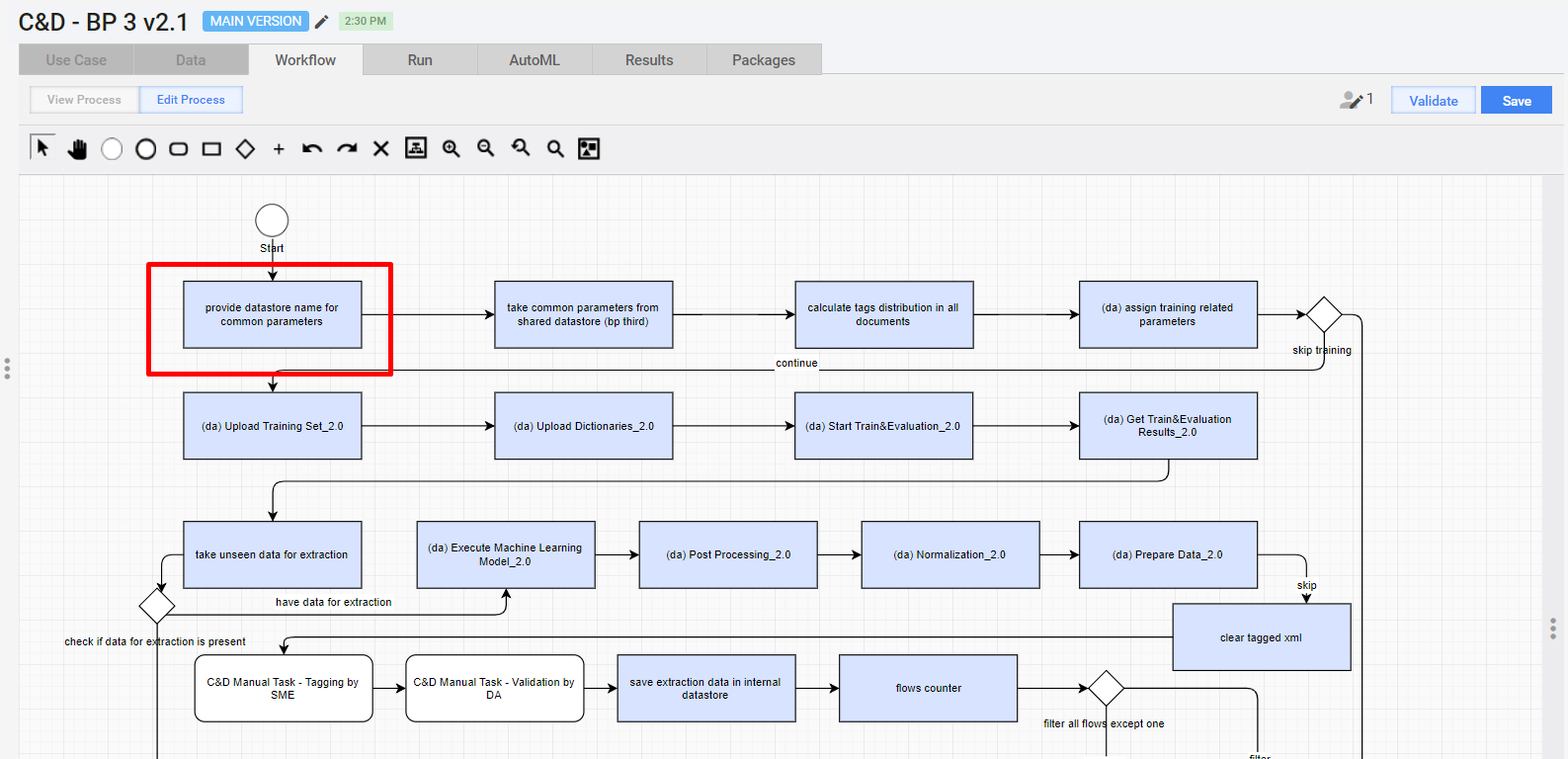
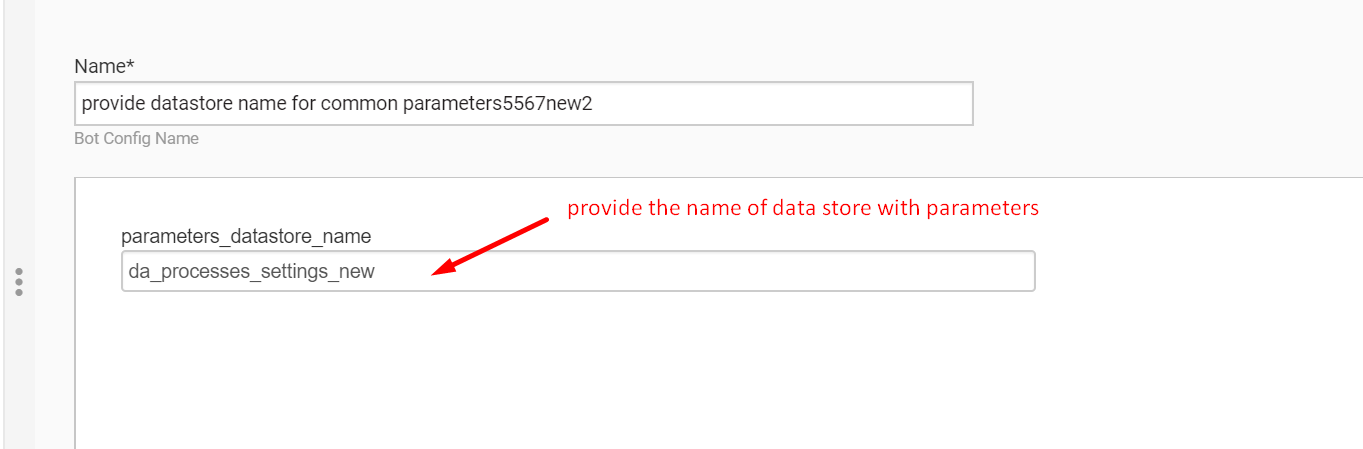
Specify Settings Data Store name
In the first bot step, provide your unique name of the Data Store with settings where all parameters are stored.
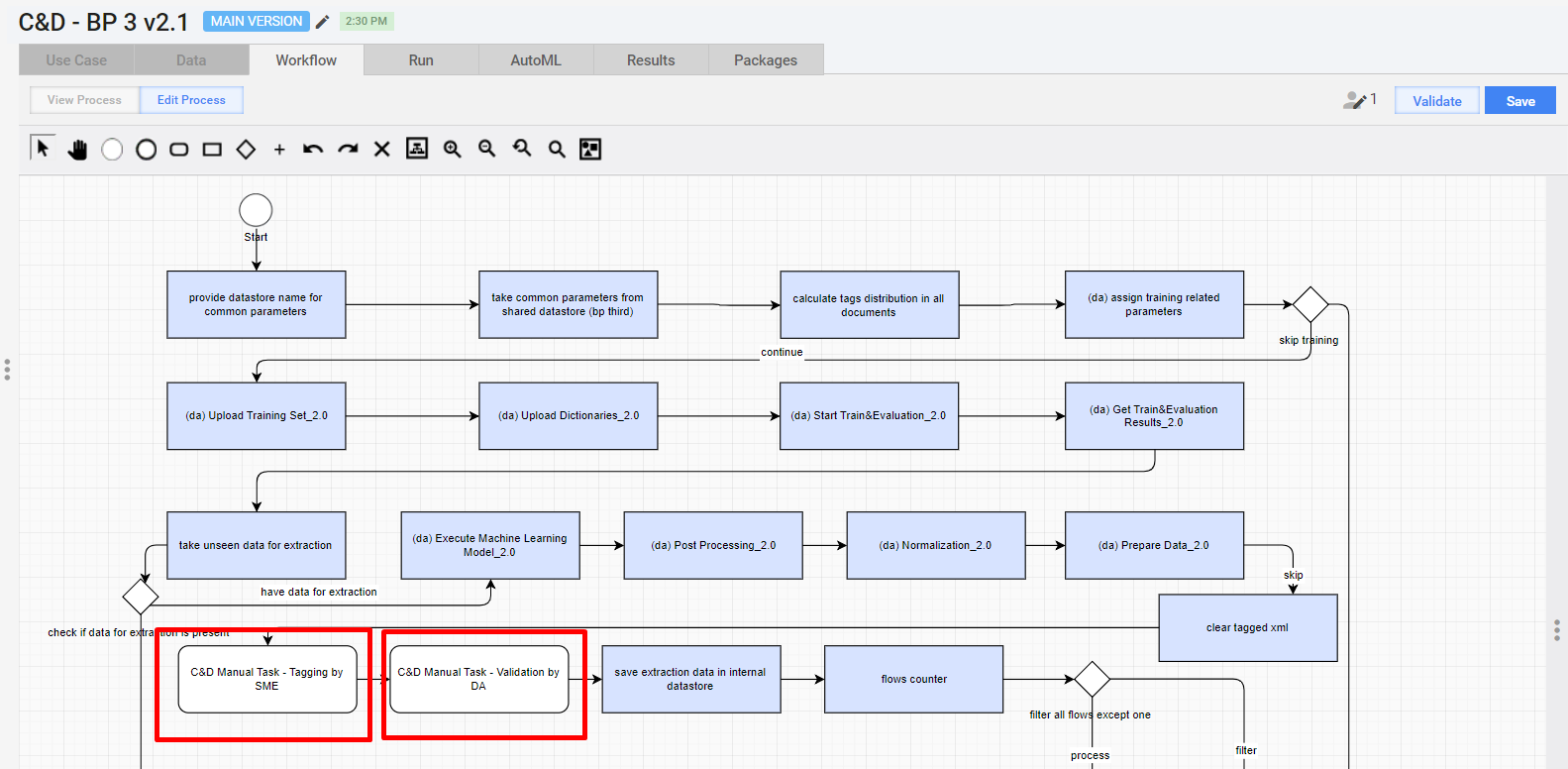
Reconfigure two Manual Tasks (for Tagging by SME and for Validation by DA)
Reconfigure both Manual Tasks to have the fields from your Use Case and save changes.
Make all fields not required
All fields must be not required. This is needed for Plugin (Preparation step 4) that hides the fields which meet success criteria.
Make sure you have corrected both Manual Tasks:
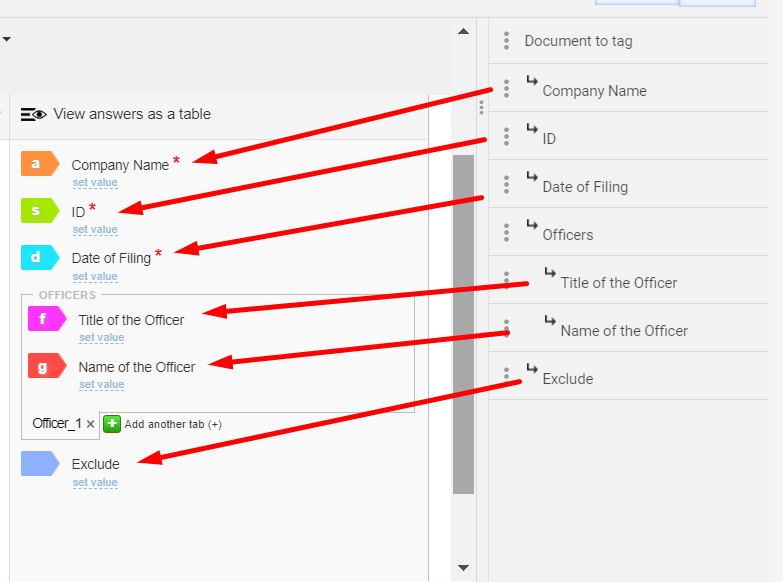
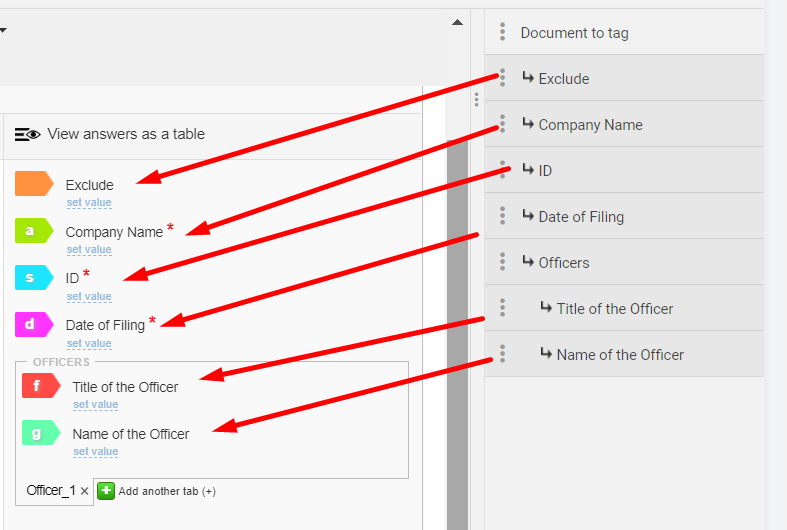
Make sure you have the same order of fields in both tasks to have the same colors and be on the same page with SME.
Each field has their colors that depends on the order of fields in your Manual Task.
Make sure you have the same order in both Manual Tasks. Put the Exclude field to the end in the Validation by DA Manual Task.
Order of fields 1:
Order of fields 2:
Run Business Process
Make sure you mentioned correct name and version of the model in the Settings Data Store. The BP uses this information to launch model training.
Before model training, the Business Process calculates tag distribution. It is available in the DOCS_DISTRIBUTION Data Store.
After the model is trained, the BP takes specified number of unseen documents (N) of each layout to run Model Execution. N can be set up in the Settings Data Store.
note
You can use the documents_info Data Store to check the status of the documents.
- If the document was taken to the training, you see the train status.
- If the document is currently sent to the Manual Task and the Business
Process is running, you see the unseen status for those documents.
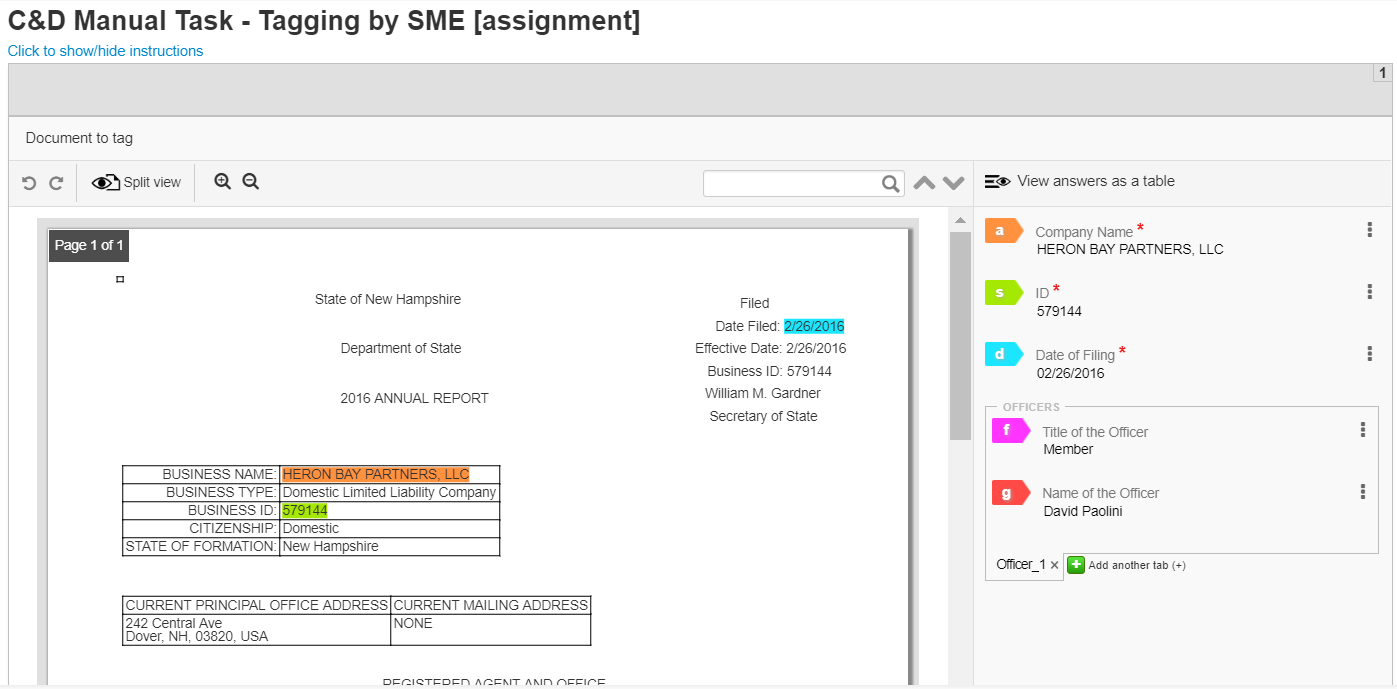
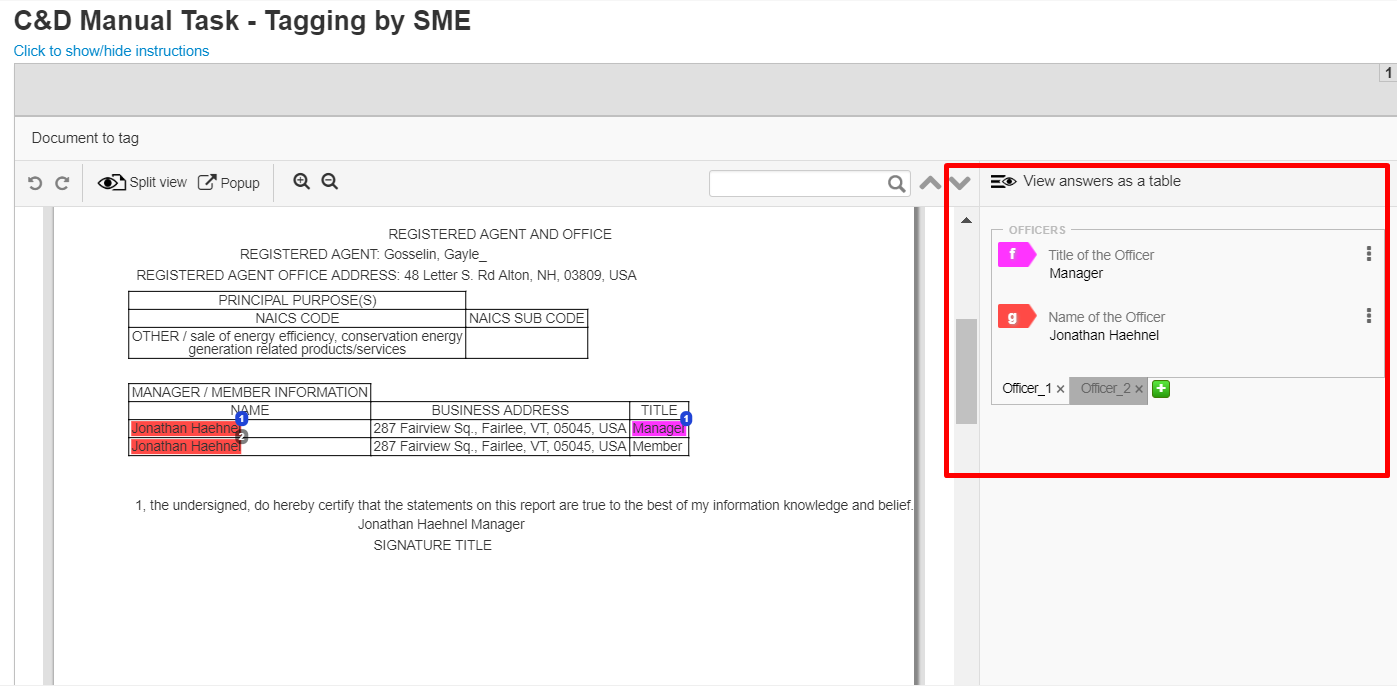
Model Execution results will be displayed on the Tagging by SME Manual Task. All documents must be verified by SMEs. Tags must be corrected or added in case of model errors.
Only the fields that do not meet success criteria will be displayed (except the first iteration, because by this moment there is no any statistics in Data Stores). All the other fields will be hidden. Make sure all your fields are not required. Otherwise, a user won't be able to submit a document.
Iteration 1:
Iteration 2:
After a document is submitted in the Tagging by SME Manual Task, it automatically goes to the Validation by DA Manual Task, where DA sees all the answers of SME. DA makes sure everything is correct and submits all documents.
After submission, the Business Process will save all documents to the automation training set.
After the first iteration of run, you will be able to use the DA_STATISITCS Data Store to check raw data of extracted results generated after DA submits all the tasks.
Also check DA_FIELDS_STATISTICS to check Automation Rate and Automation Accuracy.
View Business Process 3 brief scheme