
Deploy DA virtual machine
tip
For tools included into the virtual machine, see the console tools description.
Credentials
- User: wf_da
- Password: Workfusion1
Prerequisites
- 64-bit Operational System (Windows, Linux, Mac)
- 8+ GB RAM
- 10 GB of free space on HDD
Deployment
Install Oracle VM VirtualBox 5.2.6+.
Download an appliance of DA Virtual Machine.
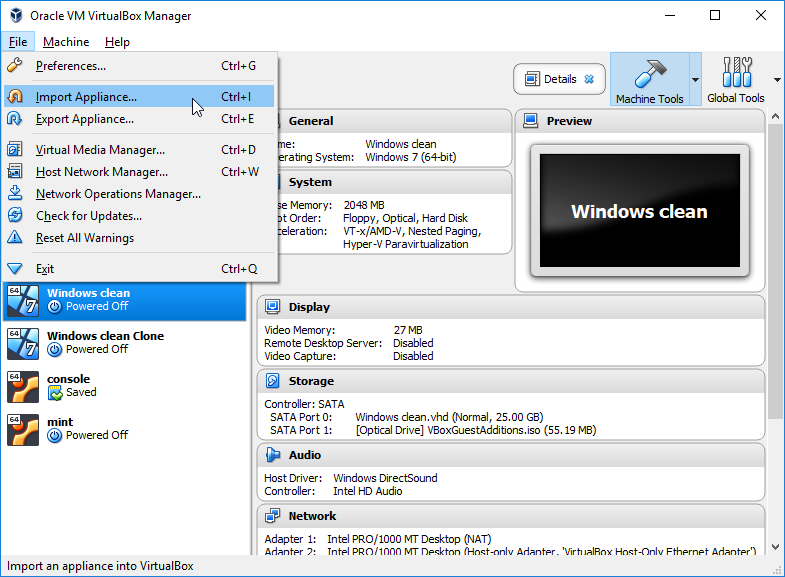
Open VirtualBox and select File > Import Appliance.
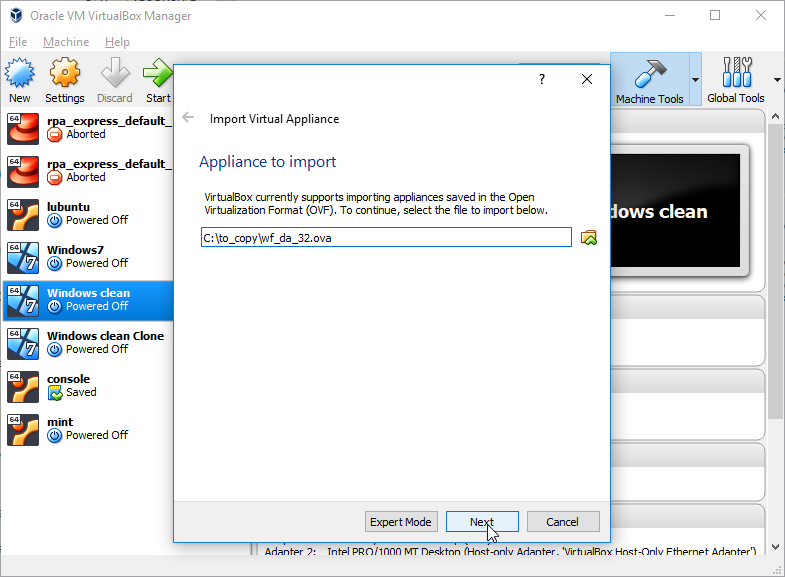
Select the file downloaded on the second step and click Next.
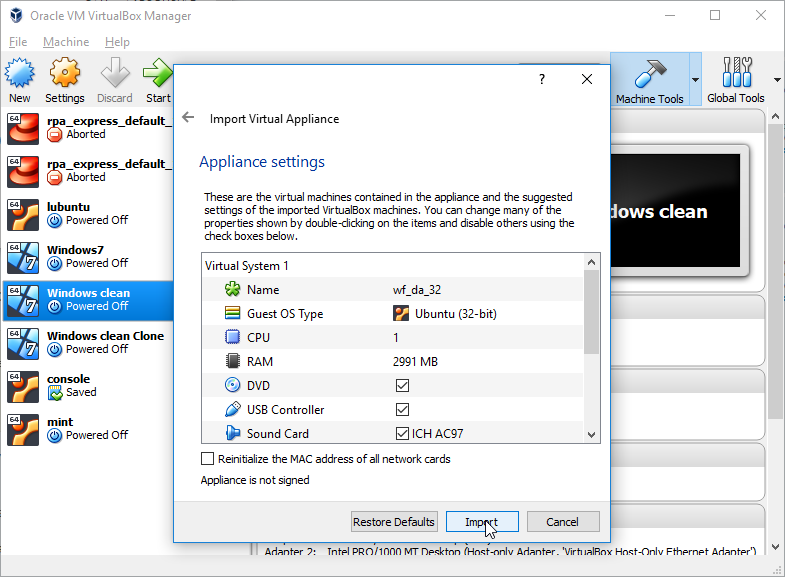
Confirm import by clicking the Import button.
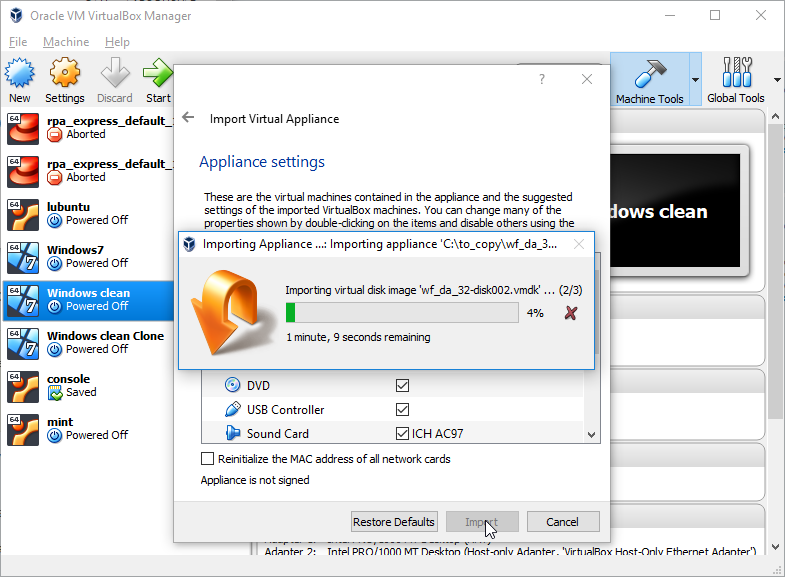
Wait till the import finishes (5-10 mins).
Create shared folders
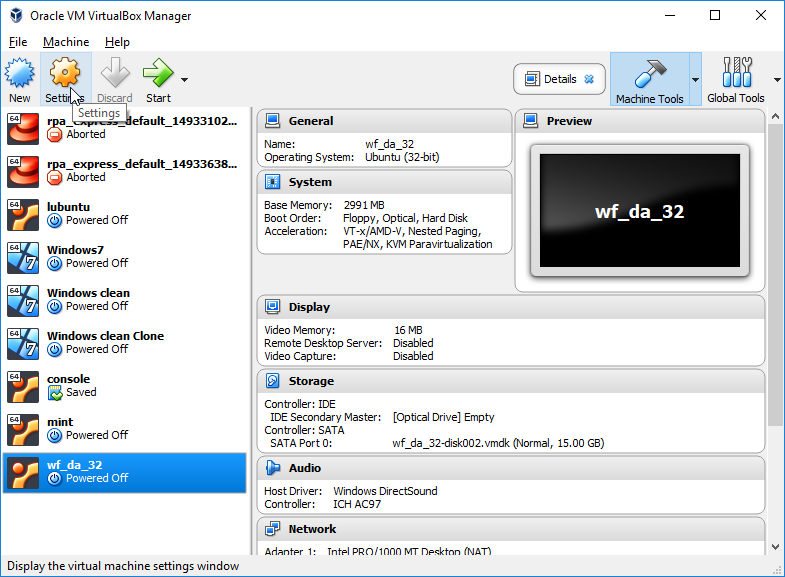
Open VirtualBox, select DA Virtual Machine, and click Settings.
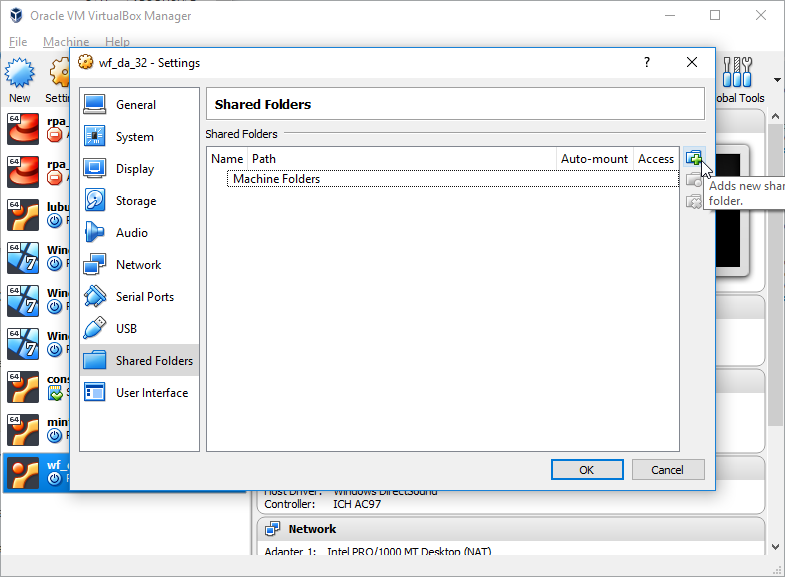
Select the Shared Folders item and click Add new shared folder.
Configure a new shared folder:
- Folder path: Choose a folder on your local machine (host) you want to share.
- Folder name: Specify a name used to get access to the folder in the virtual machine.
- Auto-mount: Check if you want the folder be mounted when the virtual machine starts.
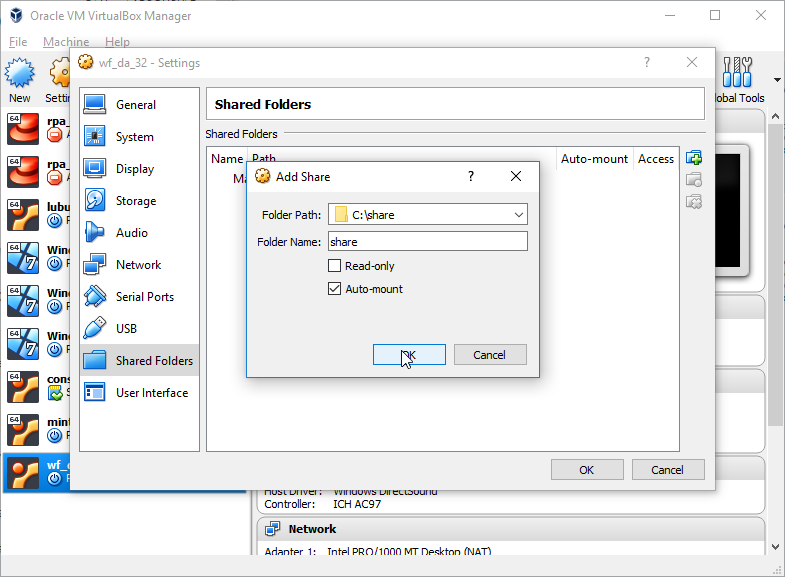
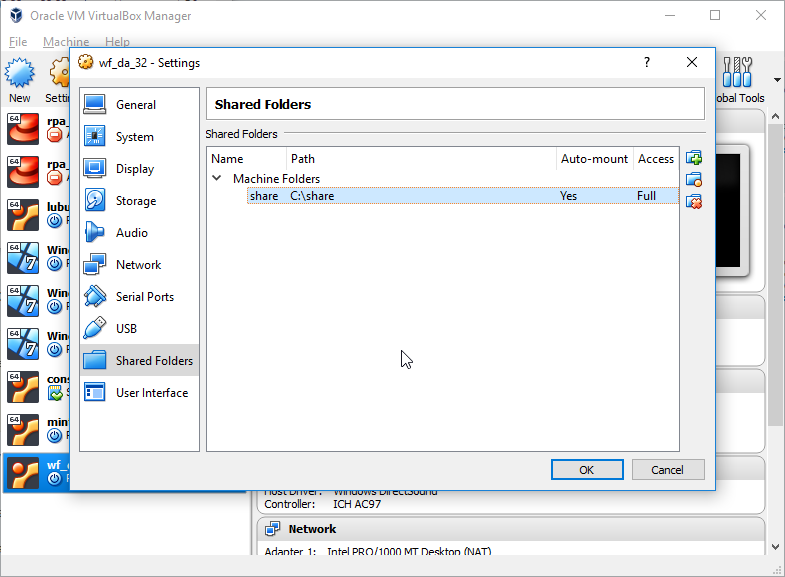
Adding the same folder under the same name as on the screenshot makes the
C:/sharefolder be mounted to the/media/sf_sharefolder in the virtual machine.Review configuration of shared folders and click Ok to close the virtual machine settings.
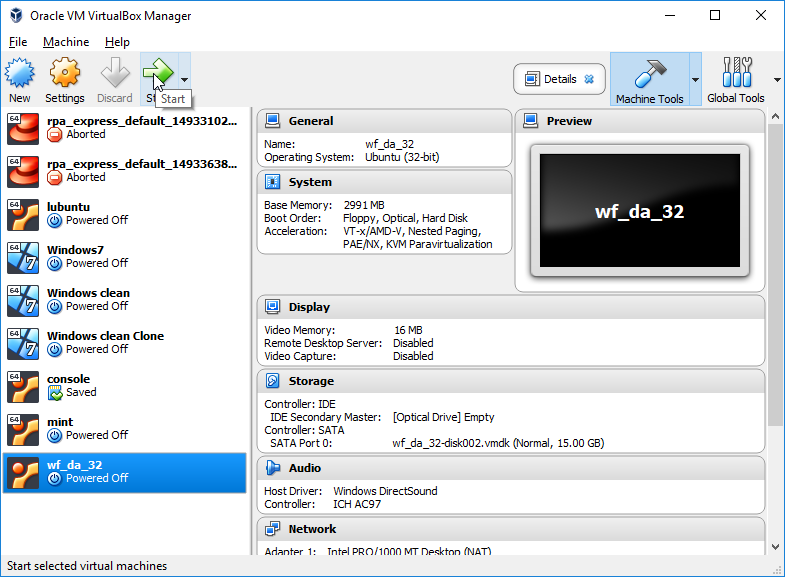
Start the virtual machine.
Troubleshooting
vt-x is disabled in the bios or vt-x is disabled in the bios verr_vmx_msr_vmxon_disabled
You need to enable virtualisation in your machine (host). For more details, refer to the instruction.