
Developing with AutoML SDK
The article features a high-level overview of how a machine learning (ML) model is developed with AutoML SDK and published to Control Tower (CT) for further use in a Business Process (BP).
Build new model
The basic flow to deliver an ML model is as described below:
Create AutoML SDK project
To create an AutoML SDK project, follow the instruction below:
Make sure you have access to an AutoML SDK installation—either from the WorkFusion Maven repository or your local on-premise one.
Configure a local environment. For details, refer to the Environment configuration guide.
Configure a project as described in the Project configuration article.
Implement generic model
Now that you have a ready-to-go AutoML SDK project, implement a generic model as described below:
- To extract required fields, configure
ModelTrainingRunner. For instructions, refer to the Model training article. - Run
ModelTrainingRunner. For instructions, refer to the Model training article. - In the
output/model-results-statsfolder, check the model's statistics. - If you have no improvements to make, proceed to publish and execute the model. Otherwise, read the section below.
Improve model
In some cases, you may need to improve one or more fields in an already existing trained model. Re-training the entire model is a time-consuming operation. To save time, you can improve a field and then replace the artifact folder containing the old field with a new one containing updates.
To improve a model, consider the following steps:
- Make a separate copy of your AutoML SDK project.
- Import one or more fixed serialized configurations to the AutoML SDK configuration file for all fields. In this case, AutoML skips smart selection of components, which significantly reduces the time of further re-training.
- Comment all fields in your
ModelTrainingRunner, uncommenting the ones that need to be improved. - If a model extracts fields, but they are formatted incorrectly, consider adding Post-Processors to your AutoML SDK configuration.
- If a model extracts wrong fields, consider adding Feature Extractors and Annotators to your AutoML SDK configuration.
- Run
ModelTrainingRunnerwith the updated AutoML SDK configuration. For instructions, refer to the Model training article.
If you're satisfied with the result, proceed to publish and execute the model.
Reuse existing model
The development flow reusing an existing model is almost identical to that when a new model is created. The difference is that, instead of configuring a new project, you need to import an existing one.
To start developing based on an existing model, follow the steps below:
- Make sure you have access to an AutoML SDK installation—either from WorkFusion Maven repository or your local on-premise repository.
- Configure the local environment. For details, refer to the Environment configuration guide.
- Import your existing AutoML SDK project to WorkFusion Studio.
Then, either use the model as is or make improvements.
Explore resulting project structure
Below is an example of the resulting structure for a trained model project:
ProjectForTest
├── /data
├── /deploy
|    └── /ProjectForTest
|        └── /1.0
|            ├── /config
|            ├── /lib
|            └── model.description
├── /process
├── /results
|    ├── /extract
|    └── /training
|        ├── /input
|        ├── /output
|        ├── /process
|        └── /work
├── /src
├── /target
└── pom.xml
Publish and execute
After you successfully implemented a new model or reused an existing one, publish it for production purposes. For that, copy the resulting artifacts to a remote file storage and make it available on a remote Control Tower.
There are two options to publish your model:
- Publish only model configuration. In this case, the model is trained in a remote Control Tower from scratch. This takes more time, but once the training is complete, the model is immediately available for execution.
- Publish a trained model with all training artifacts. This allows you to avoid model re-training but requires extra manual S3 bucket manipulations.
Publish model configuration
To publish the model to an S3 or on-premise storage, follow the steps below:
Run
maven installusing thepom.xmlfile in the root of the project to generate the/deployfolder.Copy the
/deploy/ProjectForTestfolder tos3://vds-models/.Add a new record with the
ProjectForTest:1.0value to thes3://vds-models/models./file. This makes the model visible in Control Tower configured to work with the S3 bucket.Check the model availability in Control Tower as described below:
On the Manual Tasks list, select a Manual Task with the draft status or create one.
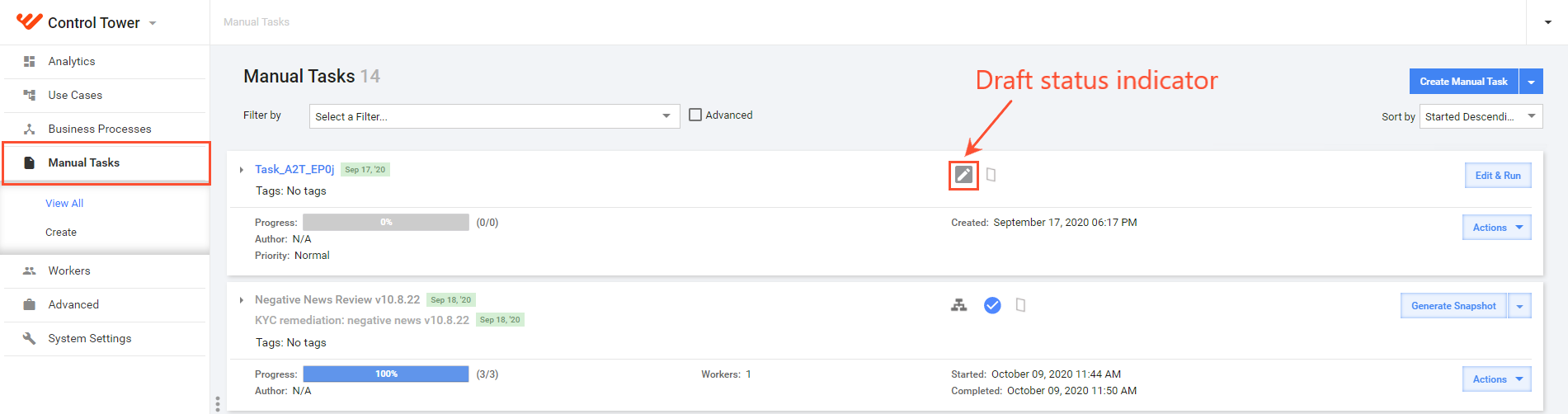
Navigate to the Configure AutoML tab, and select Train new model or Execute new model.
In the Machine learning drop-down list, look for your model, paying attention to its title and version.
Configure model training
After publishing, you can configure a training in Control Tower for the new model:
On the Manual Tasks list, select a Manual Task or create one.
Click the Configure AutoML tab, and select Train new model.
In the Machine learning model drop-down box, select the newly published ML model.
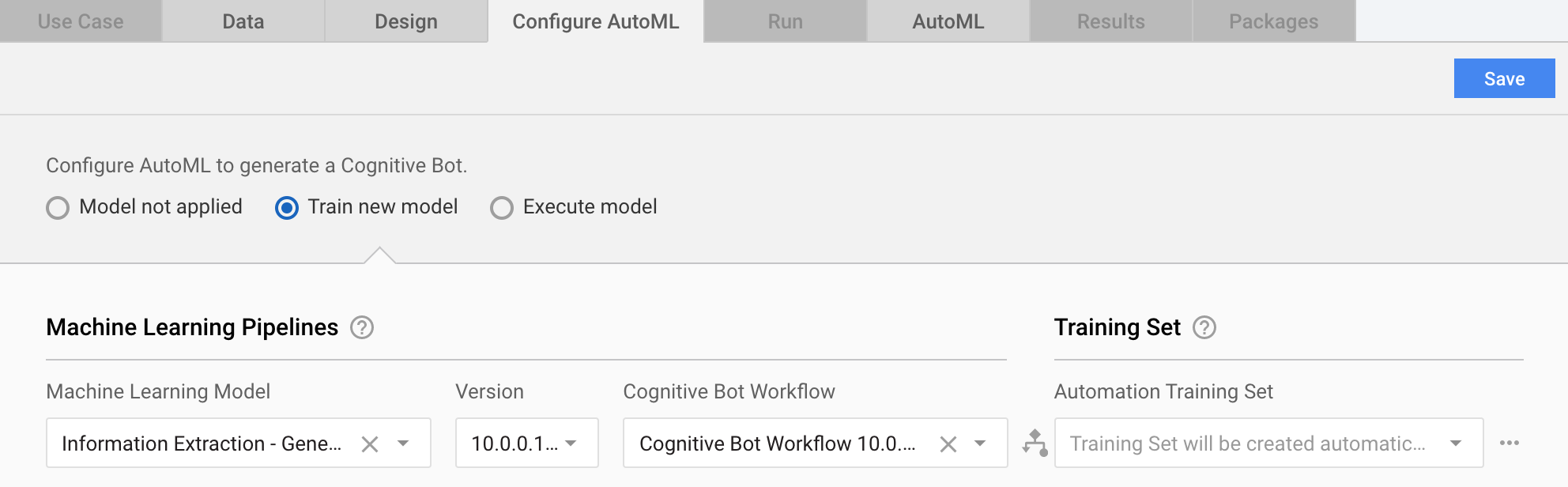
In the publishing case described above, you can use only the model's configuration. Model training is to be run on a remote Control Tower instance from scratch.
Publish trained model
To avoid remote re-training and use the model for extraction or classification immediately, you can publish a trained model directly to S3 as described below:
- Publish the model configuration as described above.
- Copy the
/training/outputfolder tos3://vds-resources/.
note
The name of the S3 folder (in the sample project above, /training) must be exactly the same as in your AutoML SDK project in WorkFusion Studio.
Make sure there are no backslashes (\) in the path to parameters.json. If you find ones, replace them with a regular slash (/).
Execute model
important
Large hyper models and trained models, exceeding 500 MB, can cause high IOPS (high iowait) when Workers are launched.
To use the new model in a Business Process, add it to an AutoML Business Process in Control Tower. For the purpose, you can create a new Manual Task or reuse an existing one.
On the Manual Tasks list, select a newly created or an existing Manual Task.
Click the Manual Task name to navigate to the Configure AutoML tab and fill in all fields, paying attention to the rules below:
The Machine Learning Model drop-down menu fetches a title from the
model.descriptionfile of your AutoML SDK project. Make sure to give the model a meaningful name before you deploy it.Training Model ID is the name of the folder from your project in WorkFusion Studio. In the sample project above, it is the
/trainingfolder copied tos3://vds-resources/.Group ID is combined-results for Information Extraction.
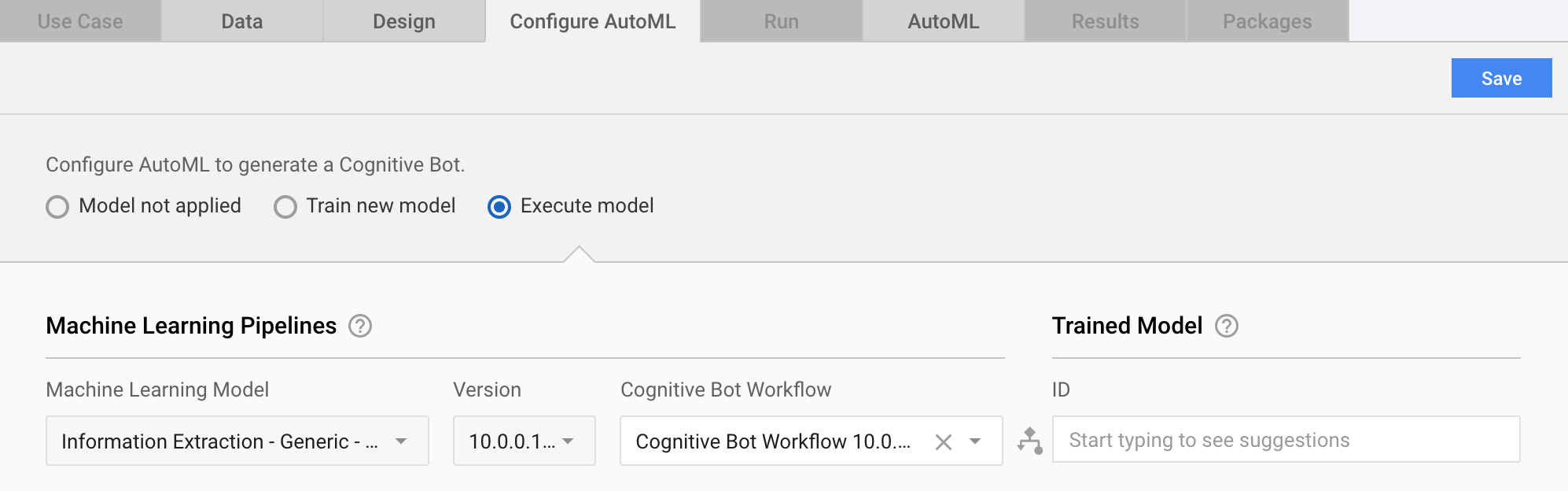
Click Save.
Go to the AutoML tab and click Activate Cognitive Bot. This opens the Automation BP wizard.