
Classification Model training
Create Manual Task
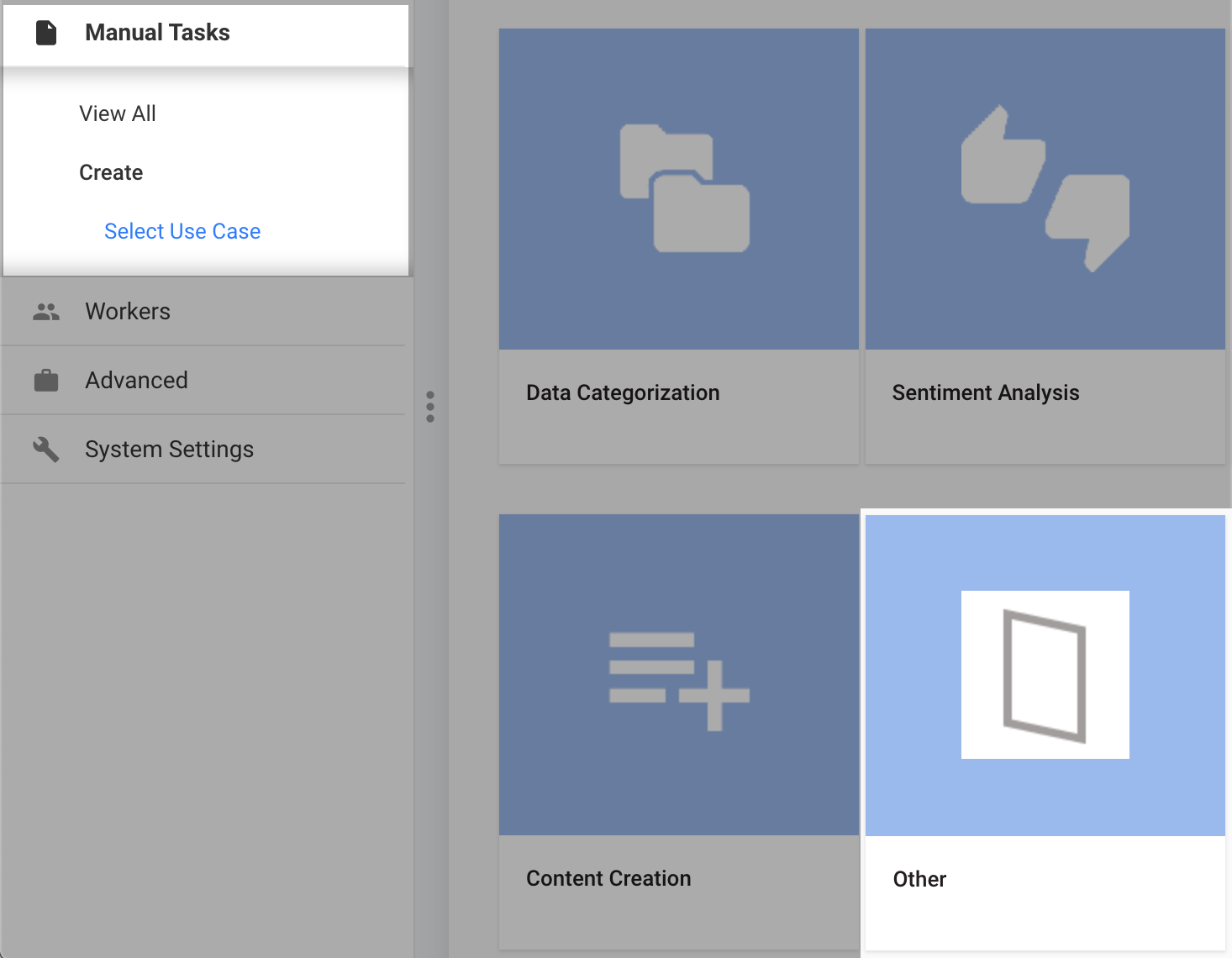
To create a Manual Task, click Manual Task > Create > Other > Miscellaneous Tasks > Select This Use Case.
This opens a new Manual Task window:
Upload input data
- On the Data tab, click Upload Data and then Add to select your input classification CSV file containing a column either with links to an XML file or with XML content itself.
- For demo purposes, name this column document. This column will be used for further steps.
You will see the following warning message, ignore it for now.

Add Answer Type
Now let's add an answer to be displayed to a user when performing an assignment. To add an answer type, proceed with the following steps:
On the Design tab, click Add Answer.
In the Unique Code field, type
documentor the name you gave to this column when uploading your CSV file.- If the Unique Code and input data column names are different, save you Manual Task, and then map the column in the Data tab.
note
This Unique Code will be used as part of the identifier for your future model.
In the Answer field, type
document. This will be displayed to a user when performing the assignment.In the Answer Type drop-down menu, select Information Extraction.
Click Save.
On the New Manual Task page, the ${question.data.blank} field allows to display information from the input file. You can do either of the
following:
Substitute
blankwith the name of the column containing the necessary information.Delete it if you don't need it.
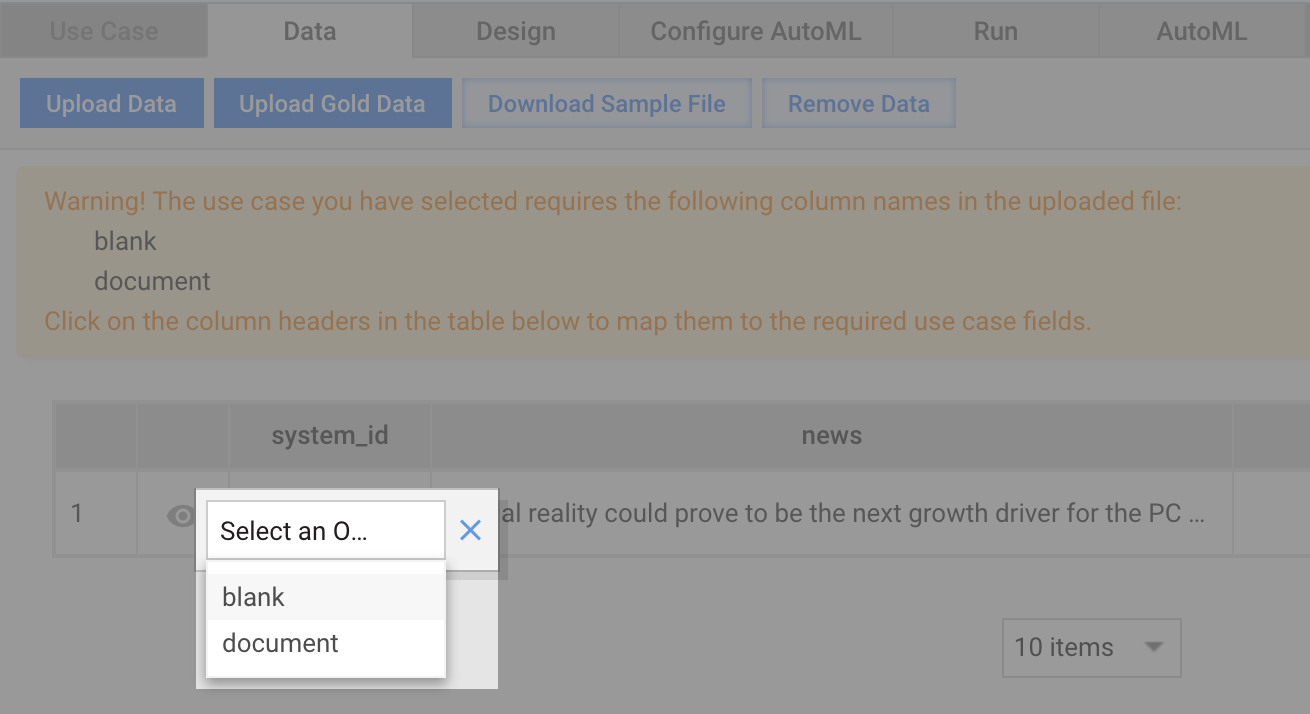
Map some column from the input file to
blank:- Change the name of you Manual Task and click Save.
- On the Data tab, click the system_id header and select the column to map (in this case, document):
Add Answer with classes
Next, let's add an answer to define classes and how they will be displayed to user. As a result you will get something like this:
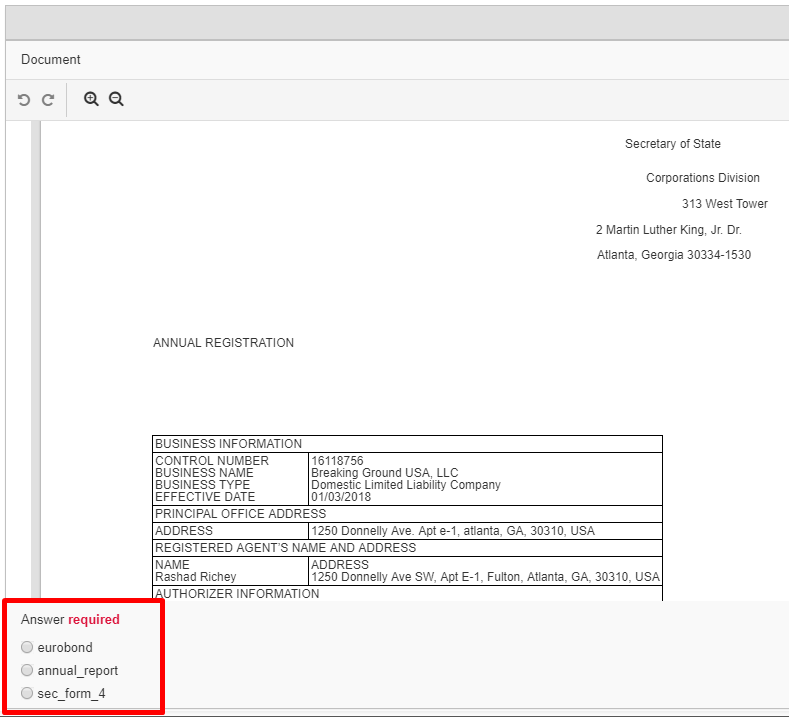
To create an answer with classes, proceed with the following steps:
On the Design tab, click Add Answer.
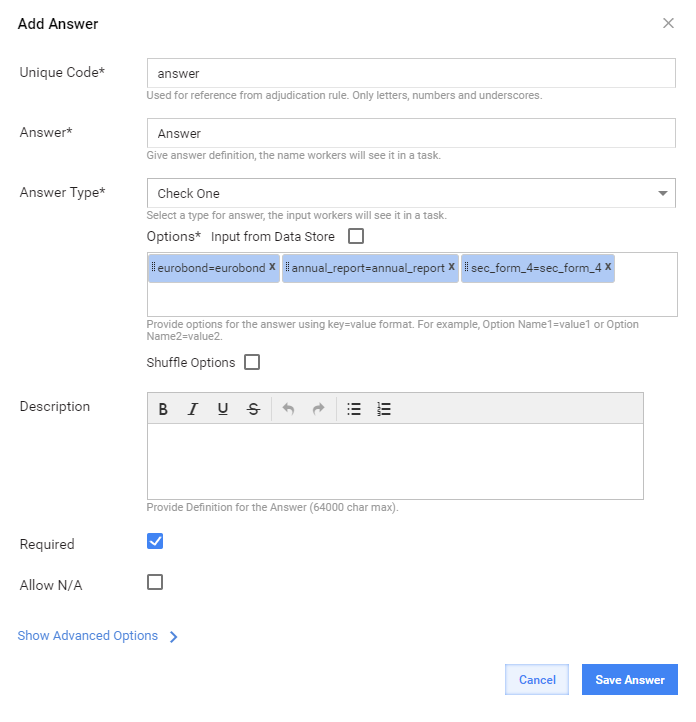
In the Add Answer window, type
answerin the Unique Code field andAnswerin the Answer field.In the Answer Type drop-down menu, select Check One or Select One.
Define the classes. Either list classes one by one in the Options field or select Input from Data Store.
- To list classes manually, provide options for the answer using the
key=valueformat, for example,Eurobond=eurobond. - To input classes from a Data Store, create one. Mind that the Data Store should contain the id and name columns.
- To list classes manually, provide options for the answer using the
Mark this answer as Required.
Configure AutoML
Next, let's link our Manual Task with AutoML to train a classification model and generate a Cognitive Bot.
Machine Learning Pipelines
First, configure the ML Pipeline by following these steps:
- On the Configure AutoML tab, select Train New Model.
- In the Machine Learning Pipelines section, select training parameters:
- Machine Learning Model: Multi Class Classification—Generic Search Engine 2.0
- Version: 9.2.0.11
- Cognitive Bot Workflow: Cognitive Bot Workflow 9.1.0.9
Training set
To train a model, we need some training data—a Training Set.
If you don't have any training data, use the default option Training Set will be created automatically. This means users will need to complete this Manual Task before training a model so that there's enough human answers to train a model with.
If you already have some data, create a Training Set and select it from list. Follow these instructions:
- In the left sidebar menu, click Advanced > Automation Training Sets.
- Click Create Training Set.
- Enter your Training Set name. Add description, if needed.
- Select Upload File and click Upload Data.
- Click Add and navigate to the CSV file that contains:
- tagged_text column (plain text or HTML/XML code, for example after OCR).
- Сolumn name provided as the Unique Code of your answer with classes. It should contain corresponding classes:
valuefrom the Options* field oridfrom the Input from Data Store field.
- Refresh the page with your Manual Task when you finish creating the Training Set to see it in the list, and then select it from the drop-down menu.
- Click Save.
Run training
Now, that you have AutoML configured, let's run the training.
Go to the Run tab and click Actions.
Click Evaluate Cognitive Bot from the actions list.
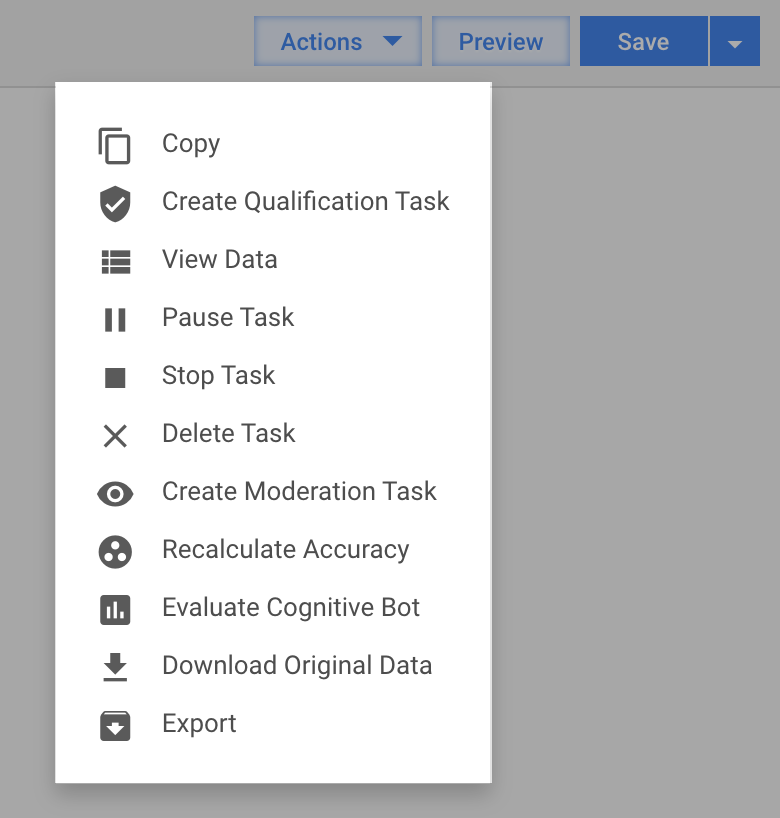
(Optional) If you want to add completed records from this Manual Task to your Training Set, select Append data records from this task to the Training Set.
Click Continue.
note
The evaluation process may take up to few hours.
Track progress
If the previous steps are correct, you will see a blue icon Cognitive Bot Evaluation next to the Manual Task name.

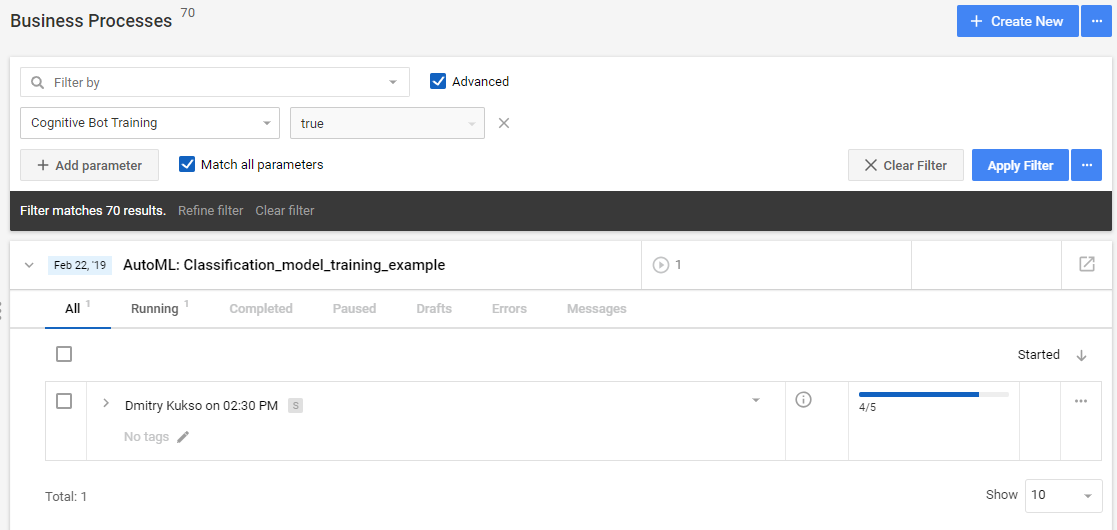
You can also check how the training goes in the Business Processes section.
- In the left sidebar menu, click Business Processes > View All.
- Select Advanced and then Cognitive Bot Training from the Filter dropdown menu.
You will see your training in the list:
tip
You can also use Marathon and Mesos to track the progress. Ask your OPS Team to provide access to these applications, if needed.
As soon as your training is finished, you will see the Cognitive Bot Ready green icon.