
Start Task, BP from Data Source
Data Source is a mechanism providing input data and configuration for your BPs and Tasks. This input format is best suited for those Use Cases where the data resides on an external source such as SFTP Server or Amazon S3 Cloud.
To start a Task/BP from a Data Source you need to have:
- UUID of existing Task/BP (Definition UUID): Business Processes List > Open definition in a new tab, switch to the opened tab, and click Definition UUID to copy UUID to the clipboard.
- Input Data file (CSV): uploaded to an external server.
- Configuration file (CCF): uploaded to an external server.
- Data Source: WorkFusion object containing an external server credentials and path to the configuration file.
- Schedule: number of occurrences per each Data Source update.
Create configuration file
The campaign configuration file (CCF) contains all task and BP parameters needed to start a new run.
The file contains parameter = value pairs on each new line.
| Parameter | Value | Description |
|---|---|---|
| ACTIVE | TRUE | Default parameter |
| DATAFILE | input_file.csv |
Relative path to the input data CSV file (server folder with CCF file is a root) For S3: full path inside your bucket |
| DATAFILE_SIZE | -1 | Default parameter |
| FILE_SEPARATOR | COMMA; PIPE; SEMICOLON; TAB | Separator used in the input file |
| ENV | SANDBOX; PRODUCTION | Environment |
| BLOCK_SIZE | 1 | Block size |
| TASK_DISPLAY_PRIORITY | MAX; NORMAL; MIN | Task priority (tasks with the max priority are displayed first if the task type is the same) |
| CAMPAIGN_UUID | 79eea42a-127e-4613-83a2-7fbe80ba0a38 | Create a Task or BP (Campaign) and copy the campaign UUID (or copy UUID of the existing Campaign) |
| GOLD_RUN | false; true | Indicates if the run is gold |
| USE_GOLD_BUCKET | false; true | Indicates if gold bucket should be used |
| tags | datasource, test, | List of tags |
| SNAPSHOT_TYPE | XLSX; CSV | Format for the snapshot |
| OUTPUT_DIR | results/ | Relative path for storing the Task or BP snapshot (server folder with CCF file is a root) |
| STREAM_TYPE | Immediately; PermanentOpenTask |
|
| STREAM_VALUE | 10 | Works if STREAM_TYPE=PermanentOpenTask; default value: 10 |
| STREAM_THRESHOLD | 1 (if absolute value); 25% (if percentage) | 100% by default if value not specified |
Upload files to server
Upload input file (CSV) and configuration file (CCF) to an external server (FTPS, S3, SFTP).
Remember to check the file and folder READ and WRITE permissions on the external server.
Create Data Source
To start managing Data Sources, go to Configuration > Campaign Data Sources in the main menu.
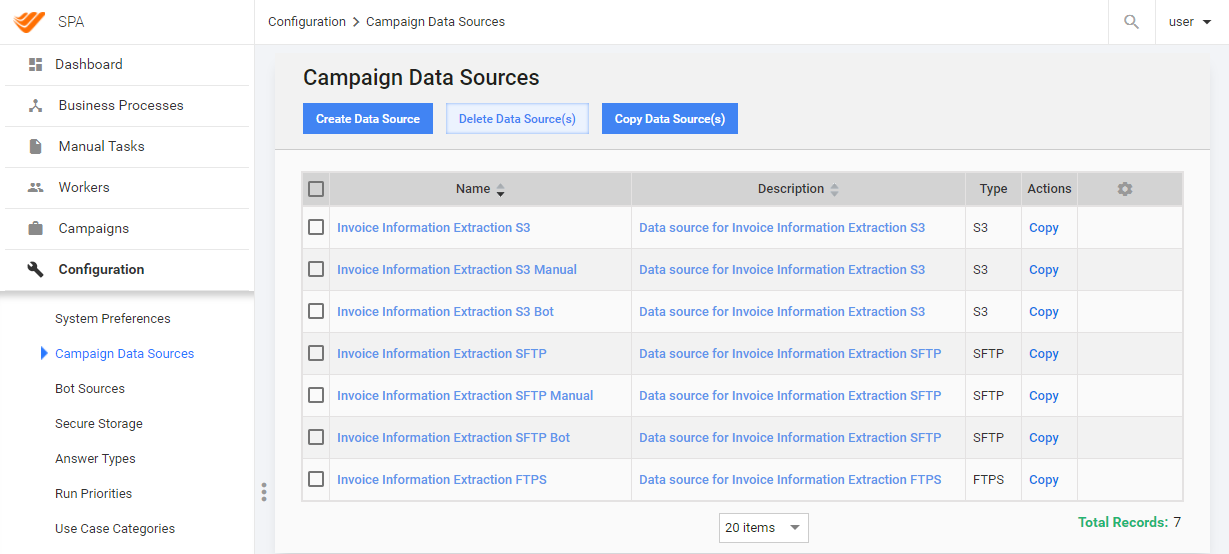
Here, you can create, copy, edit, and delete Data Sources. To create a new Data Source:
Click the Create Data Source button.
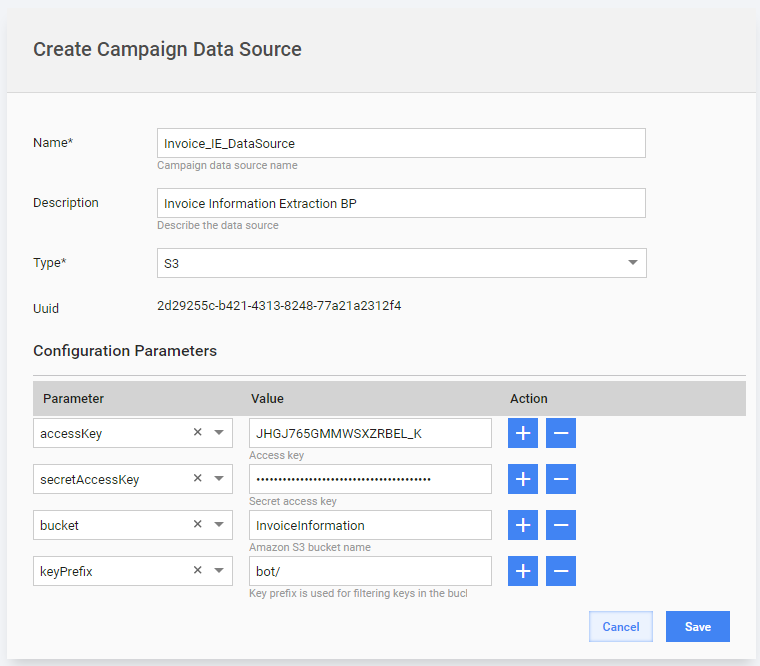
Enter the appropriate Name and Description for your Data Source.
WorkFusion automatically generates a UUID for the new Data Source. You can use this UUID in API calls or Schedules.
Select a Type from the dropdown:
- S3 (Amazon's Cloud Server)
- FTPS (File Transfer Protocol + SSL encryption)
- SFTP (Secure File Transfer Protocol based on SSH)
Enter the Configuration Parameters that depend on the connection type:
S3:
accessKey: Access Key IDsecretKey: Secret Access Keybucket: Destination bucket in S3keyPrefix: Remote folder (keyPrefix should have the slash symbol "/" at the end)
SFTP:
host: hostname to establish connection over SFTP protocol
port: port number to connect to on the SFTP serverlogin: SFTP Server account user namepassword: SFTP Server account passwordremote_folder: a directory on the SFTP server to start the sessionprivate_key: key stored on your local machine to enable authentication without a passwordpublic_key: a key stored on the SFTP server to enable authentication without password
FTPS:
host: hostname to establish connection over FTPS protocolport: port number to connect to on the FTPS serverlogin: FTPS Server account user namepassword: FTPS Server account passwordremote_folder: a directory on the FTPS server to start the session
Click the Save button.
Create Schedule
- Go to Campaigns > Schedules.
- Select your Campaign.
- Select the Data Source you've created.
After the Schedule has been created, the specified Task or BP will start automatically. WorkFusion will poll this Data Source for any input files at a specified interval (every 10 minutes) and if a file is present it will be run.
Check result
To verify that your Task or BP has started, log in to the external server and open the folder with the CCF file.
Verify that the {name}.ccf.uploaded file has been created.
When a Task or BP is completed:
- A
{name}.ccf.donefile appears. - A result file is created in the appropriate folder (the
OUTPUT_DIRparameter of the CCF file). - If a Bot Task hasn't started, check that a Bot config for this step doesn't contain the Source value with Availability options.
- To reuse an existing Data Source:
- Delete the
.ccf.uploadedand.ccf.donefiles from the external server folder. - Update the input CSV and CCF files if needed.
- Delete the