
Answer types
When adding/editing an Answer, you need to set an Answer Type. This parameter defines an input field type and format. Depending on the Answer Type selected, you need to set different options, shuffle options, or Data Store input.
Properties
Each Answer Type can be of three different types. These are as follows:
SINGLEVALUE means that the result value is represented by a single string (of different types, e.g., string, number, date, etc.)
MULTIVALUE means the result value is represented by a single string containing unique value. Mind that the multi-value input fields do not record duplicated value
tip
Currently, there are two possible types of standard delimiters (separators): COMMA(",") and PIPE("|").
For Multivalue Answers, you can enable/disable the Calculate majority for all atomic values option in Answer Advanced Options.
Option enabled
If this option isn't selected, the majority calculation will work the following way for a 2+1 rule:
Worker1 answer: 1, 2
Worker2 answer: 2, 3
Result: Majority = 2; New assignment not created
Option disabled
Worker1 answer: 1, 2
Worker2 answer: 2, 3
Worker3 answer: 1, 3
Result: Majority = 1, 2, 3 (2 out of 3); New assignment created
- COMBINED means that the answer is represented by a set of values with different answer codes
Most common Answer Types
| Answer Type | Description | Field example |
|---|---|---|
| Select one | A drop-down list that allows selection of a single option | Classification use case |
| Price | A combined input field used to enter monetary value | total, price |
| Number | Allows entering integers only | quantity, bank account number |
| Group of Answers | Allows tagging multiple similar combinations of values that are supposed to be grouped together | product name, price |
| Free Text | Allows entering a single-line text string | entity type, company name |
| Date | Allows entering a date in mm/dd/yyyy format | date |
| Country | A drop-down list of countries to select (To speed up the selection, you can start typing the country name.) | country |
| Check one | A radio button group that allows selection of a single option | Classification use case |
All Answer Types
| Field Type | Value Type/ Separator | Can be N/A |
|---|---|---|
| Free text | Single | Yes |
| Long text | Single | Yes |
| Rich text | Single | Yes |
| Check One | Single | No |
| Check Multi | Multi/Pipe | No |
| Select One | Single | No |
| Select Multi | Multi/Pipe | No |
| Number | Single | Yes |
| Price | Combined | Yes |
| Date | Single | Yes |
| Time | Single | Yes |
| Phone | Single | Yes |
| Single | Yes | |
| URL | Single | Yes |
| Address | Combined | Yes |
| Country | Single | Yes |
| Map | Single | No |
| Calendar | Combined/Pipe | No |
| Masked Text | Single | Yes |
| Tags | Multi/Comma | Yes |
| Limitation text | Single | Yes |
| Select Date | Single | Yes |
| Correlated Fields | Multi/Pipe | No |
| Information Extraction | ||
| Group | Multi/Pipe | No |
| Taxonomy | Multi | Yes |
| Grid | Single (JSON) | Yes |
| Invoice Answer Types | Yes |
Answer Types Description
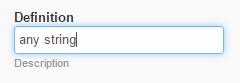
Free text
Allows entering of single-line text strings.
Options:
- Autocomplete Source. Select an autocomplete source from Data Stores.
To use a predefined list in Answers, you need to create a Data Store with two columns:
- id – unique identifier
- name – label to show in the dropdown
Long text
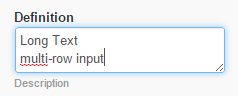
Allows entering of multi-line text strings. You can resize the text box width by dragging the bottom right corner.
Options:
- number of rows to display by default
Rich text
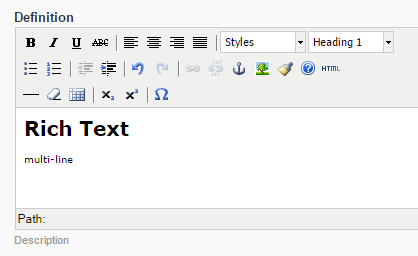
Allows entering of multi-line text strings with Rich Text formatting and HTML source code.
Rules for text formatting:
- For character formatting such as Bold, Italic or Underline, select the text to be formatted, then apply the corresponding function.
- To apply styles, place the cursor anywhere along the target line and select a style from dropdown.
- To delete text, highlight text and press the backspace or delete key on your keyboard.
You can also switch to writing HTML source code.
Check One
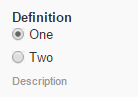
A radio button group that allows to select one option.
Options:
- name=value list or Input from Data Store
- Shuffle Options
Options for multi-variant answers in name=value format. (Option_Name1=Value1). You can use dynamic expressions in options.
To enter a new option, click Enter or TAB. You can also reorder the option items by dragging or deleting.
Check Multi
A checkbox group control that allows multiple selections.
Options: the same as Check One.
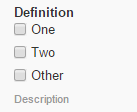
Select One
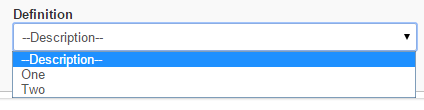
A dropdown list that allows selection of a single option.
If the Answer has no default value, the Description field is displayed above the available options.
Options: the same as Check One.
If you have checked the Input from Data Store option, you can display "id" and "name" column values in the dropdown by ticking the Append Datastore options checkbox.
If the SELECT_ONE answer is a sub-answer (tag) in Information Extraction and its options are loaded from a Data Store, you can enable the "Let workers select custom values" option. In this case, users can tag a text chunk and if it is not in the list, it can be added by clicking the Add to list button:
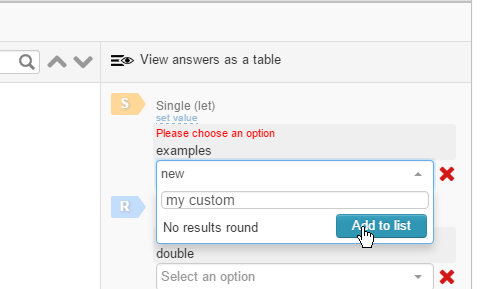
After a task with this custom value is submitted, this answer is written to the Results > Data to a respective "<answer_code>" column together with a special "true" attribute in a new "<answer_code>_custom_value" column.
Select Multi
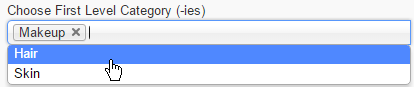
An expanded List Box that allows selection of multiple options.
Selected options are displayed as tags and are removed from the dropdown. See the Tags answer type.
Options: the same as Check One.
Number
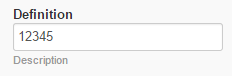
An input field used to enter integers only.
Price
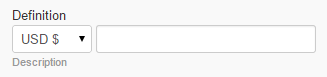
A combined input field used to enter monetary value.
- Select a currency in the dropdown
- Enter a number (real or integer, negative numbers supported).
Date
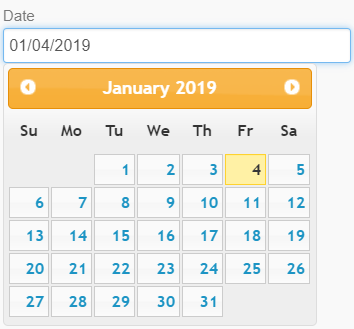
An input field for entering a date in mm/dd/yyyy format.
Time
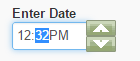
An input field for entering time in the following format: hh:mm (AM/PM)
To enter a time value, you can type it directly into the field or use the up and down arrow buttons. Keyboard up and down arrow keys are also supported.
Phone
An input field for entering a phone number in the following format: (3 digit Area Code) 3 digit Prefix - 4 digit Line number
By default this field is configured to accept U.S. phone numbers. To enter non-U.S. numbers, click the link below the field.
An input field for entering an email address in the following format: username@host_or_domain
URL
An input text field for entering a URL address in the standard URI scheme (http:// or https://).
You can enter a URL without http:// or https:// – in that case an http:// prefix will be added at the beginning of the string automatically.
Answer Comparator:
- Domain only. Answers will be compared by domain only (path and port will be skipped).
- Domain and path. Path also will be included in Answers comparison (but all text that comes after '?' and '#' will be skipped). Port will be skipped.
Address
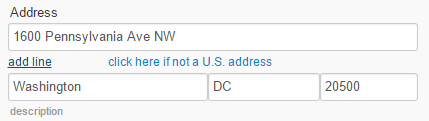
A group of address text input fields (Address Line, City, State, ZIP). You can add an extra Address Line or remove it by clicking the appropriate link.
By default, the address has US format. To change the country, click the appropriate link and select a country from the dropdown. To speed up the selection, you can start typing the country name.
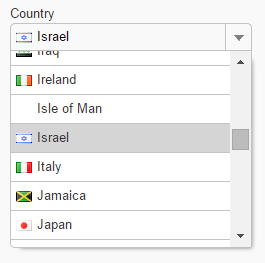
Country
A dropdown list of countries to select.
To speed up the selection, you can start typing the country name.
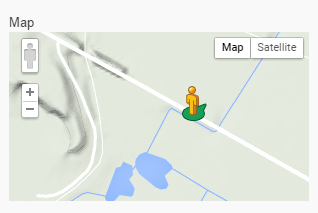
Map
An interactive control for selecting address by dragging the man figure from the top left corner to a place in the map.
tip
You can drag and drop the man icon only on the streets highlighted with blue color.
Options:
- with Streetview
- without Streetview
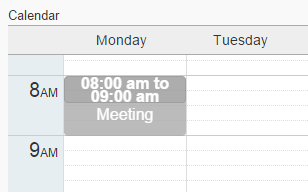
Calendar
A calendar field with graphic interface that allows to set events within a certain time-span.
Functions:
- create an event by clicking on the appropriate time and day.
- edit or delete an event by clicking on it.
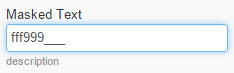
Masked Text
An input field that allows you to restrict input with combinations of numbers and letters.
Options:
- provide mask for text (9 - any digit; a - any letter; * - any letter or digit)
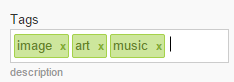
Tags
A text input field for entering tags. To create a new tag:
- Start typing it.
- When finished, click Enter or TAB.
- Repeat steps 1-2 if needed.
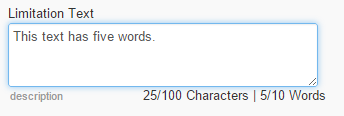
Limitation text
A text input control that allows a limited number of input characters or words. The counter in the bottom right corner shows the number of entered/allowed words and characters.
Options:
- characters=n|words=n\ You can limit only characters or only words number.
Select Date
A combined control for selecting a date in mm/dd/yyyy format using three dropdowns.

Correlated Fields
A dynamic answer block. See the Correlated Fields topic for additional information.
Information Extraction
An answer used for extracting structured content from raw unstructured text. See the the following topicfor additional information.
Group
This answer type is used to create Tag Groups and is created only as a sub-Answer for Information Extraction Answer. See the the following topic for additional information.
Taxonomy
This answer type is used for classification of things such as products, businesses, and articles. See the Taxonomy topic for additional information.
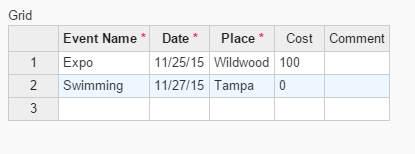
Grid
This answer Type allows Workers to enter answers in the grid with a defined column structure and a dynamic number of rows. See the Grid Answer Type topic for additional information.
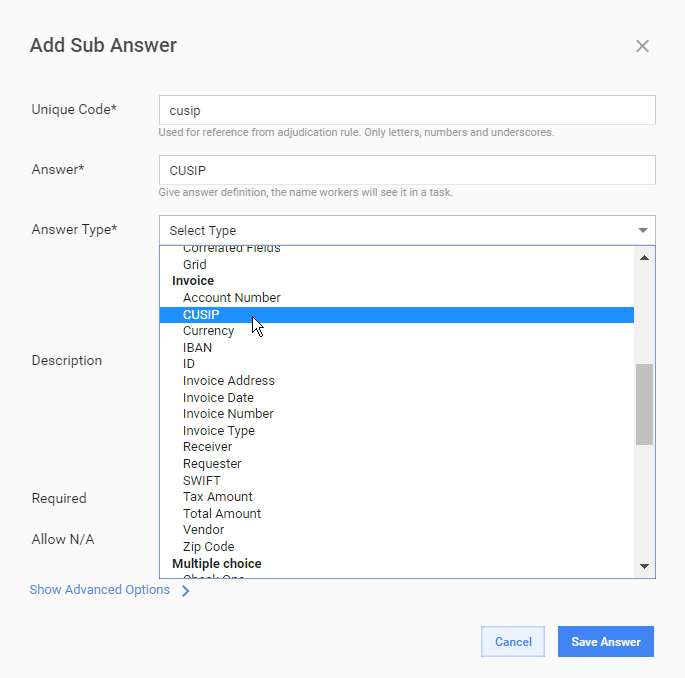
Invoice Answer Types
Invoice-specific answer types can only be sub-answers of the Information Extraction answer and are intended for better tagging of invoices used for Cognitive Automation.
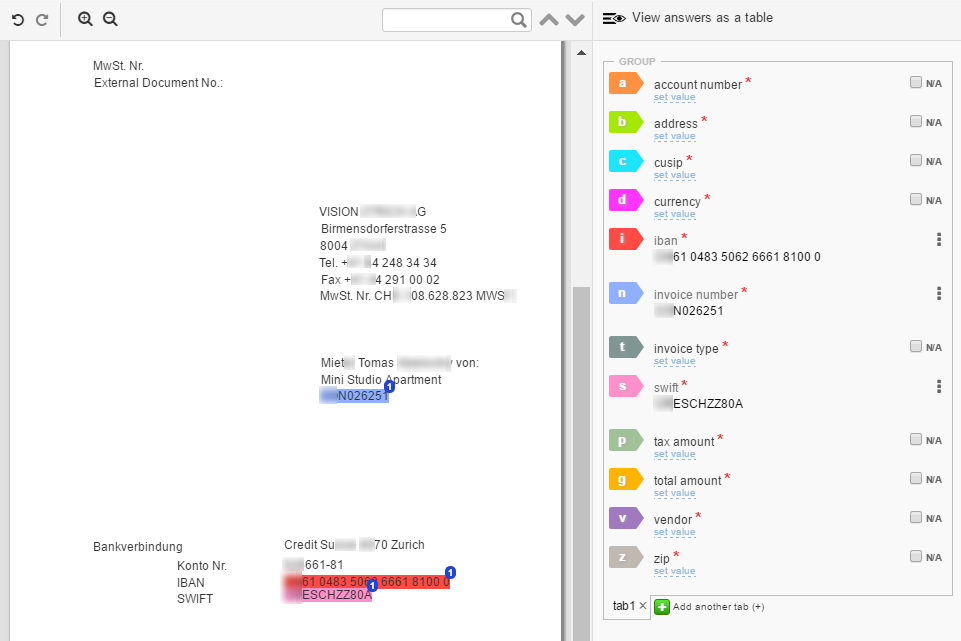
Invoice answer types include the following categories:
- special formatted codes: IBAN, CUSIP, SWIFT, ZIP Code
- Currency answer type, which takes its values from a system Data store
- Tax Amount, Total Amount -- numbers with US and EU formats support
- Receiver, Requester, Vendor - selections from Data Store dictionaries (including the ability to add new values which are not in Data Store yet)
- Invoice Address, Invoice Date, Invoice Number, Invoice Type
- ID, Account Number
| Answer type | Description | Validation |
|---|---|---|
| Account number | free form text with automatic deletion of spaces | |
| CUSIP | built in validation for correct CUSIPs | see Wikipedia for details |
| Currency | dropdown with ability to override the values from a data store | |
| IBAN | built in validation for correct IBANs | 34 alphanumerical character, validation by 2 control digits, read more in Wikipedia |
| ID | client ID, requester ID; free form text | |
| Invoice Address | address | |
| Invoice Date | date | |
| Invoice Number | free form text with automatic deletion of spaces | |
| Invoice Type | free form text with automatic deletion of spaces | |
| Receiver (bill to) | free form text with auto-completion form data stores; allows to add new value which is not in data store yet | |
| Requester | free form text with auto-completion form data stores; allows to add new value which is not in data store yet | |
| Vendor (supplier name) | free form text with auto-completion form data stores; allows to add new value which is not in data store yet | |
| SWIFT BIC | built in validation for correct SWIFTs | SWIFT code is 8 or 11 alphanumerical characters, read more in Wikipedia |
| Tax Amount | validation for number (supports US and EU formats) | |
| Total Amount | validation for number (supports US and EU formats) | |
| Zip Code | free form text | 5 or 9 characters |