
Recorder variables
RPA Recorder variables are used to store initial or runtime values that a Bot can:
- enter from keyboard
- copy to/from clipboard
- set from a variable defined in Actions
- get as an operation result (image found or not --
trueorfalse) - compare in conditions (if
${my_variable}> 5 ) - get as current list/table item in For Each loop
- export as results and pass them to next process steps on the server
Define variables
All the variables are defined in the Recorder Variables panel by clicking the  icon.
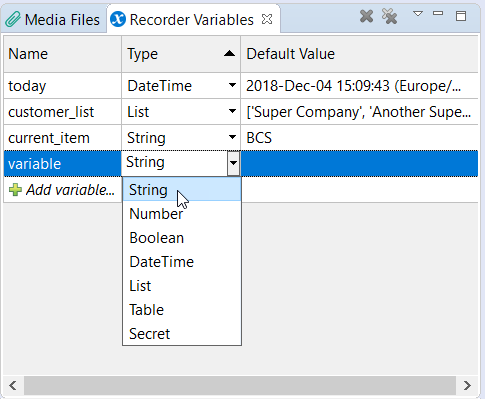
To add a variable, enter the following values: Name, Type, and Default Value.
icon.
To add a variable, enter the following values: Name, Type, and Default Value.
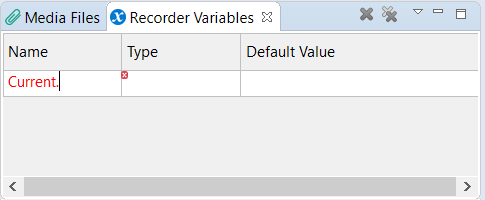
Name - use alphabetic characters in lower case, numeric symbols and the underscore only. All other characters, such as letters in upper case and special symbols, are not supported. On entering the characters that are not supported, they are highlighted with red.
tip
The are some specific words that cannot be used as recorder variables names. To view them, refer to List of reserved words.
Type - define the value format that is needed for correct comparison (e.g. in the If-Else action) and parsing (e.g. parse clipboard content to a table).
Default Value – the variable value. Comparing and assigning values of different types may result in exceptions or false results. For example, comparing
StringwithNumber.
Simple types
Simple variable types consist of one value with a special format.
String
ext should conform to the following patterns: string length, alpha, numeric, alpha-numeric. E.g., John Doe.
Number
Number should conform to the following patterns: range, integer, decimal. E.g., 100402.55.
Boolean
Selection is made in Default Value: true, false.

DateTime
The value is populated with the current date and time automatically, e.g., 2019-Jan-09 02:34:57 (Europe/Minsk). To manually set up, click on Default Value, select the date and time you need, and click OK.

caution
The date and time formats for DateTime variables are defined in the regional settings of the operating system.
Secret
A variable of Secret type is either selected from the list of Secret Entries previously added in Secrets Vault or created directly in the Default Value field via Add Secret Entry.

Complex types
Complex variable types consist of multiple values, each of String type. These are List and Table.
Lists and tables are needed when you want to do the same set of actions for all their items (rows or columns), e.g., send email for each person in the email list, input account number and amount for each transaction in a table, etc.
List
List should conform to the following patterns: length, character set: content of table. E.g., ['Hydrogen', 'Helium', 'Lithium'].

note
A List variable can have up to 2,147,483,647 elements.
Table
Table should conform to the following patterns: rows, columns, character set: content of table. E.g., [['Afghanistan', 'Afghani', 'AFN'], ['Albania', 'Lek', 'ALL'], ['Algeria', 'Algerian Dinar', 'DZD']].

A Table variable can have any number of elements but is restricted to the memory that you allocate to WorkFusion Studio.
List of reserved words
The following reserved words cannot be used as recorder variable names, and thus turn red if entered into the Name field.
Expand to see the list of reserved words
- __botExecutionConfig__
- __sys_execution_finish_listeners__
- applicationContextPath
- applicationHost
- assignment
- automationAppUrl
- automationPassword
- applicationResourceUrl
- automationUser
- dataStoreProperties
- exportResult
- formBasedAuthSessionTtl
- hit_submission_data_item
- includedConfigs
- item
- machineConfigText
- machineWorkerPrefix
- ocrProperties
- pluginsExecutionRecords
- poolableObject
- prevData
- recorder_
- recorder_.
- recorderImagesBucket
- releaseDate
- restFormAuthEnable
- s3AccessKey
- s3EndpointUrl
- s3KeyMap
- s3SecretKey
- s3SignerType
- securityProviderMap
- seleniumServer
- sysOcrApiUrl
- source
- tableauDbPassword
- tableauDbUrl
- tableauDbUser
- title
- TOWER_BOT_
- userInternalCredentials
- wfbiPassword
- wfbiUrl
- wfbiUser
- workfusionAccessKey
- workfusionSecretKey
The words below are Groovy language keywords that also cannot be used as names for recorder variables. Even if you are able to define Groovy keywords as names in WorkFusion Studio, a script will fail in case you publish it to Control Tower.
Expand to see Groovy language keywords
- as
- assert
- author
- break
- case
- catch
- class
- const
- continue
- def
- default
- do
- else
- enum
- extends
- false
- finally
- for
- goto
- if
- implements
- import
- in
- instanceof
- interface
- log
- new
- null
- package
- return
- start_date
- super
- switch
- this
- throw
- throws
- trait
- true
- try
- while
Use variables
Set action parameters
After you've created and defined variables, you can use them in action parameters (Enter Keystrokes, Clipboard, If-Else, Launch Application and others).
Start typing a variable name and select an appropriate item or click Enter.
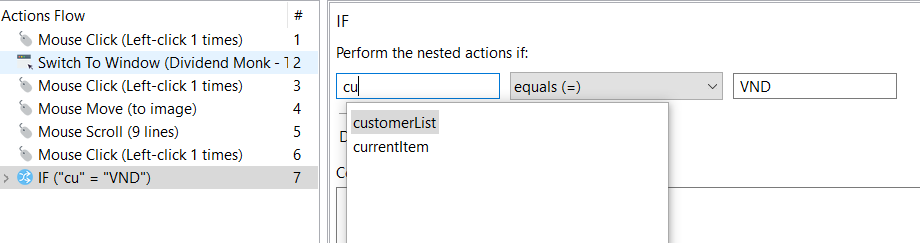
RPA Recorder automatically wraps the variable name with ${} symbols.

note
If you delete any of the wrapping symbols or modify the variable name to a non-existing one, the whole expression will be treated as a string.
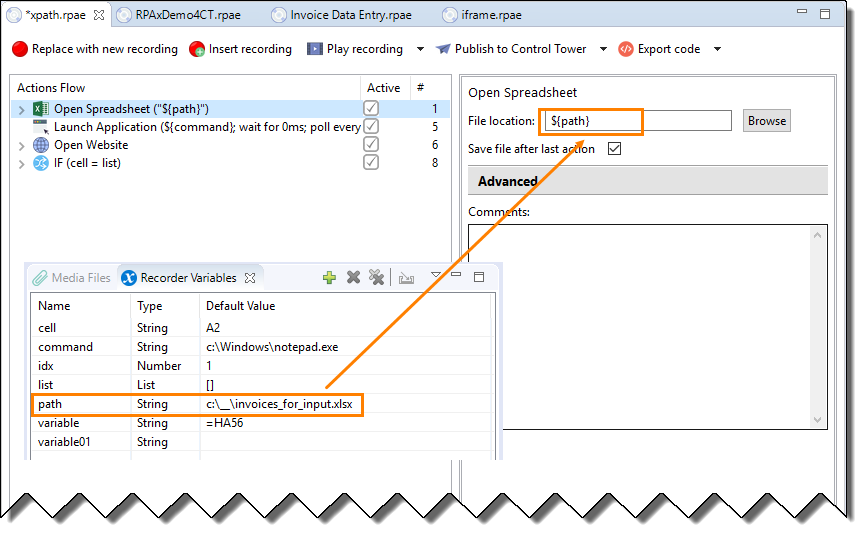
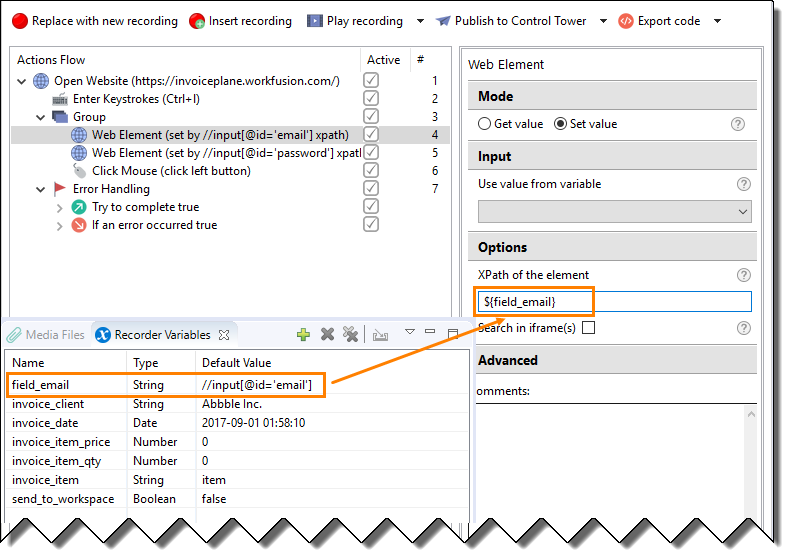
You can use the Recorder variables in the free text fields such as:
- path to an application
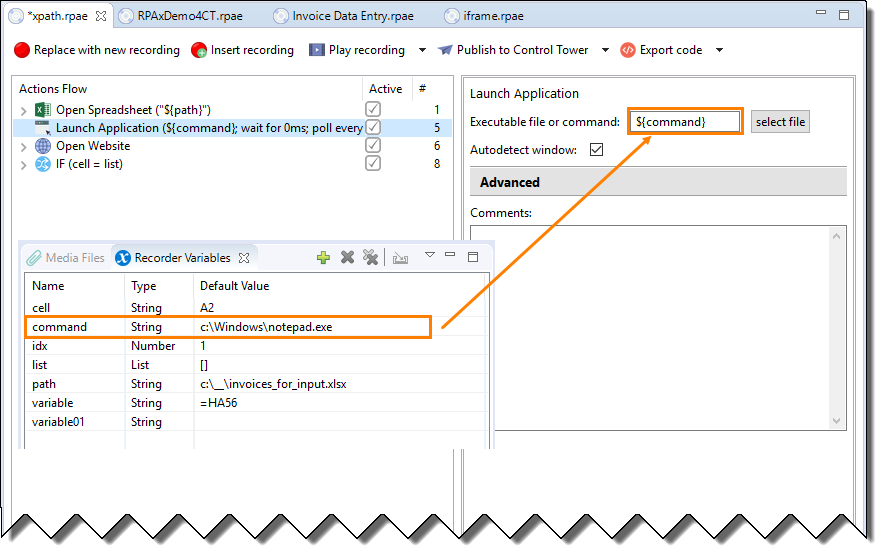
- path to a file
- web element
caution
The autocomplete function is not available for free text fields, so you should take care to enter the variable name correctly in the defined format. Variable syntax in action parameters looks as follows: ${variable_name}.
When running a recording, Bot substitutes all variables with their respective values and performs comparisons, calculations, parsing, and other operations defined in Actions Flow.
Parse lists and tables
When using variables in actions that require types conversion (e.g., Clipboard - from List or Table to String and vice versa), you need to perform the following actions.
- Enter Row Separator.
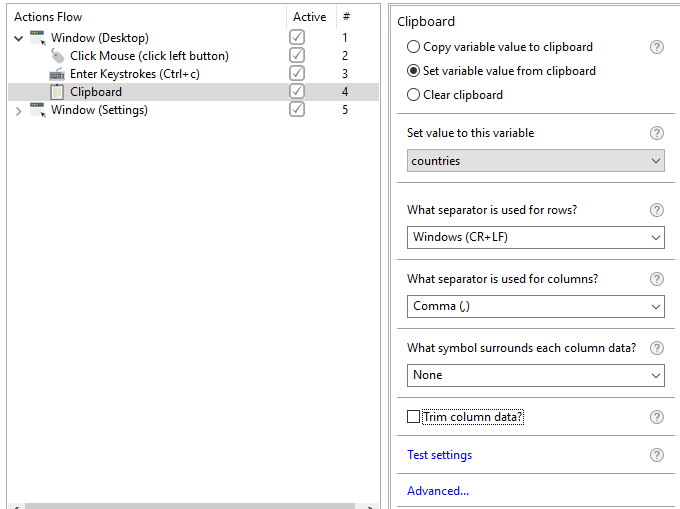
- Enter Column Separator.
- Enter Surrounding symbols for column data.
- Enable/disable Trimming that refers to removing leading and trailing spaces.
- To test the conversion, click Test settings and paste your list or table content there.
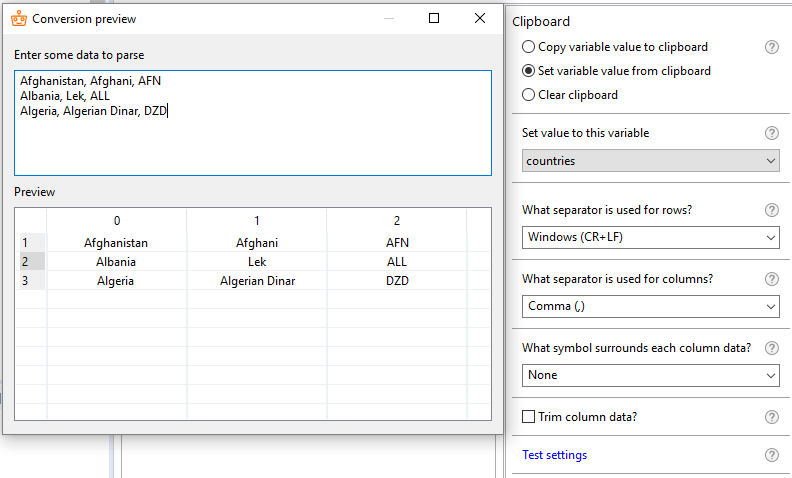
- Enter other separators if needed.
Get value from lists and tables
A value of each list or table element can be retrieved using the element's index.
The indexes can be defined explicitly, as an Integer:
${list_variable[1]}${table_variable.get(1,2)}
or declared as a Recorder variable of Number type:
${list_variable[index]}${table_variable.get(row_index,column_index)}, whereindex,row_indexandcolumn_indexare Recorder variables of Number type.
note
Numbering of elements in the List variables starts with 1.
Numbering of rows and columns in the Table variables starts with 1.
Using indexes with lists
| Recorder variables | Expression |
|---|---|
product_list – List variable5 – numeric constant (5th element in the List) | ${product_list[5]} |
my_list – List variablecounter – Number variable | ${my_list[counter]} |
list_input – List variableiteration – Number variable | ${list_input[iteration as Integer]} |
Sample recording
The sample recording below demonstrates how to get values from elements in a List variable. We will create a short recording to go through the whole list, get values from all elements, and populate them in Notepad (except the last one).
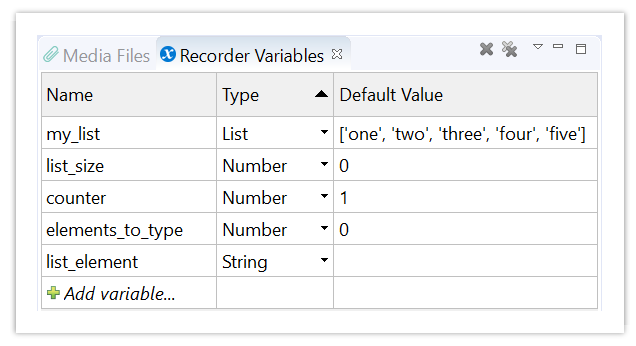
Create Recorder variables.
counter– a Number variable to iterate through the elements by indexesmy_list– a List variablelist_element– a String variable to receive a value from a List elementlist_size– a Number variable to receive a number of elements from the listelements_to_type– a Number variable to receive the number of list elements to populate in Notepad
Open Notepad with the Launch Application action to paste values from the list.
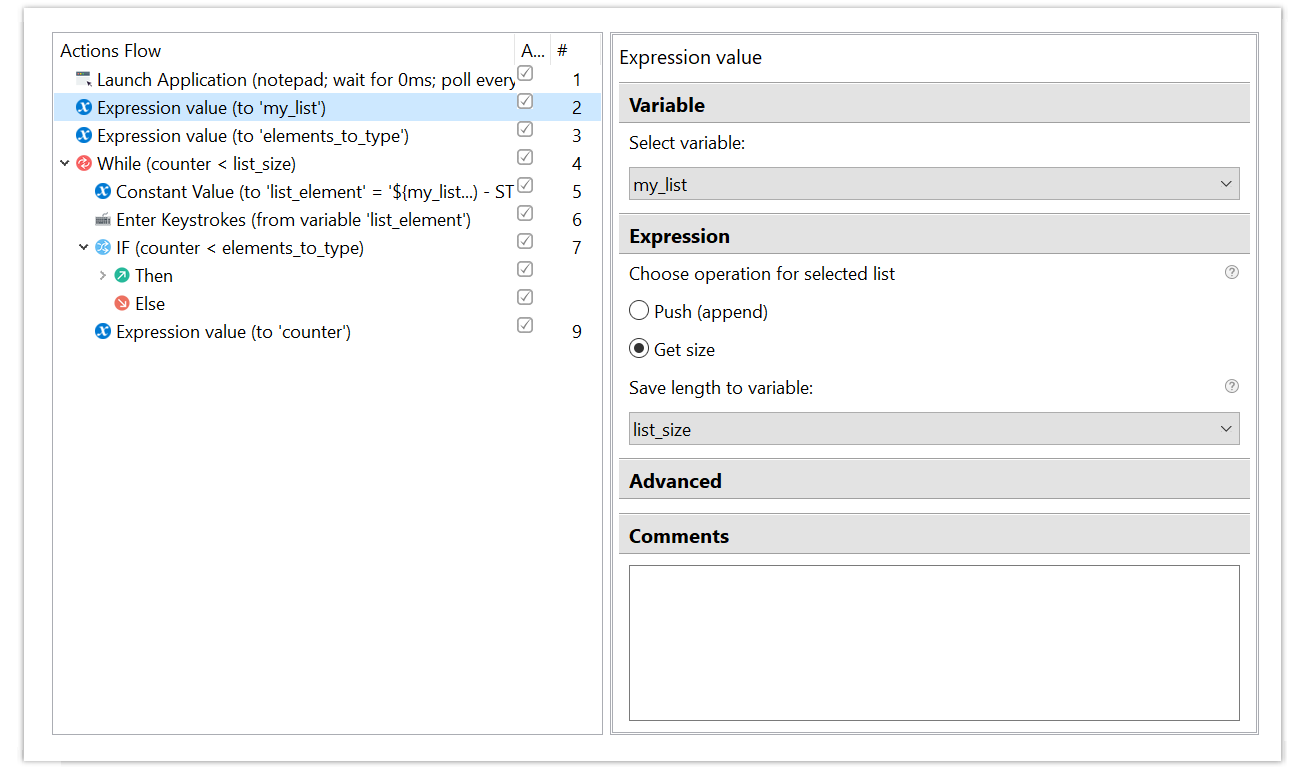
Use the Expression Value action to get the number of elements in the list.
- Select the List variable (
my_list) to get the number of elements. - Use theGet size option in the Expression.
- Select the Number variable (
list_size) to save the result.
- Select the List variable (
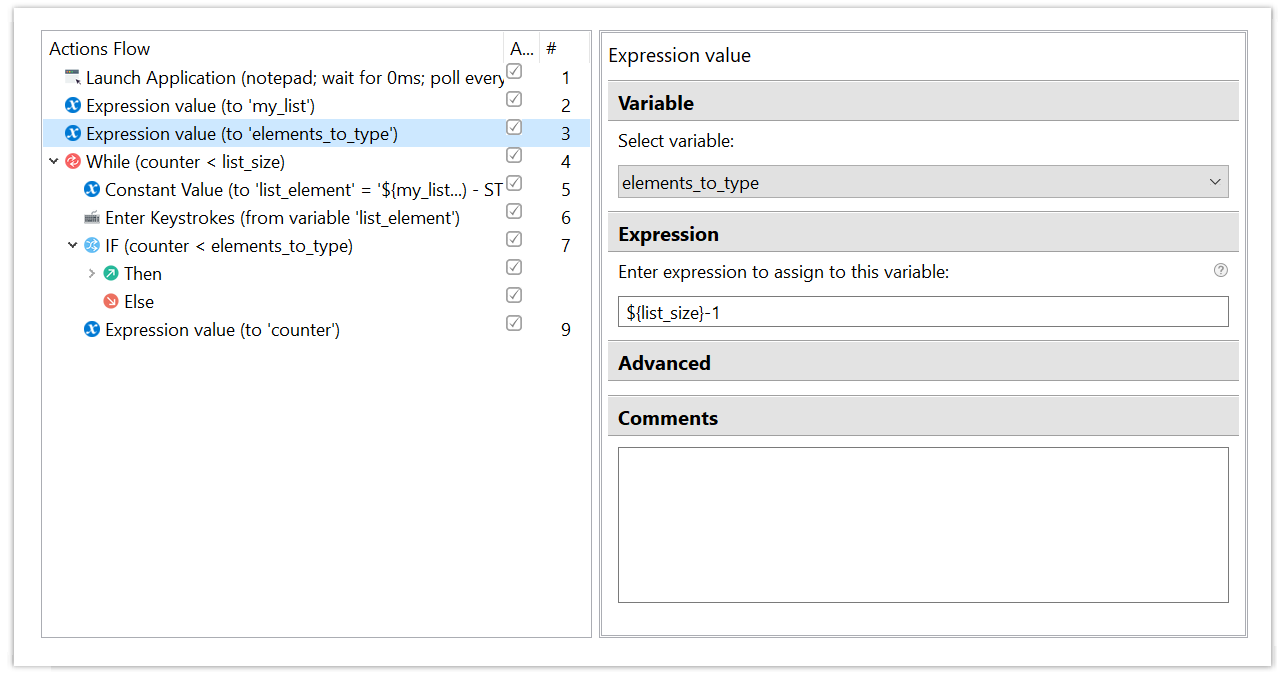
In the Expression Value action, define the number of elements to be printed to Notepad – all elements minus 1.
- Define the expression as
${list_size}- 1, to prevent printing the last element. - Select the Number variable (
elements_to_type) to save the result.
- Define the expression as
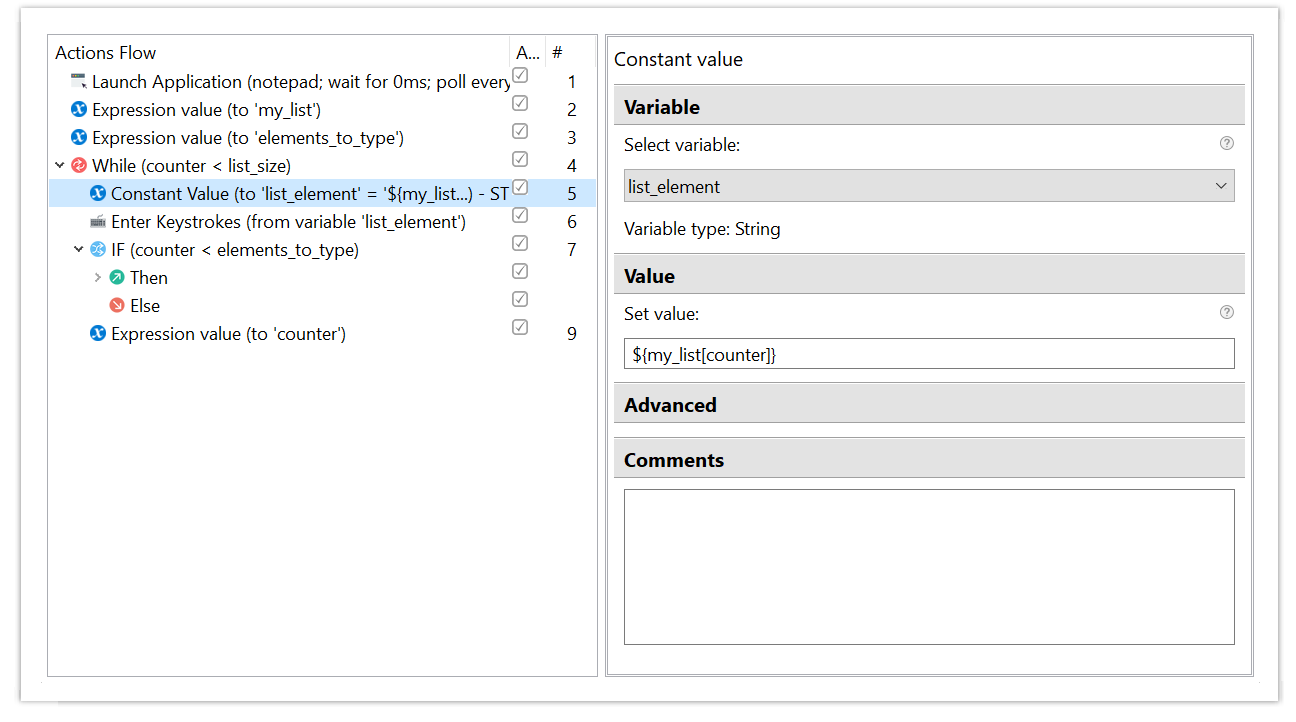
Create a loop to iterate through the list. Use the While loop until the counter is less than size of the list:
${counter} < ${list_size}. Mind that iteration starts from 1 as for any other array.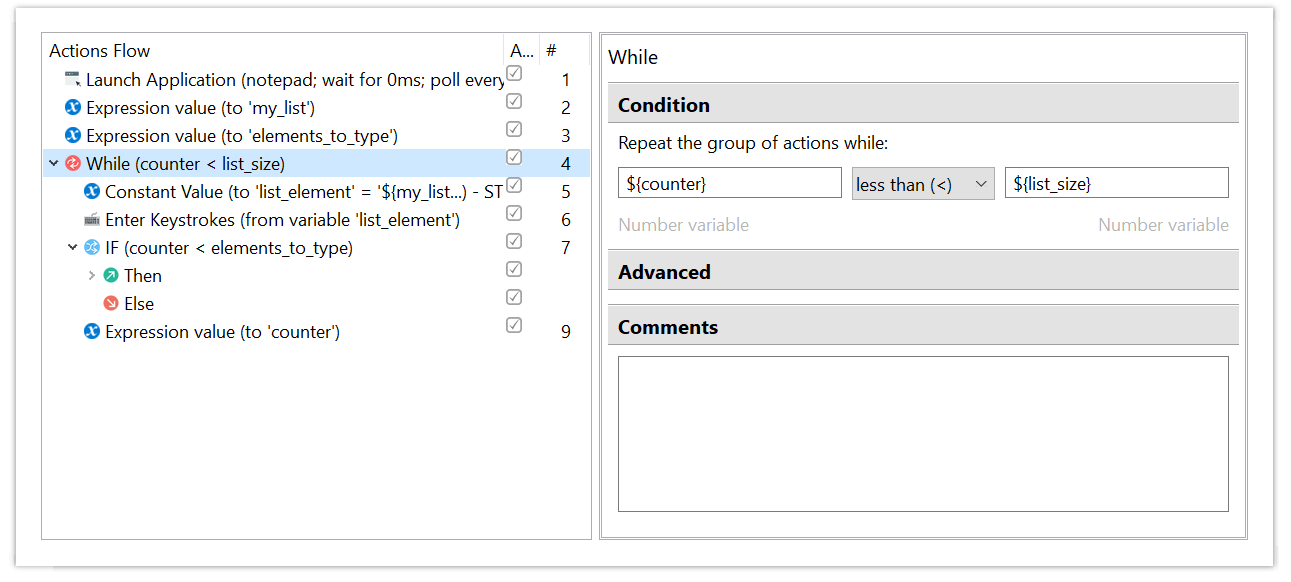
To get the element value, create a Constant Value action.
- Use the following construct to get value from a list element:
${my_list[counter]}, wheremy_list[1]– an element from the list with index 1,counter– Recorder variable defining the index of the element - Select the String variable (
list_element) to save the result.
- Use the following construct to get value from a list element:
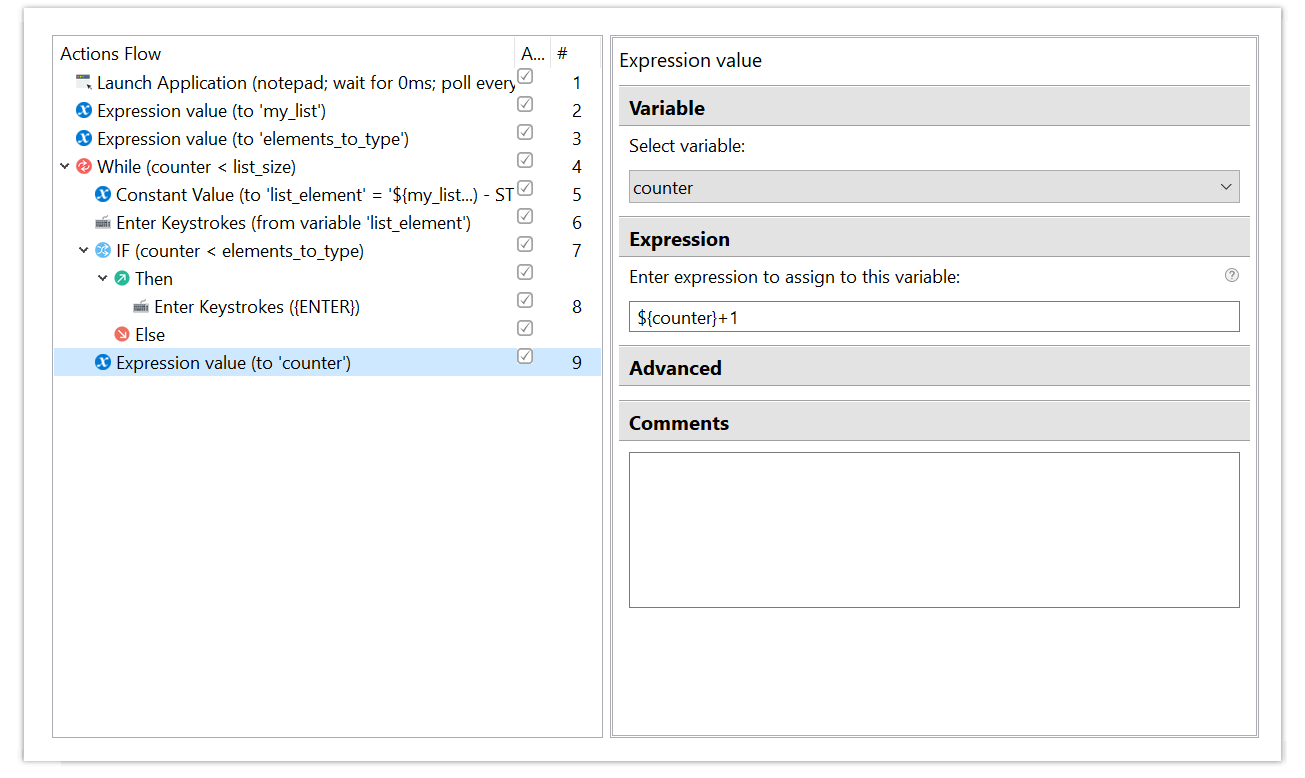
Use the Enter Keystrokes action to paste the value from the String variable (
list_element_value) to Notepad.Condition to insert the linefeed character. Use the If-Else condition to perform the nested action.
Insert the linefeed character. If the condition is
true, insert the Enter character to Notepad with the Enter Keystrokes action.Use the Expression Value action to increment the counter to 1.
- Define the expression as
${counter}+1. - Select the Number variable (
counter) to save the incremented value.
- Define the expression as
Using indexes with tables
WorkFusion RPA API has several methods that allow retrieving values from rows, columns, and cells in a Table variable using indexes.
It helps to avoid using multiple For Each Loop actions to iterate through the whole table. Users can access the values in the required elements in the Table directly, thus making the script easier and faster.
| Recorder Variables | Expression |
|---|---|
product_table – Table variable3,4 – numeric constants (4th element in the 3rd row in the Table) | ${product_table.get(3,4)}Output: String |
my_table – Table variablerow_counter, column_counter – Number variables | ${my_table.get(row_counter,column_counter)}Output: String |
table_input – Table variablerow_number – Number variable | ${table_input.getRow(row_number)}Output: List |
table_values – Table variablecolumn_number – Number variable | ${table_values.getColumn(column_number)}Output: List |
Sample recording
A recording below shows how to get two values from a Table and type text with them in Notepad.
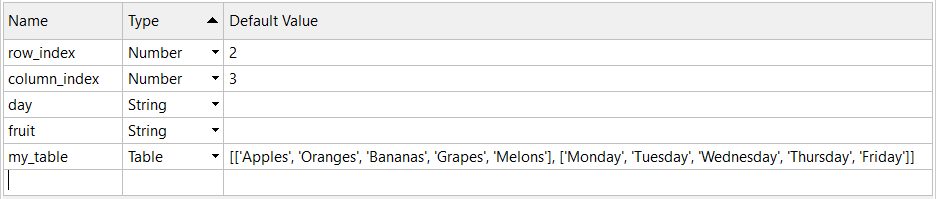
Create Recorder variables.
my_table– a Table variablerow_index,column_index– Number variables used to define the coordinates of the value in the Tablefruit,day– String variables to receive a value from Table elements
Open Notepad with the Launch Application action.
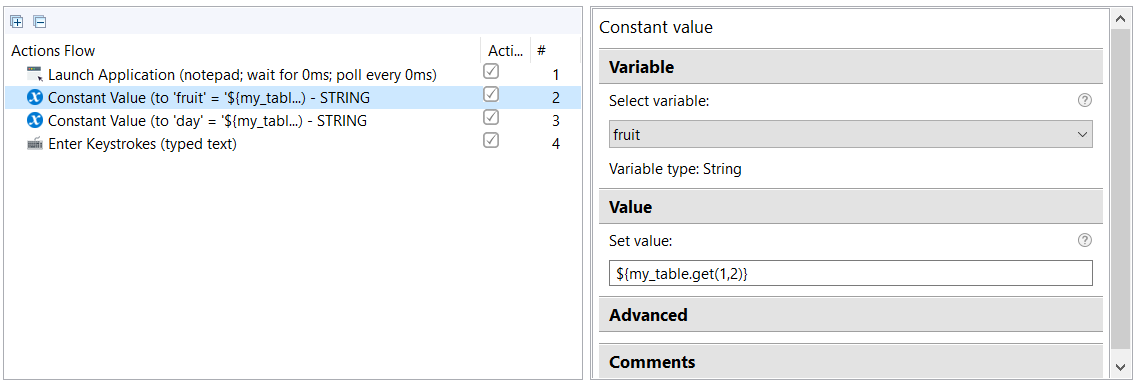
Use the Constant Value action to get the value of an element in the Table.
- Select the String variable (
fruit) to save the value of the target element. - Use the
get()method to get the value of the element. - Define the row and column of the element using Integer values:
(1,2)– row 1, column 2 - Write the expression to get the element value in the Set value field:
${my_table(1,2)}.
- Select the String variable (
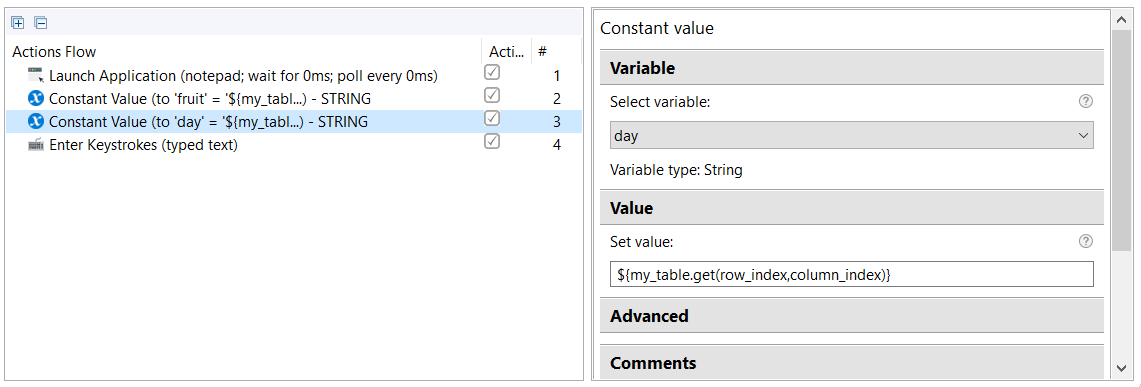
Use the Constant Value action to get the value of another element in the Table.
- Select the String variable (
day) to save the value of the target element. - Use the
get()method to get the value of the element. - Define the row and column of the element using recorder variables of type Number (
row_index,column_index). - Write the expression to get the element value in the Set value field:
${my_table(row_index,column_index)}.
- Select the String variable (
Use the Enter Keystrokes action to type text containing values in variables
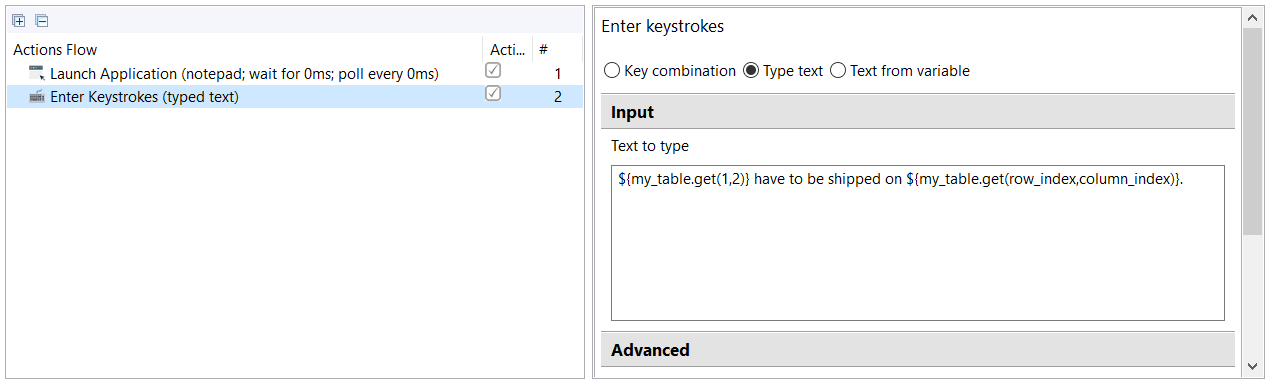
${fruit}and${day}to Notepad.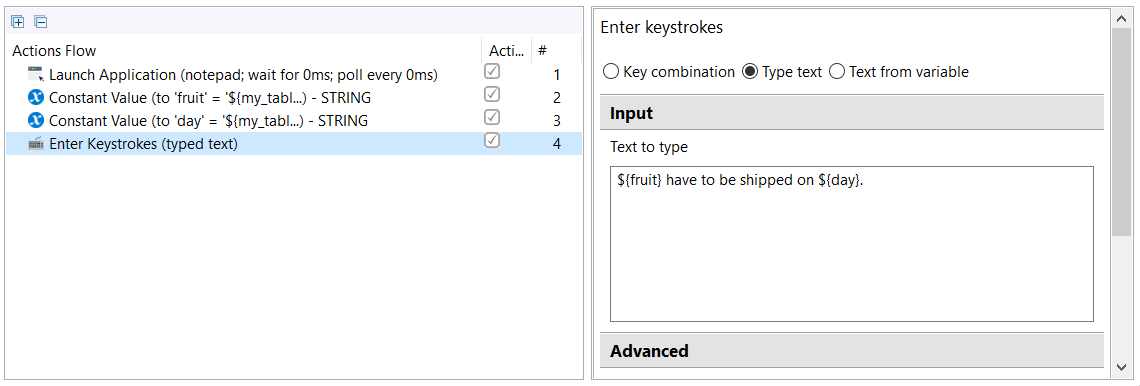 It is possible to use expressions directly in the Enter Keystrokes action.
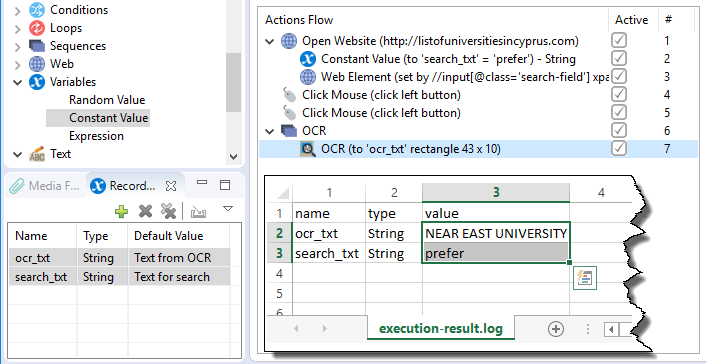
Variables log
Upon execution of a recording or several steps of the recording, a log file is created in the Recording folder.
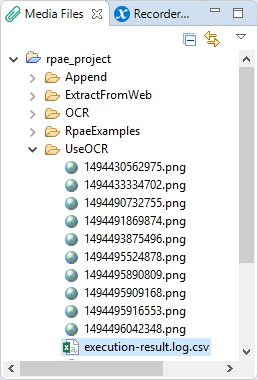
The log file contains the values of all Recorder variables after the last step.
Import/export variables
When importing a bot step from a business process to RPA Recorder, all its input data is accessible in Recorder Variables view.
All RPA Recorder variables are exported together with the recording and are available in the Control Tower business process.