
Configure auto-launch
The procedure describes how to configure auto-launching of all Business Edition components after you start your computer for you to start working with the application without launching each component manually.
note
This guide is actual for all types of Windows OS, which are mentioned in System requirements.
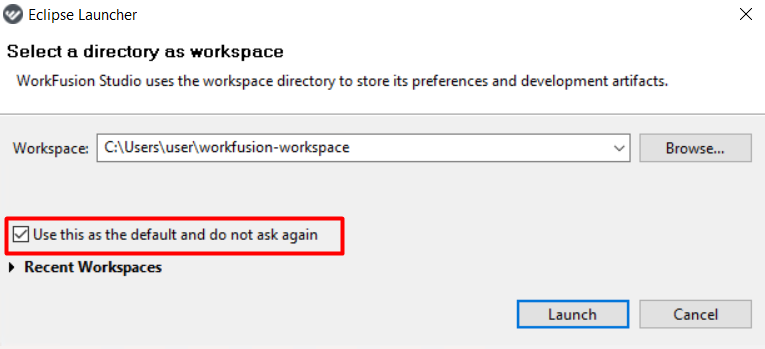
- Launch Intelligent Automation Cloud Business Edition and check Use this as the default and do not ask again. Thus, when auto-launch is configured, it won't ask you to choose a workspace, and WorkFusion Studio will start automatically.
- As soon as WorkFusion Studio launches, click on the dropdown next to the server and choose the Always running option.
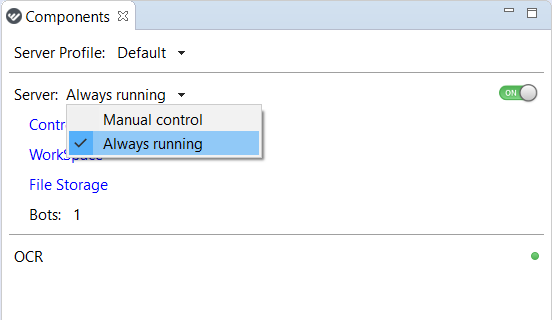
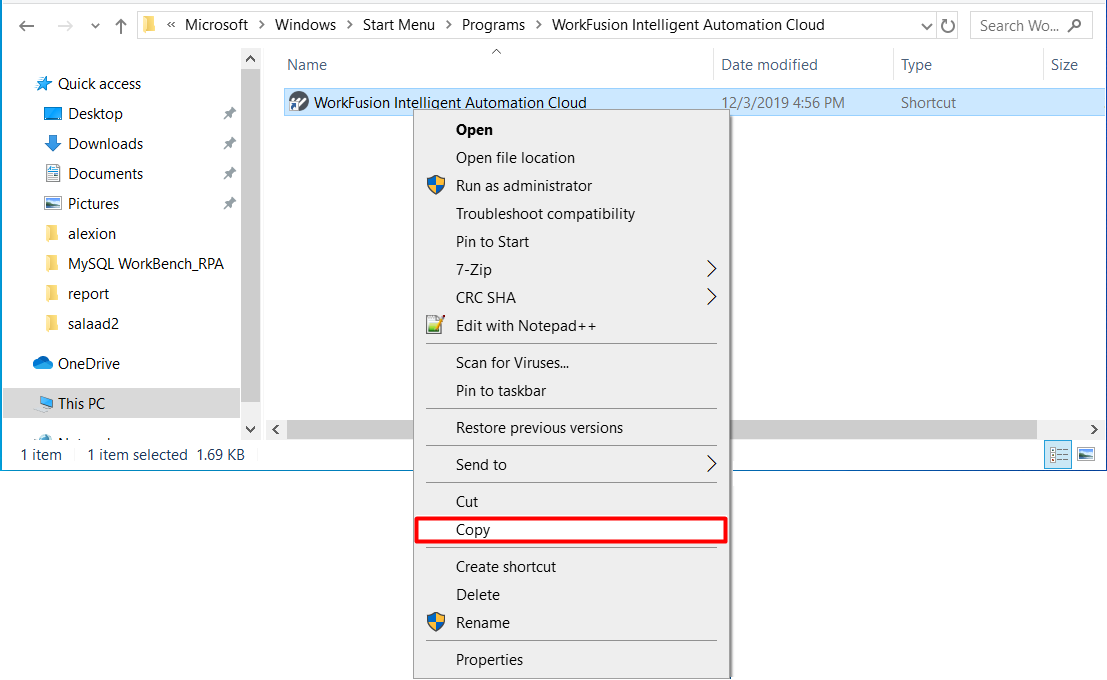
This option enables server components (Control Tower, WorkSpace, File Storage) to start automatically after the system reboot. - Go to C:\ProgramData\Microsoft\Windows\Start Menu\Programs\WorkFusion Intelligent Automation Cloud and copy the WorkFusion Intelligent Automation Cloud shortcut.
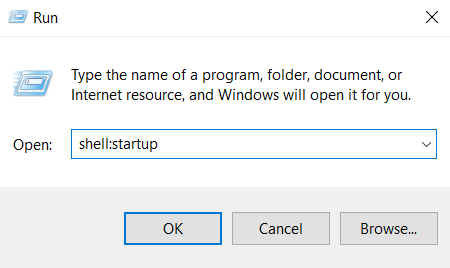
- Go to C:\Users\%username%\AppData\Roaming\Microsoft\Windows\Start Menu\Programs\Startup, or enter the Win+R combination and paste shell:startup into the Run window.
- Paste the previously copied shortcut into this folder.

Now, Intelligent Automation Cloud Business Edition and all its components will be launched automatically when you start your machine.
caution
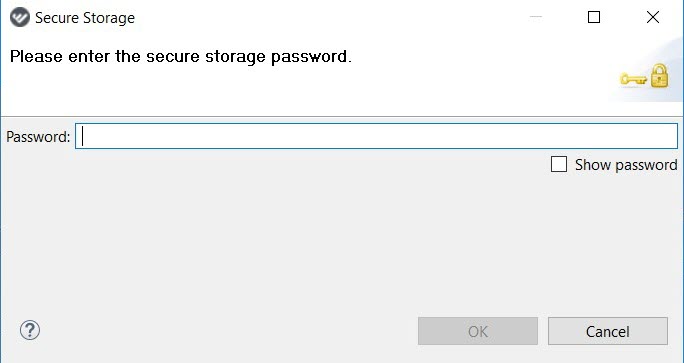
If you have a Secure Storage password in WorkFusion Studio, you need to enter it even when auto-launch is configured.
Note that all server components, as well as OCR, will simultaneously start with the start of your machine. Thus, Control Tower, WorkSpace, and File Storage will be available without starting WorkFusion Studio.
important
Mind that in the case of reinstallation/update you should perform these steps once again.