
SAP GUI client setup
note
Intelligent Automation Cloud Business enables you to automate the SAP GUI client like any standard desktop application, inspecting UI elements, locating their selectors, and using them in your scripts.
tip
For environment setup and further automation, we recommend to use SAP GUI v. 7.40 and and SAP GUI v. 7.50.
Before you start working with SAP GUI, make sure to enable scripting and set up the application server.
We recommend to use either Blue Crystal or Classical UI themes for better SAP GUI automation when using the Window action.
Enable scripting
By default, when you run a recorded script, the following pop-up appears, that blocks script execution and must be switched off.
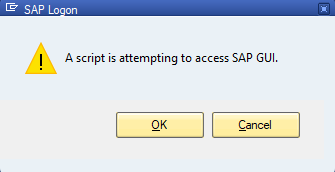
Edit scripting setttings
To disable the pop-up warning that a script is attempting to access SAP GUI, do as follows.
Open SAP GUI Settings > Options.
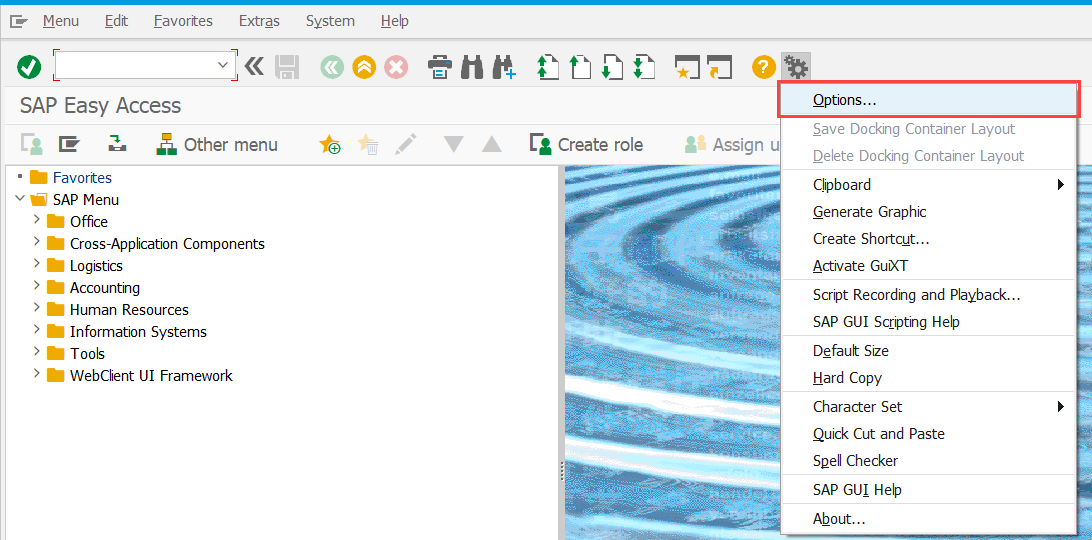
Select Accessibility & Scripting > Scripting.
If the warning message is thrown, the option Notify when a script attaches to SAP GUI is checked. Uncheck the following options:
- Notify when a script attaches to SAP GUI
- Notify when a script opens a connection.

Click Apply followed by OK.
Enable connection by command line
To allow connection by command line, do as follows.
- Open SAP GUI Settings > Options.
- Select Security and click on the Open Security Configuration button.
- Specify Allow for Default Action.
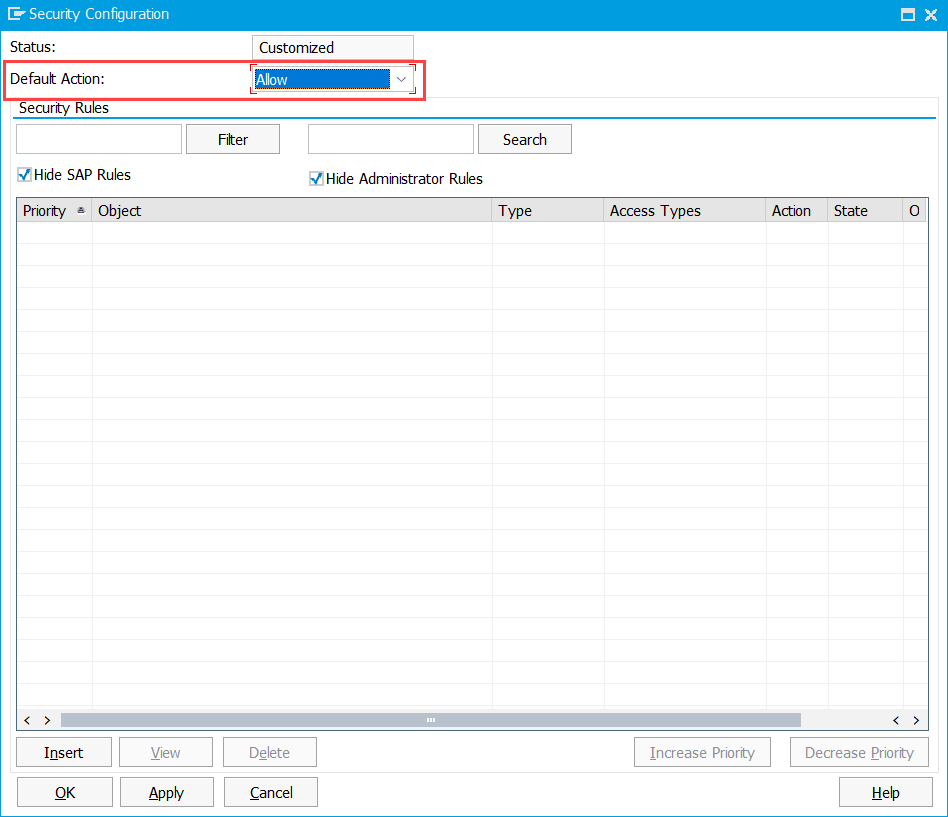
- Click Apply to save the changes.
Application server setup
Open SAP GUI and check if scripting is turned on.
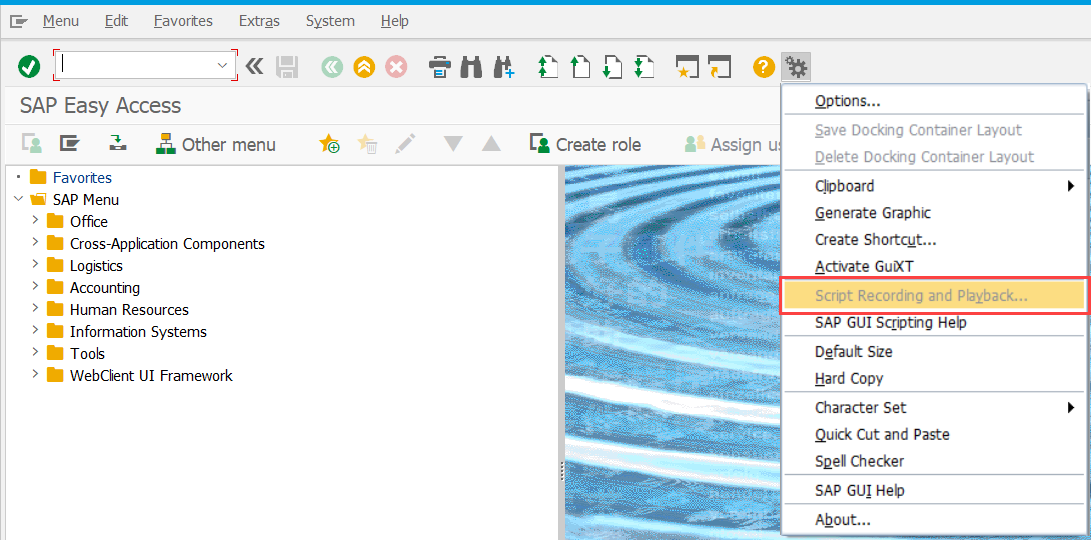
If the appropriate menu item is grayed out, perform the following steps.
Start the rz11 transaction. Enter the transaction code
rz11into the OK Code field and press Enter.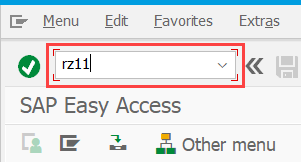
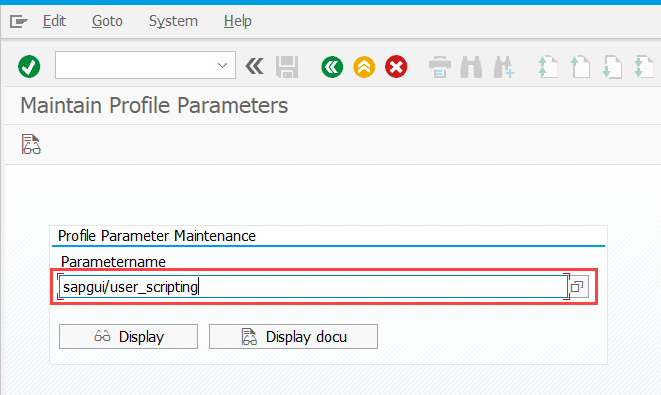
Open the sapgui/user_scripting parameter. Enter the parameter name into the related field and either click Display or press Enter.
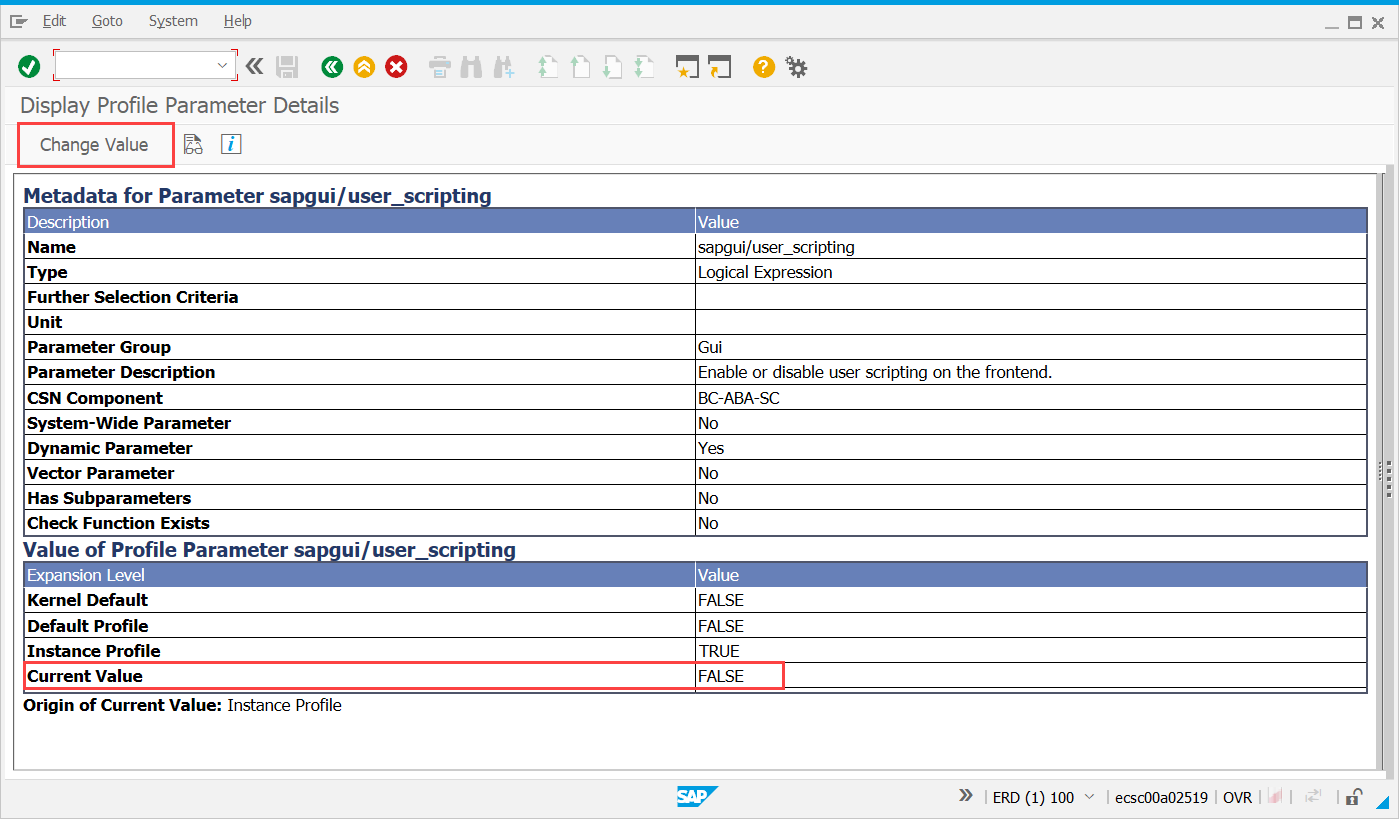
To edit the current value, click on the Change Value button.
In the window that follows, enter
TRUEin the New Value field and press Save.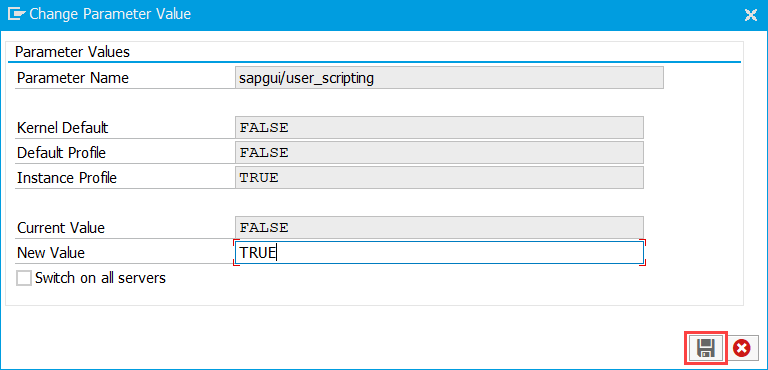
Re-log into the system to view the changes.