Data flow overview
This section describes main examples and technics on how to pass data between Business Process (BP) steps, both Manual and Bot.
The key concept of Control Tower BPM is the data flow between steps while processing big amounts of uniform data. Input data for Business Processes is divided into items with a defined structure which are called records. These records can be listed in a CSV file or can be dynamically grabbed from a Data Store, search result, parsed from a list, etc.
Each step can do the following:
- add new columns
- include or exclude data from previous steps
- split or merge data (increase or decrease the number of records)
Manual tasks and composite rule
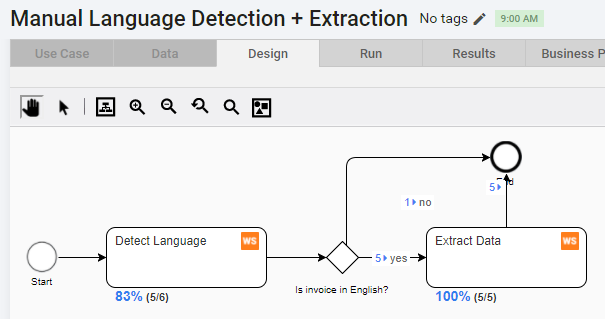
This simple BP is intended to detect document language, and extract special fields for all the English invoices.
You can download these files, import, and run on your Control Tower:
| Input file | BP package |
|---|---|
| image and text.txt | Manual+Language+Detection+++Extraction+23-10-2017.zip |
Input file
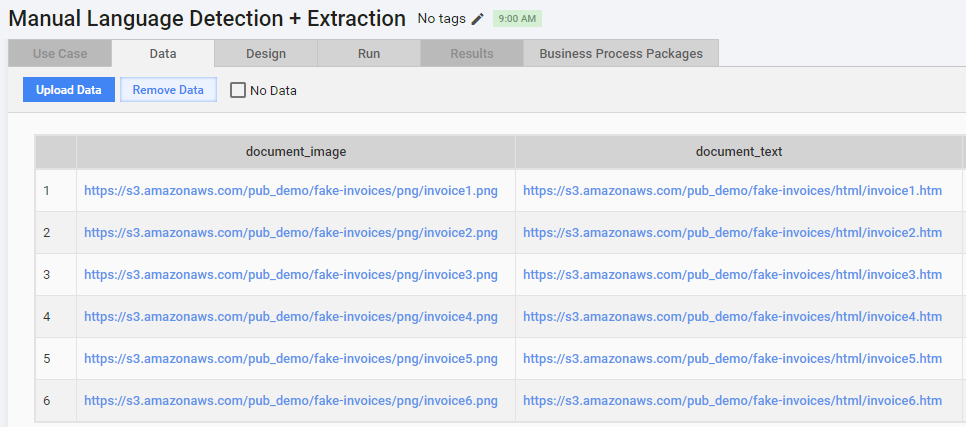
The input file contains 6 records (documents) with 2 columns:
- document_image - links to png scans of invoices
- document_text - links to html code of invoices
These links will be used in Manual Tasks as input data. They are accessible in Manual Tasks using the following syntax: ${question.data['column_name']}:
- ${question.data['document_image']}
- ${question.data['document_text']}
Manual step 1 - Detect language
The first step uses these two columns' data as input - image address and link address. The 2 answers Unique codes (language, proforma) will serve as output data provided by workers on the Task submit.
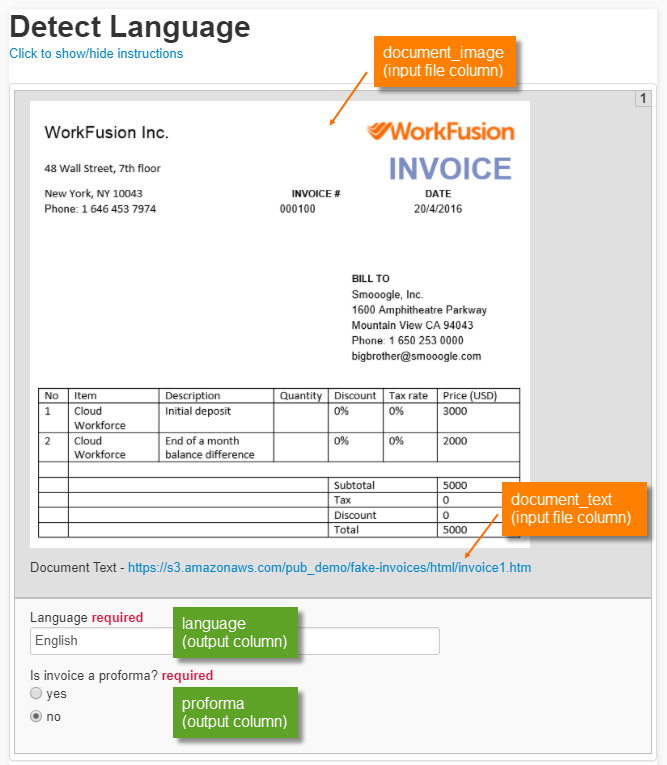
This code sample shows how to use variables in text and in html attributes (for images and links). Manual task code:
<!-- Using variables in image and link attributes -->


<@editable id="__DATA__">
    <img src="${question.data['document_image']}" width="500"><br><br>
    <p>Document Text - <a href="${question.data['document_text']}" >${question.data['document_text']}</a></p>
</@editable>
Composite rule
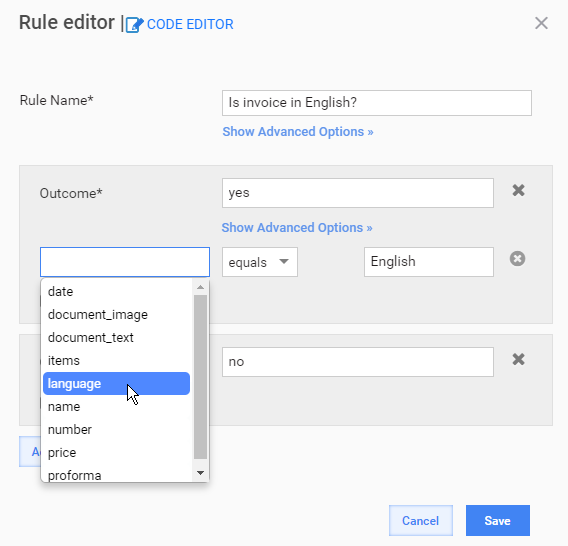
The composite rule serves to route all English invoices to the 2nd Manual Step by comparing the answer from the 1st step (language) to the "English" string.
Alternatively, the "proforma" answer could be used in the rule condition.
Manual Step 2 - Extract Data
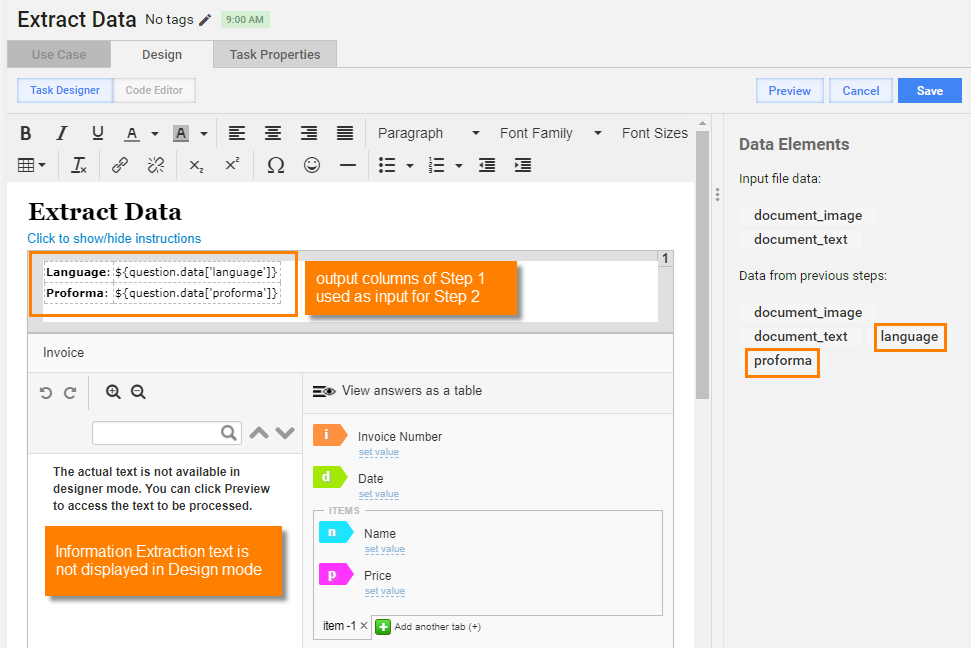
This step uses the following columns as input data:
- language (from the1st Step)
- proforma (from the 1st Step)
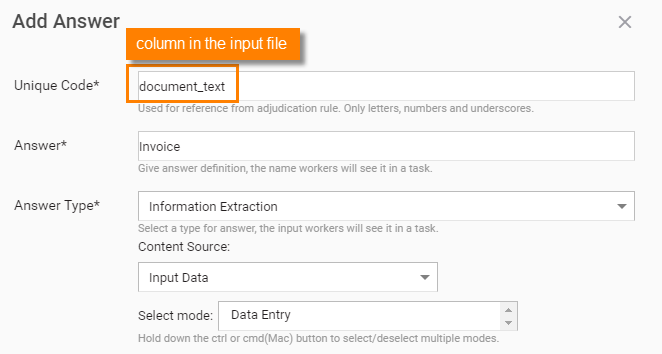
- document_text (from the CSV input file) - as source text for the Information Extraction answer.
To use a data column as source text for the Information Extraction answer, enter its name into the Unique Code field:
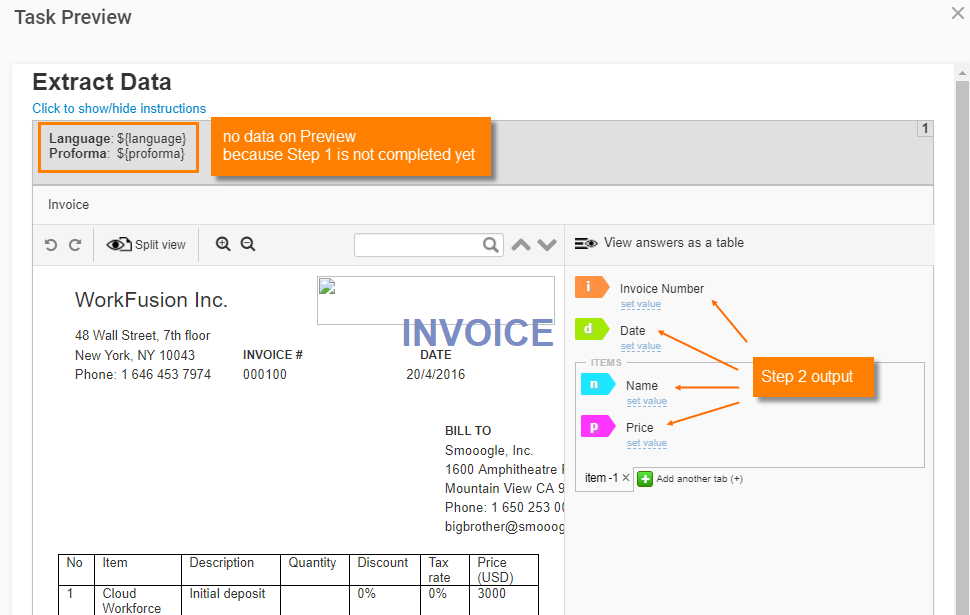
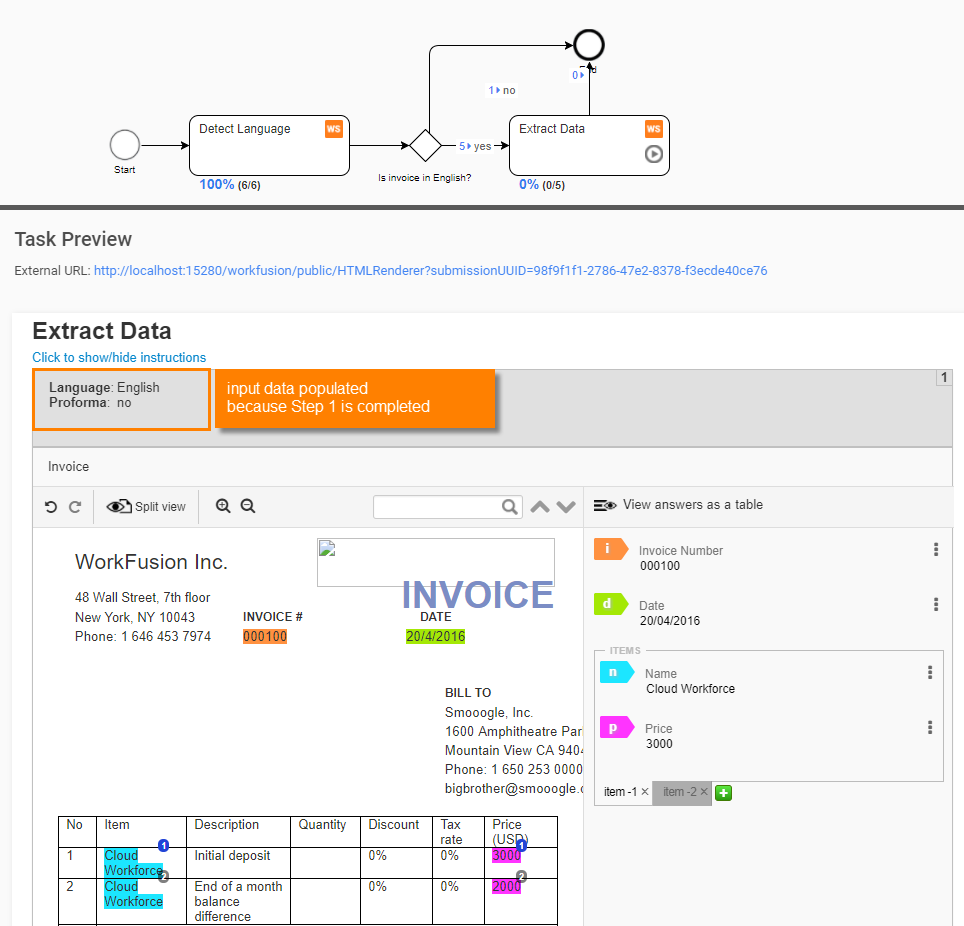
On the Task Preview, you cannot view the data from the 1st step (language, proforma) until at least one record is submitted on the 1st step.
After you run the BP and submit several Worker Tasks from Step 1, this data is populated on Task Preview. And the tasks from Step 2 are available for accepting on WorkSpace:
Results
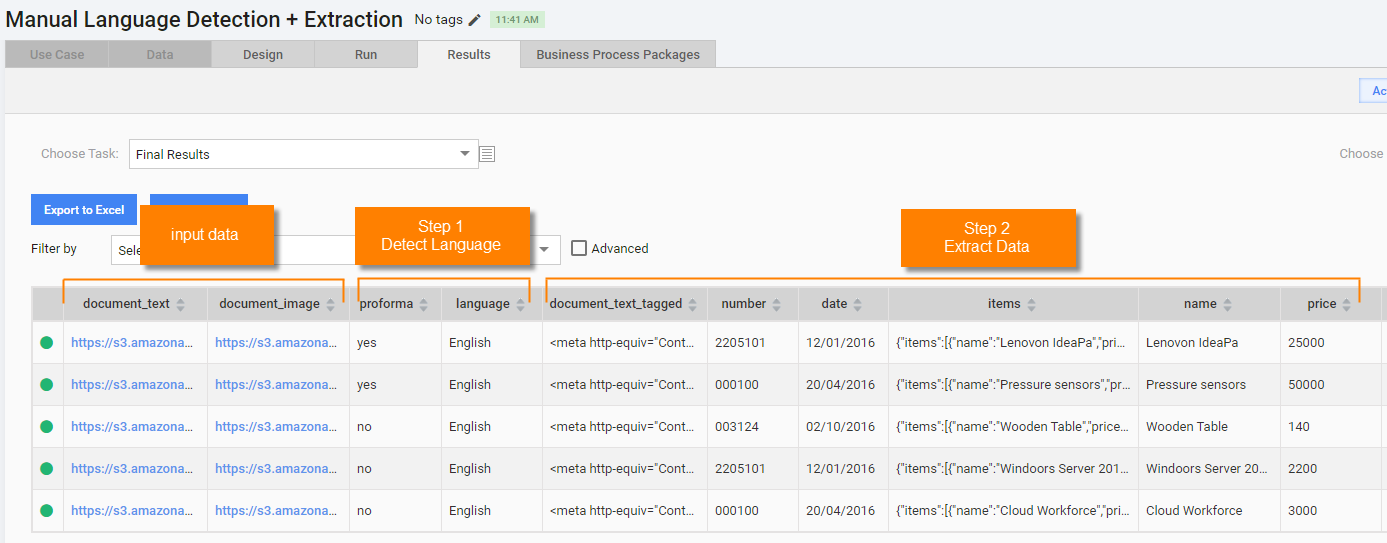
You can view data for each step in the View Results > Data page. The Final Results option contains columns at the process end (after the last step is completed):
- Input Data columns:
- document_text
- document_image
- Step 1 (Detect Language) output:
- proforma
- language
- Step 2 (Extract Data) output:
- document_tagged_text - contains IE text with tags created by Worker
- number
- date
- items
- name
- price
note
Mind that Control Tower adds calculated _confidence and _accuracy columns for each Manual Task answer, which can be disabled by scrolling a table to the right and clicking the cogwheel icon.
Bot tasks and Export plugin
The following process is intended to collect and validate official websites for a given list of companies. Valid websites are saved into a Data Store, invalid websites are emailed to a defined email address.
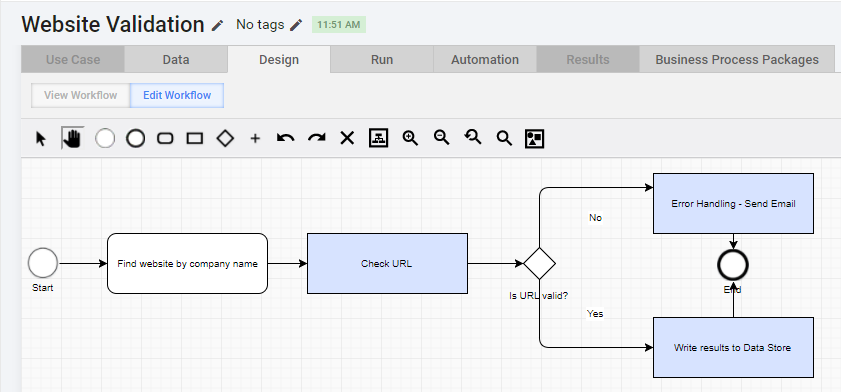
You can download these files, import, and run on your Control Tower.
| Input file | BP package | Secrets Vault |
|---|---|---|
| company_name.csv | Website+Validation+Example.zip | Create a secret entry with your email credentials and my-keys alias |
Input file
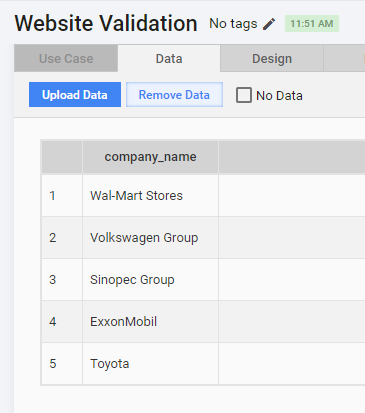
The input file contains 5 records (company profiles) with a single column:
- company_name - names of companies to search official website for
These links will be used in Manual Tasks as input data.
Manual step 1 - Find website by company name
The first Manual step is designed to show company name and link to a default Google search for this company. A worker is expected to analyze the google search, pick up a right website URL from it, and submit this URL.
Note that the same input data column is used 3 times here:
as text to display a company name:
${question.data['company_name']}as a part of link href attribute and link text:
<a href="https://www.google.com/search?q=website+${question.data['company_name']}" target="_blank">https://www.google.com/search?q=website+${question.data['company_name']}</a>
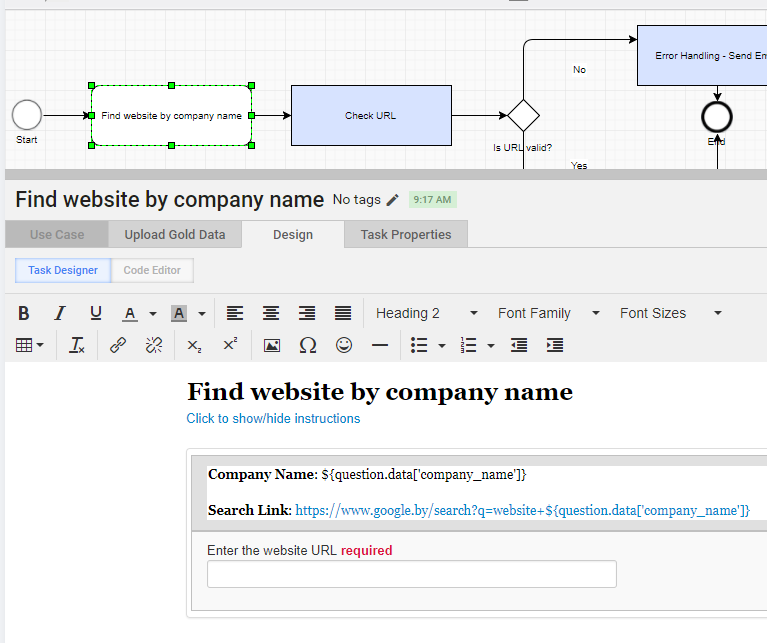
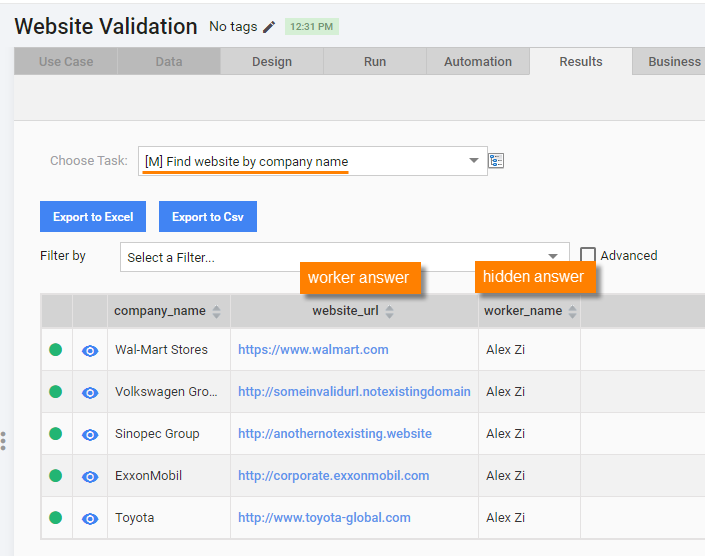
Task output is provided by the answer with the website_url unique code. Task Preview looks like the following.
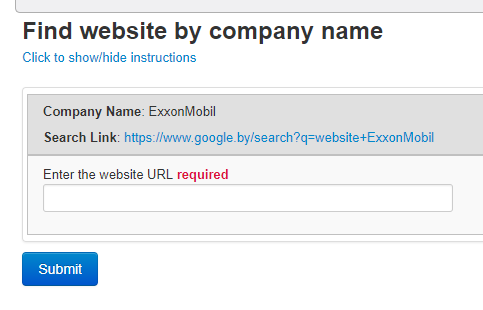
This Manual Task also has a hidden answer with worker_name unique code which will capture Worker first name and last name. Get Worker Details - Code Snippet:
<#if run??>
        <input type="hidden" name="${question.identifier!}_worker_name_skipCheck"/>

        <script type="text/javascript">
            $(document).ready(function() {
              $("input[name=${question.identifier!}_worker_name_skipCheck]").val("${worker.firstName}" + " ${worker.lastName}");
            });
        </script>

</#if>
Bot Step 2 - Check URL
The second process step is a Bot Task which is intended to:
- Make an http GET request to the website_url (submitted by Worker on the previous step). The variable value is accessed by using the following syntax: ${website_url}
- Check the response code using the http.statusCode object property.
- If response code equals 200, set the validity variable to true, otherwise false.
- Export the validity variable value to a new column with the same name. This column value will be used in the next Composite Rule to decide where to route the record - to an Exception Handling step or to Data Store logging step.
Checking website response using http plugin:
<?xml version="1.0" encoding="UTF-8"?>
<config xmlns="http://web-harvest.sourceforge.net/schema/1.0/config" scriptlang="groovy">

    <required name="website_url"/>

    <var-def name="validity"/>
    <try>
        <body>
            <http url="${website_url}"/>
            <var-def name="validity">
                <template>${http.statusCode == 200}</template>
            </var-def>
        </body>
        <catch>
            <var-def name="validity">
                false
            </var-def>
        </catch>
    </try>

    <export include-original-data="true">
        <single-column name="validity" value="${validity}"/>
    </export>

</config>
Composite rule
This rule checks the validity column and routes records to an Exception Handling step or to Data Store logging step.
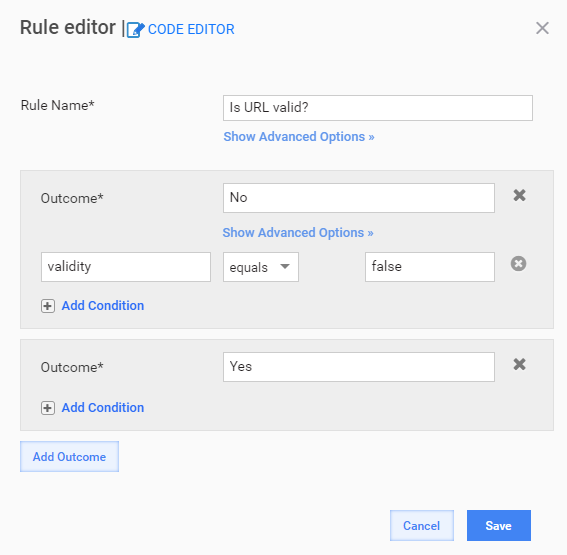
Bot Step 3 - Write results to Data Store
This step takes all data columns from input file and previous steps and writes their values into the websites Data Store using Datastore Plugins. If this Data Store does not exist, it will be created automatically.
Note that column values are accessible in the <script> block by their names: website_url.toString(). Writing results to Data Store:
<?xml version="1.0" encoding="UTF-8"?>
<config xmlns="http://web-harvest.sourceforge.net/schema/1.0/config" scriptlang="groovy">
<script></script>
<insert-datastore datastore-name="websites" json-value-map="${jsonValueMap}" create="true"/>
<export include-original-data="true"></export>
</config>
The step results look like this one:
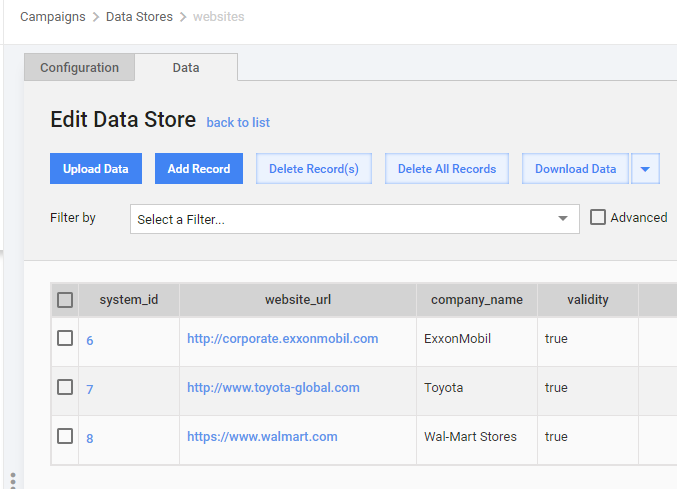
Note that not all the records are saved to the Data Store because the rest records had invalid website_url and were routed to the Error Handling step.
Bot Step 4 - Error Handling - Send Email
This step is intended to send an email to a specific address (recipient@email.com in the example) containing the following info:
- company name - ${company_name}
- worker name, who submitted invalid URL - ${worker_name}
- invalid website URL - ${website_url}
- link to a particular Business Process instance for quick navigation - ${bp_link} variable
Sending email in a Bot Task:
<?xml version="1.0" encoding="UTF-8"?>
<config xmlns="http://web-harvest.sourceforge.net/schema/1.0/config" scriptlang="groovy">
<var-def name="bp_link">
<template>${applicationHost}/workfusion/secure/business-process/edit/${item.getWrappedObject().getRun().getRootRunUuid()}</template>
</var-def>
<secure-store-get alias="my-keys"/>
<script></script>
<mail smtp-host="smtp.your-smtp-server.com"
smtp-port="465"
type="text"
from="${username}"
to="recepient@email.com"
subject="Website not found"
charset="UTF-8"
username="${username}"
password="${password}"
security="ssl">
<template>Website not found for: ${company_name}</template>
<template>User ${worker_name} submitted this invalid URL: ${website_url}</template>
<template>Business Process link: ${bp_link}</template>
</mail>
<export include-original-data="false">
</export>
</config>
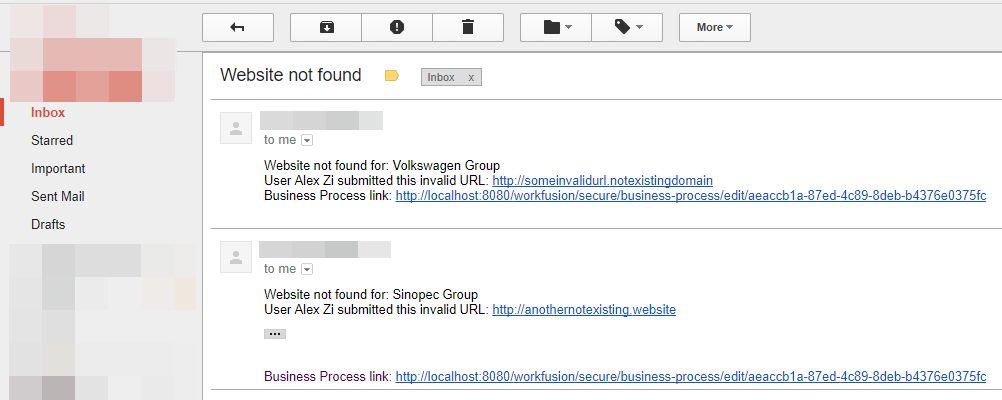
The following example shows real emails sent by Control Tower with variables substituted by real data.
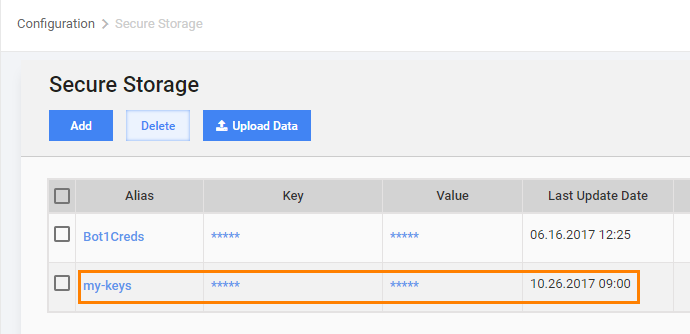
The ${username} and ${password} variable values are taken from Secrets Vault using the Secure Store Plugins - this is a safe way not to expose sensitive data in the Bot Task code.
tip
You need to create a record in Secrets Vault with the my-keys name.
The current step contains variables with sensitive data, therefore it is better not to pass its variables to the export plugin.
note
Mind that the export plugin has include-original-data="false" attribute. It means that all information from previous steps will be deleted (will not be present in final process results).
Results
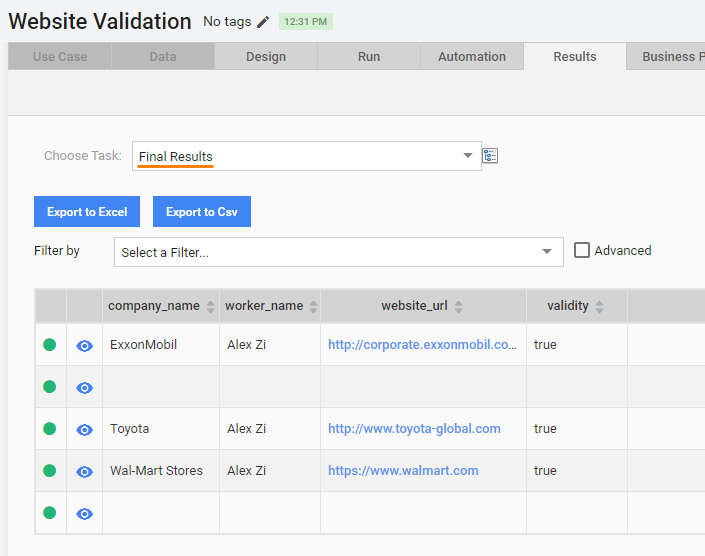
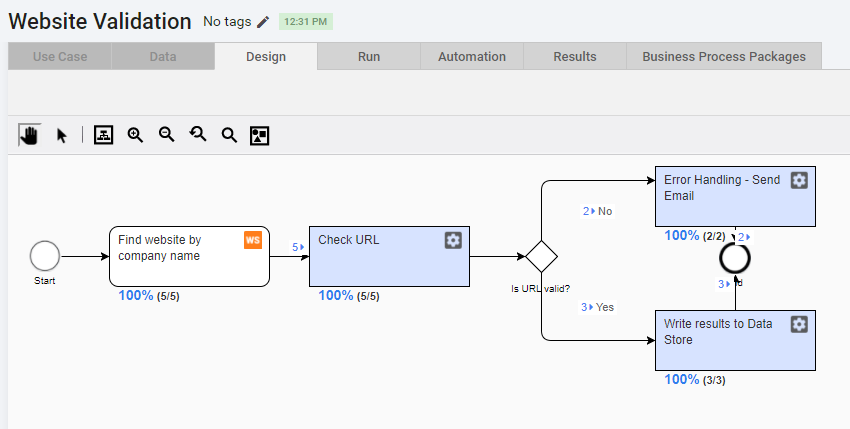
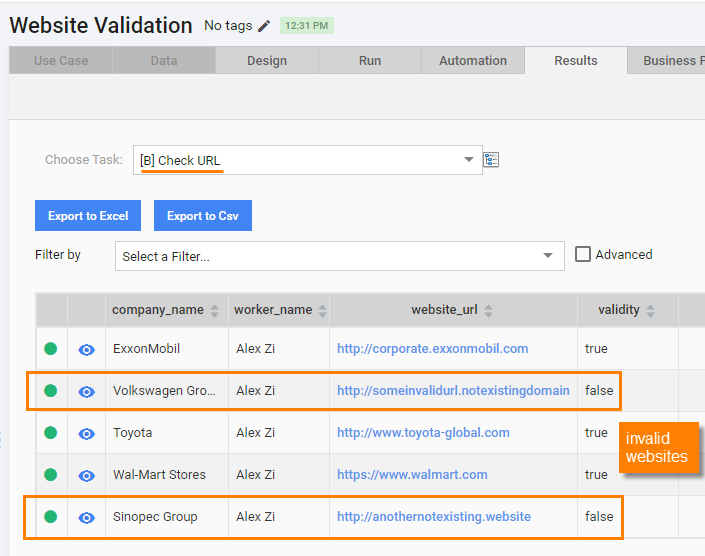
When you run the Business Process and submit all Manual Tasks, all Bot Steps will be executed automatically. As you can see on the screenshot below, 2 records had invalid URLs and were routed to the Error Handling step. Other 3 records were logged to the Data Store.
Manual step results:
The Check URL Bot Step validated the URLs and added the check result to the validity column.
As you can see from the Final Results, no data were saved for 2 records that went to Error Handling step - their cells are just blank because of the include-original-data="false" attribute and empty export section.