
Activate OCR license
caution
If you face any issues during activation of OCR pages, refer to ABBYY Knowledge Base.
Activate 10K OCR pages license
note
Mind that you can activate the OCR license only once and on one machine only.
caution
Do not activate several keys on one machine at the same time. Activate the key only after all the pages on the previous one have been used.
OCR License expires by time and the number of pages used. To upgrade your OCR license, follow these steps.
- Obtain a new license from WorkFusion.
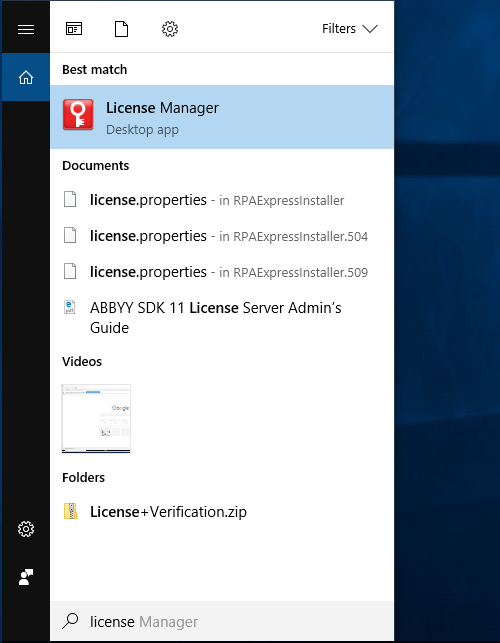
- Open License Manager. The License Manager tool was installed on your computer during Intelligent Automation Cloud Business installation.
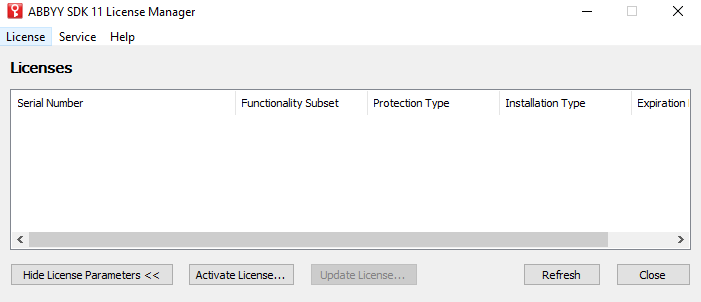
- Click Activate License to add a license.
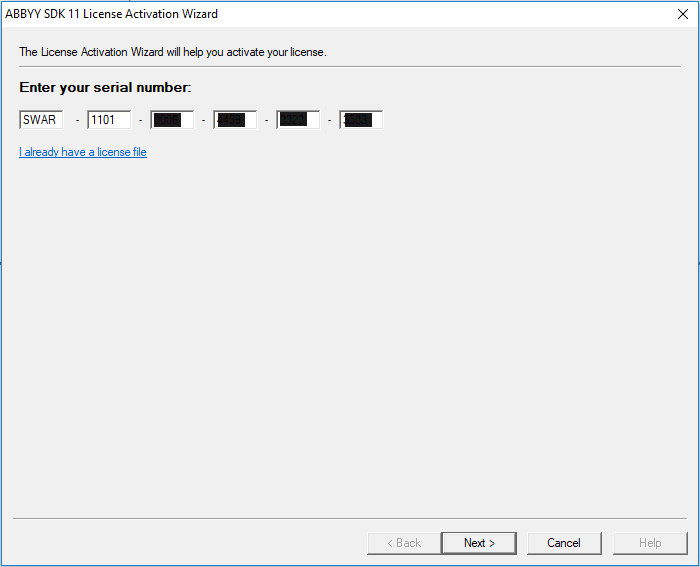
- Enter the license key you have received from WorkFusion.
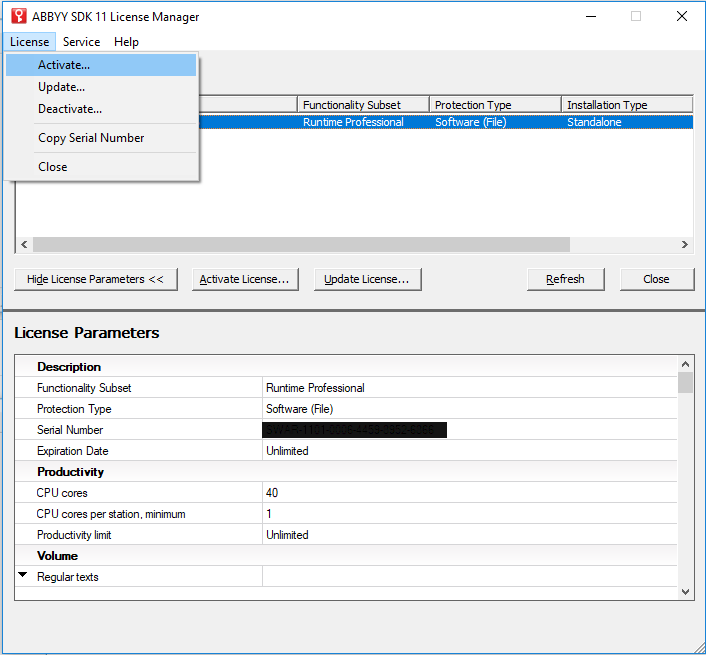
- To activate a new license, click Activate within the License options.
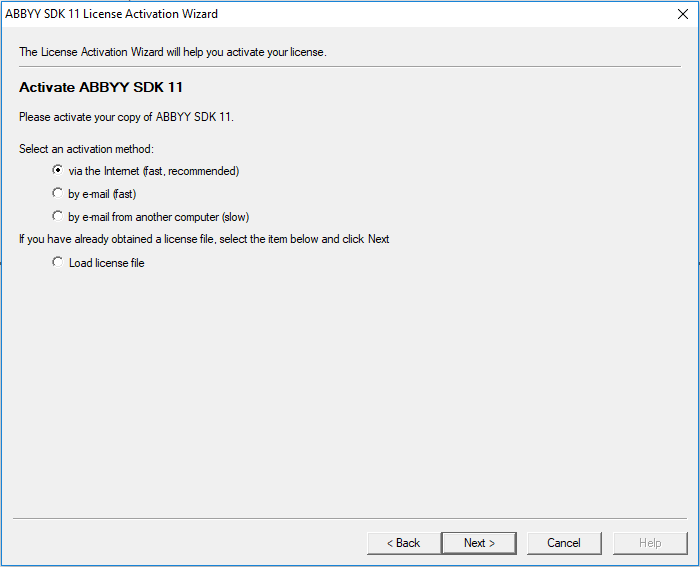
- Select the via the Internet activation method.
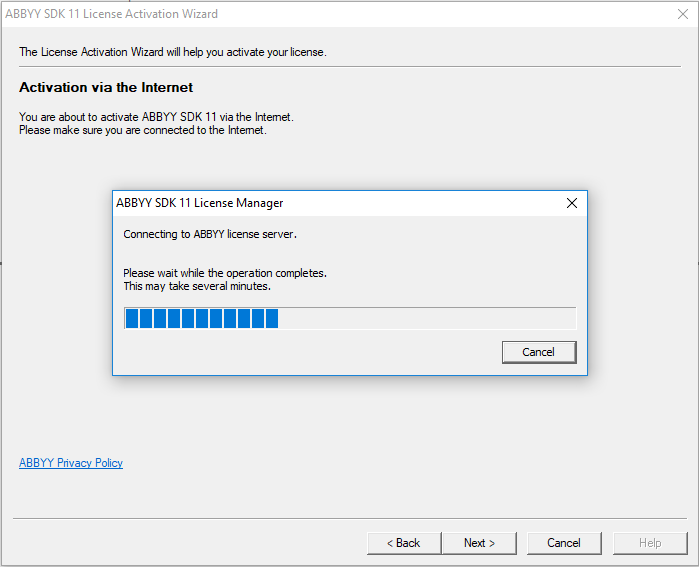
Licence Manager is contacting the License Server to verify the license.
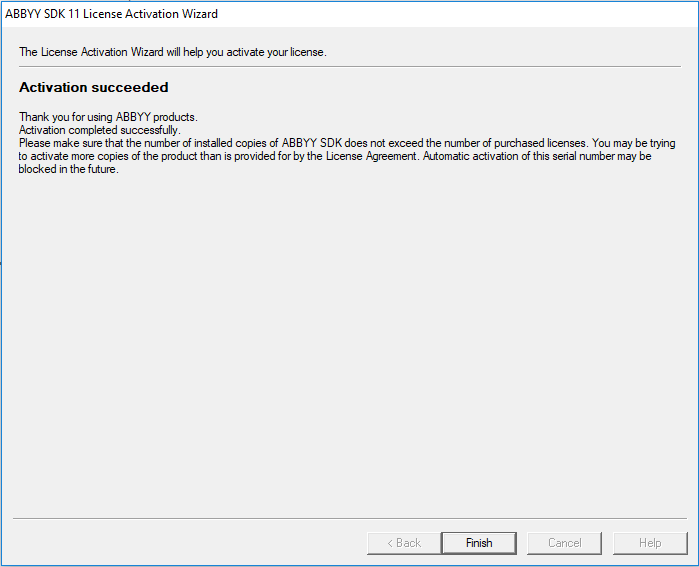
Your new license is activated.
caution
Do not stop at this stage. To complete your activation, you should proceed with further steps.
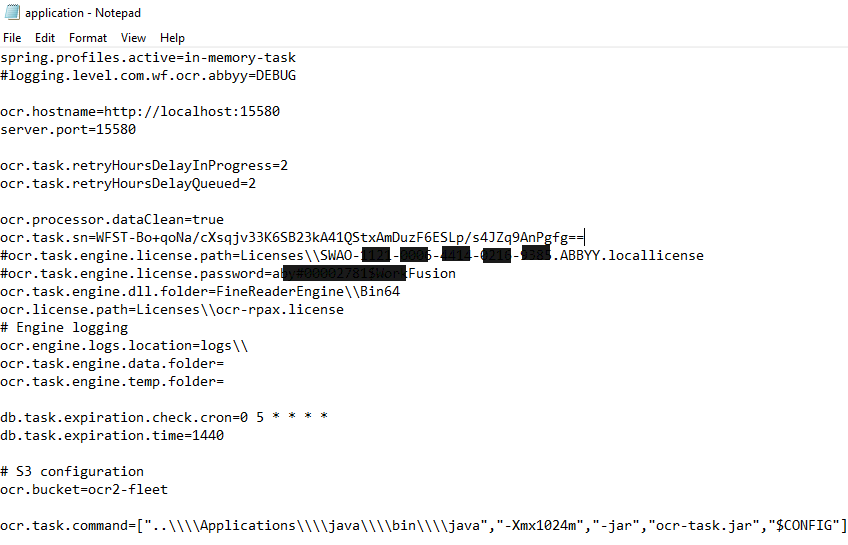
- Open the OCR properties file in any text editor (Notepad, Notepad++, WordPad, etc). The file path is C:\IntelligentAutomationCloud\OCR\application.properties.
- Make backup of the original properties file.
- Comment out the ocr.task.engine.license.password property by using the
#sign at the start of the line. - Comment out the ocr.task.engine.license.path property by using the
#sign at the start of the line.
- Restart your computer with the installed OCR.
- Validate OCR via Business Process execution.
Activatе OCR license offline
Usually, we recommend to activate OCR license via the Internet option. If by any chance you do not have Internet access, follow this scenario to activate OCR license.
- Open Abby SDK 11 License Activation Wizard and select the by email from another computer option.\
warning
The request should be done from the computer where the license will be applied. License activation request contains information about specific machine, thus it is impossible to generate the request from another computer. You will not be able to activate the license on the server.
- Copy the automatically generated request to computer with the Internet access to send it by email.
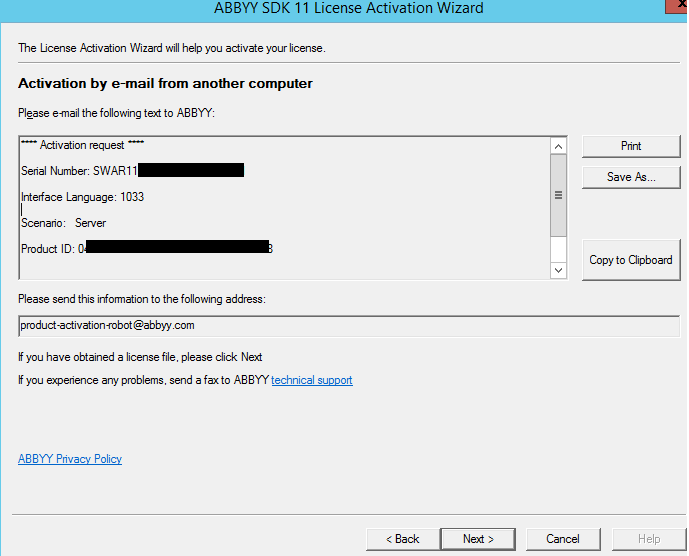
caution
Do not change anything in this text.
- At this point, you should wait for ABBYY to respond to the email, with an activation file. Upon receiving the file from ABBYY, copy it to the server without Internet, for example, to the folder C:\IntelligentAutomationCloud\OCR\Licenses\.
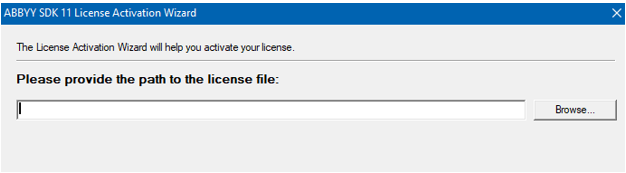
- Click Next in the License Manager window and enter the path to the license file, or use the Browse button to find it.
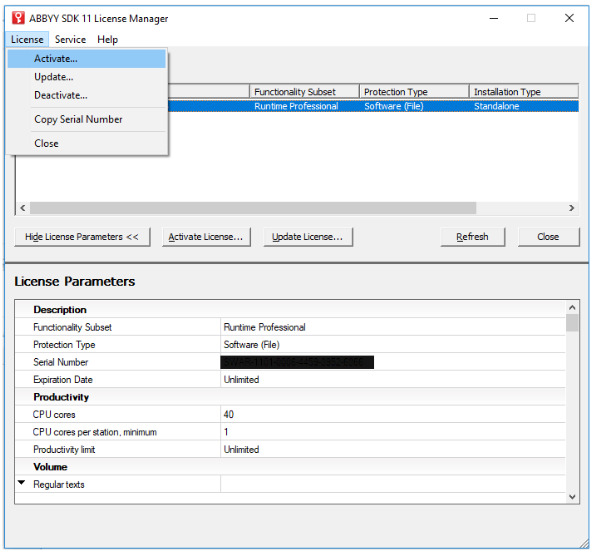
- Select License > Activate. You should see the activated license in License Manager.
- To finish the activation process, perform steps 7-9 from the scenario above.