
Files and Folders
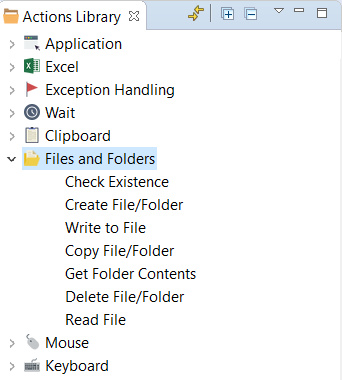
The Files and Folders action group is intended for general manipulations with files and folders, e.g., creating a folder under the path specified or a file with a specific content in a defined location, or copy/move a folder or a file to the location specified.
warning
These actions are NOT automatically recorded during recording process, they are added by hand and executed in the background, so the execution process is invisible and a file manager is not necessary to perform these actions.
important
Download sample scripts with the Files and folders actions and run them in RPA Recorder.
The main benefits of using the Files and Folders actions are as follows.
- Reliability - using the actions, you manage your files and folders in a safe and reliable way.
- Speed of execution - with the actions, you can create or manage numerous objects at once.
- Variables support - all input fields support the Recorder variables, so the recording can be re-used with different input data.
- Conflict resolution - you can choose what to do in case some conflicts occur while the actions are executed, for example, replace or keep an existing file or folder, or terminate the process.
- Regional or special character support - you can create text files with the encoding that enables writing, saving, and displaying all characters properly.
tip
If you work with files/folders located on a network resource, you have to specify the UNC path to the target file/folder, e.g., \\server-name\share-name\directory.
Check Existence
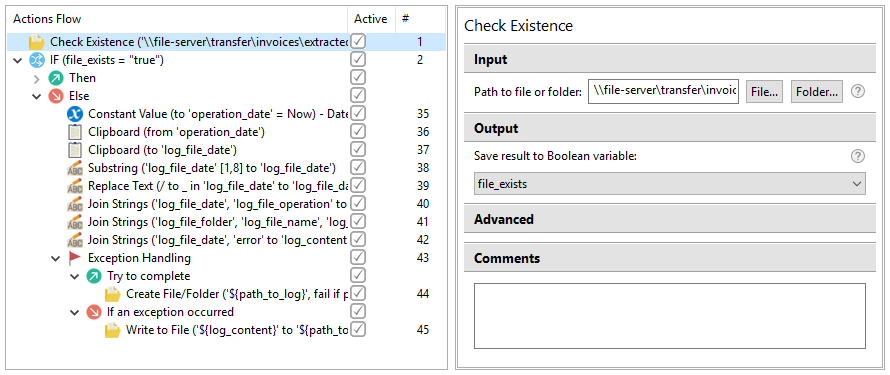
This action allows you to check, if a file or a folder you are going to process already exists in order to avoid possible errors while attempting to manage such objects.
note
The action can be used before any other manipulations with files or folders to enable more safety and extended logging, as these operations are rather critical.
Parameters:
- Input
- Path to file or folder - an input field to define a location to check, if the specified file or folder exists there. The check result is returned as a Boolean value. The path can be defined using:
- File... or Folder... buttons to select an existing file or folder respectively on your local drive or network resources
- Recorder Variable - the variable should be declared as String (for example,
${recorder_variable_path})
- Path to file or folder - an input field to define a location to check, if the specified file or folder exists there. The check result is returned as a Boolean value. The path can be defined using:
- Output
- Save result to Boolean variable - a dropdown, where you can choose a Boolean variable to save the search result for a file or a folder.
true- existsfalse- does not exist
- Save result to Boolean variable - a dropdown, where you can choose a Boolean variable to save the search result for a file or a folder.
Create File or Folder
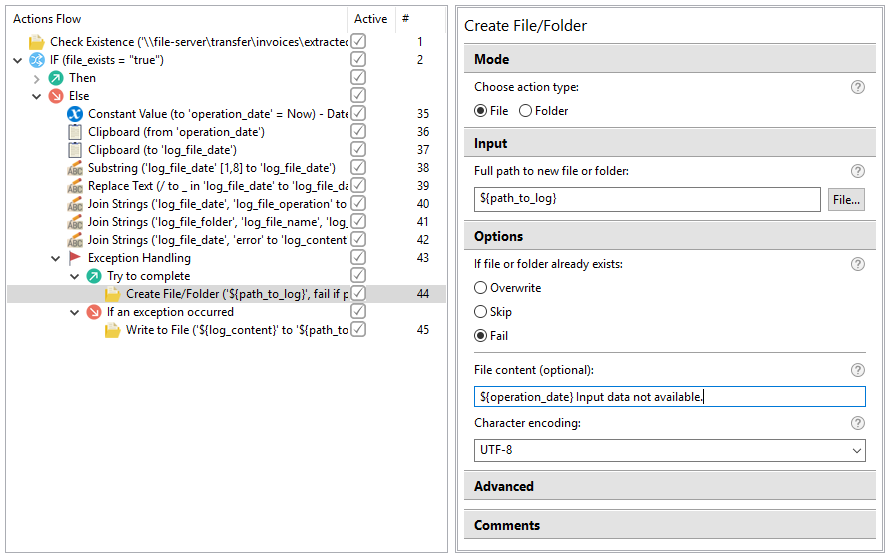
The action is intended to create a file or a folder under a path specified in the input field. The files created with the action are of the Text type (for example, TXT, CSV, HTML, XML, JS, etc.).
When creating a file, you can add the content to the file either from the input field directly or using a Recorder variable (all types are supported) and define the encoding to enable the use of special or language-specific characters in the content.
Parameters:
- Mode - choose the type of the object to create. You can choose between two options.
- File - select the option to create a file
- Folder - select the option to create a folder
- Input - define a location to create your file or folder.
- The path can be defined using:
- File... or Folder... buttons (the button appears depending on the selected option in Mode) to select a path on your local drive or network resources where the file or folder is created
- Recorder Variable - the variable should be declared as String (for example,
${path_to_log}). The action builds a complete path to the target object. It means, if some folders do not exist, they will be created automatically.
- The path can be defined using:
- Options - using the options, you can define the behavior of the action.
- Overwrite - if the object specified exists, it will be overwritten
- Skip - if the object specified exists, the current object is kept and the new one is not created
- Fail - if the object specified exists, the process will be terminated. Mind that the Fail option should be used in the Exception Handling action, otherwise your recording will be terminated with an exception.
These two options are used for files only:
- File content - in this input field, you can define the content to be written to the file you are creating with the action. The content to be written to the file is defined:\
- explicitly in the input field;
- Recorder Variables - all types of variables can be used here, but you should keep in mind, that the output is converted to the String type (for example,
${recorder_variable_content}). - Character encoding - if the content of the file contains any special or regional characters, you can define the encoding type for your file using a set of code pages.
Write to File
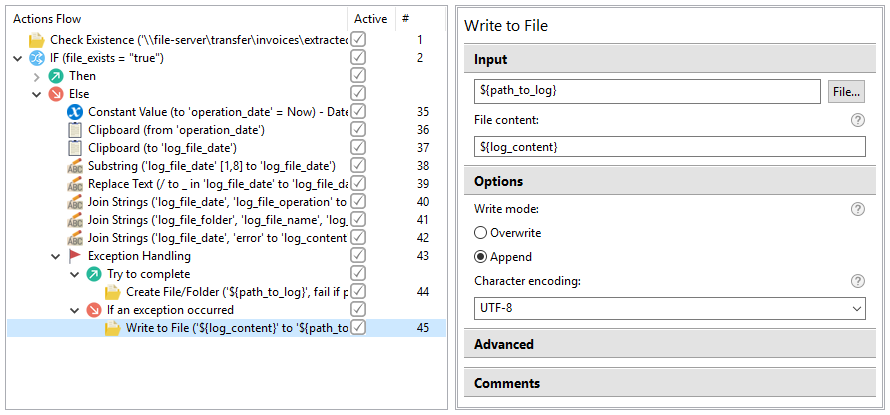
The action is intended to write text content to a selected file. The files to be used in the action should have the Text type (for example, TXT, CSV, HTML, XML, JS, etc.).
important
Download a sample script with the Write to file action and run it in RPA Recorder.
You can add the content to the file either from the input field directly or using a Recorder variable (all types are supported) and define the encoding to enable the use of special or language-specific characters in the content.
This action is more reliable, than using Clipboard, as it is not interfered by other actions.
Parameters:
- Input - define a location of the file and the content to be written to:
- The path can be defined using:
- File... button to select an existing file on your local drive or network resources
- Recorder Variable - the variable should be declared as String (for example,
${recorder_variable_path})
- File content - in this input field, you can define the сontent to be written to the selected file:
- explicitly in the input field
- Recorder Variable - all types of variables can be used here, but you should keep in mind, that the output is converted to the String type (for example,
${recorder_variable_content}).
- The path can be defined using:
- Options - using the options, you can define the behavior of the action.
- Overwrite - the content in the file will be overwritten with the content defined in the action
- Append - the content defined in the File content input field will be added to the content of the target file
- Character encoding - if the content contains any special or regional characters or the target file has a specific encoding, you can define the encoding type using a set of code pages
Copy File or Folder
This action is intended to copy or move a folder, including its entire content, or a single file to a location defined as a destination path.
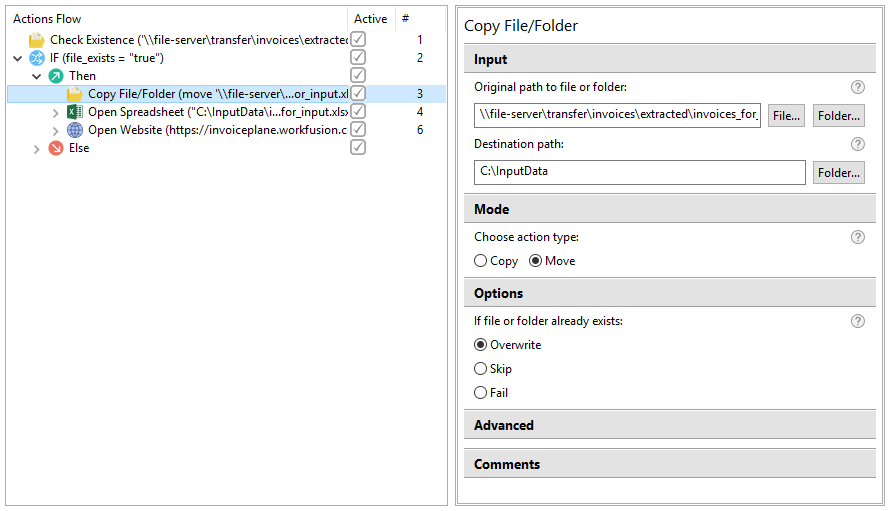
Parameters:
Input
- Original path to file or folder - a full path to a folder or a file to copy/move to the destination specified. You can select the source file or folder with:
- File... or Folder... buttons to select an existing file or folder respectively on your local drive or network resources;
- Recorder Variable - the variable should be declared as String (for example,
${recorder_variable_path}).
- Destination path - the target path to copy/move a file or a folder to. There are two ways to define the destination:
Folder... button to select an existing folder on your local drive or network resources as a destination;
Recorder Variable - the variable should be declared as String (for example,
${recorder_variable_path}).note
The action builds a complete path to the target object. It means, if some folders do not exist, they will be created automatically.
- Original path to file or folder - a full path to a folder or a file to copy/move to the destination specified. You can select the source file or folder with:
Mode - choose, if the object (file or folder) is to be copied or moved. When moving a file or a folder, it is copied to the destination location and deleted from the original folder.
Options - using the options, you can define the behavior of the action.
- Overwrite - if the object specified exists, it will be overwritten
- Skip - if the object specified exists, the current object is kept and the new object is not copied or moved
- Fail - if the object specified exists, the process will be terminated. The Fail option should be used in the Exception Handling action, otherwise your recording will be terminated with an exception.
Get Folder Contents
The action reads a content of a defined folder including files, sub-folders, or both, and saves the results (full paths to the items) to a Recorder variable (List).
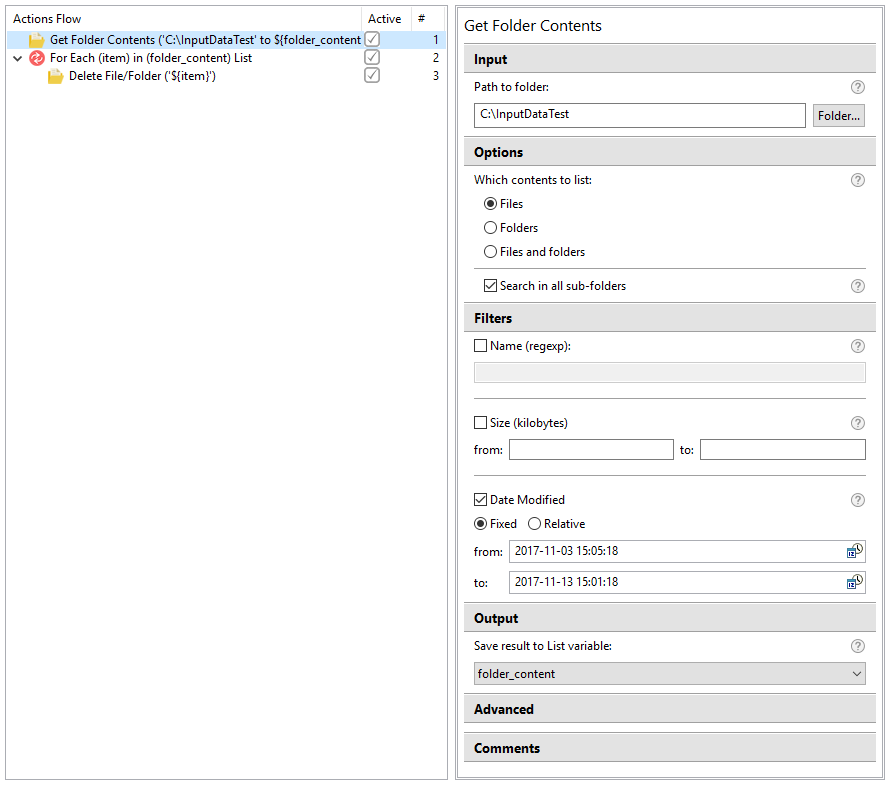
Parameters:
Input
- Path to folder - a full path to a folder, which content should be read. You can select the source file or folder with:
- Folder... button to select the folder on your local drive or network resources
- Recorder Variable - the variable should be declared as String (for example,
${recorder_variable_path})
- Path to folder - a full path to a folder, which content should be read. You can select the source file or folder with:
Options - you can define which items to read from the folder content.
- Files - only files will be listed in the output
- Folders - only folders will be listed in the output
- Files and folders - both files and folders will be listed in the output
- Search in all sub-folders - select this option to list the elements from all sub-folders containing in the target folder
Filters - you can apply a number of filters to the results matching to criteria such as name, size and date modified.
- Name - select this option to apply a filter to names or file extensions using regex expressions, e.g., .*\.txt - read files with the TXT extension. More information and practical samples about how to deal with regular expressions you can find on this website.
- Size - using this option you can define the size of the objects to be listed with the following parameters.
- **from **- the minimum size of the files to be listed in kilobytes
- to - the maximum size of the files to be listed in kilobytes, e.g., use the following combination to get a list of empty files: from - 0, to - 0
- Date Modified - with this option you can list files/folders modified within a certain time
- Fixed - you can set the exact dates to define the interval, when the files/folders have been modified.
- from - start date for the interval (if it's not defined, the interval starts from the epoch time)
- to - end date for the interval (if not set, the current date is used)
- Relative - you can define a time interval behind the current time in days, hours or minutes.
- Fixed - you can set the exact dates to define the interval, when the files/folders have been modified.
Output - select Recorder Variable (List) to save the results of reading the content from the target folder.
Delete File or Folder
This action is intended to delete a file or a folder with the entire content.
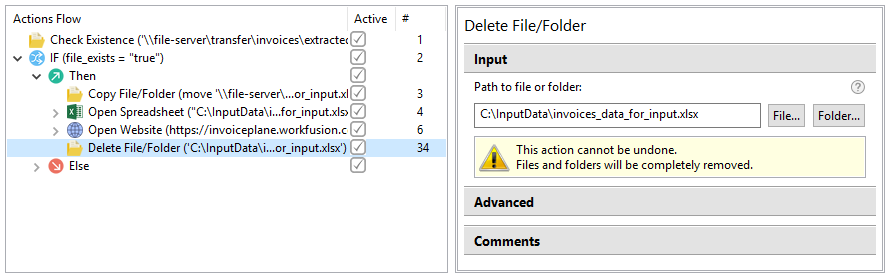
Parameters:
- Input
- Path to file or folder - a full path to a folder or a file to remove from the drive. You can select the target file or folder with:
- File... or Folder... buttons to select the file or folder respectively on your local drive or network resources for deletion
- Recorder Variable - the variable should be declared as String (for example,
${recorder_variable_path}).
- Path to file or folder - a full path to a folder or a file to remove from the drive. You can select the target file or folder with:
Read File
The action is intended to read content from a selected file. The files to be used in the action should have the Text type (for example, TXT, CSV, HTML, XML, JS, etc.).
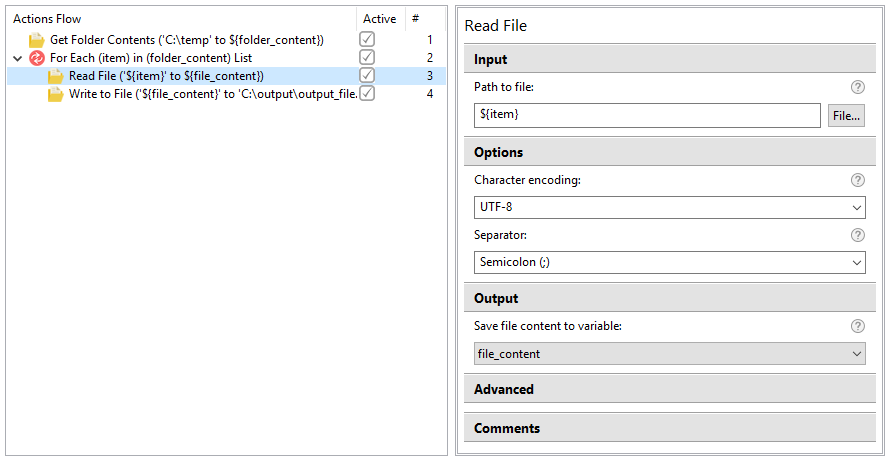
Parameters:
- Input - define a location of the file to read the content from.
- The path can be defined using:
- File... button to select a file on your local drive or network resources
- Recorder Variable - the variable should be declared as String (for example,
${recorder_variable_path})
- The path can be defined using:
- Options - using the options, you can define the behavior of the action.
- Character encoding - if the content contains any special or regional characters or the target file has a specific encoding, you can define the encoding type using a set of code pages.
- Output - select Recorder Variable (String or List) to save the results of reading the content from the target file.
- Separator - this option is available only when the content is saved to a List variable to define a separator between the list elements. Select a predefined separator or enter a custom one. You can use letters or symbols.
note
Note that empty lines will be skipped when reading a file to a List.