Information extraction
Information Extraction (IE) s special kind of answer used for extracting structured content from raw unstructured text. Information Extraction results are utilized by machine learning.
This answer type displays input data as non-editable text where user can select text chunks and tag them.
note
Watch this video where IE task is created and completed - Information Extraction Task.
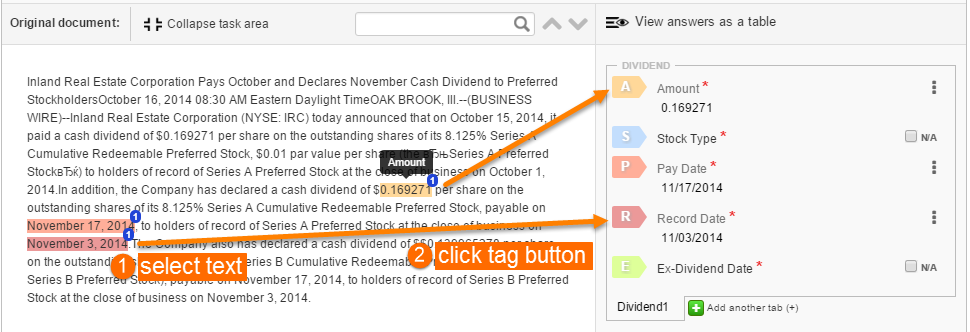
How to execute IE tasks
- Read the Task Instructions and review all Tags from the side panel.
- Start reading and analyzing the text sentence by sentence.
- When you meet a text chunk that corresponds to one of the Tags:
- select the text chunk
- click the corresponding colored Tag icon with letter OR press the corresponding keyboard key (hotkey).
- Your selection will be highlighted in Tag color.
- Repeat the steps 2 and 3 till the end of text.
- Review the results and submit the Task.
You can optionally perform the following actions with the tagged items:
- Edit a tagged item by clicking the pencil icon. This option is helpful when you have found a misprint or incomplete info.
- Delete a tagged item by clicking the **(x) **icon.
- Scroll to tag by clicking the magnifier icon.
tip
- Advanced text tagging
- Tagging tabular text using Automatic Suggestions (Online Learning)
How to create IE answers
tip
Before reading this material, see the following topic: Answer types.
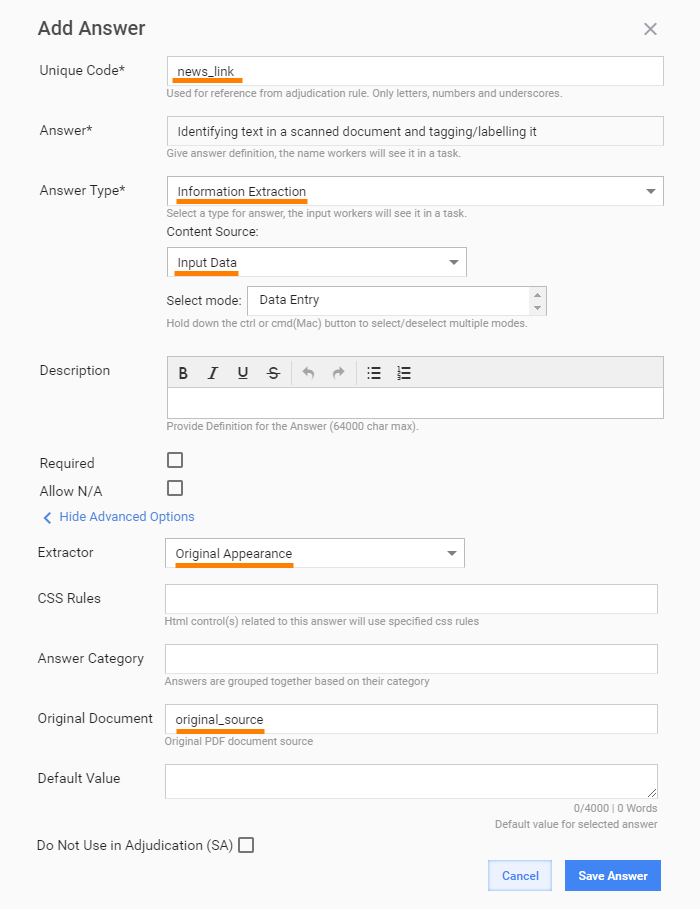
Unique Code in case of Information Extraction must contain column name from Input Data .CSV. The mapped column can contain raw text or a link to a webpage (http or https). Recommended to prepare, store data files (of text format: HTML or XML or just raw TXT) and upload those into S3 bucket. Then generate list of URLs which can use in .CSV of Input Data.
Add a new Answer with the Information Extraction Answer Type.
Default value - should be always same as Unique Code plus "_tagged" suffix, for example ${question.data['news_link_tagged']}
Select the Content Source:
- Input Data. In this case, the Answer text will be loaded from the input Data file column mapped to this Answer OR
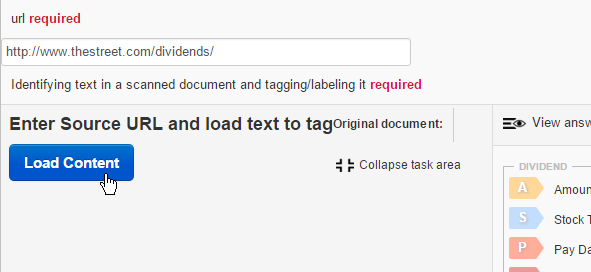
- Answer Code of the Answer with URL type, if available. In this case, Worker should enter a valid URL into the corresponding URL-Answer field and click the Load Content button in the IE Answer text field.
caution
Supported IE answer source formats: TXT, XML, HTML
(Optional) Tick the Use blocks checkbox, if you want Workers to tag several blocks with similar structure (e.g. tables) in a document.
In Advanced Options, select the Extractor. IE answers use boilerpipe library to retrieve and filter content when it gets URL as an input. You should select boilerpipe's extractor which will be used for filtering content. More details about extractors you can find via the link: http://boilerpipe-web.appspot.com/\ The following Extractor should be used for IE answers:
- Original Appearance - with this option you preserve the structure and all tags of the original document.
Mapping
The IE Answer must be mapped to an input file column. There are two ways to do this:
- You can name the column the same as the corresponding IE Answer Code. OR
- You can map any column by clicking the column header and selecting the corresponding IE Answer Code.
Add sub-answers (tags)
The IE Answer must include one or several Tags or Tag Groups; each Tag Group must include one or several Tags. These Tags and Tag Groups are created as sub-Answers for the IE Answer.
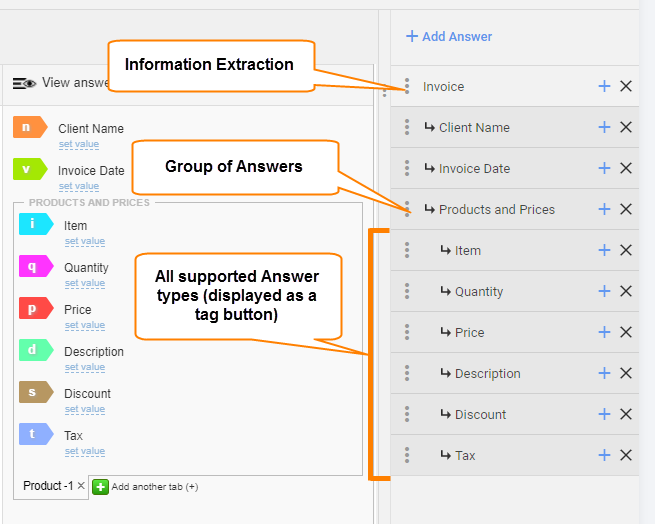
The Answer hierarchy (IE > Tag Group > Tag or IE > Tag) with corresponding Answer Types is displayed on the following picture.
IE sub-Answers (Tags) have the following distinctive features.
Available answer types
Unconstrained Text
- Free Text - a field to enter a single-line text string
Constrained Text
Address - a group of address text input fields (Address Line, City, State, ZIP).
Masked Text - a field with restricted input with combinations of numbers and letters defined in the mask
note
Mask for text (9 - any digit; a - any letter; * - any letter or digit)
Numbers
Number - input field used to enter integers only
Percent - input field for a percentage value (the succeeding percent sign is added automatically)
Price - a combined input field used to enter a monetary value.
tip
A currency is selected from the dropdown. Price is entered as a number (real or integer, negative numbers supported).
Date and Time
Date - input field for entering a date in
mm/dd/yyyyformatnote
IE answer supports smart date conversion when tagging such words as "yesterday, today, Monday, tomorrow evening, the day before yesterday, ...".
Select Date - combined control with 3 dropdowns for selecting a date in
mm/dd/yyyyTime - an input field for entering time in the following format:
hh:mm (AM/PM)tip
You can tag time in various formats: "1am, 23:00, 1n, 2:40 pm,..." -- these values will be normalized automatically.
Invoice
Invoice Date - date of invoice issuing (date format)
Invoice Number - number of invoice (free text format, accepts any value, spaces are deleted automatically)
Invoice Type - type of invoice (free text format, accepts any value, spaces are deleted automatically)
Vendor - supplier name (free text format, accepts any value unless a data store is configured)
Requester - name of the person requesting the items defined in the invoice (free text format, accepts any value unless a data store is configured)
Receiver - name of the person whom the the invoice should be billed to (free text format, accepts any value unless a data store is configured)
note
For Vendor, Requster, Receiver answer types, if a data store is configured, the values from it are populated into suggestion box for the sub-answer. If no datastore is configured, free text input is accepted.
ID - a Customer identifier (free text format, accepts any value)
Invoice Address - a billing address (free text format, accepts any value)
Zip code - Customer's ZIP code (free text format, accepts 5 or 9 characters)
CUSIP - a field to enter CUSIP with a built-in validation (more information about CUSIP you can find here Wikipedia)
Account number - free form text with automatic deletion of spaces
IBAN - a field to enter IBAN identifier with a built-in validation (34 alphanumerical character, validation by 2 control digits, read more in Wikipedia)
SWIFT BIC - a field to enter SWIFT or BIC identifier with a built-in validation (The SWIFT code is 8 or 11 alphanumerical characters, read more in Wikipedia)
Currency - a dropdown to set the invoice currency to override the values from a data store
Tax Amount - a field to enter the invoice tax amount with a built-in validation for number. Supports US and EU formats, for example
5,890.20- US,5.890,20- EU.Total Amount - a field to enter the invoice total amount with a built-in validation for number. Supports US and EU formats, for example
5,890.20- US,5.890,20- EU.
Multiple choice
- Select one - drop-down list that allows selection of a single option
- Check one - radio button group that allows to select one option
Select from list
- Country - drop-down list of countries to select
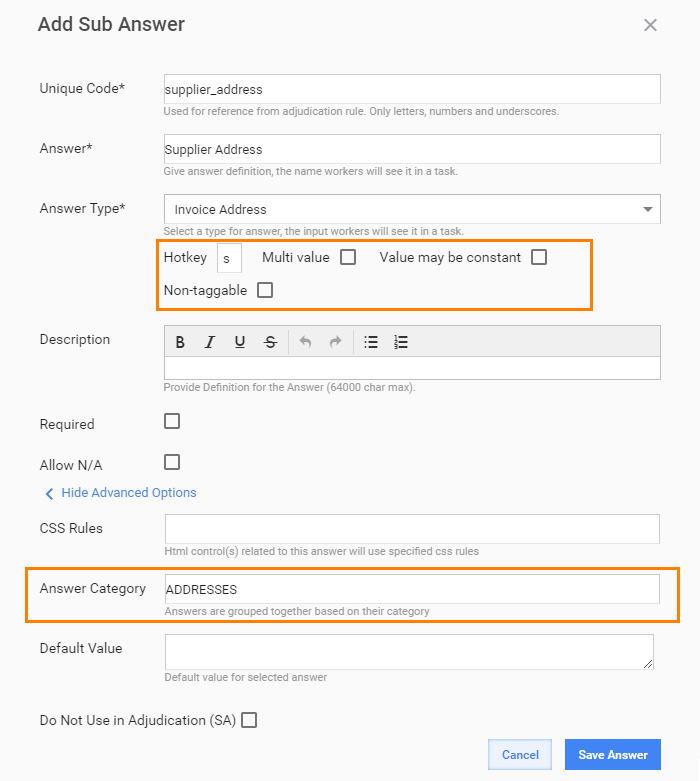
Hotkey
Hotkey (a unique char). This key can be used for quick text tagging. Tag color is assigned automatically.
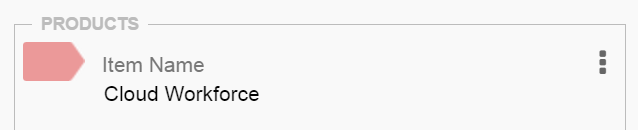
If you skip this parameter, a tag button will be shown without hotkey assigned to it:
- Multi value. Tick this checkbox to allow Workers to tag multiple text chunks with the same Tag.
- Value may be constant. This parameter is used for Tag Groups and allows to use one tagged text chunk for all Tag Groups.
- Non-taggable. If this option is checked, the Answer will not have a tag button and can be used for providing additional information about documents being tagged.

Answer category
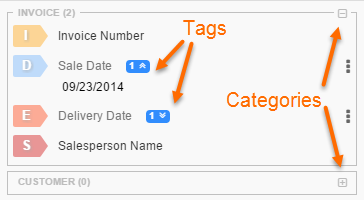
Answers are visually grouped together based on their common category. You can expand or collapse a category while tagging. This feature is helpful when an IE Answer a lot of Sub-Answers: you can set the same Category for related Sub-Answers to improve navigation and search.
caution
Do not forget to check the Allow N/A option, because some information can be missing in the source text.
Result data
IE Answers record the following columns to the output csv file:
- Tagged text.
- Column for each sub-Answer. Multi-value Answers are recorded into one cell with a pipe delimiter.
- Tag Group answers are recorded as a JSON to a separate column.
Confidence and Accuracy are calculated for each column.
IE answer features
Tag groups
Very often we have situation when a Worker should tag repeatable information blocks together with the static values. For example, bank transaction reports, bio information, dividend researches, etc.
For this purpose, a new answer type, Group of Answers, has been created. This answer is displayed as a multi-tab panel containing its sub-answers.
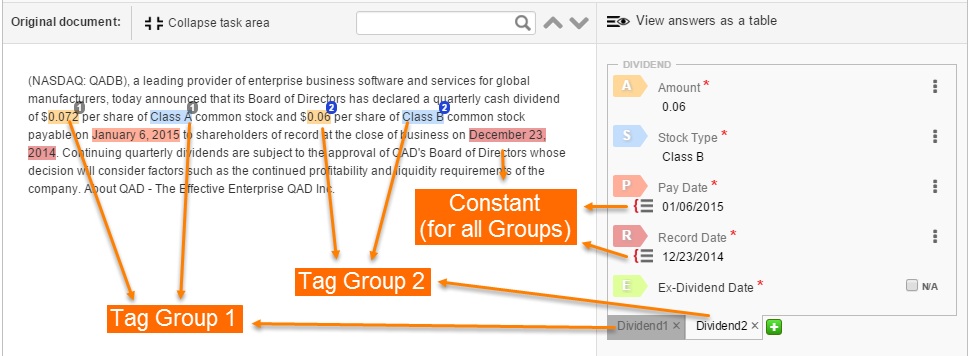
How to use IE answers with tag groups
- Select text and tag it like in an ordinary Information Extraction answer.
- When all tags for the first group are set, create a new tab by clicking the plus icon.
- Select text and tag it for other groups.
You can switch between tabs or delete them. The latest tab deletion can be undone. Text selections from inactive groups are highlighted with gray and have a group number label.
How to create tag groups
- Add a new sub-Answer to the IE Answer. This sub-Answer should have the Answer Type: Group of Answers. The Options parameter defines the tab name.
- Add Tags as sub-Answers to the Group of Answers. Tick the Value may be constant checkbox to allow using one tagged text chunk for all Tag Groups.
Modify tags
When it is necessary to modify or edit a pre-recognized tag(-s), you should select a tag, then it appears on the right panel, so that you can quickly edit or remove it. You can select a tag in one of these ways:
Right click an existing tag to select this single tag.
Ctrl (or Cmd on a Mac) + Left click an existing tag (one tag is selected) or a few tags (multiple tags are selected)
note
Holding Ctrl (or Cmd) and clicking on an already selected tag will clear the selection.
**Ctrl **(or Cmd on a Mac)**** + Drag existing tags (multiple tags are selected)
For multiple selection you can right click an existing tag and choose one of the Expand Selection options from the context menu appeared:
- Rest of the column to select all tags below the selected tag till the end of the column
- Same tags in Column to select all tags of the same type in the column below the selected tag.
Once you have selected one or more tags, they will appear on the right. All other tags will disappear. You can click anywhere in the document or the Clear Selection button to remove selection from these tags and show the entire list of tags again.
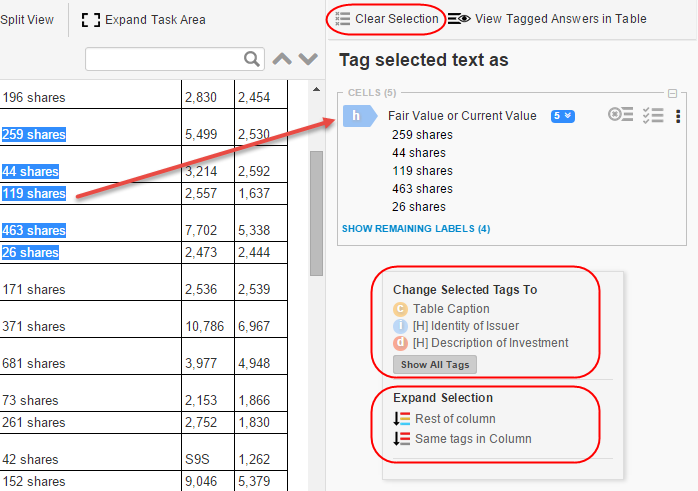
Bulk tag type change
If you have a number of tags selected, you can re-tag all of them with a new type by clicking the respective type in the Change Selected Tags To section of the context menu at the bottom of the right panel.
note
Click Show All Tags to see the entire list of available tag types.
IE with blocks
Some documents have repeatable sections with the same structure (e.g. a set of tables). Each section can be tagged with a separate IE answer Block.
Each block has its own set of Rows (Tag Groups) that can be added dynamically.
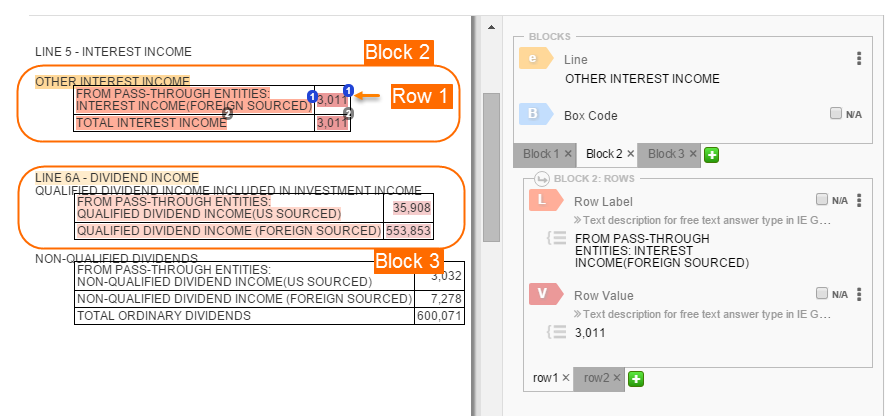
When the root IE Answer has the Use blocks option enabled the following rules are applied:
- Sub-Answers become tags within a block
- Tag Groups (row1, row2, rowN... in the screenshot above) are created inside of each block as sub-tabs, i.e. each Block has its own set of Groups.
- Blocks and Groups inside them are created/removed dynamically and can be switched by clicking appropriate tabs.
note
Example: "Line" and "Box Code" tags describe a block (a separate table).
Block 2 is selected. This Block has two rows ("row1" and "row2") which represent a Tag Group.
Auto corrections
When a Worker has selected only a part of a word, number, or phrase the WorkFusion engine analyses this situation and automatically suggests corrections depending on the context.
WorkFusion engine detects mistakes in Workers' selection and proposes corrections:
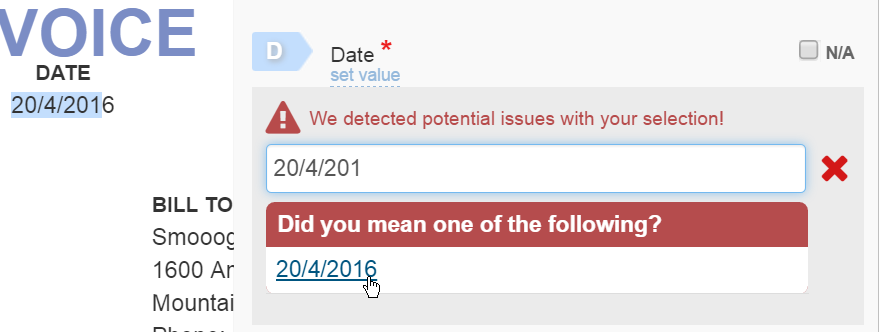
Supported correctors:
- Whitespace
- Punctuation
- Word Margin
- Sentence Splitter
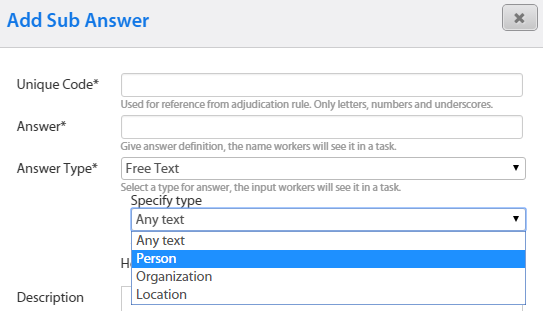
- Named Entity Recognition (i.e., "Princeton University"). To enable this corrector, add a Sub-Answer with Free Text type to an existing IE Answer and set Specify type = Reason, Organization, or Location.
caution
Sentence Splitter and Named Entity Recognition correctors must be configured by setting the NLP service (Configuration > System Preferences > Account Settings > Preferences > NLP Service URL).
All correctors are disabled when IE Task uses Online Learning feature (tag auto suggestions). In this case, correctors are provided by selected ML model.
Table with results
You can view all the tagged text chunks in a convenient table format.
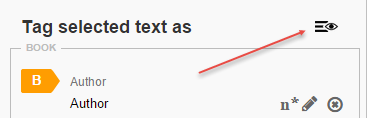
When you click a table row, the appropriate tag group is highlighted.

You can optionally enable the full screen view for the table to see all table columns without scrolling.
Original document preview
Workers can preview original documents to make sure that the extracted text is valid or to view original graphics, formatting, etc. This preview is available for PDF files.
To enable the preview function, provide links to PDF files in the respective column of the input data file.
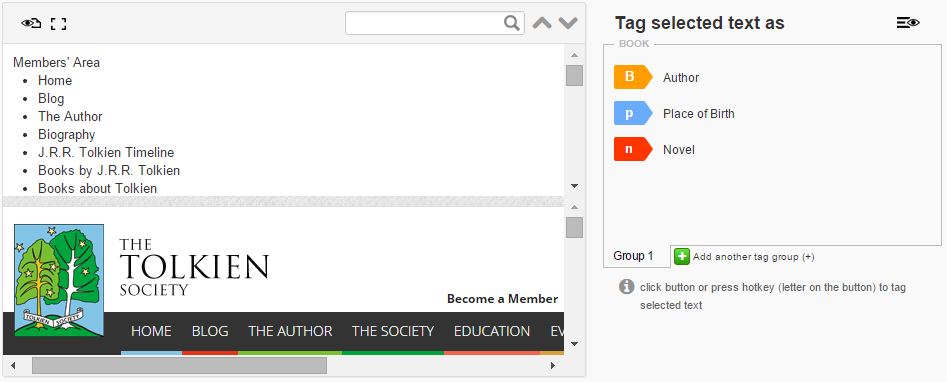
The original document is displayed in the bottom panel. You can drag the splitter bar to resize the document preview.
Full screen view
While working with big chunks of text or long sentences, it is useful to utilize all available space on the page.
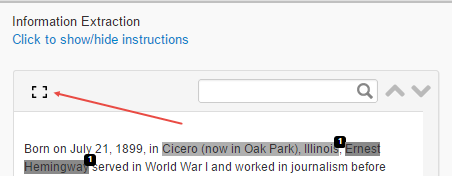
You can enable the full screen mode if needed and disable it anytime.
Document zooming
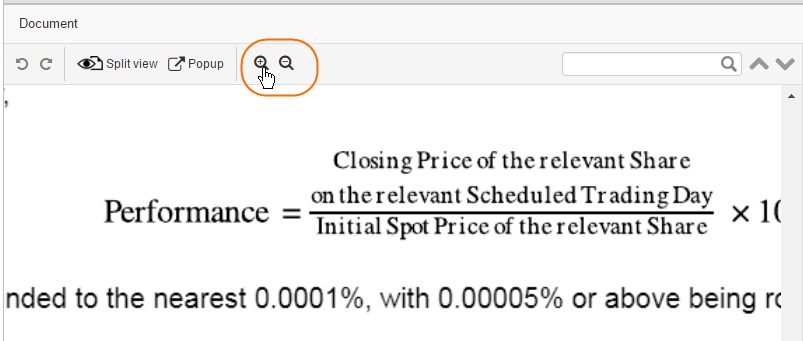
Some documents can contain text with different font height. IE Answers provide functionality to zoom in and out the source document.
You can zoom in if the font is too small, or zoom out to see the whole page structure.
Undo/redo actions
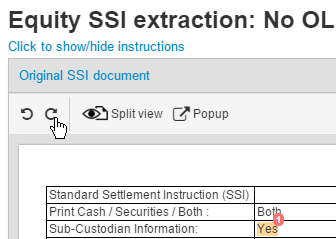
User can undo or redo changes made in Information Extraction answers (adding/removing tags, accepting/rejecting auto-suggestions, marking N/A or constant, etc.).
User can also use common keyboard shortcuts: Undo (CTRL + Z), Redo (CTRL + SHIFT + Z).
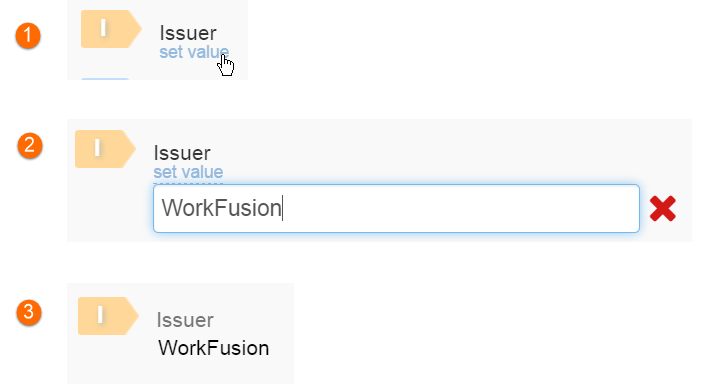
Set tag value
You can set a tag value without selecting a text chunk and clicking a tag button. This feature is useful when you tag a low-quality document with OCR errors and you don't want to train ML model on faulty data.
Just click a set value link under an appropriate tag name and enter your tag value.