Back up business process
To back up your business process, you should create a package. A package is a .zip archive containing:
- an .xml data file with task or business process export information (design, settings)
- all Data Stores used in a task or business process steps
- meta-information
Create package
Go to Business Processes > View All.
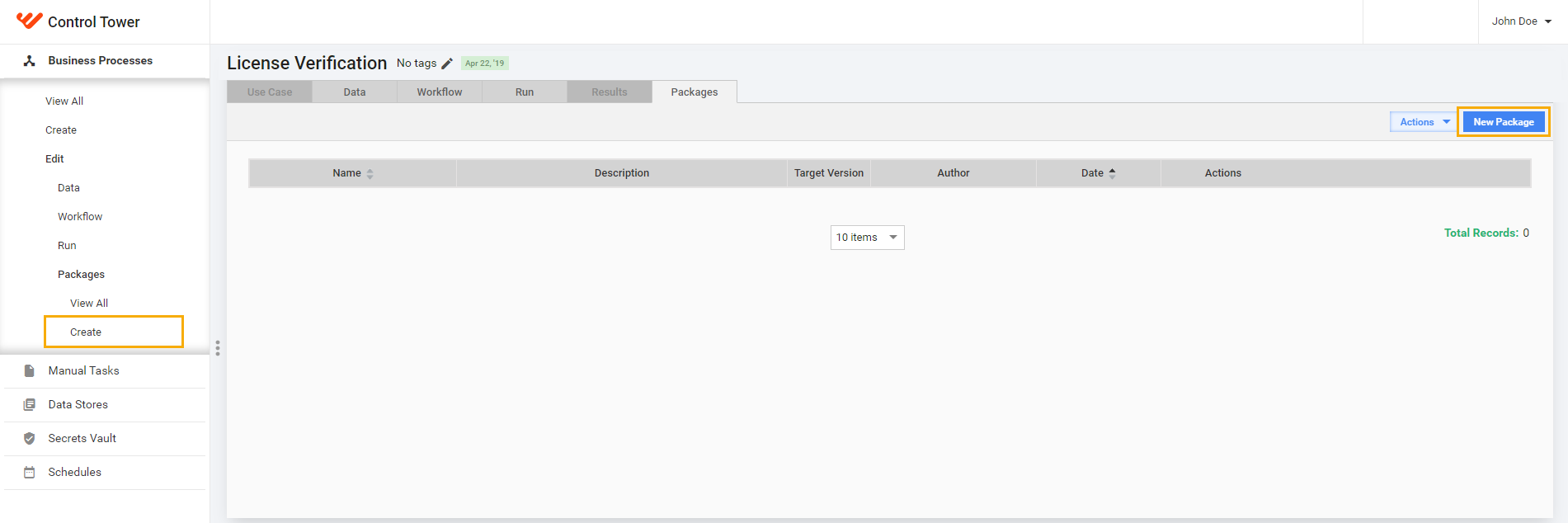
Select the business process, go to Packages, and press New package. Alternatively, you can go to Packages > Create in the left menu.
Enter a meaningful Name and Description for the package.
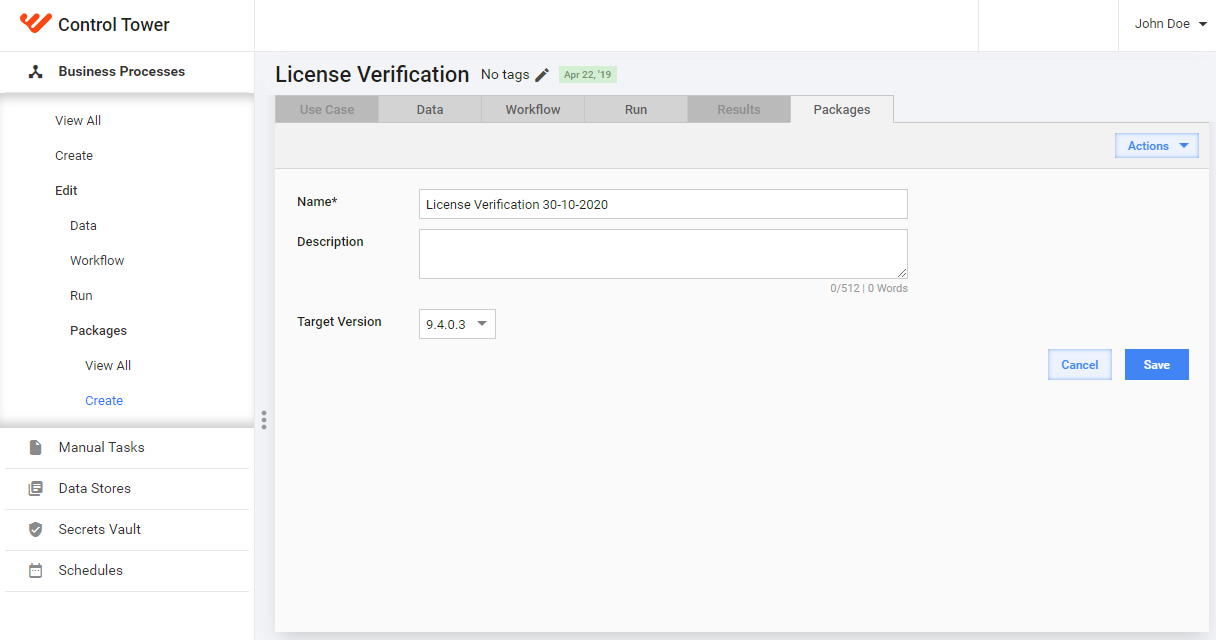
Select a target version in the Target Version dropdown menu for the current package.
Click on the Save button.
Import package
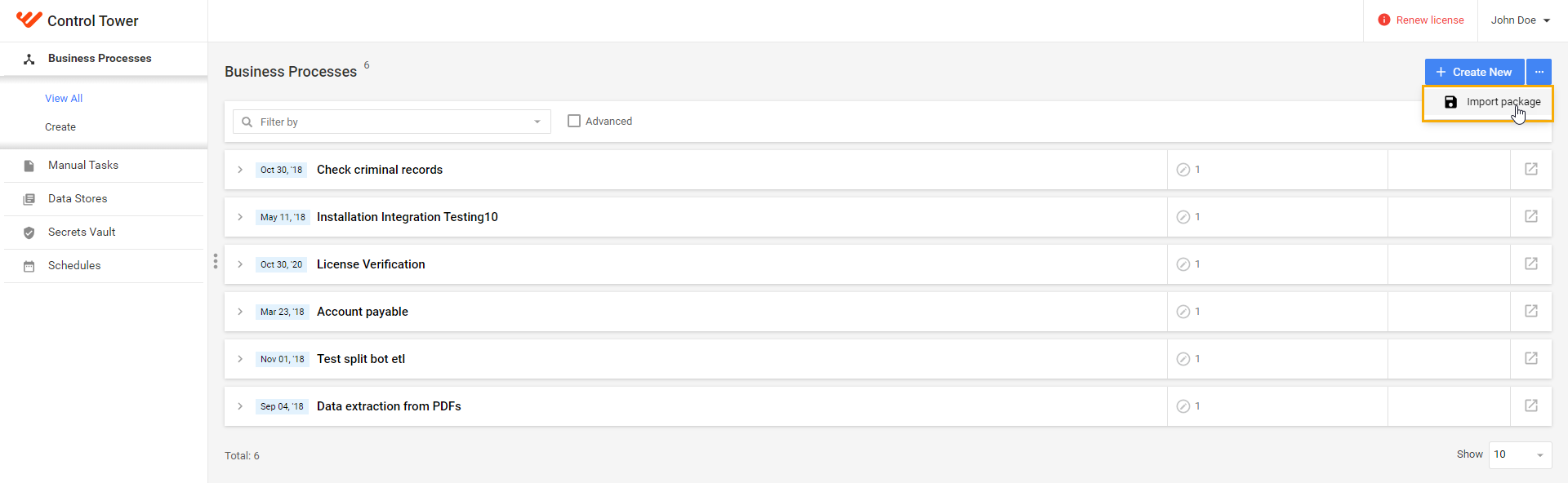
Go to Business Processes and click on Import Package in the top right corner.
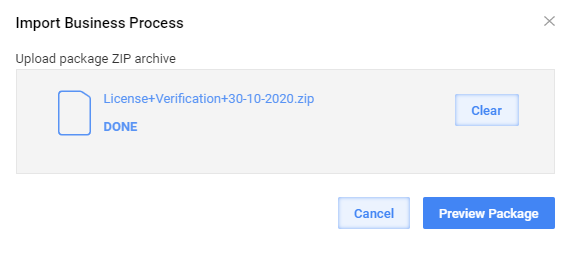
In the window that follows, click on the Add button and specify the path to your package.
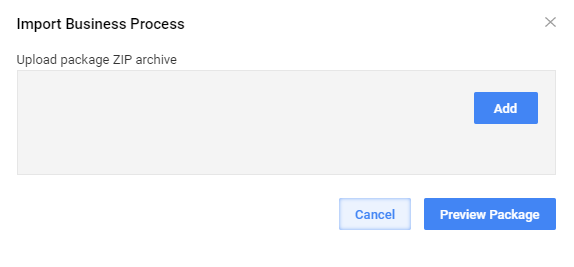
To continue uploading, click on the Preview Package button.
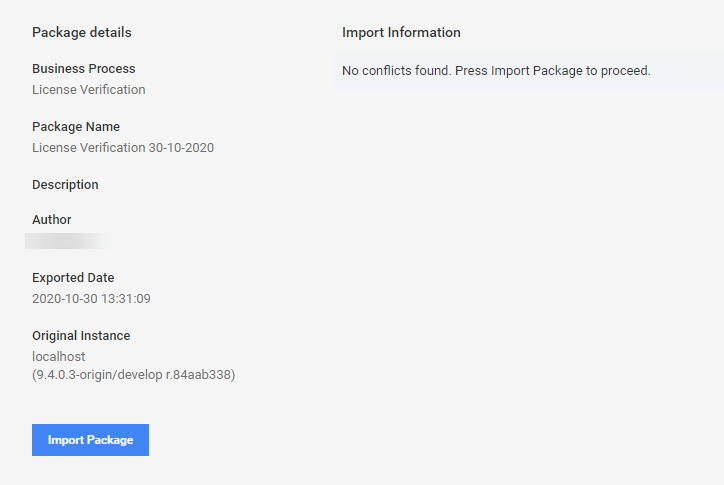
On the Package details page, view the package information and import information data. Press Import Package.
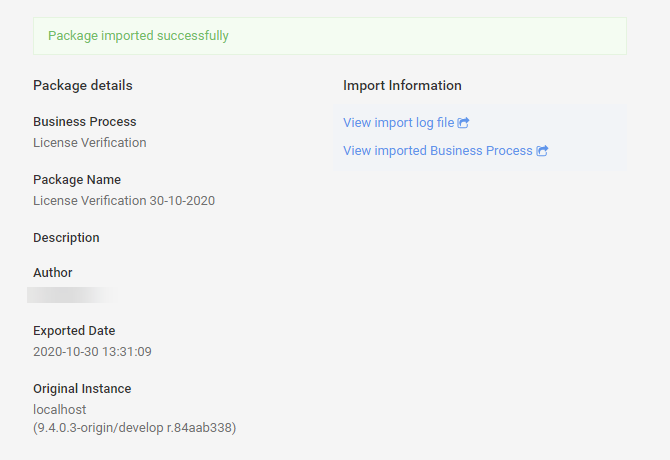
The Package imported successfully message is shown. Here, you view the import log file (on clicking, the file is downloaded in the .TXT format) or view the imported business process.
Version labels
Let's assume that you have a business process and:
- created the first package for this business process and imported this package to the PROD environment
- edited the business process and saved it
- created the second package for this business process and imported this package to the PROD environment
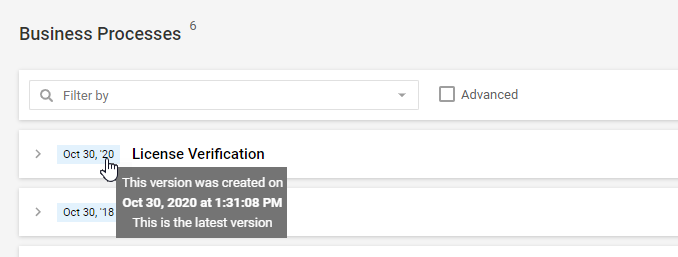
As a result, each new imported package creates a business process or task run that is automatically labeled by a timestamp.