RDS licensing for multiple bots
With Intelligent Automation Cloud Business, you can run multiple bots on one server concurrently.
While the software allows for a number of bots to be run concurrently, it's important to make sure you have the right Infrastructure, OS, and Microsoft Licenses to be able to benefit from it. Read the article below to get to know system requirements, an RDS CAL licensing model and how-to for RDS License activation.
System requirements
To run multiple bots on one machine, your Window Server OS requires one of the following versions:
- Windows Server 2012 R2
- Windows Server 2016
tip
- You may also need RDS Per User CALs for your Windows Server.
- We recommend running no more than 16 bots per Window Server concurrently to ensure smooth performance
- Each bot would need at least 1 CPU and 2 GB RAM
What are RDS CALs?
To use the Windows Server OS and RDS to manage bot sessions, you need to purchase licenses. Each bot on the server should have a user CAL. RDS CALs are installed on the RD licensing server that keeps track of these licenses. When a bot tries to connect to the RD session host server, the server checks if the bot has a CAL. Follow the link to read more.
caution
Intelligent Automation Cloud Business needs RDS Per User CALs and NOT RDS Per Device CALs.
You can purchase CALs for Windows Server 2012 R2, or 2016 from a reseller.
note
Note that each bot needs a license for each application it uses, i.e., Microsoft Office.
You can run the Intelligent Automation Cloud Business trial version with multiple concurrent bots without purchasing RDS CALs. The installer will activate on the 120th day of RDS grace period and create multiple bots automatically.
note
Be aware that you would need to purchase RDS CALs to stay compliant after grace period expiration.
RDS license activation
The article describes how to activate an RDS license for Intelligent Automation Cloud Business. There are two cases – when there is only one server and no RDS CALs in the organization have been previously activated, and when RDS CALs already exist in the company network and RDS license server is available on another PC.
Scenario 1. Activate RDS license in case it was not previously activated
These are steps on how to activate an RDS license for the first time in case it was not activated previously on any company server. Business Edition should be installed on this server.
The example below is prepared for Windows Server 2016. If you have different operating system, you may have different interface and menu items.
Install roles and features
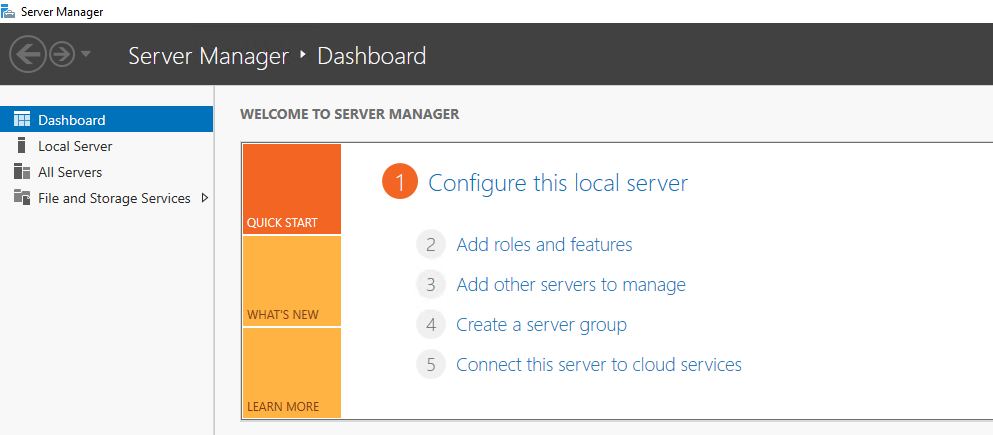
- Open Server Manager.
- Click Add roles and features.
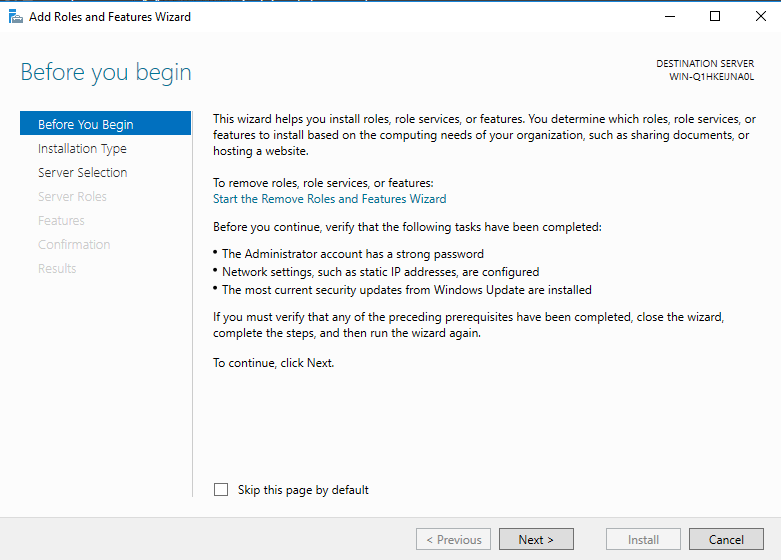
- Click Next on the Before You Begin tab.
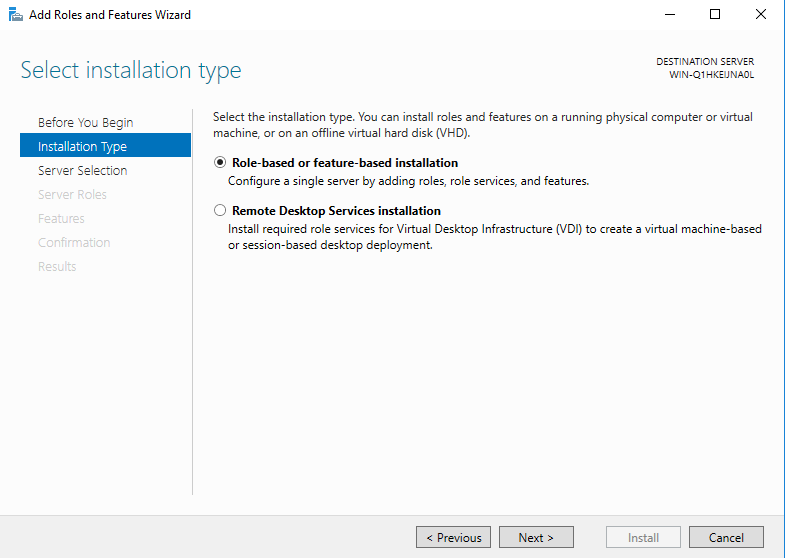
- On the Installation typetab, select Role-based or feature-based installation, and click Next.
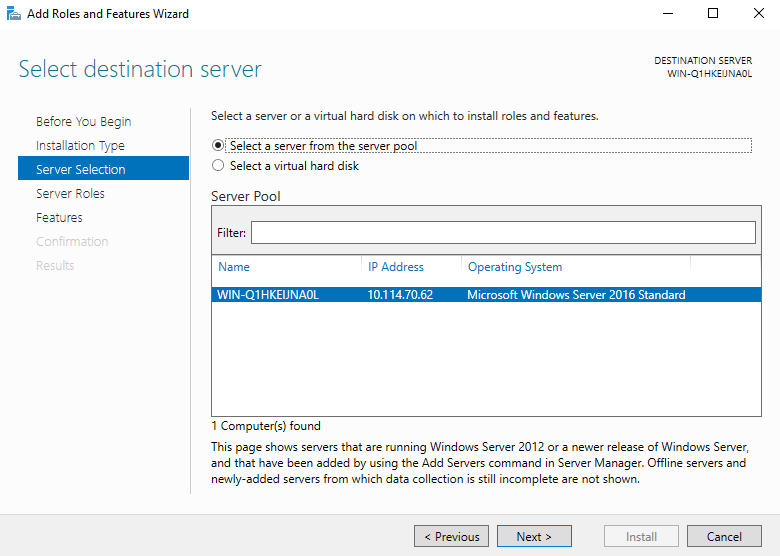
- Within Server Selection, choose Select a server from the server pool, select your server in the list (in this case, the
only server is available), and click Next.
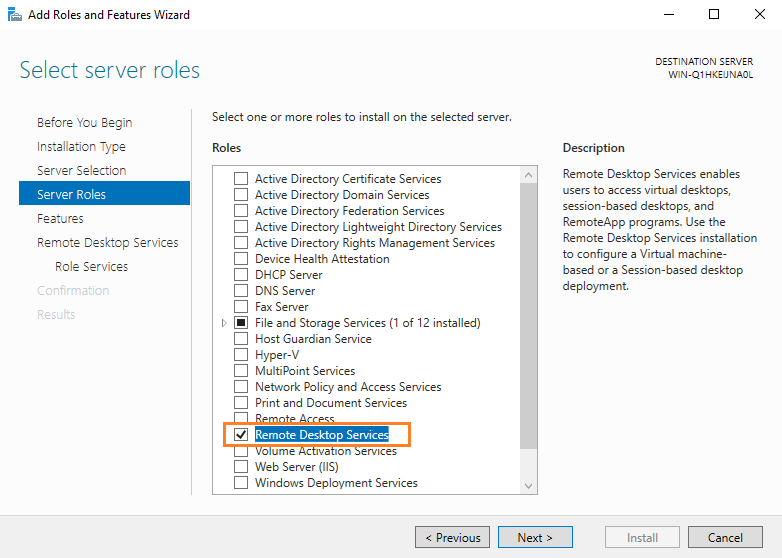
- On the Server roles tab, select Remote Desktop Services and click Next.
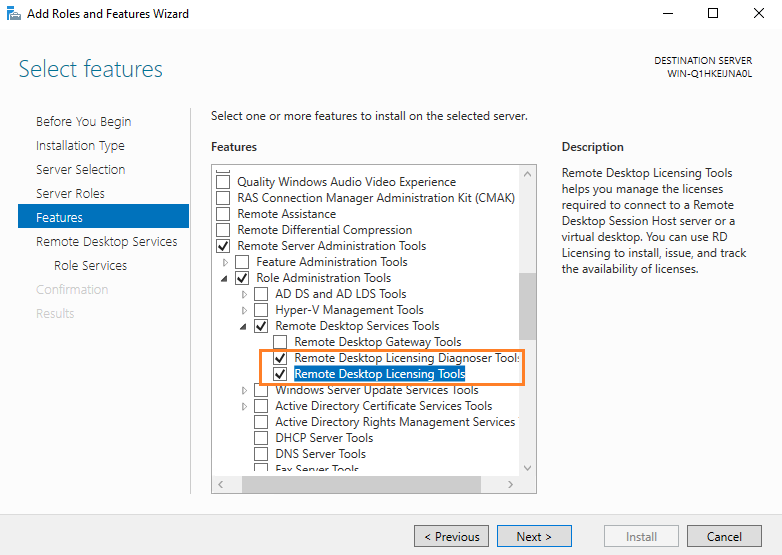
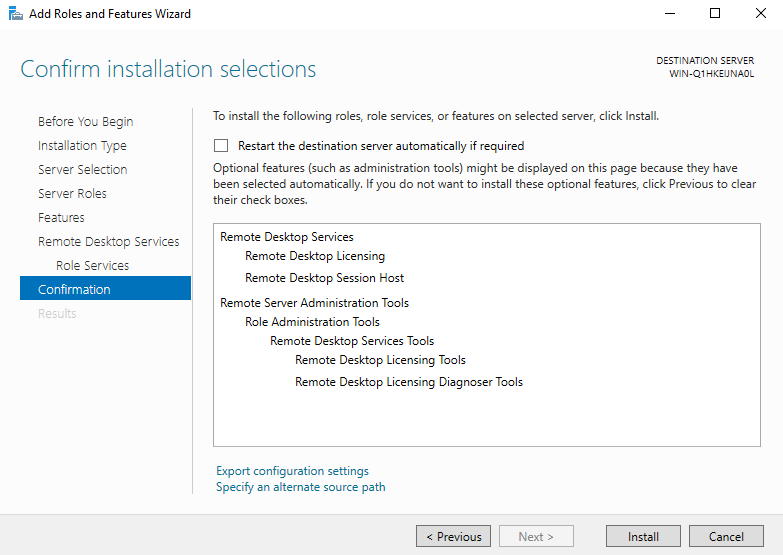
- Go to the Features tab > Remote Server Administration Tools > Role Administration Tools > Remote Desktop Services Tools and select the Remote Desktop Licensing Diagnoser Tools and Remote Desktop Licensing Tools options. Click Next.
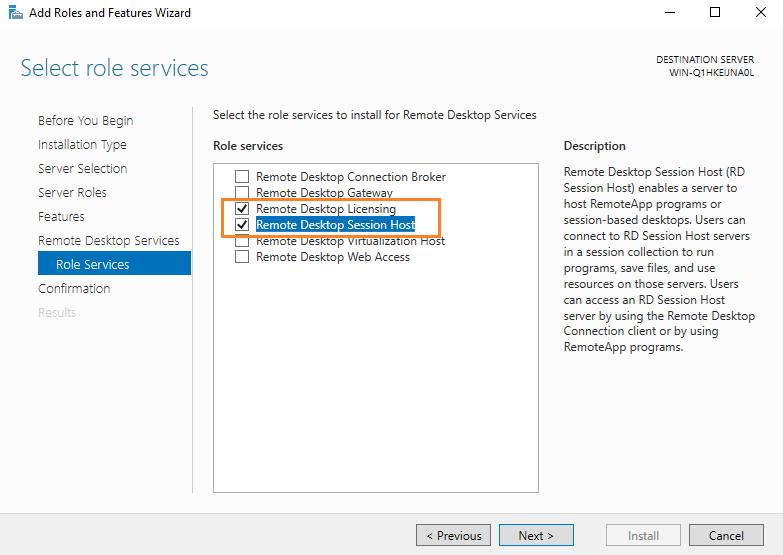
- Go to Remote Desktop Services > Role services and select the Remote Desktop Licensingand Remote Desktop Session Host options. Click Next.
- On the Confirmationtab, click Install.
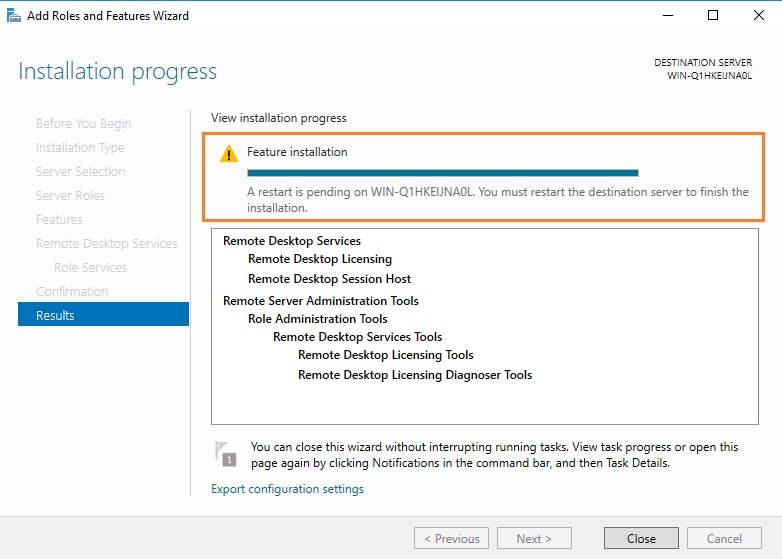
- As soon as installation is finished, click Closeand restart your server.
Edit group policies
- Open Server Manager.
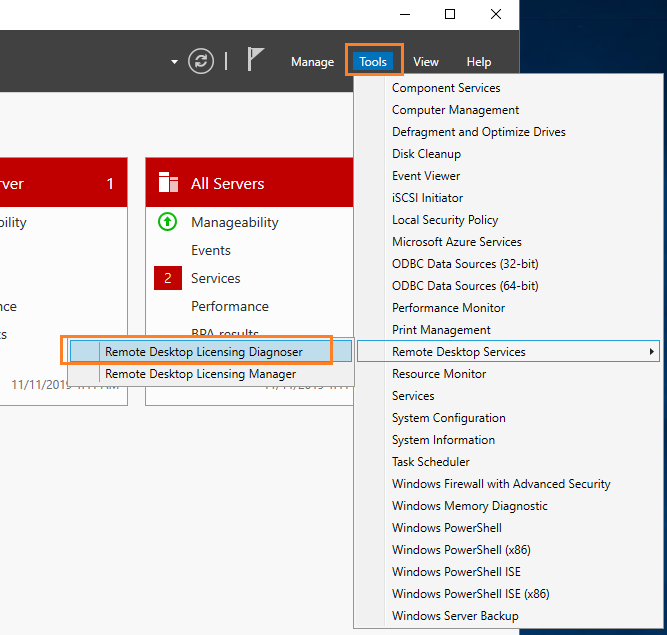
- Go to Tools > Remote Desktop Services and open Remote Desktop Licensing Diagnoser.
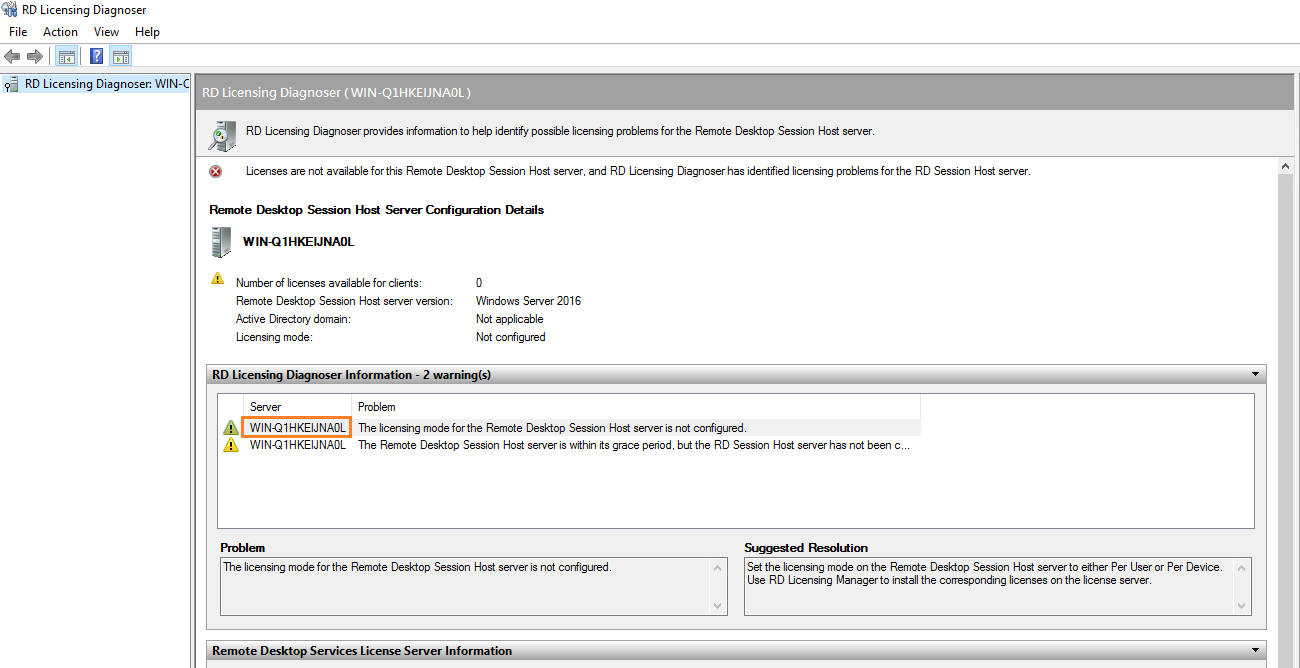
- Get the name of your server(you can copy it to the clipboard).
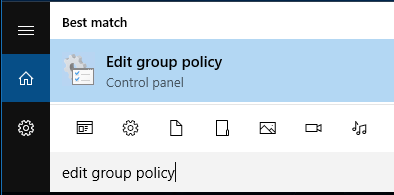
- Open Edit group policy.
- Navigate to Computer Configuration > Administrative Templates > Windows Components > Remote Desktop Services > Remote Desktop Session Host > Licensing.
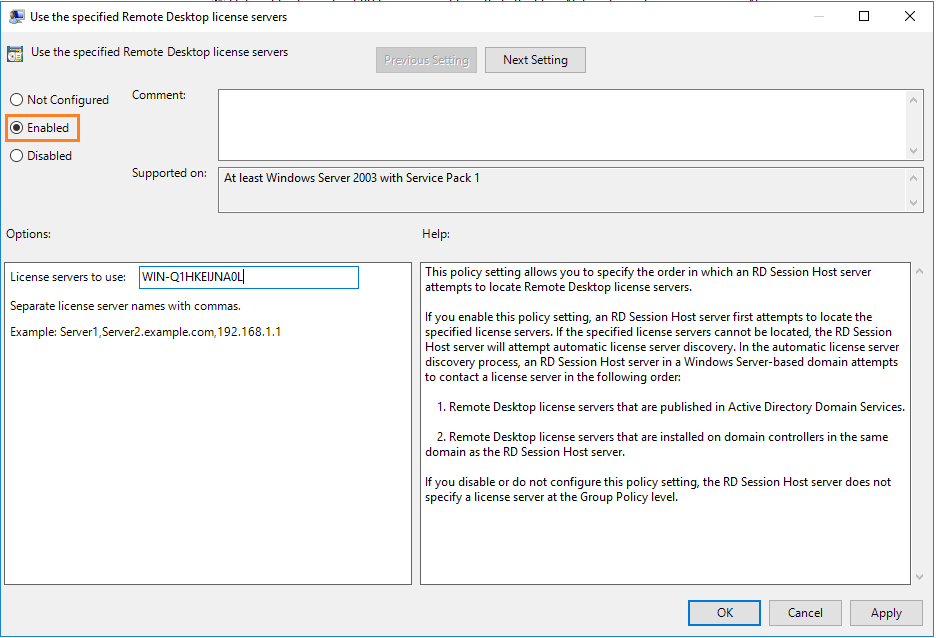
- Open Use the specified Remote Desktop license servers.

- Select the Enabled radio button and paste your server name into the License servers to use text box. Click Apply and
OK.
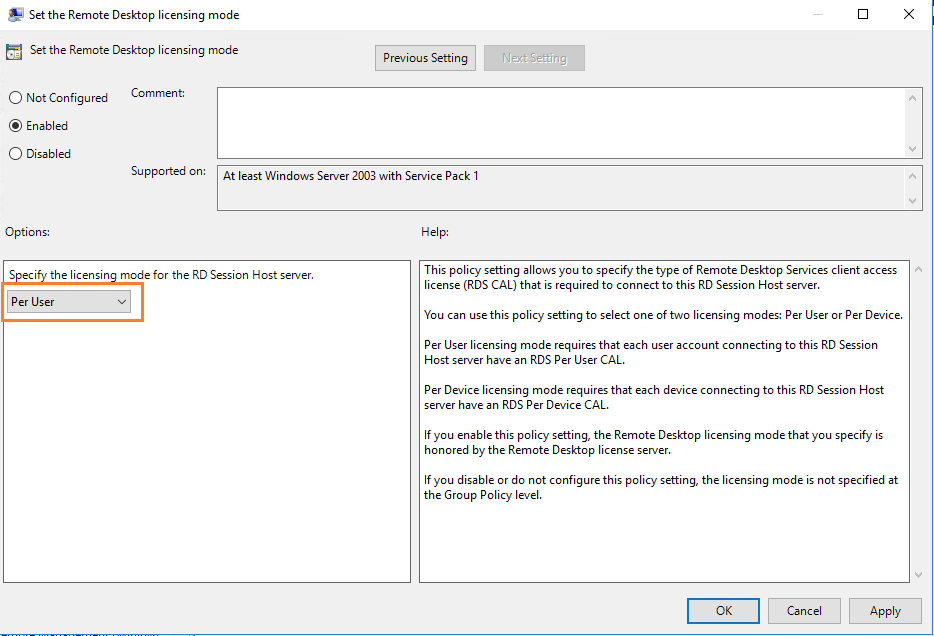
- Open Set the remote Desktop licensing mode.

- Select the Enabled radio button and specify the licensing mode as Per User. Click Apply and OK.
Activate license server and install RDS license
- Open Server Manager.
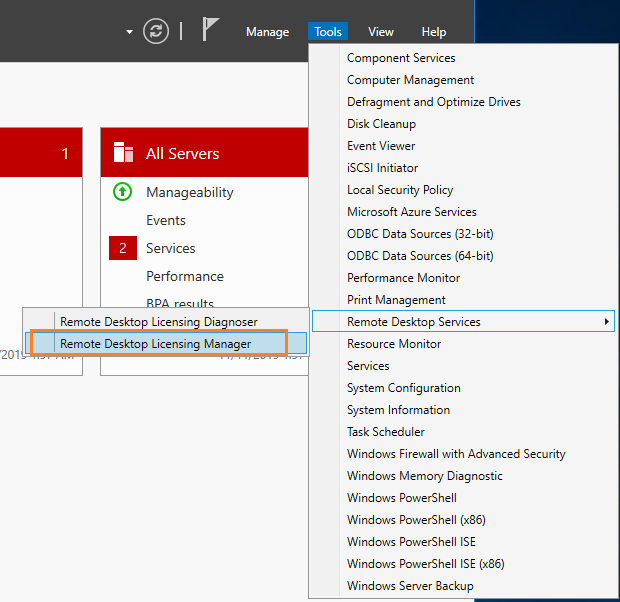
- Go to Tools > Remote Desktop Services and open Remote Desktop Licensing Manager.
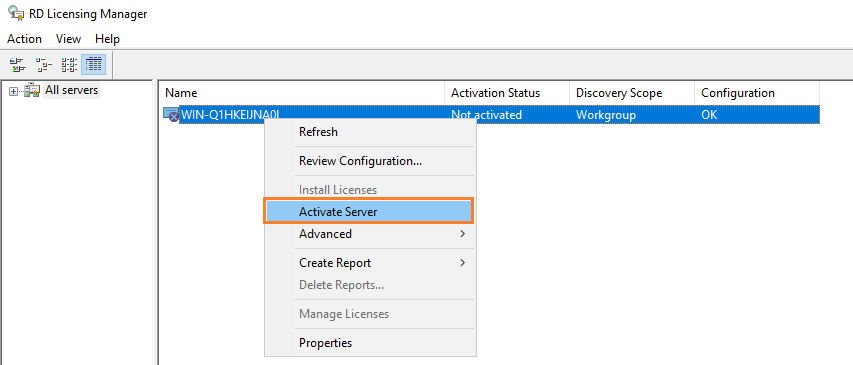
- Right-click on your server and select Activate Server.
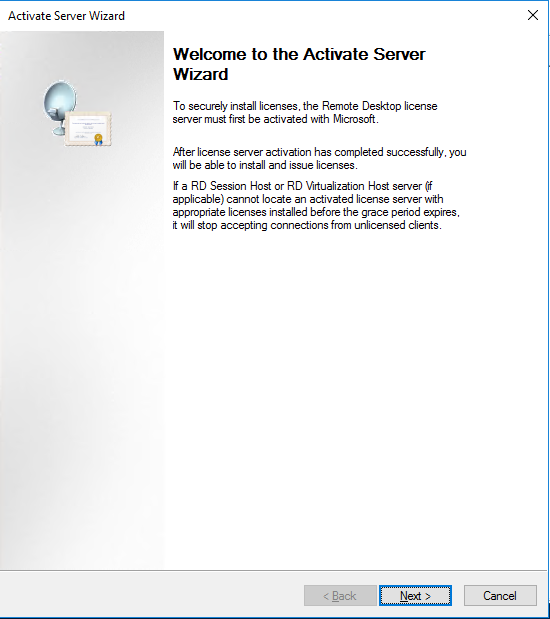
- The Activate Server Wizard opens. Click Nextto proceed with activation.
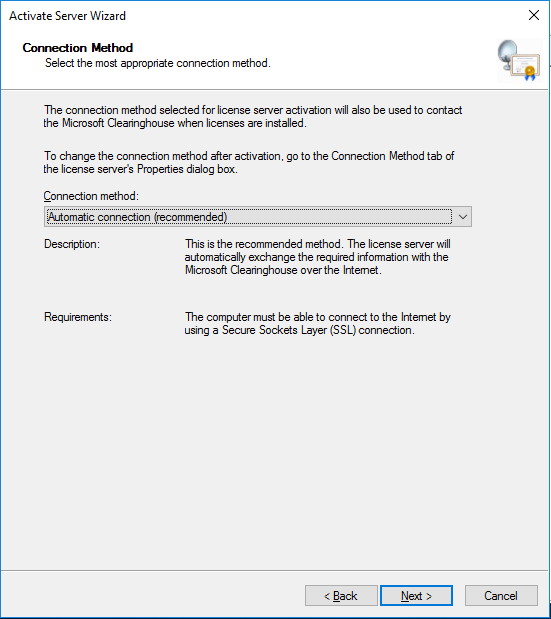
- On the Connection Method screen, select Automatic connection (recommended) and click Next.
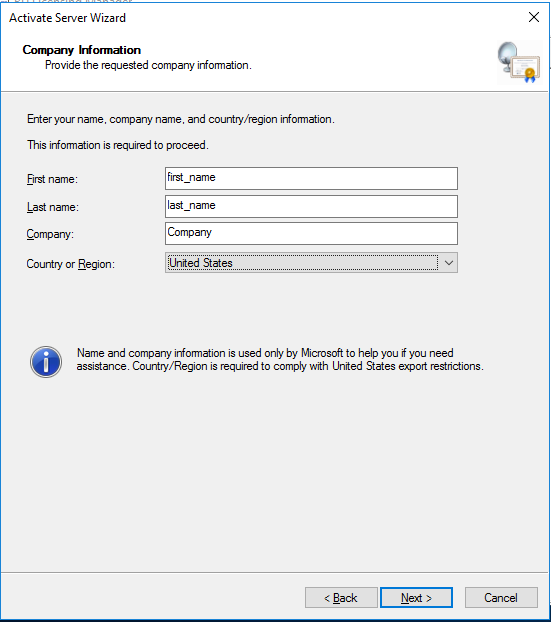
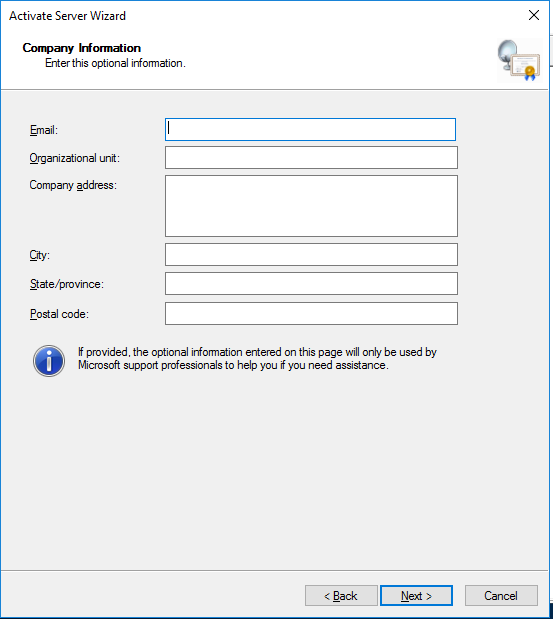
- Enter all the required information on the Company Information screen and click Next.
- Specify optional information and click Next.
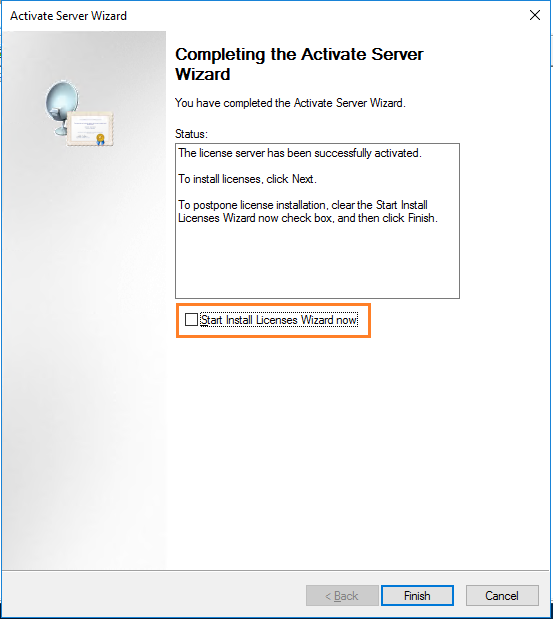
- On the Completing the Activate Server Wizard screen, uncheck Start Install Licenses Wizard now and click Finish.
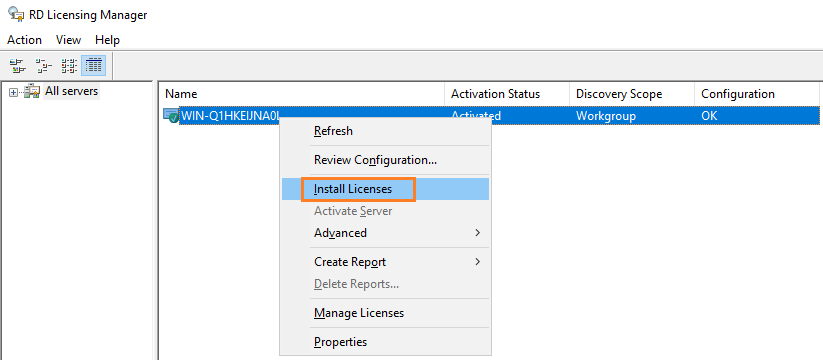
You can see the status of your server, that is Activated.

- Right-click on your server and select Install Licenses.
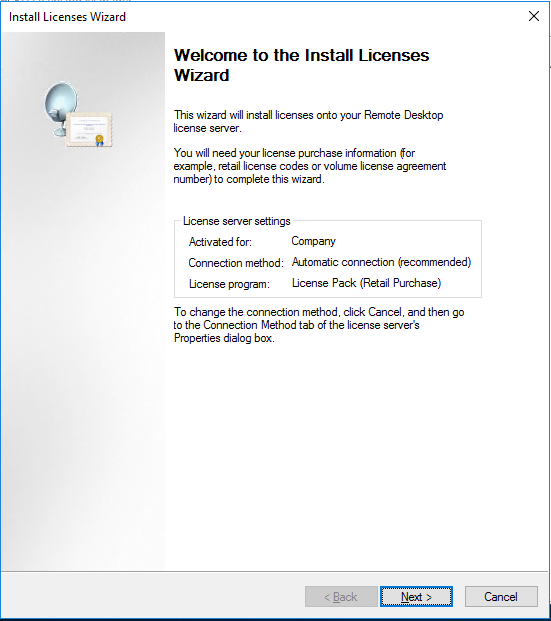
- The Install Licenses Wizard opens. Click Next to procee with installation.
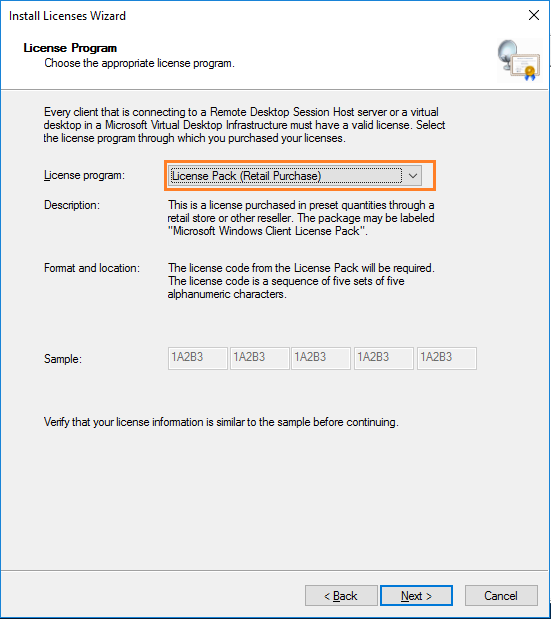
- On the License Programscreen, select the License Pack (Retail Purchase) program and click Next.
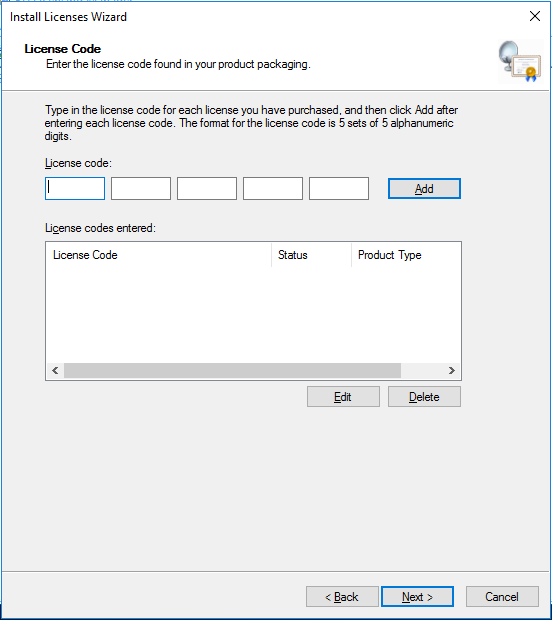
- On the License Code screen, enter your license code, click Add, and then Next.
- Finish the installation.
Scenario 2. Configure RDS license in case of existing RDS license server
Steps below describe how to configure the Business Edition server to use the existing RDS CALs licenses in case of Business Edition is installed on the Remote Desktop Host Session server.
After the RDS license server is activated and running on another server in your organization, you can reconfigure RD Session Host to obtain CAL licenses from this server. You can set the license type and specify the name of the license server from the Server Manager GUI, using PowerShell or GPO.
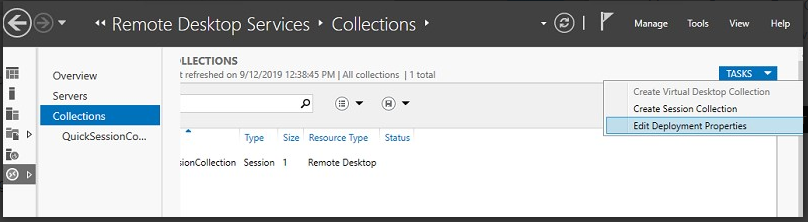
To change the name/address of the licensing server on the RDS host, open Server Manager > Remote Desktop Services > Collections. In the Tasks menu, select Edit Deployment Properties.
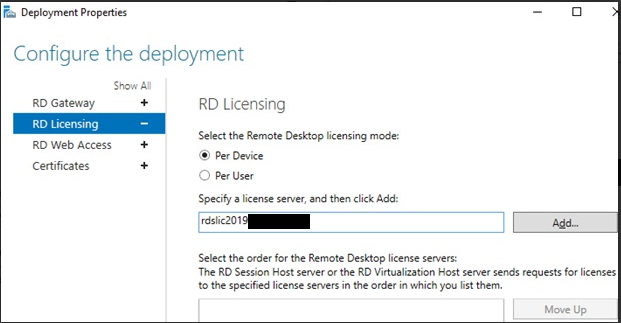
Go to the RD Licensing tab, select the Remote Desktop licensing mode and the RDS license server. Click Add and Ok.
note
If the licensing type is not set on the Remote Desktop Session Host server, you will receive the error "The licensing mode for the Remote Desktop Session Host server is not configured".

You can change the RDS license server address and the CAL type using PowerShell:
$obj = gwmi -namespace "Root/CIMV2/TerminalServices" Win32_TerminalServiceSettingThen specify the license type you need:
$obj.ChangeMode(4)Value 4 is used for Per User licensing mode and value 2 — Per Device.
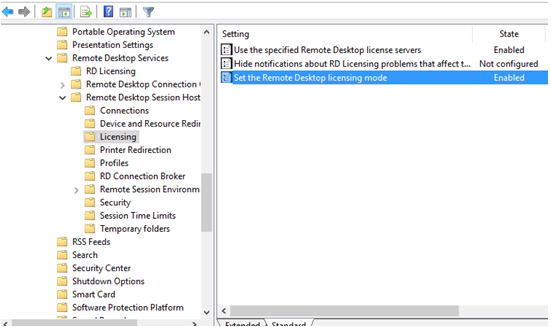
When configuring the RDS licensing parameters for the RD session hosts via GPO, you need to create a new GPO and link it to the OU with RDS servers (or you can specify the name of the RDS licensing server using the local Group Policy editor – gpedit.msc). For the RD licensing settings, go to Computer Configuration > Policies > Admin Templates > Windows Components > Remote Desktop Services > Remote Desktop Session Host > Licensing. There are two RD policies to be configured:
- Use the specified Remote Desktop license servers – the license server address
- Set the Remote Desktop licensing mode – the RDS CAL license type
tip
Remote Desktop Session Hosts use the following ports to get an RDS license from the Licensing server. Make sure they are not blocked by firewalls (or Windows Defender Firewall):
- TCP/135 – Microsoft RPC
- UDP/137 – NetBIOS Datagram Service
- UDP/138 – NetBIOS Name Resolutio
- TCP/139 – NetBIOS Session Service
- TCP/445 – SMB
- TCP/49152–65535 – RPC dynamic address range
To check for open ports, use the PortQry utility or the Test-NetConnection cmdlet.
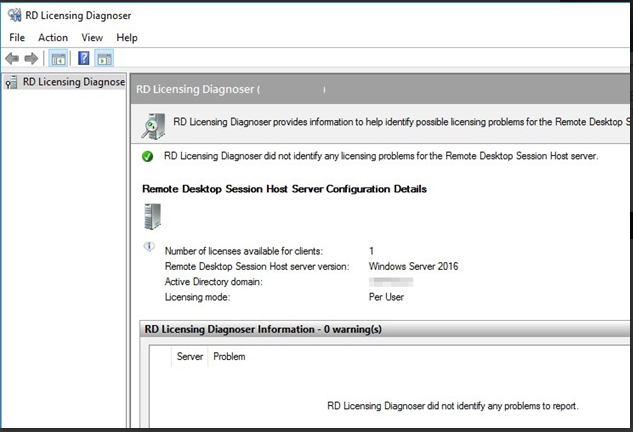
Go to Administrative Tools > Remote Desktop Services > RD Licensing Diagnoser to check the license server status and the number of the issued licenses. If there are no warnings, and you see the message "RD Licensing Diagnoser did not identify any licensing problems for the Remote Desktop Session Host server", the Remote Desktop Session Host server can successfully receive RDS CALs for remote users/devices.