
Implement Qualification Business Process
Starting from WorkSpace 2.0, the qualification mechanism is no longer available for access control purposes. It is replaced with a new user management approach.
However, to enable you to train your employees before they proceed to actual tasks, WorkFusion provides a special Qualification Business Process (BP) that you will need to deploy and set up as described below.
Install and configure Qualification BP
The general flow is as follows:
Download and deploy the Qualification BP package to Control Tower (CT).
Integrate with the user management system.
Set up the deployed Qualification BP.
Download and deploy
Download the Qualification BP zip package.
Import the BP package to your environment. To verify the deployment is successful, select Business Processes > View all and find the Qualification BP in the list.
Configure to work with user management system
Configuring related user management system settings is a one-time procedure. Follow the instruction below:
Add a Secret Entry. Set the Alias parameter to keycloak-client. The Key and Value parameters should contain the username and password for the admin-cli client of the user management system.
Open the Qualification BP and go to the Workflow tab. In the BP workflow schema, click the Monitor and send tasks element to open its configuration. On the Design tab of the configuration page, change the base URL value to your Keycloak server URL in the bot code as shown below.

Set up Business Process in CT
Create gold data, which is a CVS file with correct answers for your qualification tasks. The resulting gold data file is different from a regular data file in that it contains gold prefixes for correct answers.

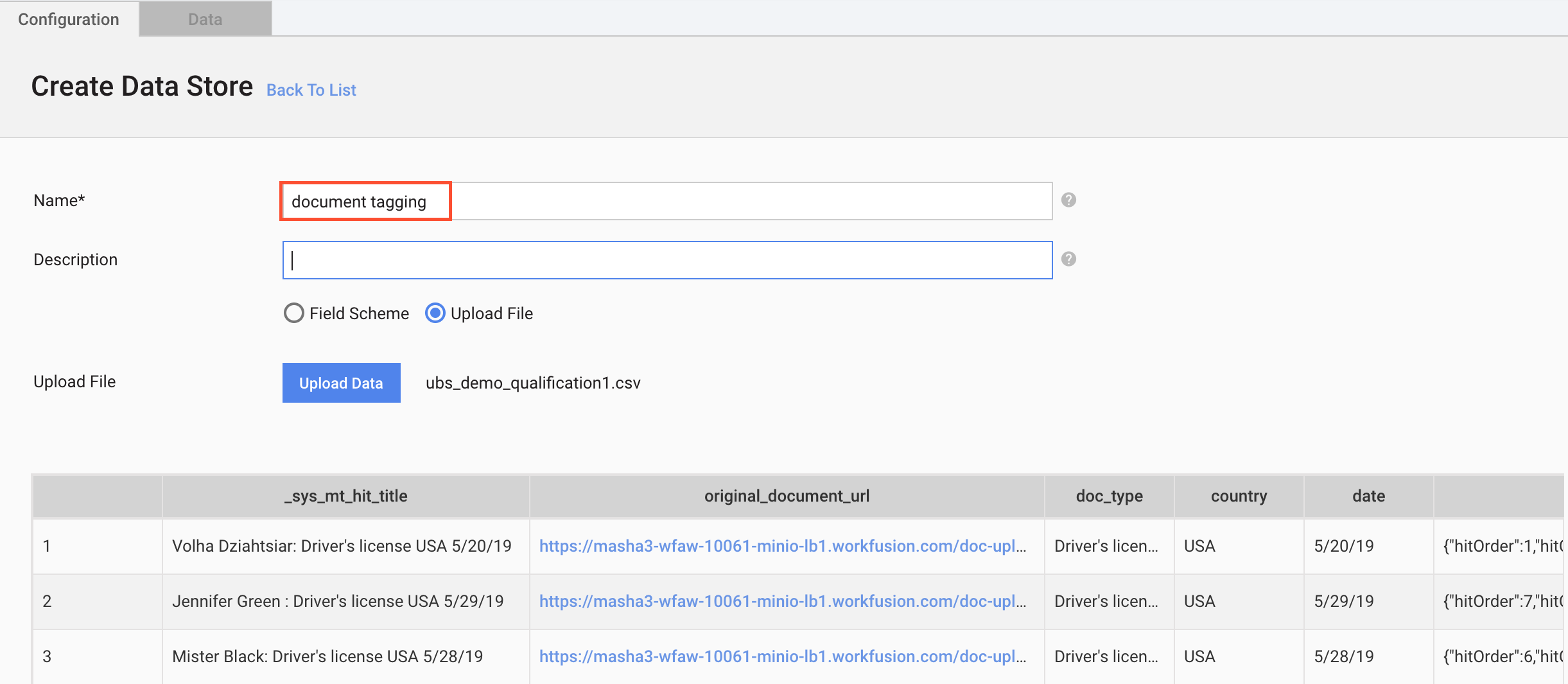
Create a qualification Data Store and upload the gold data file resulting from Step 1 to it. The Data Store name must be the same as the qualification name (in this example, document tagging).
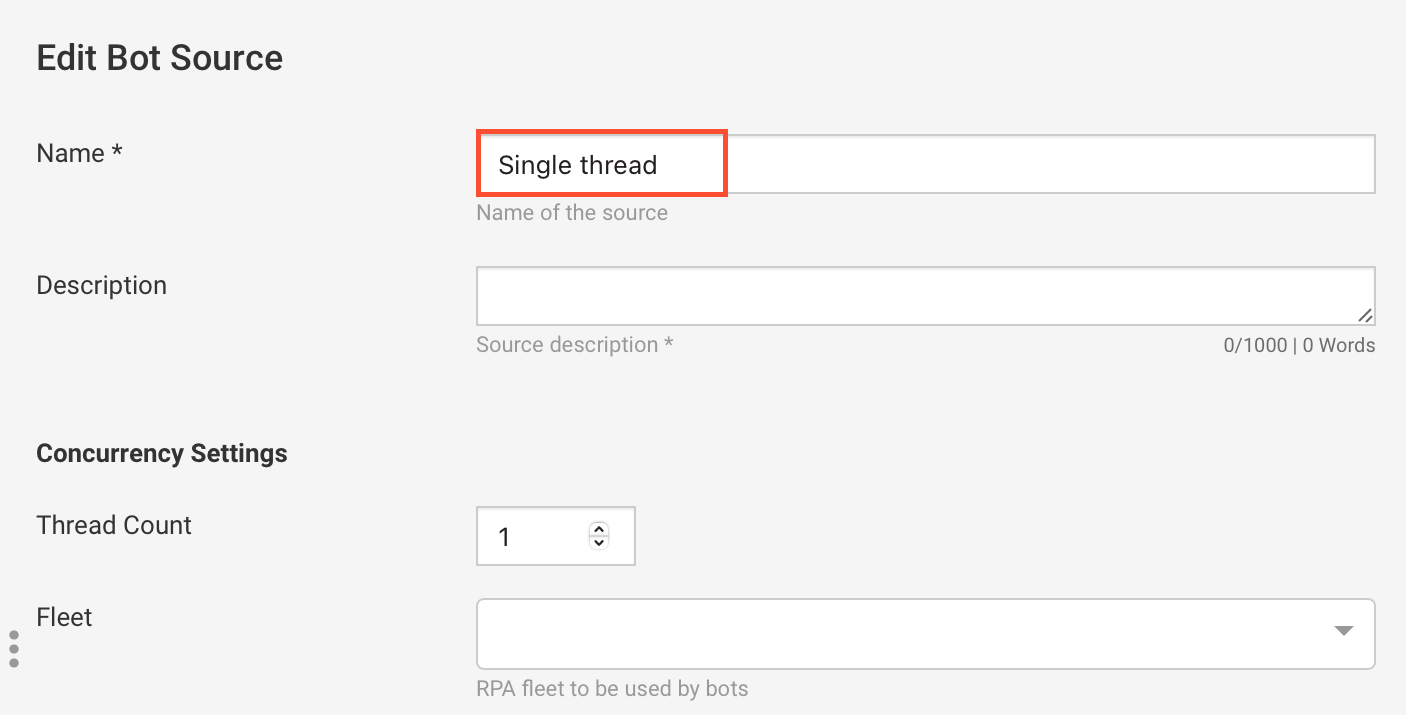
Go to the Bot Sources page and create a Bot Source named Single thread.
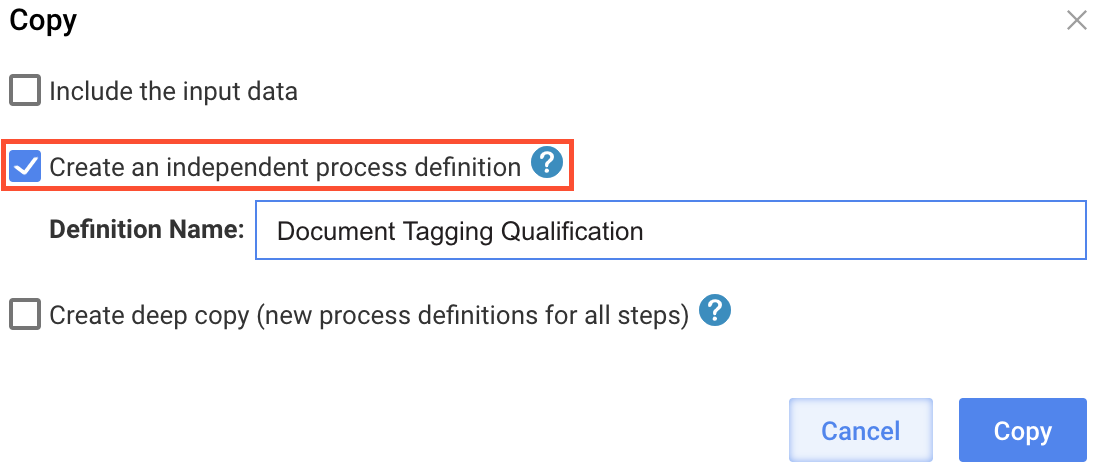
Create a copy of the deployed Qualification BP. On the Copy Business Process page, select the Create an independent process definition option.
Replace the Manual Task inside the Qualification BP with your qualification task. For that, go to Business Processes>Workflow, click Edit process, double-click the Manual Task element in the schema, and drag your designed task from the sidebar.
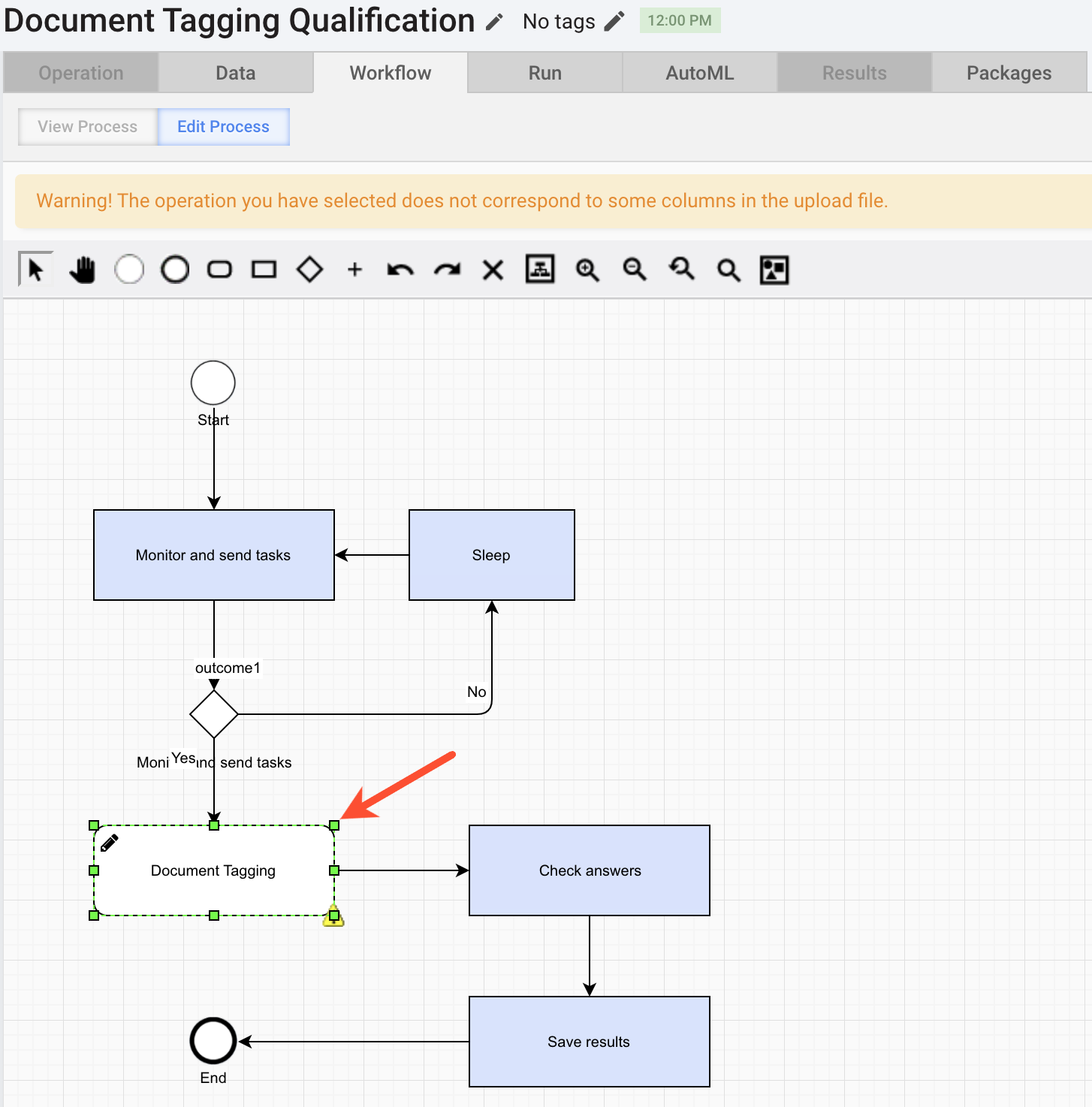
For details on designing Manual Tasks, refer to the guide.
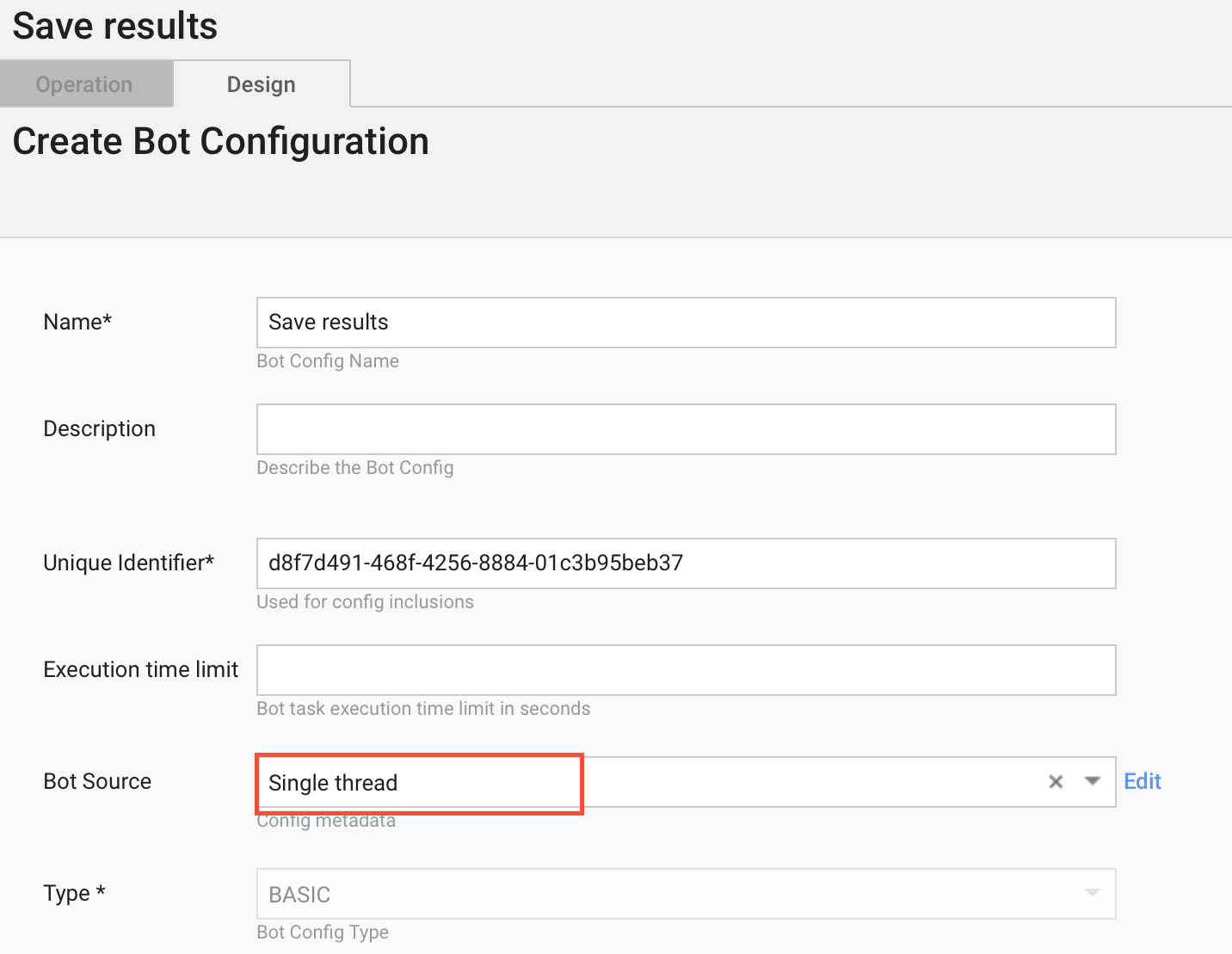
Click the Save results element to open its configuration page. On the Design tab, set the Bot Source parameter to Single thread.
Upload Business Process data as a single-row CSV file.
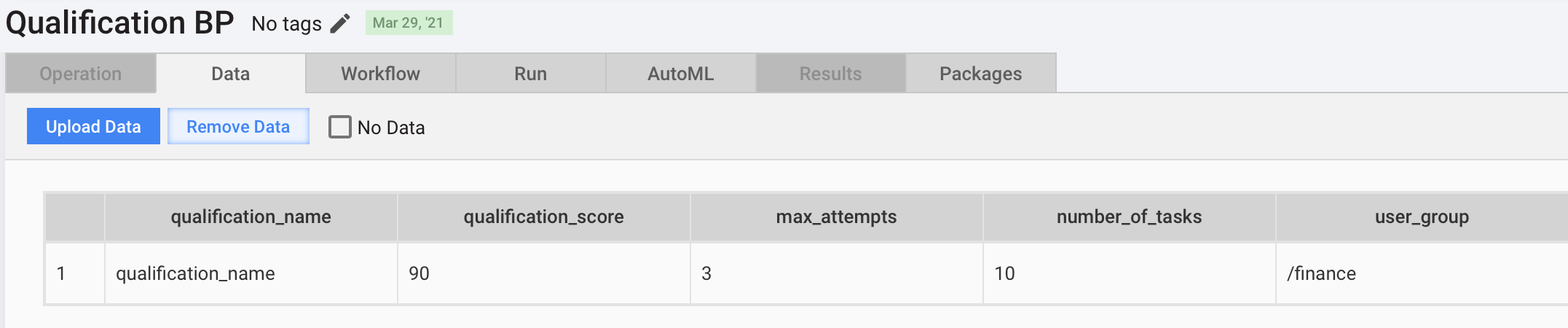
The file must contain the following data:
qualification_name: the name of the qualification in this Business Process, identical to the Data Store name in Step 2 above. In this example, document tagging.
number_of_tasks: the number of tasks users have to complete. The number must be less or equal to the number of tasks in the gold data file. In this example, 5.
qualification_score: the score required to get the qualification. In this example, 90. The score is calculated per answer, not per task. If each task contains five questions and the number of tasks is 10, a user needs to complete them by 90%, which is 45 correct answers out of 50.
note
The number of correct answers must be equal to the number of columns with the gold_ prefix in the qualification Data Store.
max_attempts: the number of attempts a user has to complete qualification tasks. In this example, 3. After failing once, the user receives another random task to start a new attempt. After the allowed number of attempts expires, users won't get qualification tasks anymore.
user_group: the user management group where a specific user belongs. Only users from the group can receive qualification tasks. In this example, it is /finance.
Run the Qualification BP.
Explore qualification mechanism
After you start the Qualification Business Process, the following happens:
The Monitor and send tasks bot step in the Qualification BP scans periodically the specified user_group in the user management system and the worker_qualification Data Store (in the example above, document tagging).
If the bot fails to find a user from the user_group in the worker_qualification Data Store, it creates a new record with the active status.
The BP posts randomly selected tasks for the active user in WorkSpace.
Under the /users parent group in the user management system, the BP creates a sub-group for each new user unless such a group already exists. The sub-group name is identical to the active user's name.
The worker_qualification record status is set to in_progress.
After the user submits the result, another bot step checks answers against the gold data file fields. The results for each submission are saved to the worker_qualification Data Store.
When the user completes all tasks, a qualification score is calculated based on the records in the qualification Data Store. If the score is greater than or equal to the value in the score field, the status for the worker_qualification record is updated to completed.
Otherwise, the status is failed. If the employee has any attempts left, the Qualification BP creates another record with the active status, and the user can try to qualify again.
In the example below, the worker_qualification Data Store includes two records for the smith username and the document tagging qualification. The user's score was 50 for the first attempt and 90 for the second one.

FAQs
How does the system know if a user is qualified?
The Qualification BP checks if the user is in the qualification Data Store. If he or she is not in the Data Store for the particular qualification, the user is not qualified.
If an employee is already qualified and you do not want her or him to get qualification tasks, add rows with the following values to the qualification Data Store:
- employee's username
- qualification name
- completed status
Is it necessary to restart the Qualification BP when new users appear?
No, the Qualification BP scans the user management system automatically every minute.
Is it possible give a user another chance after they failed beyond available attempts?
In the worker_qualification and qualification_task_results Data Stores, delete the rows for the failed qualification(s) associated with the user.
Is it possible to restart the Qualification BP after a stop?
Yes. Note that, after the BP stop, users who failed to complete all tasks remain unqualified. If you start the BP again, the users have the in_progress status in the worker_qualification Data Store. To restart the qualification process for them, go to the worker_qualification and qualification_task_results Data Stores and delete the rows for the failed qualifications associated with the users. After that, they can try to complete qualification tasks again.