
Version control
Why WorkFusion recommends using version control
So, why WorkFusion recommends using version control? We see that typical RPA implementation requires a team of developers to collaboratively work on. This leads to simultaneous work on the same set of source files. There is a need to share common solutions in order to avoid copy-paste of the same concerns over the solution source code. All these lead us to the conclusion that the standard WorkFusion Control Tower way of collaboration isn't enough. It is just not enough flexible and convenient. For example, it doesn't provide tools to resolve conflicts when the same file was modified by two different developers; coding in the browser doesn't provide useful developer tools such as code-complete, suggestions, and navigation-over-click between source files, etc. That's why middle and high complexity projects are developed using WorkFusion Studio, which is Eclipse IDE. Sure, Studio comes with the Git plugin enabled by default. Git integration in Studio easily enables all development teams to organize a distributed version control system. This is a transparent, easy-to-use, and robust part of the modern software development process. And we do recommend to follow it accompanied by Code Review Process.
What is version control
Let's begin by explaining some background on version control tools.
About version control
What is “version control”, and why should you care? Version control is a system that records changes to a file or set of files over time so that you can recall specific versions later. For the examples of any book teaches programming language, you will use software source code as the files being version-controlled, though in reality, you can do this with nearly any type of file on a computer.
If you are a programmer and want to keep every version of a source file or layout template (which you would most certainly want to), a Version Control System (VCS) is a very wise thing to use. It allows you to revert selected files back to a previous state, revert the entire project back to a previous state, compare changes over time, see who made the latest modifications that might be causing a problem, who introduced an issue and when, and more. Using a VCS also generally means that if you screw things up or lose files, you can easily recover. In addition, you get all this for very little overhead.
Local version control systems
Many people’s version-control method of choice is to copy files into another directory (perhaps a time-stamped directory, if they’re clever). This approach is very common because it is so simple, but it is also incredibly error-prone. It is easy to forget which directory you’re in and accidentally write to the wrong file or copy over files you don’t mean to.
To deal with this issue, programmers long ago developed local VCSs that had a simple database that kept all the changes to files under revision control.
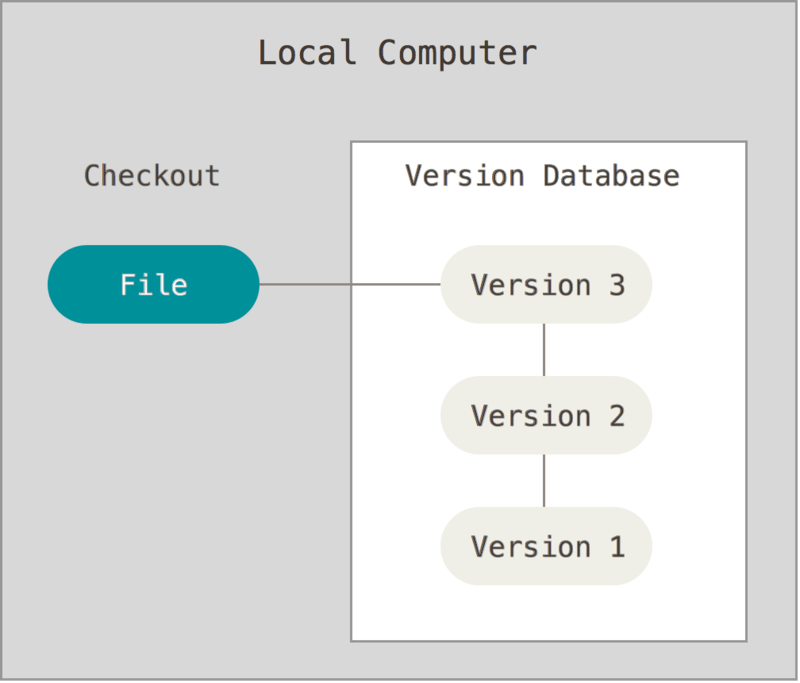
Figure 1. Local version control
One of the more popular VCS tools was a system called RCS, which is still distributed with many computers today. RCS works by keeping patch sets (that is, the differences between files) in a special format on disk; it can then re-create what any file looked like at any point in time by adding up all the patches.
Centralized version control systems
The next major issue that people encounter is that they need to collaborate with developers on other systems. To deal with this problem, Centralized Version Control Systems (CVCSs) were developed. These systems (such as CVS, Subversion, and Perforce) have a single server that contains all the versioned files, and a number of clients that check out files from that central place. For many years, this has been the standard for version control.
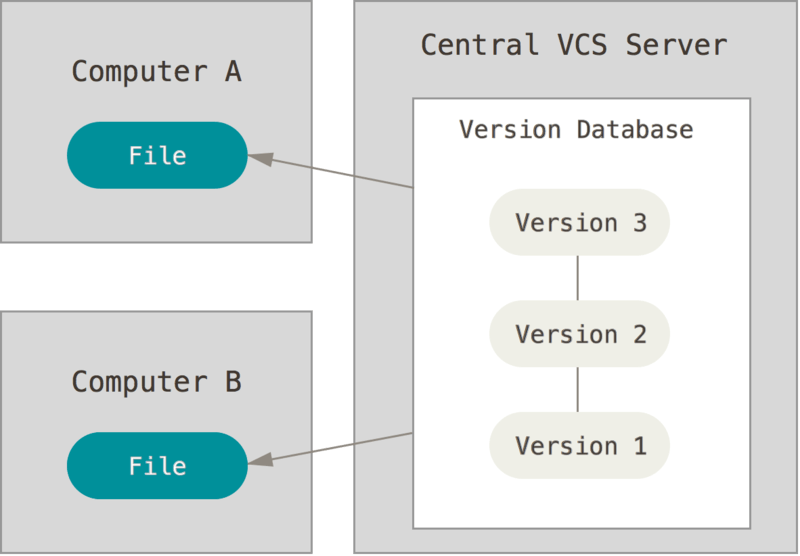
Figure 2. Centralized version control
This setup offers many advantages, especially over local VCSs. For example, everyone knows to a certain degree what everyone else on the project is doing. Administrators have fine-grained control over who can do what, and it’s far easier to administer a CVCS than it is to deal with local databases on every client.
However, this setup also has some serious downsides. The most obvious is the single point of failure that the centralized server represents. If that server goes down for an hour, during that hour nobody can collaborate at all or save versioned changes to anything they’re working on. If the hard disk the central database is on becomes corrupted, and proper backups haven’t been kept, you lose absolutely everything — the entire history of the project except whatever single snapshots people happen to have on their local machines. Local VCS systems suffer from this same problem — whenever you have the entire history of the project in a single place, you risk losing everything.
Distributed version control systems
This is where Distributed Version Control Systems (DVCSs) step in. In a DVCS (such as Git, Mercurial, Bazaar or Darcs), clients don’t just check out the latest snapshot of the files; rather, they fully mirror the repository, including its full history. Thus, if any server dies, and these systems were collaborating via that server, any of the client repositories can be copied back up to the server to restore it. Every clone is really a full backup of all the data.
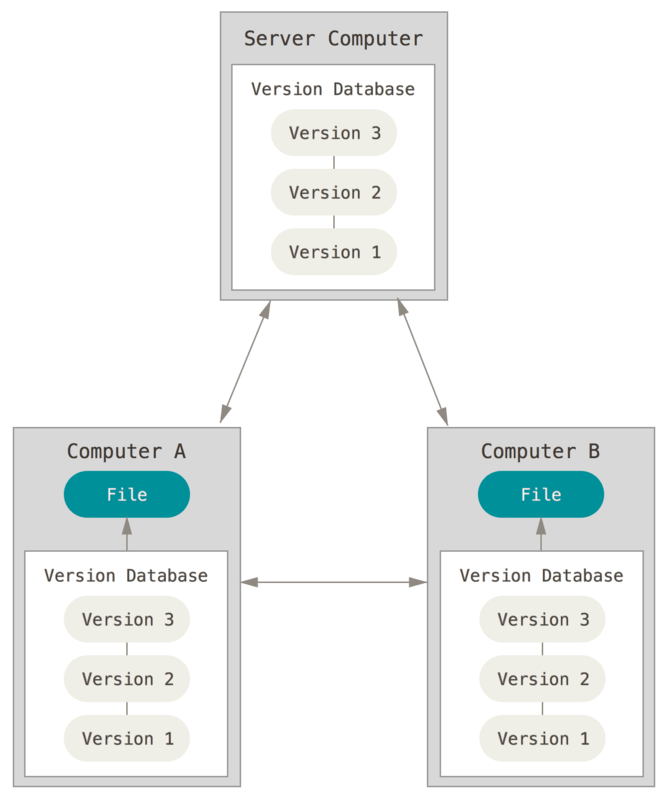
Figure 3. Distributed version control
Furthermore, many of these systems deal pretty well with having several remote repositories they can work with, so you can collaborate with different groups of people in different ways simultaneously within the same project. This allows you to set up several types of workflows that aren’t possible in centralized systems, such as hierarchical models.
Advantages
The advantages of Git compared to other source control systems: Git is a free and open-source distributed version control system designed to handle everything from small to very large projects with speed and efficiency.
Git is easy to learn and has a tiny footprint with lightning-fast performance. It outclasses SCM tools like Subversion, CVS, Perforce, and ClearCase with features like cheap local branching, convenient staging areas, and multiple workflows.
Branching and merging
The Git feature that really makes it stand apart from nearly every other SCM out there is its branching model.
Git allows and encourages you to have multiple local branches that can be entirely independent of each other. The creation, merging, and deletion of those lines of development takes seconds.
This means that you can do things like:
- Frictionless Context Switching. Create a branch to try out an idea, commit a few times, switch back to where you branched from, apply a patch, switch back to where you are experimenting, and merge it in.
- Role-Based Codelines. Have a branch that always contains only what goes to production, another that you merge work into for testing, and several smaller ones for day to day work.
- Feature-Based Workflow. Create new branches for each new feature you're working on so you can seamlessly switch back and forth between them, then delete each branch when that feature gets merged into your mainline.
- Disposable Experimentation. Create a branch to experiment in, realize it's not going to work, and just delete it - abandoning the work—with nobody else ever seeing it (even if you've pushed other branches in the meantime).
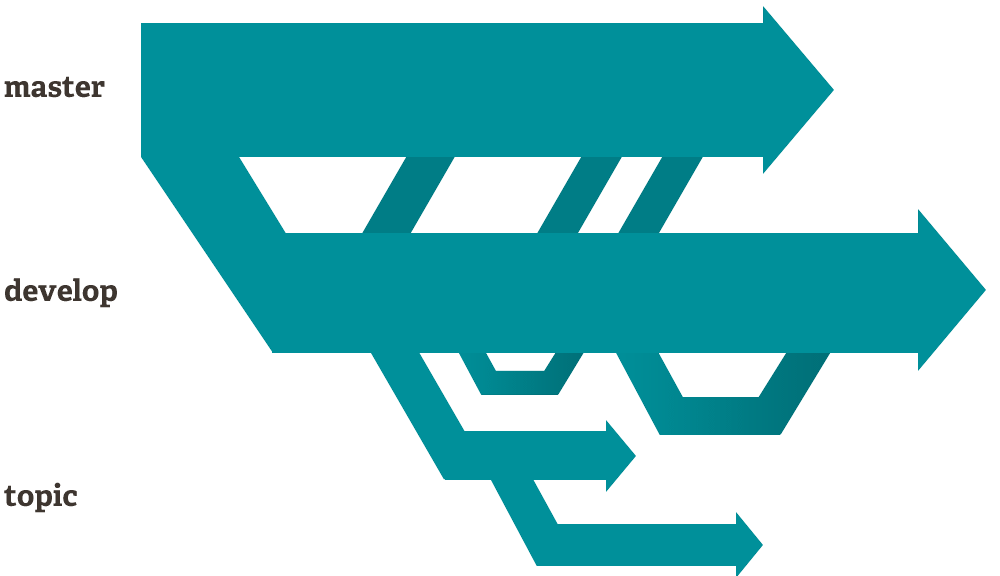
Notably, when you push to a remote repository, you do not have to push all of your branches. You can choose to share just one of your branches, a few of them, or all of them. This tends to free people to try new ideas without worrying about having to plan how and when they are going to merge it in or share it with others.
There are ways to accomplish some of this with other systems, but the work involved is much more difficult and error-prone. Git makes this process incredibly easy and it changes the way most developers work when they learn it.
Small and fast
Git is fast. With Git, nearly all operations are performed locally, giving it a huge speed advantage on centralized systems that constantly have to communicate with a server somewhere.
Git was built to work on the Linux kernel, meaning that it has had to effectively handle large repositories from day one. Git is written in C, reducing the overhead of runtimes associated with higher-level languages. Speed and performance have been a primary design goal of the Git from the start.
Benchmarks
Let's see how common operations stack up against Subversion, a common centralized version control system that is similar to CVS or Perforce. Smaller is faster.
In some cases, the commands don't match up exactly. Here, matching on the lowest common denominator was attempted. For example, the "commit" tests also include the time to push for Git, though most of the time you would not actually be pushing to the server immediately after a commit where the two commands cannot be separated in SVN.
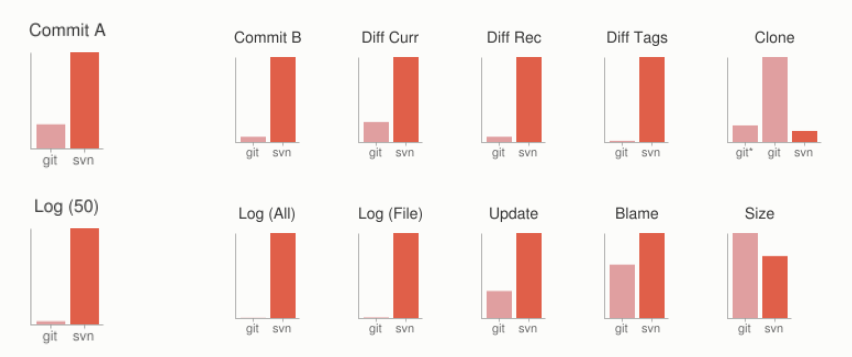
For testing, large AWS instances were set up in the same availability zone. Git and SVN were installed on both machines, the Ruby repository was copied to both Git and SVN servers, and common operations were performed on both.
All of these times are in seconds.
| Operation | Git | SVN | ||
|---|---|---|---|---|
| Commit Files (A) | Add, commit and push 113 modified files (2164+, 2259-) | 0.64 | 2.60 | 4x |
| Commit Images (B) | Add, commit and push 1000 1k images | 1.53 | 24.70 | 16x |
| Diff Current | Diff 187 changed files (1664+, 4859-) against the last commit | 0.25 | 1.09 | 4x |
| Diff Recent | Diff against 4 commits back (269 changed/3609+,6898-) | 0.25 | 3.99 | 16x |
| Diff Tags | Diff two tags against each other (v1.9.1.0/v1.9.3.0 ) | 1.17 | 83.57 | 71x |
| Log (50) | Log of the last 50 commits (19k of output) | 0.01 | 0.38 | 31x |
| Log (All) | Log of all commits (26,056 commits - 9.4M of output) | 0.52 | 169.20 | 325x |
| Log (File) | Log of the history of a single file (array.c - 483 revs) | 0.60 | 82.84 | 138x |
| Update | Pull of Commit A scenario (113 files changed, 2164+, 2259-) | 0.90 | 2.82 | 3x |
| Blame | Line annotation of a single file (array.c) | 1.91 | 3.04 | 1x |
Note that this is the best-case scenario for SVN; that is a server with no load with an 80 MB/s bandwidth connection to the client machine. Nearly all of these times would be even worse for SVN if that connection was slower, while many of the Git times would not be affected.
Clearly, in many of these common version control operations, Git is one or two orders of magnitude faster than SVN, even under ideal conditions for SVN.
One place where Git is slower is in the initial clone operation. Here, Git is downloading the entire history rather than only the latest version. As seen in the above charts, it's not considerably slower for an operation that is only performed once.
| Operation | Git* | Git | SVN | |
|---|---|---|---|---|
| Clone | Clone and shallow clone(*) in Git vs checkout in SVN | 21.0 | 107.5 | 14.0 |
| Size (M) | Size of total client-side data and files after clone/checkout (in M) | 181.0 | 132.0 |
It's also interesting to note that the size of the data on the client side is very similar even though Git also has every version of every file for the entire history of the project. This illustrates how efficient it is at compressing and storing data on the client side.
Distributed
One of the nicest features of any Distributed SCM, Git included, is that it's distributed. This means that instead of doing a "checkout" of the current tip of the source code, you do a "clone" of the entire repository.
Multiple backups
This means that even if you're using a centralized workflow, every user essentially has a full backup of the main server. Each of these copies could be pushed up to replace the main server in the event of a crash or corruption. In effect, there is no single point of failure with Git unless there is only a single copy of the repository.
Any workflow
Because of Git's distributed nature and superb branching system, an almost endless number of workflows can be implemented with relative ease.
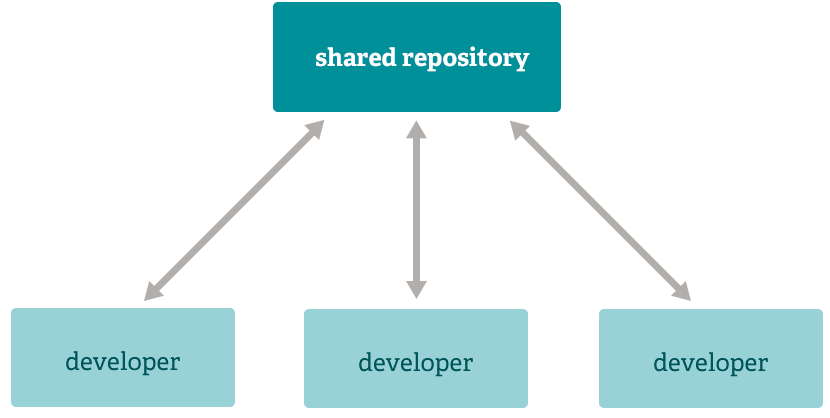
Subversion-style workflow
A centralized workflow is very common, especially from people transitioning from a centralized system. Git will not allow you to push if someone has pushed since the last time you fetched, so a centralized model where all developers push to the same server works just fine.
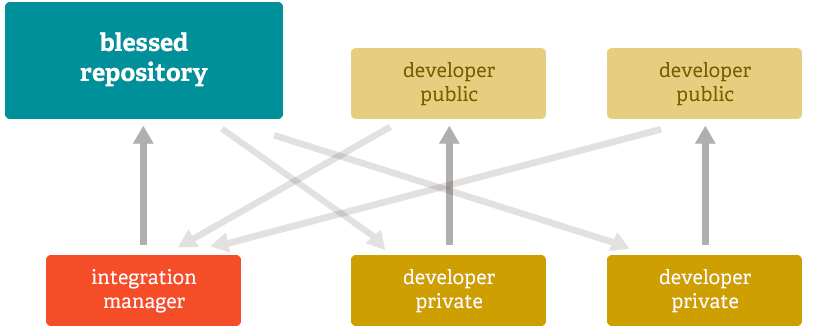
Integration manager workflow
Another common Git workflow involves an integration manager — a single person who commits to the "blessed" repository. A number of developers then clone from that repository, push to their own independent repositories, and ask the integrator to pull in their changes. This is the type of development model often seen with open source or GitHub repositories.
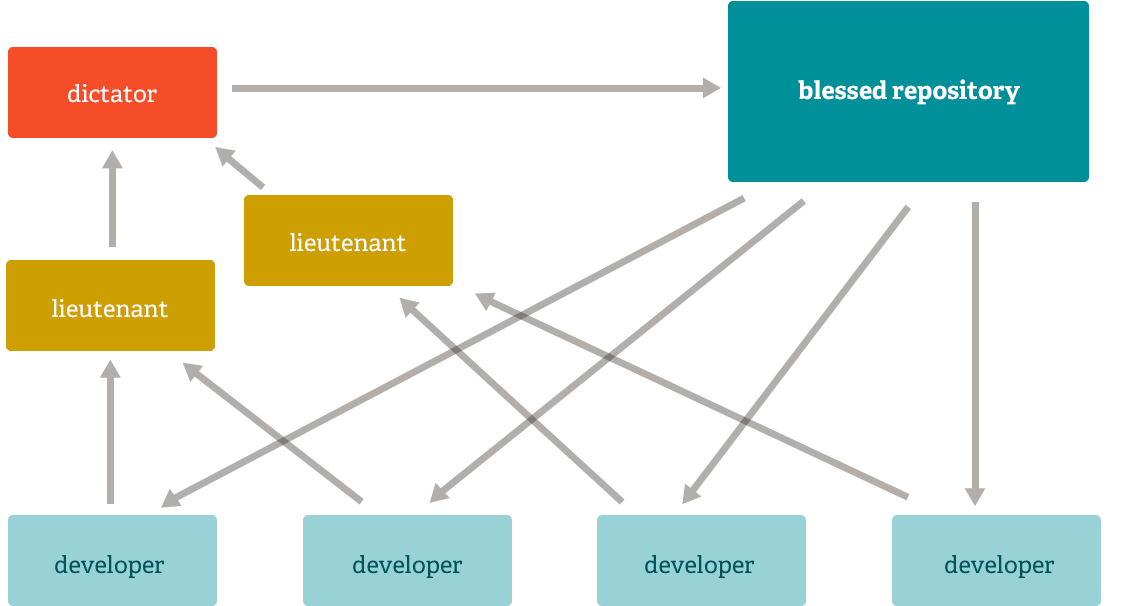
Dictator and lieutenants workflow
For more massive projects, a development workflow like that of the Linux kernel is often effective. In this model, some people ("lieutenants") are in charge of a specific subsystem of the project and they merge in all changes related to that subsystem. Another integrator (the "dictator") can pull changes from only their lieutenants and then push to the "blessed" repository that everyone then clones from again.
Data assurance
The data model that Git uses ensures the cryptographic integrity of every bit of your project. Every file and commit is checksummed and retrieved by its checksum when checked back out. It's impossible to get anything out of Git other than the exact bits you put in.
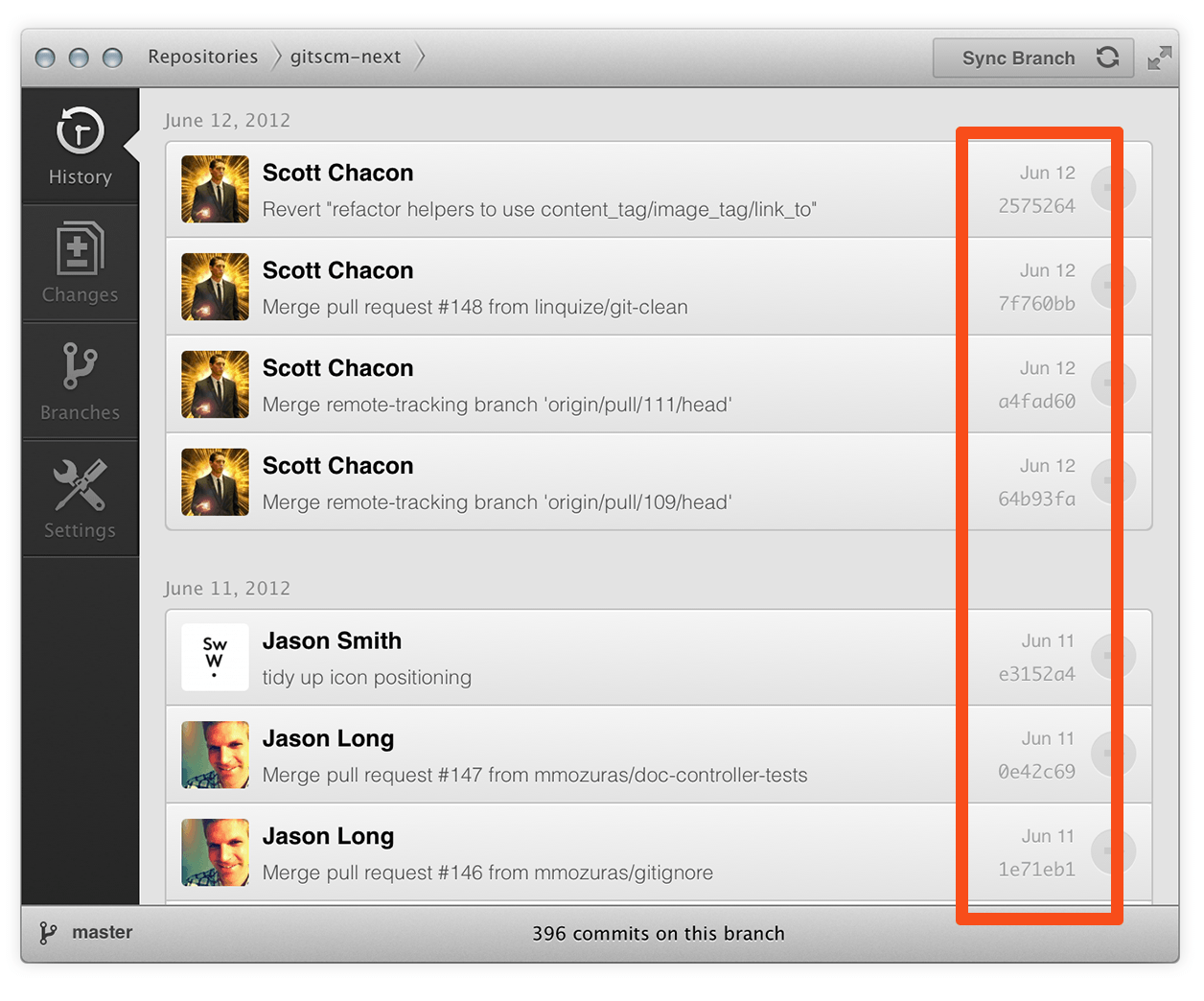
It is also impossible to change any file, date, commit message, or any other data in a Git repository without changing the IDs of everything after it. This means that if you have a commit ID, you can be assured not only that your project is exactly the same as when it was committed, but that nothing in its history was changed.
Most centralized version control systems provide no such integrity by default.
Staging area
Unlike the other systems, Git has something called the "staging area" or "index". This is an intermediate area where commits can be formatted and reviewed before completing the commit.
One thing that sets Git apart from other tools is that it's possible to quickly stage some of your files and commit them without committing all of the other modified files in your working directory or having to list them on the command line during the commit.
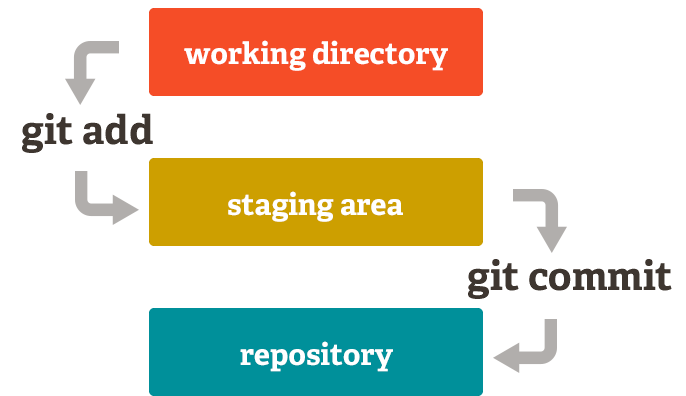
This allows you to stage only portions of a modified file. Gone are the days of making two logically unrelated modifications to a file before you realized that you forgot to commit one of them. Now, you can just stage the change you need for the current commit and stage the other change for the next commit. This feature scales up to as many different changes to your file as needed.
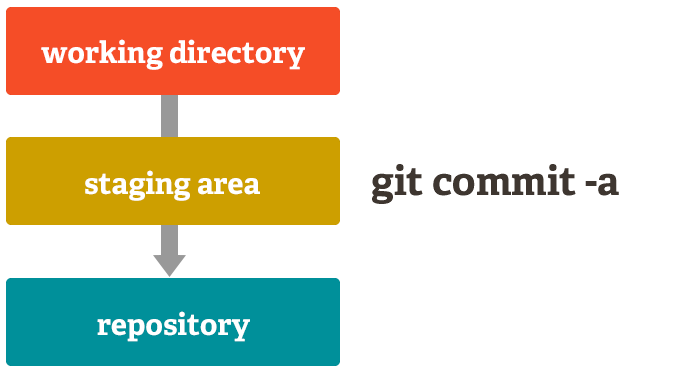
Of course, Git also makes it easy to ignore this feature if you don't want that kind of control — just add a '-a' to your commit command in order to add all changes to all files to the staging area.
Free and open source
Git is released under the GNU General Public License version 2.0, which is an open-source license. The Git project chose to use GPLv2 to guarantee your freedom to share and change free software - to make sure the software is free for all its users.