Debug remotely
Remote Java debug for IA Cloud Enterprise v.10.2+ is available via communication between two instances of IA Cloud Developer of the same version:
- The first instance is installed on a local developer's workstation.
- The second instance is installed on a remote server (or VDI) located in a secure customer's perimeter with access to required business applications.
It works in the following way:
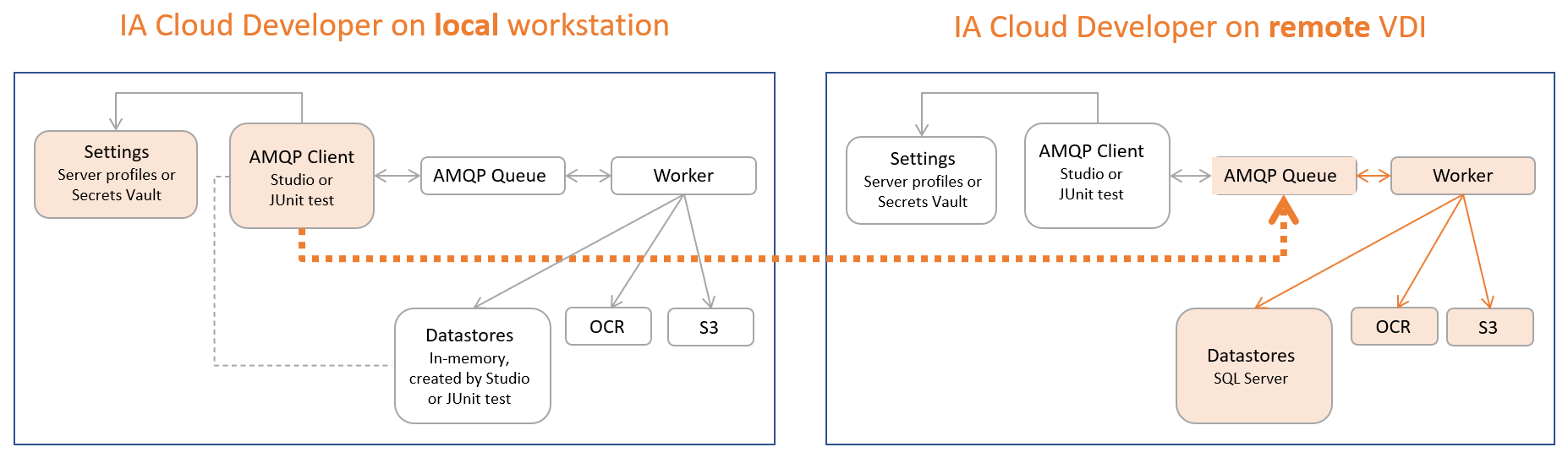
- AMQP client creates a task input message using the environment settings and sends this message to the AMQP queue.
- Worker receives the message from the queue, performs a Bot Task, and puts the result back in the queue.
- During remote execution, AMQP client sends a task input message from a local machine to the queue located on a remote machine. Then, Worker on the remote machine executes the dispatched Bot Task. All environment settings are taken directly from Secrets Vault.
The solution comes with specific restrictions that you should be aware of while using remote debugging:
- In-memory Data Stores are available only on the local machine. The remote machine works with SQL Server directly. It means that if your Bot Task requires specific data, before execution, add it manually to the SQL Server on the remote machine.
- To add or remove specific data from SQL Server, use Control Tower.
- Secrets Vault on both machines must contain identical internal settings located under
IACDeveloper/workfusion_WFInternal, including the Administrator credentials. These settings are used to establish connections between applications. If you don't need to modify these settings after installation, you are all set. If, for some reason, you need to change something underIACDeveloper/workfusion_WFInternal, ensure the modification for both Secrets Vault instances on the local and remote machines.
Configure IA Cloud Developer
Download and install the IA Cloud Developer version that provides remote execution on both machines, local and remote.
For correct debug work, set the same Administrator credentials for both setups and any other credentials you need to configure for your Digital Worker or Business Process.

Make sure your local machine connects to the remote machine on 15405 and 6772 TCP ports.
Most likely, you need to request the customer's IT to open ports for communication between two IA Cloud Developer instances:
- 15405—JDWP port for attaching the debugger to a Worker
- 6772—RabbitMQ port
Request the ports in advance, as the approval and security check process can take some time.
How to verify that ports are open
Verify from your local workstation where you use the debugger. Using the telnet utility, you can connect to the remote server in a secure perimeter where the second IA Cloud Developer is installed.
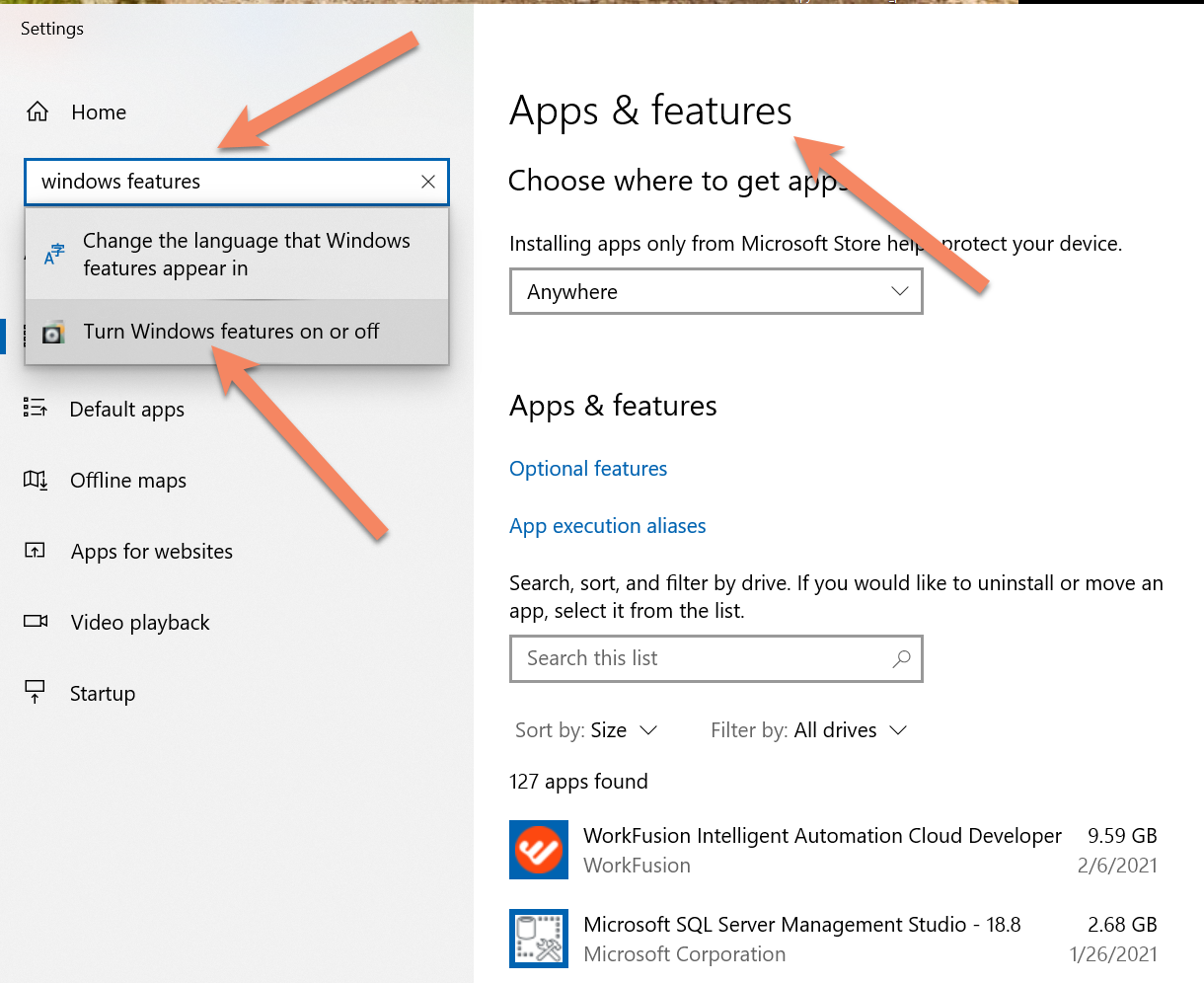
- Ensure that the telnet utility is available in OS. In the latest versions of Windows, it is off by default. To enable it, go to Apps & features > search for Windows features > Turn Windows features on or off.
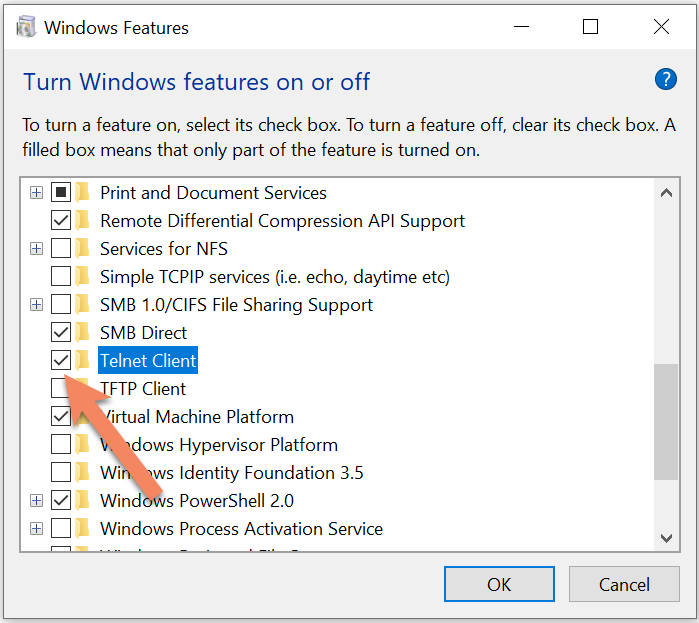
- Make sure you have Telnet Client checked.
For instructions on enabling telnet for other Windows versions, see this article.
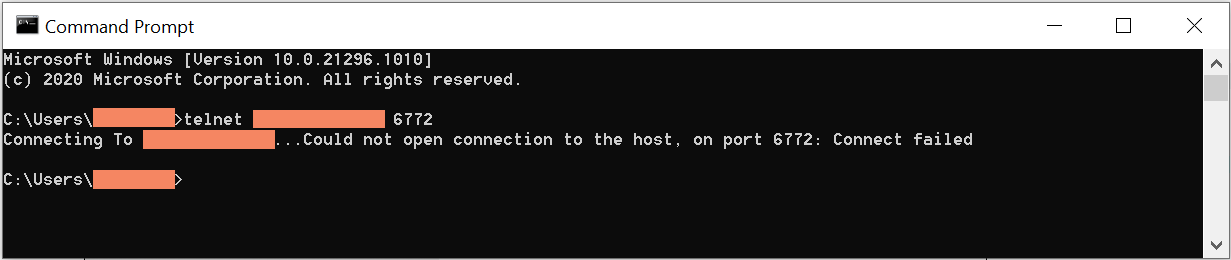
- To use telnet from the command line, run Command Prompt and type
telnet SERVER_IP_ADDRESS PORT_TO_VERIFY. If you don't see a message with a connection error and your Command Prompt window auto-switches to the Telnet window for a few seconds, you reached the specified port on the specified IP address.
Failure:
Success:

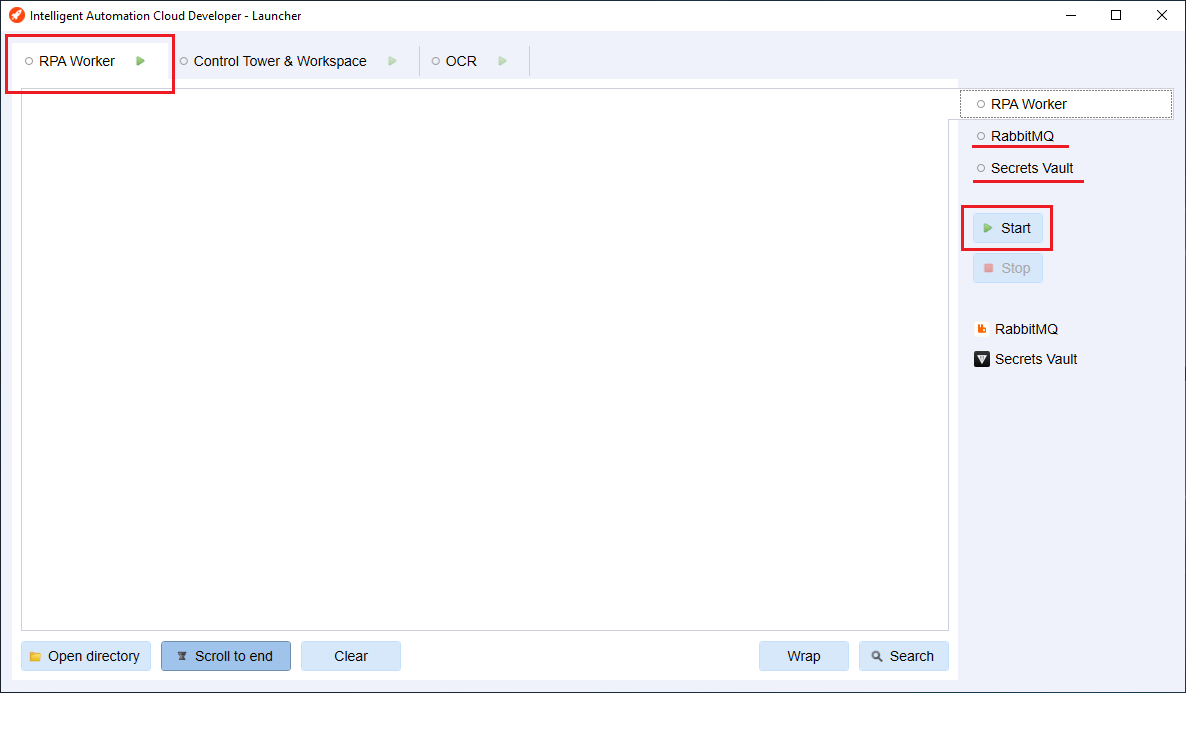
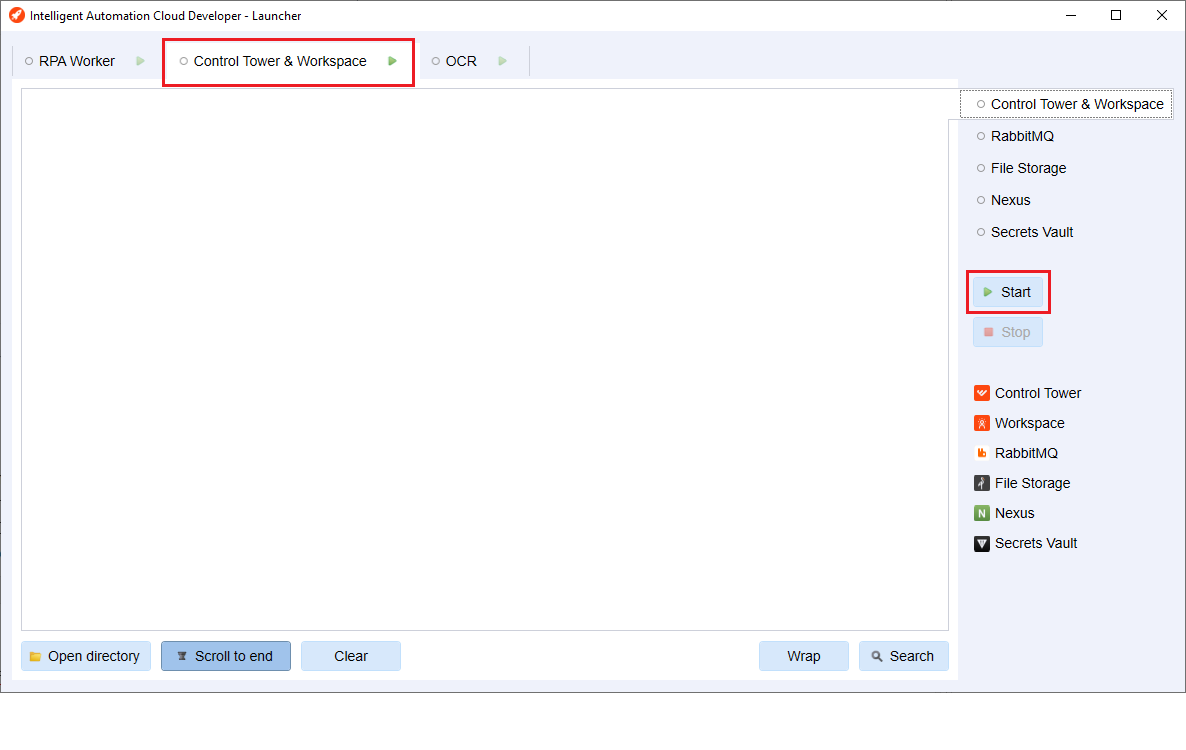
Go to the remote machine, launch IA Cloud Developer, and start the following groups:
- RPA Worker. The group contains RabbitMQ that handles inbound messages. The RPA Worker group has to be up and running the whole time.
- Control Tower & Workspace. Control Tower is not mandatory for the execution but you must start it at least once. At the first start, it creates necessary tables inside SQL Server.
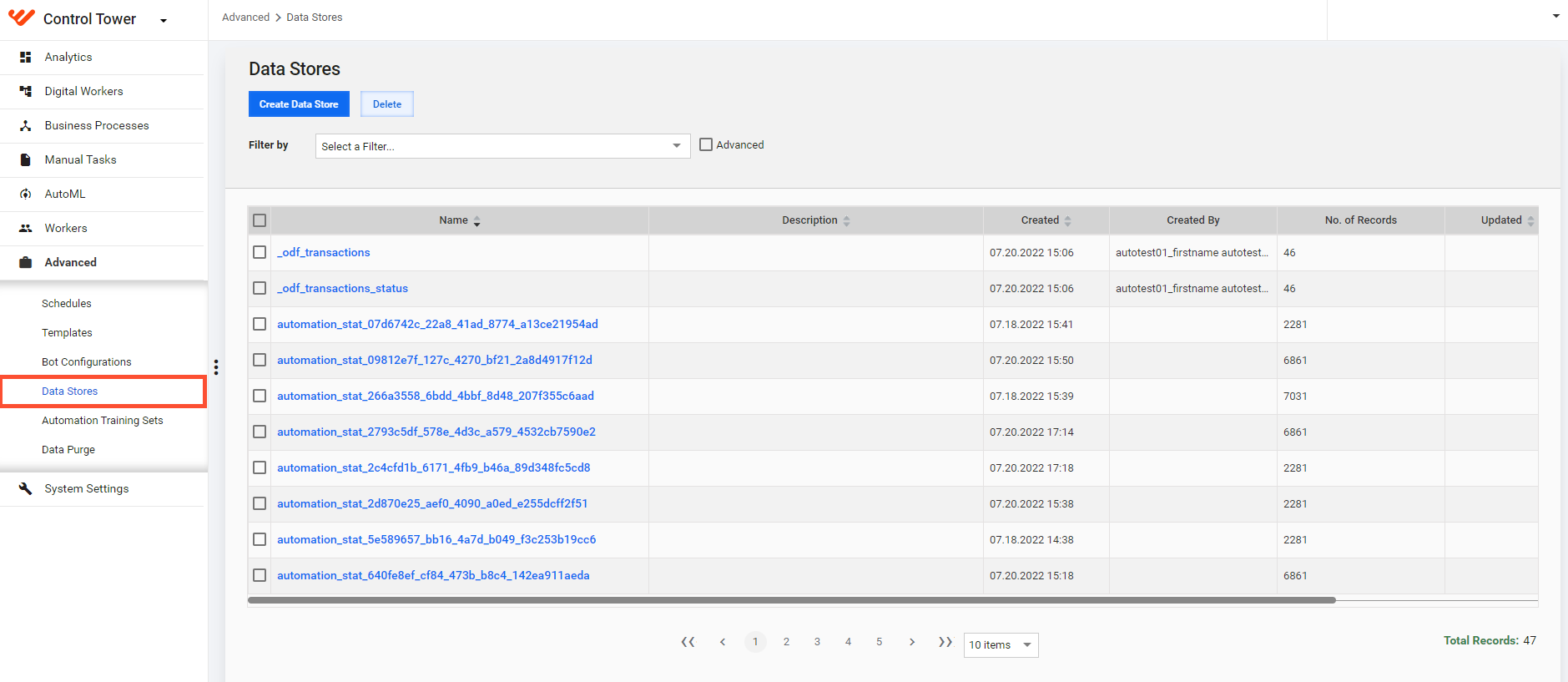
On the remote machine, in any browser, open Control Tower, go to the Advanced > Data Stores, and prepare the Data Stores (if any) for the Bot Task that you are going to execute or debug. Control Tower is used as the SQL Server client to manipulate Data Store data.
Go to the local machine, launch IA Cloud Developer, and start the RPA Worker group. The group contains Secrets Vault that should be up and running the whole time.
Run Bot Tasks remotely with WorkFusion Studio
Before proceeding any further, ensure that Secrets Vault on the local machine and RabbitMQ on the remote machine are up and running as described earlier.
To switch your local Studio to the remote execution mode, in
IACD_Installation/Studio/configuration/, open theconfig.inifile using any text editor. Then, find and modify the following parameters:remote.execution.enabled=true remote.execution.broker.host=12.123.12.123Where:
remote.execution.enabled=trueswitches Studio to the remote execution mode.remote.execution.broker.host=12.123.12.123sets the hostname of the remote machine where IA Cloud Developer is installed.
Start your local Studio, or restart it if it is already launched. During the startup, Studio tries to connect to the local Secrets Vault to get the environment settings and establish a connection with the RabbitMQ on the remote machine. Wait until the startup is completed. If all is set up correctly, you see the console named
remote_execution_console.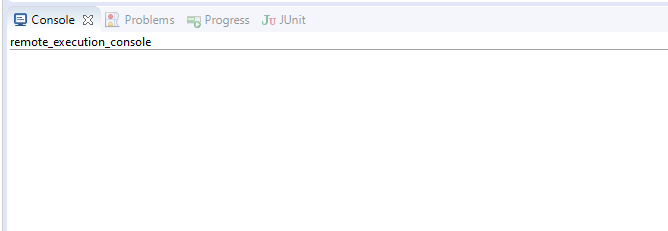
Run a Bot Task using the standard Studio flow.
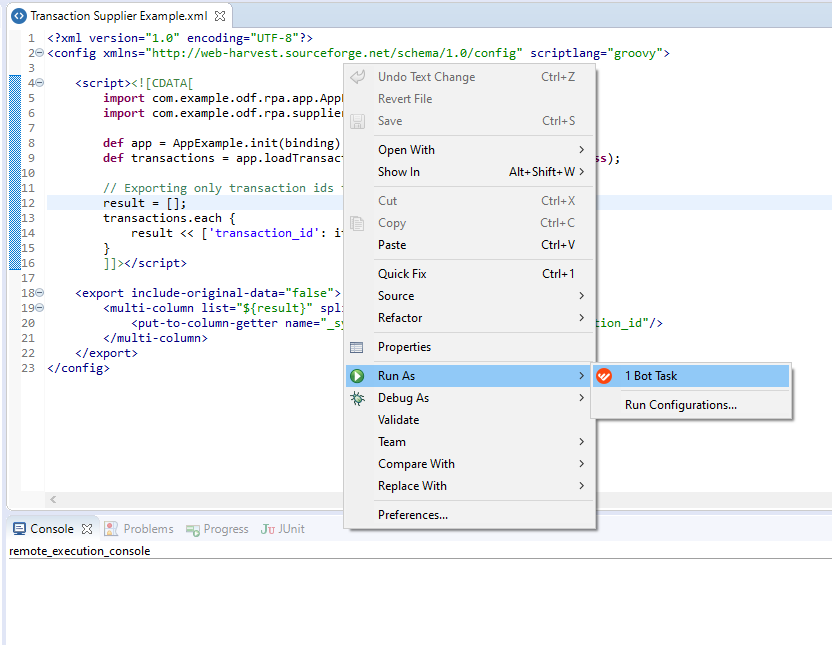
tip
Since a Bot Task is executed on a remote machine, you don't see any detailed console output in Studio. To obtain specific log details, refer to IA Cloud Developer Launcher installed on the remote machine.
Run Bot Tasks remotely with JUnit test
ODF supports remote execution starting from v.10.2.1.11. bot-task-junit should be at least of v.0.0.3. Make sure to update dependencies respectively in your project or create another project from the ODF Archetype.
Create a JUnit test for the Bot Task you are going to execute or debug. Use the
@IacDeveloperJUnitConfigannotation to work with IA Cloud Developer.Specify the remote machine hostname:
@IacDeveloperJUnitConfig(host = "12.123.12.123")
class RpaRemoteTest {

    @Test
    void shouldRunRpaTaskOnRemoteMachine(BotTaskXmlFactory botTaskFactory) {
        // given
        BotTaskUnit botTaskUnit = botTaskFactory.fromXml("configs/main/rpa-task.xml");

        // when
        OutputData outputData = botTaskUnit.buildAndRun();

        // then
        assertThat(outputData.getRecords()).hasSize(1);
    }

}
If you are new to bot-task-junit, refer to the Bot Task JUnit documentation.
Run a created test in your IDE.
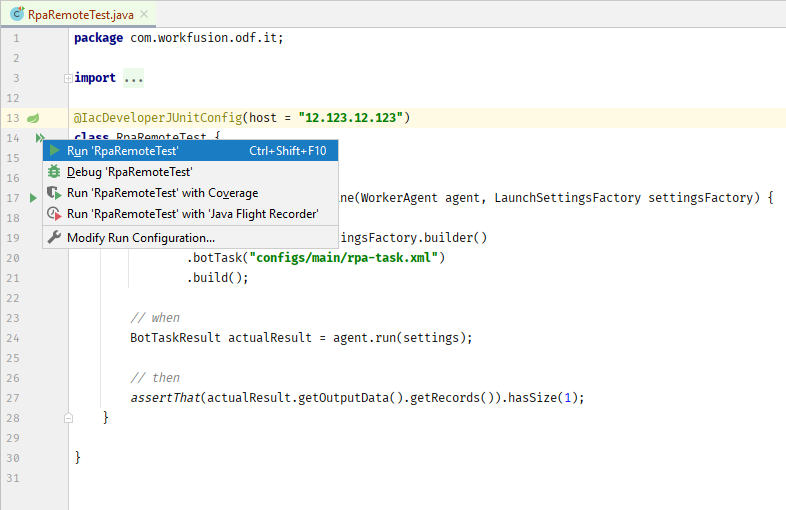
tip
Since a Bot Task is executed on the remote machine, you don't see any detailed console output inside your IDE. To obtain specific log details, refer to IA Cloud Developer Launcher installed on the remote machine.
Attach debugger to remote Worker
The following steps describe how to attach the debugger to the remote Worker using IntelliJ IDEA. Since this is a standard process, you can use any popular Java IDE.
To attach the debugger to the remote Worker, perform the following steps:
In the main menu, select Run > Edit Configurations or press
Alt+Shift+F10and then0.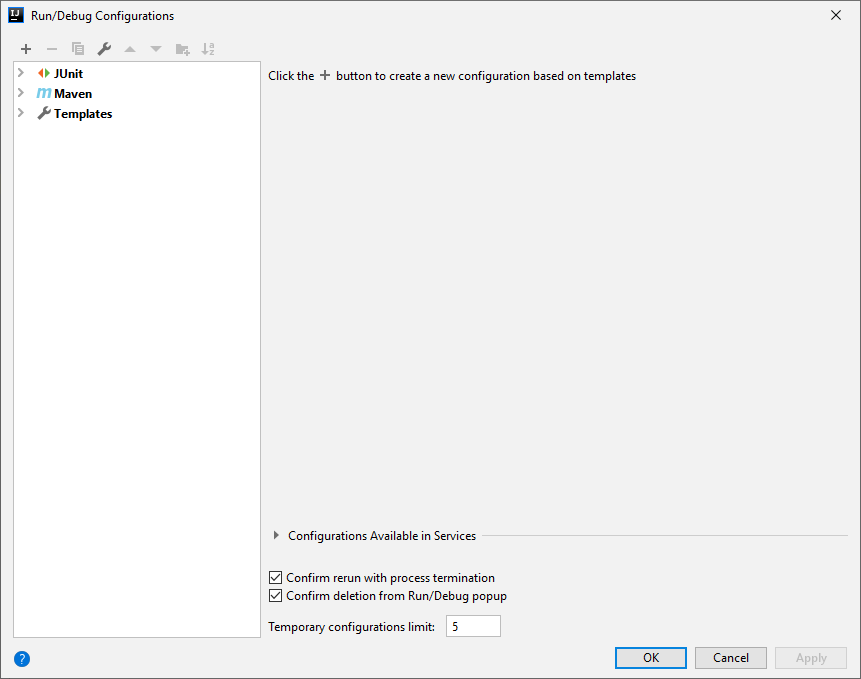
In the Run/Debug Configurations dialog, click the Add New Configuration button ("+") and select Remote JVM Debug.
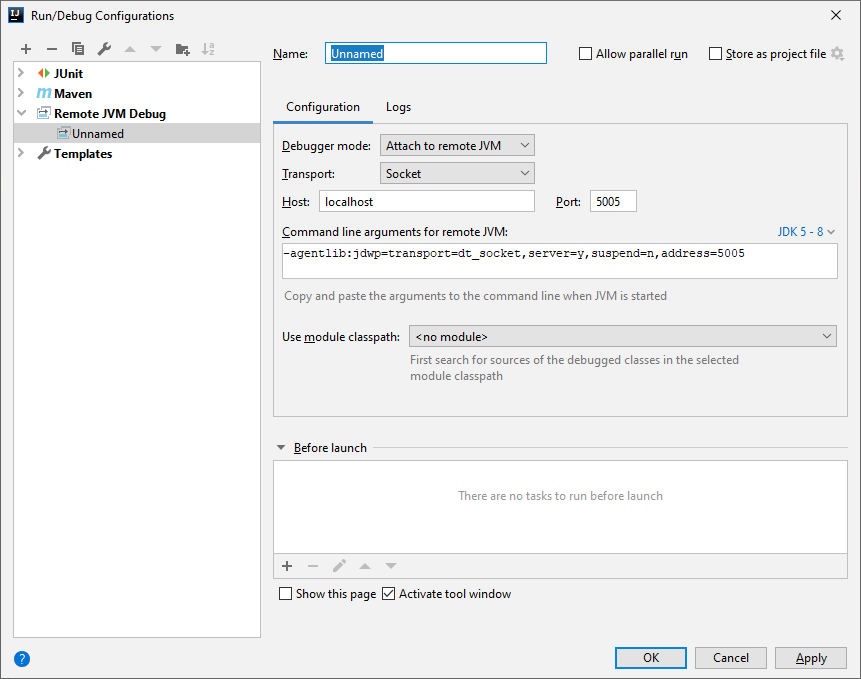
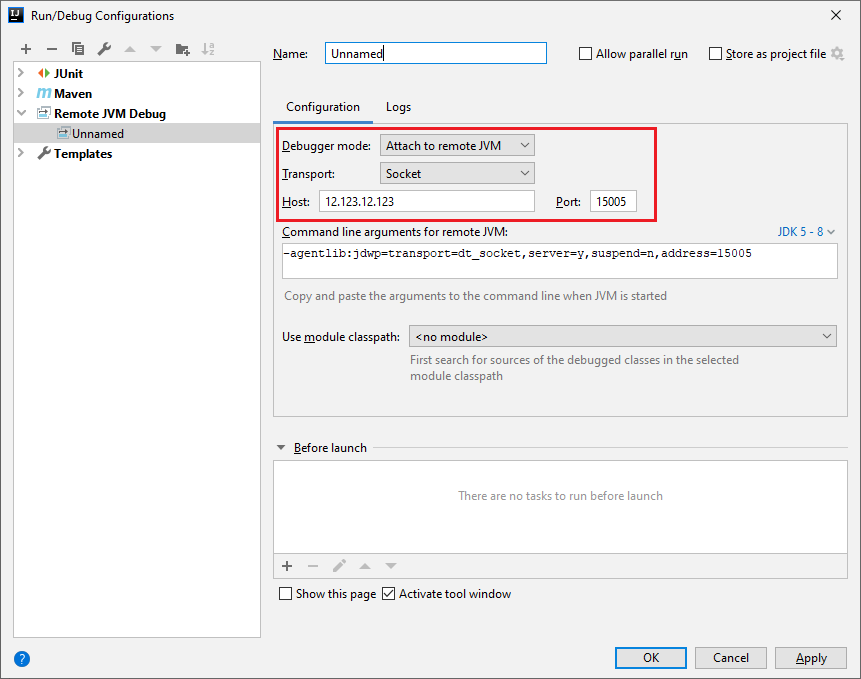
Specify the remote machine hostname as host and 15405 as the default debug port in Worker.
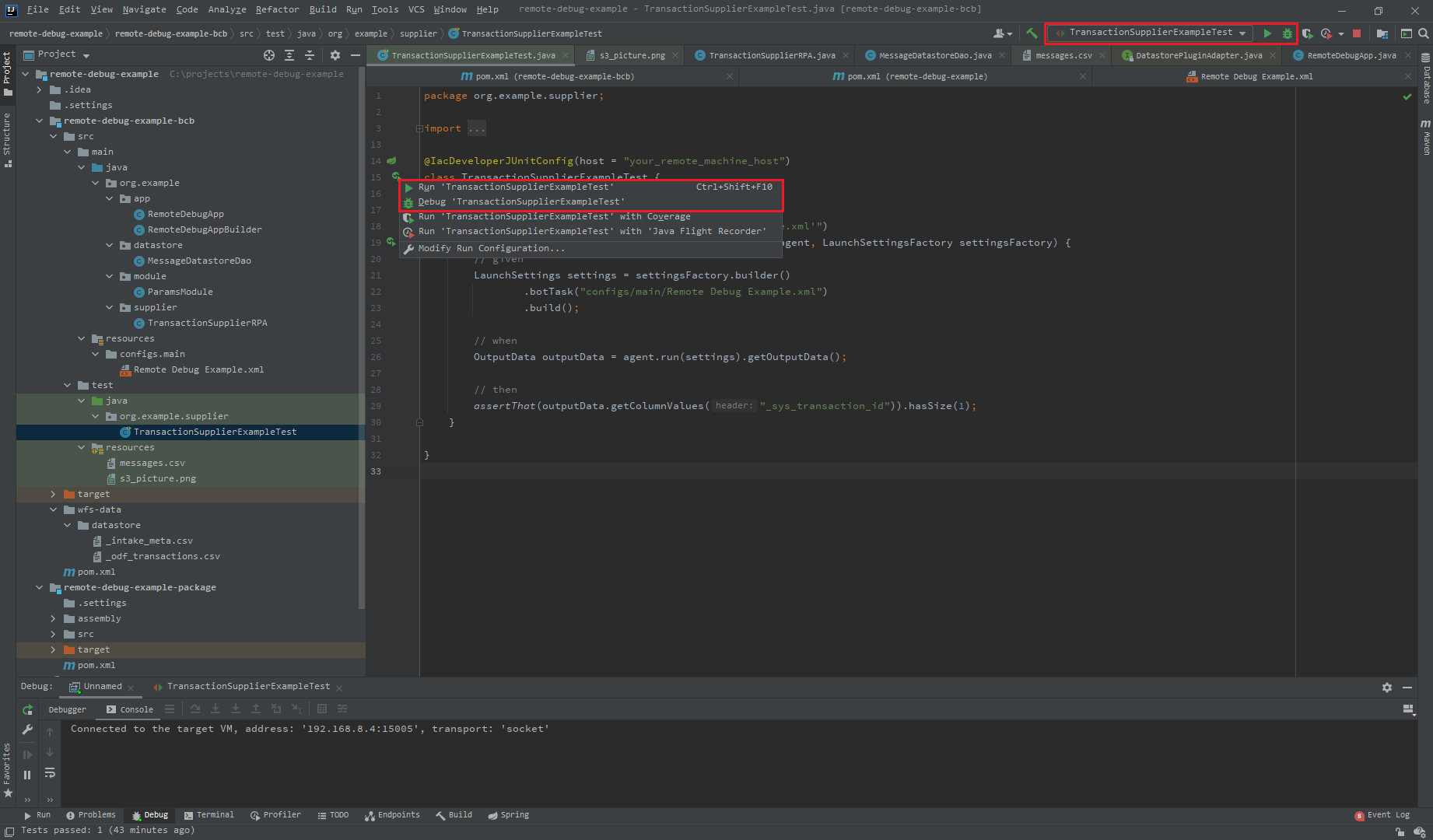
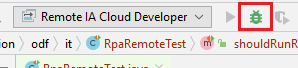
Save the configuration and launch it clicking the debug button.
If all is set up correctly, you see the "Connected to the target VM, address: '12.123.12.123:15405', transport: 'socket'" message in the debug console. Now, you can start debugging a Bot Task.
Remote debug sample
The sample project to demonstrate remote debug capabilities performs the following actions:
- Downloads an image from File Storage.
- Recognizes the text from the image using OCR.
- Prints the acquired text in Notepad with RPA.
- Inserts the text as a message into a Data Store.
caution
Make sure your IA Cloud Developer is correctly configured as described earlier.
Follow the instruction below:
Download the project and open it in your IDE.
Prepare File Storage on the remote machine. To do so, take the image from the project located at
remote-debug-example-bcb\src\test\resources\s3_picture.pngand upload it to Minio under the doc-upload bucket.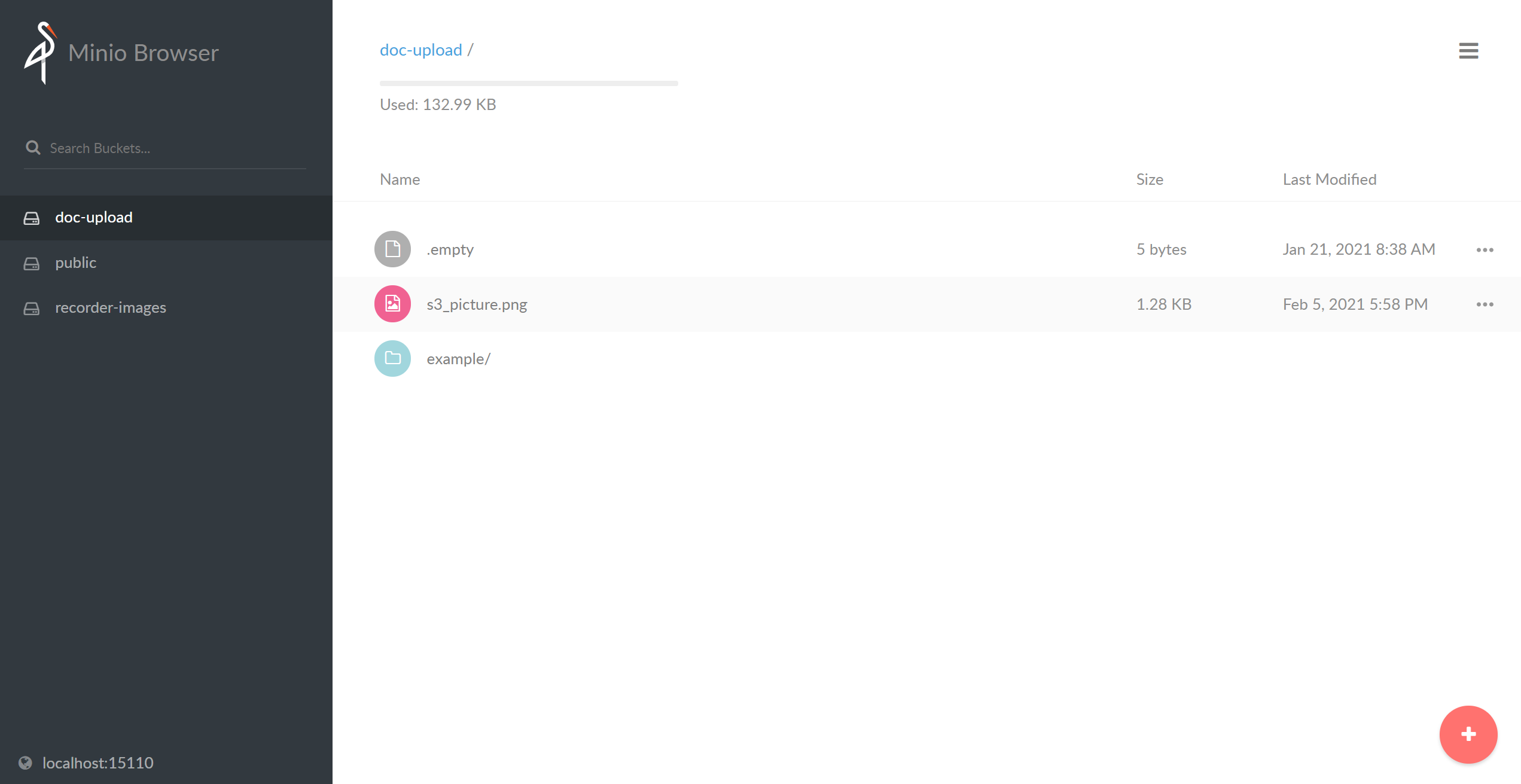
Make sure OCR is up and running on the remote machine.
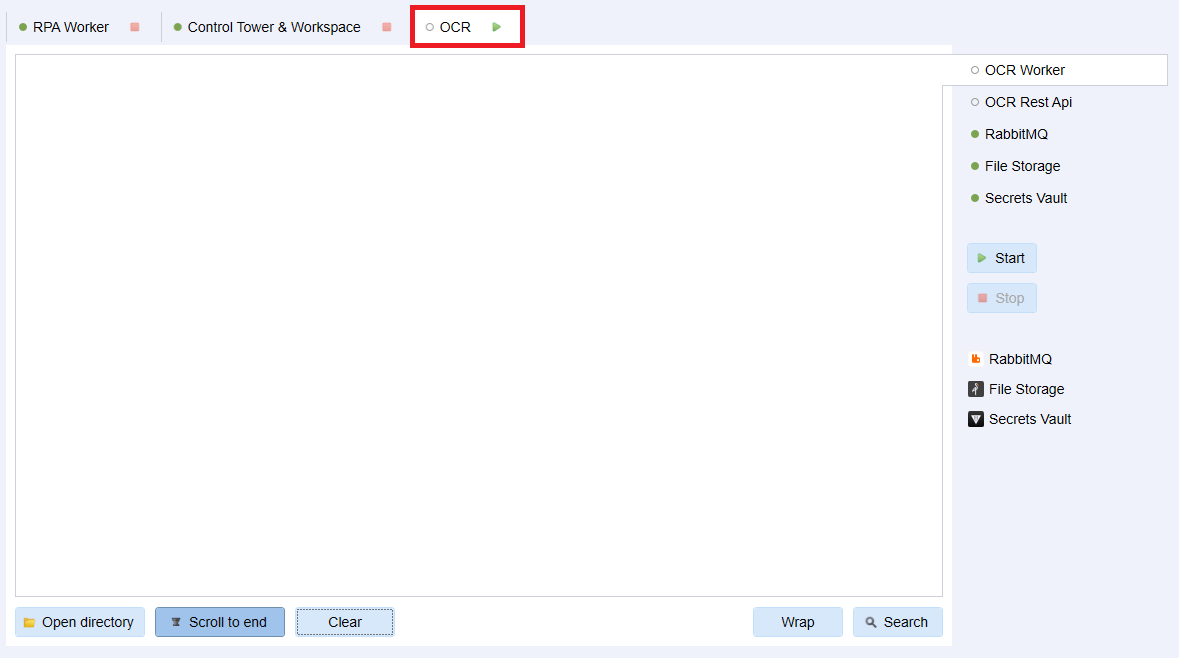
Prepare a mandatory Data Store on the remote machine. Open Control Tower and go to the Advanced > Data Stores. Create a new Data Store using the
remote-debug-example-bcb\src\test\resources\messages.csvfile.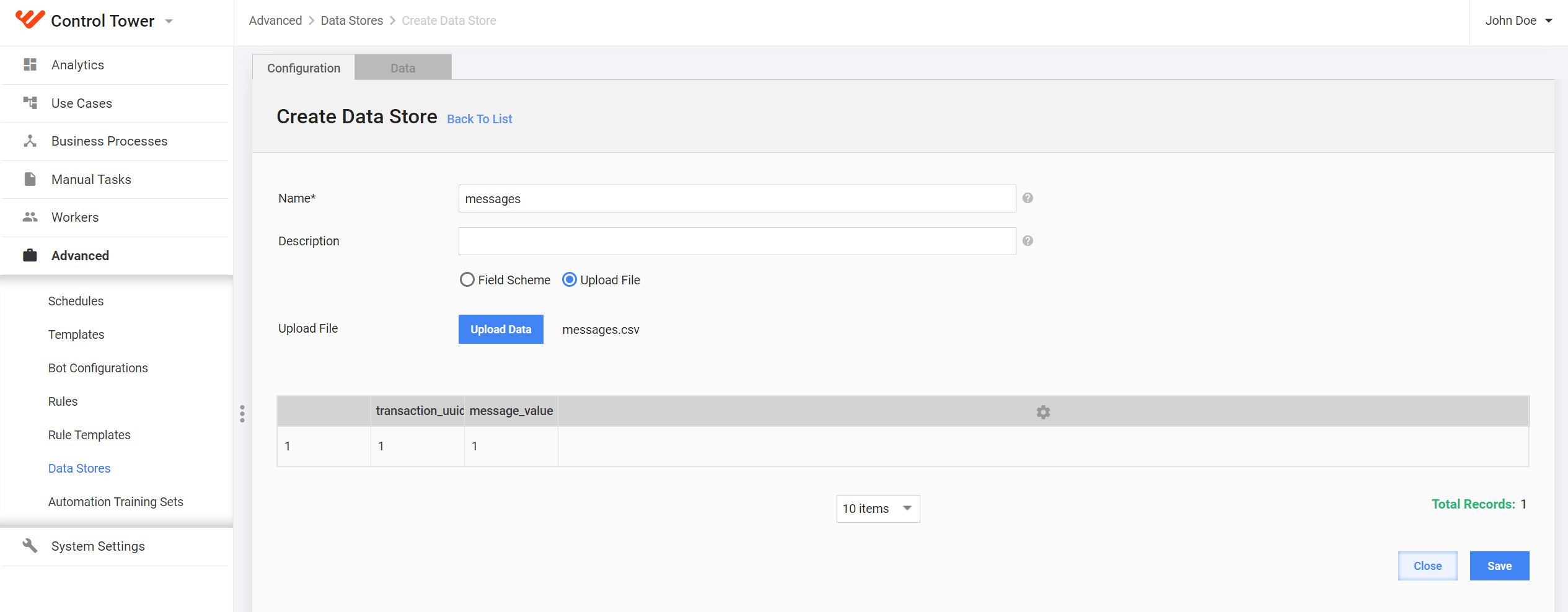
Open the
TransactionSupplierExampleTest.javaclass and set your remote machine hostname.@IacDeveloperJUnitConfig(host = "remote_machine_hostname") class TransactionSupplierExampleTest { @Test @DisplayName("should run 'Transaction Supplier Example.xml'") void shouldRunTransactionSupplierExample(BotTaskXmlFactory botTaskFactory) { // given BotTaskUnit botTaskUnit = botTaskFactory.fromXml("configs/main/Remote Debug Example.xml"); // when OutputData outputData = botTaskUnit.buildAndRun(); // then assertThat(outputData.getColumnValues("_sys_transaction_id")).hasSize(1); } }Attach the debugger, set required breakpoints, and run
TransactionSupplierExampleTest.javaas a regular JUnit test.