
Automate web elements
Automate basic authentication
Expand to view more
The image is used to change focus to the sign-in popup window.
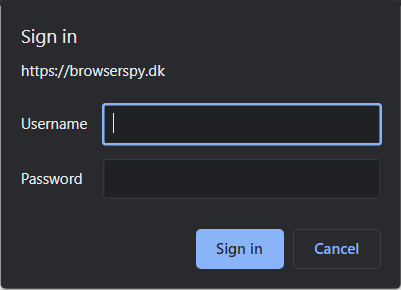
As there is no way to target the popup window, use the surface-based Robotics driver to click the popup and provide credentials.
See the code below as an example:
import com.workfusion.odf2.compiler.BotTask;
import com.workfusion.odf2.core.task.AdHocTask;
import com.workfusion.odf2.core.task.TaskInput;
import com.workfusion.odf2.core.task.output.TaskRunnerOutput;
import com.workfusion.odf2.core.webharvest.rpa.RpaDriver;
import com.workfusion.odf2.core.webharvest.rpa.RpaFactory;
import com.workfusion.odf2.core.webharvest.rpa.RpaRunner;
import com.workfusion.rpa.driver.Driver;
import com.workfusion.rpa.helpers.RPA;
import com.workfusion.rpa.helpers.UiElement;
import com.workfusion.rpa.helpers.UiElementCollection;
import org.openqa.selenium.By;
import org.openqa.selenium.WebElement;
import org.openqa.selenium.support.ui.Select;
import org.slf4j.Logger;

import javax.inject.Inject;
import java.util.ArrayList;
import java.util.Arrays;
import java.util.List;
import java.util.Set;

import static com.workfusion.rpa.helpers.RPA.*;
import static com.workfusion.rpa.helpers.UiSelectors.byImage;
import static com.workfusion.rpa.helpers.UiSelectors.byText;


@BotTask(requireRpa = true)
public class AutomateWebElements implements AdHocTask {

    private final RpaRunner rpaRunner;
    private final Logger logger;

    @Inject
    public AutomateWebElements(RpaFactory rpaFactory, Logger logger){
        this.rpaRunner = rpaFactory
                .builder(RpaDriver.UNIVERSAL)
                .closeOnCompletion(true)
                .build();
        this.logger = logger;
    }

    @Override
    public TaskRunnerOutput run(TaskInput taskInput) {

        rpaRunner.execute(driver->{
            this.automateBasicAuthentication(driver);
        });

        return taskInput.asResult()
                .withColumn("example_bot_task_output", "completed_successfully");
    }

    private void automateBasicAuthentication(Driver driver){
        //imagePath is the directory where Authentication Pop image is stored that will be used to switch focus to that popup using the surface-based Robotics driver.
        //User needs to create this image on their own and modify the imagePath accrodingly.
        String imagePath = "C:\\Users\\sshukla\\Desktop\\New folder\\";
        RPA.timeouts(40 * 1000);
        RPA.openChrome("http://browserspy.dk/password.php");
        $(By.xpath("//*[@id='right']/div/table/tbody/tr[1]/td/a")).click();
        RPA.sleep(2000);
        //As there is no way to target the popup window, use the surface-based Robotics driver to click the popup and provide credentials.
        $(byImage(imagePath + "basicLogin.png", -50, 105)).click();

        //Providing Credentials
        RPA.sendKeys("test");
        RPA.pressTab();
        RPA.sendKeys("test");
        RPA.pressTab();
        RPA.pressEnter();

        String status = $(By.xpath("//*[@id='right']/div/h1")).getText();
        logger.debug(status);
        this.popAlert(driver,status);
    }

    private void popAlert(Driver driver,String popupMessage){
        driver.switchDriver("chrome");
        //Switch to default content inorder to work with alert if already on a IFrame
        RPA.switchTo().defaultContent();String script = popupMessage;
        driver.executeScript("alert(arguments[0])",script);
        RPA.sleep(3000);
        RPA.switchTo().alert().accept();
    }

}
Automate file download
Expand to view more
The example shows how to automate the Save File As system dialog. A file is saved by the Desktop driver.
tip
- To save a file on an RPA Node, use the
downloadFileOnAgent(String path)method. - To pass a file from an RPA Node to the Control Tower server, use the
downloadFileFromAgent(String path)method.
Your file is saved into the RPA Agent machine's temporary folder. To upload it on S3, use S3 plugins.
You need to configure an S3 bucket first. To simulate the use of the S3 bucket, refer to Upload files to S3 MinIO Storage.
The preconditions are as follows:
- Local disk D.
temp.bucketas the S3 bucket name or any other name. In the latter case, make the corresponding changes in the script.
Switch to Save As in Chrome and use desktop driver
Expand to view code
See the code below as an example:
import com.workfusion.bot.service.SecureEntryDTO;
import com.workfusion.odf2.compiler.BotTask;
import com.workfusion.odf2.core.cdi.Requires;
import com.workfusion.odf2.core.task.AdHocTask;
import com.workfusion.odf2.core.task.TaskInput;
import com.workfusion.odf2.core.task.output.TaskRunnerOutput;
import com.workfusion.odf2.core.webharvest.rpa.RpaDriver;
import com.workfusion.odf2.core.webharvest.rpa.RpaFactory;
import com.workfusion.odf2.core.webharvest.rpa.RpaRunner;
import com.workfusion.odf2.service.ControlTowerServicesModule;
import com.workfusion.odf2.service.s3.S3Bucket;
import com.workfusion.odf2.service.s3.S3Service;
import com.workfusion.odf2.service.vault.SecretsVaultService;
import com.workfusion.rpa.driver.Driver;
import com.workfusion.rpa.helpers.RPA;
import com.workfusion.rpa.helpers.UiElement;
import com.workfusion.rpa.helpers.UiElementCollection;
import org.openqa.selenium.Alert;
import org.openqa.selenium.By;
import org.openqa.selenium.Keys;
import org.openqa.selenium.WebElement;
import org.openqa.selenium.support.ui.Select;
import org.slf4j.Logger;
import javax.inject.Inject;
import java.awt.*;
import java.awt.event.KeyEvent;
import java.io.File;
import java.io.IOException;
import java.nio.file.Files;
import java.nio.file.Path;
import java.nio.file.Paths;
import java.util.*;
import java.util.List;

import static com.workfusion.rpa.helpers.RPA.*;
import static com.workfusion.rpa.helpers.UiSelectors.*;

@BotTask(requireRpa = true)
@Requires({ControlTowerServicesModule.class})
public class AutomateWebElements implements AdHocTask {

  private final RpaRunner rpaRunner;
  private final Logger logger;
  private final SecretsVaultService secretsVault;

  private final S3Service s3Service;

  @Inject
  public AutomateWebElements(RpaFactory rpaFactory, Logger logger, SecretsVaultService secretsVault ,S3Service s3Service){
    this.rpaRunner = rpaFactory
            .builder(RpaDriver.UNIVERSAL)
            .closeOnCompletion(true)
            .build();
    this.logger = logger;
    this.secretsVault = secretsVault;
    this.s3Service = s3Service;
  }

  @Override
  public TaskRunnerOutput run(TaskInput taskInput) {

    rpaRunner.execute(driver->{
      try {
        this.switchToSaveAsInChromeAndUseDesktopDriver(driver);
      } catch (AWTException e) {
        throw new RuntimeException(e);
      } catch (IOException e) {
        throw new RuntimeException(e);
      }
    });

    return taskInput.asResult()
            .withColumn("example_bot_task_output", "completed_successfully");
  }


  private void switchToSaveAsInChromeAndUseDesktopDriver(Driver driver) throws AWTException, IOException {
    RPA.pageLoadTimeout(3 * 1000);
    try {
      RPA.openChrome("https://rpa-tutorial.s3.amazonaws.com/trainings/ie-download.html");
      String winhandle = driver.getWindowHandle();
      logger.debug(" handle " + winhandle );
      $(byPartialLinkText("Portable Zip")).click();
      // If click was not performed, try this workaround:
      // $(byPartialLinkText('Portable Zip')).sendKeys('').pressEnter()
    } catch (org.openqa.selenium.TimeoutException ignored) {}
    RPA.sleep(2000);
    Robot robot = new Robot();
    robot.delay(2000);
    robot.keyPress(KeyEvent.VK_CONTROL);
    robot.keyPress(KeyEvent.VK_S);
    robot.keyRelease(KeyEvent.VK_CONTROL);
    robot.keyRelease(KeyEvent.VK_S);
    RPA.sleep(1000);
    driver.switchTo().window("[CLASS:#32770]");
    String tempPath = "D:\\_temp\\";
    String uniqueId = UUID.randomUUID() + ".json";
    String savePath = tempPath + "FileDownloadExample_" + uniqueId;
    $("[CLASS:Edit;INSTANCE:1]").sendKeys(savePath).pressEnter();

    RPA.sleep(2000);

    byte[] fileToUploadOnS3 =  Files.readAllBytes(Paths.get(savePath));
    S3Bucket s3Bucket = s3Service.getBucket("36807");
    String FileName_= "_r2d2/jsonUpload" + UUID.randomUUID() + ".json";
    String URL = s3Bucket.put(fileToUploadOnS3,FileName_).getDirectUrl();
    this.logger.debug(" URL - " + URL);
  }
}
Download file in Chrome
The implementation does not guarantee correct parallel execution of the script on a single node.
Expand to view code
See the code below as an example:
import com.workfusion.bot.service.SecureEntryDTO;
import com.workfusion.odf2.compiler.BotTask;
import com.workfusion.odf2.core.cdi.Requires;
import com.workfusion.odf2.core.task.AdHocTask;
import com.workfusion.odf2.core.task.TaskInput;
import com.workfusion.odf2.core.task.output.TaskRunnerOutput;
import com.workfusion.odf2.core.webharvest.rpa.RpaDriver;
import com.workfusion.odf2.core.webharvest.rpa.RpaFactory;
import com.workfusion.odf2.core.webharvest.rpa.RpaRunner;
import com.workfusion.odf2.service.ControlTowerServicesModule;
import com.workfusion.odf2.service.s3.S3Bucket;
import com.workfusion.odf2.service.s3.S3Service;
import com.workfusion.odf2.service.vault.SecretsVaultService;
import com.workfusion.rpa.driver.Driver;
import com.workfusion.rpa.helpers.RPA;
import com.workfusion.rpa.helpers.UiElement;
import com.workfusion.rpa.helpers.UiElementCollection;
import org.openqa.selenium.Alert;
import org.openqa.selenium.By;
import org.openqa.selenium.Keys;
import org.openqa.selenium.WebElement;
import org.openqa.selenium.support.ui.Select;
import org.slf4j.Logger;
import javax.inject.Inject;
import java.awt.*;
import java.awt.event.KeyEvent;
import java.io.File;
import java.io.IOException;
import java.nio.file.Files;
import java.nio.file.Path;
import java.nio.file.Paths;
import java.util.*;
import java.util.List;

import static com.workfusion.rpa.helpers.RPA.*;
import static com.workfusion.rpa.helpers.UiSelectors.*;

@BotTask(requireRpa = true)
@Requires({ControlTowerServicesModule.class})
public class AutomateWebElements implements AdHocTask {

  private final RpaRunner rpaRunner;
  private final Logger logger;
  private final SecretsVaultService secretsVault;

  private final S3Service s3Service;

  @Inject
  public AutomateWebElements(RpaFactory rpaFactory, Logger logger, SecretsVaultService secretsVault ,S3Service s3Service){
    this.rpaRunner = rpaFactory
            .builder(RpaDriver.UNIVERSAL)
            .closeOnCompletion(true)
            .build();
    this.logger = logger;
    this.secretsVault = secretsVault;
    this.s3Service = s3Service;
  }

  @Override
  public TaskRunnerOutput run(TaskInput taskInput) {

    rpaRunner.execute(driver->{
      try {
        this.downloadFileInChromeExample(driver);
      } catch (Exception e) {
        throw new RuntimeException(e);
      }
    });

    return taskInput.asResult()
            .withColumn("example_bot_task_output", "completed_successfully");
  }


  private void downloadFileInChromeExample(Driver driver) throws Exception {
    String downloadDir = "C:/Users/sshukla/Downloads/";
    String getLastModifiedFileName = this.getLastModifiedFileName(driver,downloadDir);
    logger.debug(" Last Modified Filename " + getLastModifiedFileName );

    RPA.openChrome("http://wf-sharebox.s3.amazonaws.com/some-cool-video.zip");
    byte[] fileContent = getDownloadedFile(driver, downloadDir, getLastModifiedFileName);

    Path path = Paths.get("C:\\Users\\sshukla\\Desktop\\New folder\\ChromeDownloadExample.zip");
    Files.write(path,fileContent);

    //Saving file to MinioS3 bucket
    S3Bucket s3Bucket = s3Service.getBucket("36807");
    String FileName_= "_r2d2/ChromeDownloadExample" + UUID.randomUUID() + ".zip";
    String URL = s3Bucket.put(fileContent,FileName_).getDirectUrl();
    this.logger.debug(" URL - " + URL);
  }

  private byte[] getFileContent(Driver driver,String latestFilePath){
    Object res = driver.executeScript(
            "def bytes = new File('" + latestFilePath.replace('\\', '/') + "').bytes; \n"
                    + "return Base64.getEncoder().encodeToString(bytes);", "GROOVY");

    byte[] content = Base64.getDecoder().decode(res.toString());
    return content;
  }

  private String getLastModifiedFileName(Driver driver,String downloadDir){
    File dir = new File(downloadDir.replace('\\', '/') + "/");
    File[] files = dir.listFiles();
    if (files == null || files.length == 0) {
      return null;
    }

    File lastModifiedFile = files[0];
    for (int i = 1; i < files.length; i++) {
      if (lastModifiedFile.lastModified() < files[i].lastModified()) {
        lastModifiedFile = files[i];
      }
    }
    return lastModifiedFile.getAbsolutePath();
  }

  private byte[] getDownloadedFile(Driver desktopDriver,String downloadDir , String latestFilePath) throws Exception {


    String downloadFilePath = getLastModifiedFileName(desktopDriver, downloadDir);
    logger.debug(" current file " + downloadFilePath );
    try {
      // Wait until new file appears.
      int maxCounter = 1000;
      boolean downloadStarted = downloadFilePath != null && !downloadFilePath.equals(latestFilePath);
      while (!downloadStarted && maxCounter > 0) {
        Thread.sleep(1000);
        downloadFilePath = getLastModifiedFileName(desktopDriver, downloadDir);
        downloadStarted = downloadFilePath != null && !downloadFilePath.equals(latestFilePath);
        maxCounter--;
        logger.debug(" current file in while loop " + downloadFilePath );
      }
      logger.debug(" current file After new file appears " + downloadFilePath );

      // Lets wait until latest file is not tmp or crdownload.
      if (downloadStarted) {
        maxCounter = 300;
        downloadFilePath = getLastModifiedFileName(desktopDriver, downloadDir);
        String fileExtension = org.apache.commons.io.FilenameUtils.getExtension(downloadFilePath);
        boolean isDownloading = "crdownload".equals(fileExtension) || "tmp".equals(fileExtension);

        while (isDownloading && maxCounter > 0) {
          Thread.sleep(1000);
          downloadFilePath = getLastModifiedFileName(desktopDriver, downloadDir);
          fileExtension = org.apache.commons.io.FilenameUtils.getExtension(downloadFilePath);
          isDownloading = "crdownload".equals(fileExtension) || "tmp".equals(fileExtension);

          maxCounter--;
        }

        if (!isDownloading) {
          logger.debug(" current file After Downloading is completed " + downloadFilePath );
          return getFileContent(desktopDriver, downloadFilePath);
        }
      }
    } catch (InterruptedException e) {
      throw new Exception("Some issues during file download");
    } catch (IllegalArgumentException e) {
      throw new RuntimeException(e);
    }

    logger.debug(" current file After Downloading is completed before function exit " + downloadFilePath );
    return getFileContent(desktopDriver, downloadFilePath);
  }


}
Automate file upload
Expand to view more
See the code below as an example:
import com.workfusion.bot.service.SecureEntryDTO;
import com.workfusion.odf2.compiler.BotTask;
import com.workfusion.odf2.core.cdi.Requires;
import com.workfusion.odf2.core.task.AdHocTask;
import com.workfusion.odf2.core.task.TaskInput;
import com.workfusion.odf2.core.task.output.TaskRunnerOutput;
import com.workfusion.odf2.core.webharvest.rpa.RpaDriver;
import com.workfusion.odf2.core.webharvest.rpa.RpaFactory;
import com.workfusion.odf2.core.webharvest.rpa.RpaRunner;
import com.workfusion.odf2.service.ControlTowerServicesModule;
import com.workfusion.odf2.service.vault.SecretsVaultService;
import com.workfusion.rpa.driver.Driver;
import com.workfusion.rpa.helpers.RPA;
import com.workfusion.rpa.helpers.UiElement;
import com.workfusion.rpa.helpers.UiElementCollection;
import org.openqa.selenium.Alert;
import org.openqa.selenium.By;
import org.openqa.selenium.Keys;
import org.openqa.selenium.WebElement;
import org.openqa.selenium.support.ui.Select;
import org.slf4j.Logger;
import javax.inject.Inject;
import java.util.ArrayList;
import java.util.Arrays;
import java.util.List;
import static com.workfusion.rpa.helpers.RPA.*;
import static com.workfusion.rpa.helpers.UiSelectors.byImage;
import static com.workfusion.rpa.helpers.UiSelectors.byText;

@BotTask(requireRpa = true)
@Requires({ControlTowerServicesModule.class})
public class AutomateWebElements implements AdHocTask {

  private final RpaRunner rpaRunner;
  private final Logger logger;
  private final SecretsVaultService secretsVault;
  private static final String s3Path = "https://rpa-tutorial.s3.amazonaws.com/trainings/pdf-sample.pdf";

  @Inject
  public AutomateWebElements(RpaFactory rpaFactory, Logger logger, SecretsVaultService secretsVault){
    this.rpaRunner = rpaFactory
            .builder(RpaDriver.UNIVERSAL)
            .closeOnCompletion(true)
            .build();
    this.logger = logger;
    this.secretsVault = secretsVault;
  }

  @Override
  public TaskRunnerOutput run(TaskInput taskInput) {

    rpaRunner.execute(driver->{
      this.automateFileUpload(driver);
    });

    return taskInput.asResult()
            .withColumn("example_bot_task_output", "completed_successfully");
  }

  private void automateFileUpload(Driver driver){
    String loginPage = "https://mail.rediff.com/cgi-bin/login.cgi";
    //User needs to create entry of their email credential in secretvault
    SecureEntryDTO secureEntry = secretsVault.getEntry("EmailCredentials");
    String mailSubject = "Attach PDF";
    String mailBody = "This is an RPA message with attached PDF file.";
    String filePath = downloadFileOnAgent(s3Path);
    logger.debug(" File Path - " +  filePath );

    RPA.openChrome(loginPage);

    RPA.sleep(5 * 1000);
    driver.findElement(By.xpath("//input[@id = 'login1']")).sendKeys(secureEntry.getKey());

    driver.findElement(By.xpath("//input[@id = 'password']")).sendKeys(secureEntry.getValue());

    driver.findElement(By.xpath("/html/body/div/div[1]/div[1]/div[2]/form/div[1]/div[2]/div[2]/div[2]/div/input[2]")).click();

    WebElement compose = driver.findElement(By.xpath("//*[@id=\"boxscroll\"]/li[1]/a/b"));
    compose.click();

    try {
      Thread.sleep(2000);
    } catch (InterruptedException e) {
      throw new RuntimeException(e);
    }

    WebElement toAddress = driver.findElement(By.xpath("//*[@class=\"rd_inp_to as-input\"]"));
    toAddress.click();
    toAddress.sendKeys("shubham.shukla2307@rediffmail.com");

    WebElement subject = driver.findElement(By.xpath("//*[@id=\"rd_compose_cmp2\"]/ul/li[4]/input"));
    subject.sendKeys(mailSubject, Keys.TAB);

    //Clicking on Attachment icon
    WebElement attach = driver.findElement(By.xpath("//a[@class='attch_fil']"));
    attach.click();
    RPA.sleep(2000);

    //Selecting File To Be Uploaded
    RPA.switchTo().window("[CLASS:#32770]");
    $("[CLASS:Edit;INSTANCE:1]").sendKeys(filePath);
    $("[CLASS:Button;INSTANCE:1]").click();

    WebElement emailBodyIframe = driver.findElement(By.xpath("//*[@id=\"cke_1_contents\"]/iframe"));
    driver.switchTo().frame(emailBodyIframe);

    driver.switchDriver("chrome");

    WebElement emailBody = driver.findElement(By.xpath("/html/body"));
    emailBody.click();
    driver.executeScript("arguments[0].innerHTML = arguments[1]" ,emailBody , mailBody );

    driver.switchTo().defaultContent();

    WebElement send = driver.findElement(By.xpath("//*[@id=\"rd_compose_cmp2\"]/div[1]/a[1]"));
    send.click();

    logger.debug("Email Sent");

  }
}
The same example that uses the Universal Driver is as follows:
<?xml version="1.0" encoding="UTF-8"?>
<config xmlns="http://web-harvest.sourceforge.net/schema/1.0/config" scriptlang="groovy">

    <robotics-flow>
        <robot name="bb8" driver="universal" close-on-completion="true">
            <capability name="SEARCH_ALL_WINDOWS" value="true" />
            <script> <![CDATA[

                // Copy the file to the RPA machine.
                def s3Path = 'https://rpa-tutorial.s3.amazonaws.com/trainings/pdf-sample.pdf'
                filePath = downloadFileOnAgent(s3Path)

                def loginPage = 'http://mail.google.com'
                def username = 'tuk.tuk.rpa@gmail.com'
                def password = 'work4WorkFusion!1'
                def mailSubject = 'Attach PDF'
                def mailBody = 'This is an RPA message with attached PDF file.'

                timeouts(20 * 1000)

                // Login into the mail system
                openIE(loginPage)
                $('#identifierId').val(username).pressEnter()
                $(byXpath("//*[@name='password']")).val(password)
                $('#passwordNext').click()

                // Populate new message fields
                $(byText('COMPOSE')).click();
                $(By.name('to')).val(username).pressTab()
                $(by('placeholder', 'Subject')).val(mailSubject).pressTab()
                $('.editable').val(mailBody).pressEnter()

                // Start attaching file.
                $(byXpath("//div[@class='a1 aaA aMZ']")).click()


                // Attach file using "upload file" dialog.
                switchTo().window('[CLASS:#32770]')
                $('[CLASS:Edit;INSTANCE:1]').sendKeys(filePath)
                $('[CLASS:Button;INSTANCE:1]').click()

                switchTo().window('[CLASS:IEFrame]')
                $(byText('Send')).click()
                $(withText('Your message has been sent')).shouldBe(VISIBLE)
                sleep(3000)

            ]]></script>
        </robot>
    </robotics-flow>

    <export include-original-data="false">
        <single-column name="rpa_local_file_path" value="${filePath}"/>
    </export>

</config>
Automate drag-and-drop operations
Expand to view more
Some web applications have functionality allowing to drag web elements from one location and drop them on a defined area or even another web element.
These kinds of complex actions are not available in basic element properties. You can automate drag-and-drop actions using advanced user interactions.
The action chain generator implements the Builder pattern to create a composite action containing a group of other actions. It eases building actions by configuring an action chains generator instance and invoking its perform() method to get the complex action.
actions().dragAndDrop(
    $("From Selector"),
    $("To Selector"))
    .perform();
In this example, drag the Mystery & Thrillers folder from the left table to the Horror folder of the right side table.
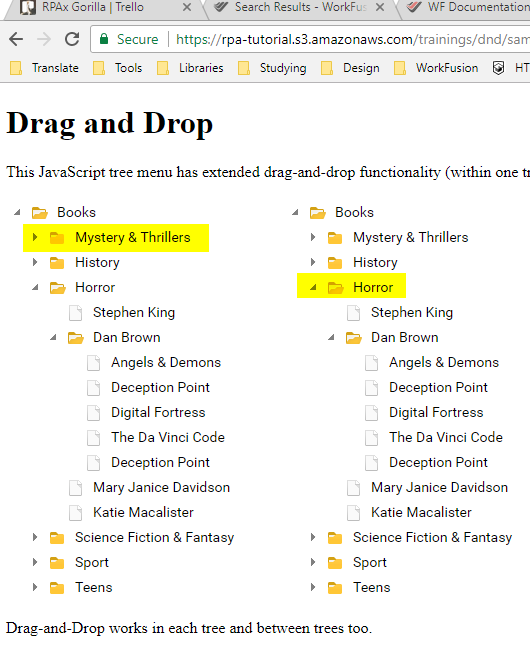
See the code below as an example:
import com.workfusion.odf2.compiler.BotTask;
import com.workfusion.odf2.core.task.AdHocTask;
import com.workfusion.odf2.core.task.TaskInput;
import com.workfusion.odf2.core.task.output.TaskRunnerOutput;
import com.workfusion.odf2.core.webharvest.rpa.RpaDriver;
import com.workfusion.odf2.core.webharvest.rpa.RpaFactory;
import com.workfusion.odf2.core.webharvest.rpa.RpaRunner;
import com.workfusion.rpa.driver.Driver;
import com.workfusion.rpa.helpers.RPA;
import com.workfusion.rpa.helpers.UiElement;
import com.workfusion.rpa.helpers.UiElementCollection;
import org.openqa.selenium.By;
import org.openqa.selenium.WebElement;
import org.openqa.selenium.support.ui.Select;
import org.slf4j.Logger;
import javax.inject.Inject;
import java.util.ArrayList;
import java.util.Arrays;
import java.util.List;
import java.util.Set;
import static com.workfusion.rpa.helpers.RPA.*;
import static com.workfusion.rpa.helpers.UiSelectors.byImage;
import static com.workfusion.rpa.helpers.UiSelectors.byText;


@BotTask(requireRpa = true)
public class AutomateWebElements implements AdHocTask {

    private final RpaRunner rpaRunner;
    private final Logger logger;

    @Inject
    public AutomateWebElements(RpaFactory rpaFactory, Logger logger){
        this.rpaRunner = rpaFactory
                .builder(RpaDriver.UNIVERSAL)
                .closeOnCompletion(true)
                .build();
        this.logger = logger;
    }

    @Override
    public TaskRunnerOutput run(TaskInput taskInput) {

        rpaRunner.execute(driver->{
            this.automateDragAndDropOperation(driver);
        });

        return taskInput.asResult()
                .withColumn("example_bot_task_output", "completed_successfully");
    }

    private void automateDragAndDropOperation(Driver driver){

        RPA.timeouts(10 * 1000);

        // open site
        RPA.openChrome("https://rpa-tutorial.s3.amazonaws.com/trainings/dnd/samples/dhtmlxTree/05_drag_n_drop/12_tree_drag.html");
        this.popAlert(driver,"Drag and Drop Example - Moving Mystery & Thrillers under Horror");

        // find base element
        WebElement element = $(By.xpath("//*[@id='treeboxbox_tree']/div/table/tbody/tr[2]/td[2]/table/tbody/tr[2]/td[2]/table/tbody/tr[1]/td[4]/span"));
        RPA.sleep(2000);

        // find target element
        WebElement target = $(By.cssSelector("#treeboxbox_tree2 > div > table > tbody > tr:nth-child(2) > td:nth-child(2) > table > tbody > tr:nth-child(4) > td:nth-child(2) > table > tbody > tr:nth-child(3) > td:nth-child(2) > table > tbody > tr:nth-child(1) > td.dhxTextCell.standartTreeRow > span"));

        // get base element center coordinates
        int elementX = element.getLocation().getX()+element.getSize().width/2;
        int elementY = element.getLocation().getY()+element.getSize().height/2;

        // get target element center coordinates
        int targetX = target.getLocation().getX()+target.getSize().width/2;
        int targetY = target.getLocation().getY()+target.getSize().height/2;

        // move mouse to base element and click and hold
        RPA.actions().moveByOffset(elementX, elementY).clickAndHold().build().perform();

        RPA.sleep(500);

        // move mouse to target element and click a click context for make realese
        RPA.actions().moveByOffset(targetX-elementX, targetY-elementY).build().perform();

        // for IE need to use next work around
        if(driver.toString().equalsIgnoreCase("internet explorer")) {
            RPA.actions().contextClick().build().perform();
        } else {
            // for all other drivers
            RPA.actions().release().build().perform();
        }

        RPA.sleep(5000);
    }

    private void popAlert(Driver driver,String popupMessage){
        driver.switchDriver("chrome");
        //Switch to default content inorder to work with alert if already on a IFrame
        RPA.switchTo().defaultContent();String script = popupMessage;
        driver.executeScript("alert(arguments[0])",script);
        RPA.sleep(3000);
        RPA.switchTo().alert().accept();
    }


}
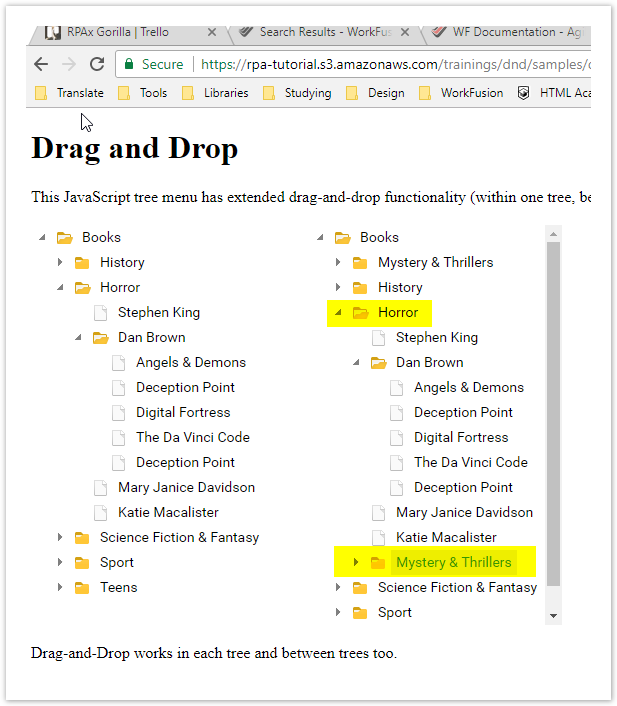
The Mystery & Thrillers folder is moved to the Horror folder. The new folder structure looks like this:
Automate checkbox and radio button operations
Apply selection methods
Expand to view more
Checkboxes and radio buttons deal the same way, and you can perform the below-mentioned operations on either of them. For a sample web form, refer to the sample personal information form.
ID
If ID is given for a radio button or a checkbox and you need to click it irrespective of its value, the command is like this:
RPA.open("https://rpa-tutorial.s3.amazonaws.com/trainings/iframe/form.html");
$(By.id("sex-1")).click();
IsSelected
Apply the IsSelected method, if your choice is based on the pre-selection of the radio button or checkbox and you need to choose the deselected radio button or checkbox. Assume there are two radio buttons and checkboxes. One is selected by default, and you need to select the other one. With IsSelectedstatement, you can figure out whether the element is selected or not:
import com.workfusion.odf2.compiler.BotTask;
import com.workfusion.odf2.core.task.AdHocTask;
import com.workfusion.odf2.core.task.TaskInput;
import com.workfusion.odf2.core.task.output.TaskRunnerOutput;
import com.workfusion.odf2.core.webharvest.rpa.RpaDriver;
import com.workfusion.odf2.core.webharvest.rpa.RpaFactory;
import com.workfusion.odf2.core.webharvest.rpa.RpaRunner;
import com.workfusion.rpa.driver.Driver;
import com.workfusion.rpa.helpers.RPA;
import com.workfusion.rpa.helpers.UiElement;
import com.workfusion.rpa.helpers.UiElementCollection;
import org.openqa.selenium.By;
import org.openqa.selenium.WebElement;
import org.openqa.selenium.support.ui.Select;
import org.slf4j.Logger;

import javax.inject.Inject;
import java.util.ArrayList;
import java.util.Arrays;
import java.util.List;
import java.util.Set;

import static com.workfusion.rpa.helpers.RPA.*;
import static com.workfusion.rpa.helpers.UiSelectors.byImage;
import static com.workfusion.rpa.helpers.UiSelectors.byText;


@BotTask(requireRpa = true)
public class AutomateWebElements implements AdHocTask {

    private final RpaRunner rpaRunner;
    private final Logger logger;

    @Inject
    public AutomateWebElements(RpaFactory rpaFactory, Logger logger){
        this.rpaRunner = rpaFactory
                .builder(RpaDriver.UNIVERSAL)
                .closeOnCompletion(true)
                .build();
        this.logger = logger;
    }

    @Override
    public TaskRunnerOutput run(TaskInput taskInput) {

        rpaRunner.execute(driver->{
            this.applySelectionMethodsIsSelected(driver);
        });

        return taskInput.asResult()
                .withColumn("example_bot_task_output", "completed_successfully");
    }

    private void applySelectionMethodsIsSelected(Driver driver){
        RPA.timeouts(10 * 1000);
        RPA.openChrome("https://rpa-tutorial.s3.amazonaws.com/trainings/iframe/form.html");

        this.popAlert(driver,"About to select Female as Gender");

        // Store all the elements of the same category in the list of WebElements
        UiElementCollection oRadioButton = $$(By.name("sex"));

        // Create a Boolean variable that holds the value (True/False)
        boolean bValue = false;

        // This statement returns True, if the first radio button is selected
        bValue = oRadioButton.get(0).isSelected();

        // This checks that if the value is True, the first radio button is selected
        if(bValue){
            // This selects the second radio button, if the first radio button is selected by default
            oRadioButton.get(1).setSelected(true);
        } else {
            // If the first radio button is not selected by default, the first one is selected
            oRadioButton.get(0).click();
        }

        RPA.sleep(2000);
    }

    private void popAlert(Driver driver,String popupMessage){
        driver.switchDriver("chrome");
        //Switch to default content inorder to work with alert if already on a IFrame
        RPA.switchTo().defaultContent();String script = popupMessage;
        driver.executeScript("alert(arguments[0])",script);
        RPA.sleep(3000);
        RPA.switchTo().alert().accept();
    }

}
The name is always the same for the same group of radio buttons or checkboxes, but their values are different. If you find the element with the name attribute, it means that it can contain more than one element; hence you need to use the findElements ($$) method and store the list of WebElements.
Value
You can select radio buttons or checkboxes with their values.
import com.workfusion.odf2.compiler.BotTask;
import com.workfusion.odf2.core.task.AdHocTask;
import com.workfusion.odf2.core.task.TaskInput;
import com.workfusion.odf2.core.task.output.TaskRunnerOutput;
import com.workfusion.odf2.core.webharvest.rpa.RpaDriver;
import com.workfusion.odf2.core.webharvest.rpa.RpaFactory;
import com.workfusion.odf2.core.webharvest.rpa.RpaRunner;
import com.workfusion.rpa.driver.Driver;
import com.workfusion.rpa.helpers.RPA;
import com.workfusion.rpa.helpers.UiElement;
import com.workfusion.rpa.helpers.UiElementCollection;
import org.openqa.selenium.By;
import org.openqa.selenium.WebElement;
import org.openqa.selenium.support.ui.Select;
import org.slf4j.Logger;

import javax.inject.Inject;
import java.util.ArrayList;
import java.util.Arrays;
import java.util.List;
import java.util.Set;

import static com.workfusion.rpa.helpers.RPA.*;
import static com.workfusion.rpa.helpers.UiSelectors.byImage;
import static com.workfusion.rpa.helpers.UiSelectors.byText;


@BotTask(requireRpa = true)
public class AutomateWebElements implements AdHocTask {

    private final RpaRunner rpaRunner;
    private final Logger logger;

    @Inject
    public AutomateWebElements(RpaFactory rpaFactory, Logger logger){
        this.rpaRunner = rpaFactory
                .builder(RpaDriver.UNIVERSAL)
                .closeOnCompletion(true)
                .build();
        this.logger = logger;
    }

    @Override
    public TaskRunnerOutput run(TaskInput taskInput) {

        rpaRunner.execute(driver->{
            this.applySelectionMethodsValue(driver);
        });

        return taskInput.asResult()
                .withColumn("example_bot_task_output", "completed_successfully");
    }

    private void applySelectionMethodsValue(Driver driver){
        RPA.timeouts(10 * 1000);
        RPA.openChrome("https://rpa-tutorial.s3.amazonaws.com/trainings/iframe/form.html");
        this.popAlert(driver," Checkbox Selection - \"Selecting Robotics Webdriver as Automation Tool\" ");

        // Find the checkboxes
        UiElementCollection oCheckBox = $$(By.xpath("//div[@class='control-group'][14]/input"));
        RPA.sleep(2000);

        // This tells you the number of checkboxes are present
        int iSize = oCheckBox.size();

        // Start the loop from the first checkbox to the last one
        for(int i=0; i < iSize ; i++ ){

            // Store the checkbox name to a variable using the "value" attribute
            String sValue = oCheckBox.get(i).getAttribute("value")  ;                 // or oCheckBox.get(i).val()

            // Select the checkbox if the checkbox value is the same that you are looking for
            if (sValue.equalsIgnoreCase("Robotics Webdriver")) {
                oCheckBox.get(i).click();
                // This takes the execution out of the loop
                break;
            }
        }
        RPA.sleep(2000);
    }

    private void popAlert(Driver driver,String popupMessage){
        driver.switchDriver("chrome");
        //Switch to default content inorder to work with alert if already on a IFrame
        RPA.switchTo().defaultContent();String script = popupMessage;
        driver.executeScript("alert(arguments[0])",script);
        RPA.sleep(3000);
        RPA.switchTo().alert().accept();
    }

}
CssSelector
To select a checkbox or a radio button, use its value.
import com.workfusion.odf2.compiler.BotTask;
import com.workfusion.odf2.core.task.AdHocTask;
import com.workfusion.odf2.core.task.TaskInput;
import com.workfusion.odf2.core.task.output.TaskRunnerOutput;
import com.workfusion.odf2.core.webharvest.rpa.RpaDriver;
import com.workfusion.odf2.core.webharvest.rpa.RpaFactory;
import com.workfusion.odf2.core.webharvest.rpa.RpaRunner;
import com.workfusion.rpa.driver.Driver;
import com.workfusion.rpa.helpers.RPA;
import com.workfusion.rpa.helpers.UiElement;
import com.workfusion.rpa.helpers.UiElementCollection;
import org.openqa.selenium.By;
import org.openqa.selenium.WebElement;
import org.openqa.selenium.support.ui.Select;
import org.slf4j.Logger;

import javax.inject.Inject;
import java.util.ArrayList;
import java.util.Arrays;
import java.util.List;
import java.util.Set;

import static com.workfusion.rpa.helpers.RPA.*;
import static com.workfusion.rpa.helpers.UiSelectors.byImage;
import static com.workfusion.rpa.helpers.UiSelectors.byText;


@BotTask(requireRpa = true)
public class AutomateWebElements implements AdHocTask {

  private final RpaRunner rpaRunner;
  private final Logger logger;

  @Inject
  public AutomateWebElements(RpaFactory rpaFactory, Logger logger){
    this.rpaRunner = rpaFactory
            .builder(RpaDriver.UNIVERSAL)
            .closeOnCompletion(true)
            .build();
    this.logger = logger;
  }

  @Override
  public TaskRunnerOutput run(TaskInput taskInput) {

    rpaRunner.execute(driver->{
      this.applySelectionMethodsCssSelector(driver);
    });

    return taskInput.asResult()
            .withColumn("example_bot_task_output", "completed_successfully");
  }

  private void applySelectionMethodsCssSelector(Driver driver){

    RPA.openChrome("https://rpa-tutorial.s3.amazonaws.com/trainings/iframe/form.html");
    this.popAlert(driver," Slecting Checkbox using CssSelector value option  ");
    $("input[value='Robotics IDE']").click();
    RPA.sleep(2000);
    // or use the setSelected(true/false) method
    $("input[value='QTP']").setSelected(true);
  }

  private void popAlert(Driver driver,String popupMessage){
    driver.switchDriver("chrome");
    //Switch to default content inorder to work with alert if already on a IFrame
    RPA.switchTo().defaultContent();String script = popupMessage;
    driver.executeScript("alert(arguments[0])",script);
    RPA.sleep(3000);
    RPA.switchTo().alert().accept();
  }


}
Example 1
- Open https://rpa-tutorial.s3.amazonaws.com/trainings/iframe/form.html.
- To select the deselected radio button (female) for the Sex category, use the
IsSelectedmethod. - To select the third radio button for the Years of Exp category, use the
IDattribute. - To check the Automation Tester checkbox for the Profession category, use the
Valueattribute to match the selection. - To check the Robotics IDE checkbox for the Automation Tool category, use
cssSelector.
    import com.workfusion.odf2.compiler.BotTask;
    import com.workfusion.odf2.core.task.AdHocTask;
    import com.workfusion.odf2.core.task.TaskInput;
    import com.workfusion.odf2.core.task.output.TaskRunnerOutput;
    import com.workfusion.odf2.core.webharvest.rpa.RpaDriver;
    import com.workfusion.odf2.core.webharvest.rpa.RpaFactory;
    import com.workfusion.odf2.core.webharvest.rpa.RpaRunner;
    import com.workfusion.rpa.driver.Driver;
    import com.workfusion.rpa.helpers.RPA;
    import com.workfusion.rpa.helpers.UiElement;
    import com.workfusion.rpa.helpers.UiElementCollection;
    import org.openqa.selenium.By;
    import org.openqa.selenium.WebElement;
    import org.openqa.selenium.support.ui.Select;
    import org.slf4j.Logger;
    import javax.inject.Inject;
    import java.util.ArrayList;
    import java.util.Arrays;
    import java.util.List;
    import java.util.Set;
    import static com.workfusion.rpa.helpers.RPA.*;
    import static com.workfusion.rpa.helpers.UiSelectors.byImage;
    import static com.workfusion.rpa.helpers.UiSelectors.byText;
    @BotTask(requireRpa = true)
    public class AutomateWebElements implements AdHocTask {

       private final RpaRunner rpaRunner;
       private final Logger logger;

       @Inject
       public AutomateWebElements(RpaFactory rpaFactory, Logger logger){
            this.rpaRunner = rpaFactory
                .builder(RpaDriver.UNIVERSAL)
                .closeOnCompletion(true)
                .build();
            this.logger = logger;
       }

       @Override
       public TaskRunnerOutput run(TaskInput taskInput) {

              rpaRunner.execute(driver->{
                 this.automateCheckboxAndRadioButtonOperationsCombinedExample(driver);
              });

              return taskInput.asResult()
                 .withColumn("example_bot_task_output", "completed_successfully");
       }

       private void automateCheckboxAndRadioButtonOperationsCombinedExample(Driver driver){
             RPA.timeouts(15 * 1000);
             RPA.openChrome("https://rpa-tutorial.s3.amazonaws.com/trainings/iframe/form.html");
             this.popAlert(driver,"Combined example of different ways of dealing with Radio and Checkbox");

             // Step 3 : Select the deselected Radio button (female) for category Sex (Use IsSelected method)
             // Storing all the elements under category 'Sex' in the list of WebLements
             UiElementCollection rdBtn_Sex = $$(By.name("sex"));

             // This statement will return True, in case of first Radio button is selected
             boolean bValue = rdBtn_Sex.get(0).isSelected();
             RPA.sleep(200);

             // This will check that if the bValue is True means if the first radio button is selected
             if(bValue == true){
                 // This will select Second radio button, if the first radio button is selected by default
                 rdBtn_Sex.get(1).click();
                 RPA.sleep(200);
             } else {
                 // If the first radio button is not selected by default, the first will be selected
                 rdBtn_Sex.get(0).click();
                 RPA.sleep(200);
             }

             //Step 4: Select the Third radio button for category 'Years of Exp' (Use Id attribute to select Radio button)
             UiElement rdBtn_Exp = $(By.id("exp-2"));
             rdBtn_Exp.click();
             RPA.sleep(200);

             // STep 5: Check the Check Box 'Automation Tester' for category 'Profession'( Use Value attribute to match the selection)
             // Find the Check Box or radio button element by Name
             UiElementCollection chkBx_Profession = $$(By.name("profession"));

             // This will tell you the number of Check Boxes are present
             int iSize = chkBx_Profession.size();

             // Start the loop from first Check Box to last Check Boxe
             for(int i=0; i < iSize ; i++ ) {
                 // Store the Check Box name to the string variable, using 'Value' attribute
                 String sValue = chkBx_Profession.get(i).val();

                 // Select the Check Box it the value of the Check Box is same what you are looking for
                 if (sValue.equalsIgnoreCase("Automation Tester")){
                     chkBx_Profession.get(i).click();
                     RPA.sleep(200);
                     // This will take the execution out of for loop
                     break;
                 }
             }
             // Step 6: Check the Check Box 'Robotics IDE' for category 'Automation Tool' (Use cssSelector)
             $("input[value='Robotics IDE']").click();

             RPA.sleep(2000);
       }

       private void popAlert(Driver driver,String popupMessage){
         driver.switchDriver("chrome");
         //Switch to default content inorder to work with alert if already on a IFrame
         RPA.switchTo().defaultContent();String script = popupMessage;
         driver.executeScript("alert(arguments[0])",script);
         RPA.sleep(3000);
         RPA.switchTo().alert().accept();
       }
    }
Use drop-down and multiple select operations
Expand to view more
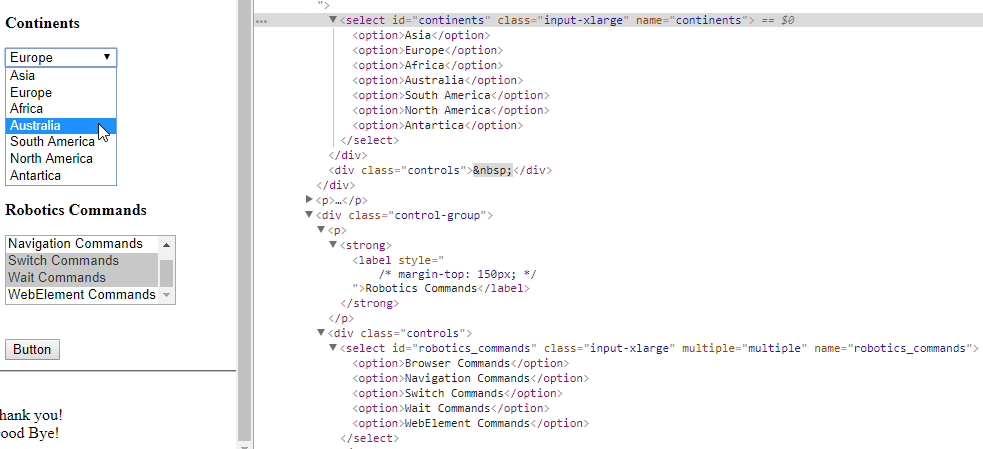
Like checkboxes and radio buttons, drop-down and multiple selection operations work together almost the same way. To perform any action, identify the element group, as a drop-down or multiple select is not a single element. They always have a single name containing one or more elements or options. The only difference is deselecting statement, and multiple selections are not allowed on a drop-down.
It is an ordinary operation like selecting any other element on a webpage. You can choose it by ID, Name, CSS, XPath, and so on.
Select class
The Select class models a <select> tag, providing helper methods to select and deselect options. It performs multiple operations on a DropDown object and Multiple Select object. As Select is an ordinary class, its object is also created by a new keyword with the regular class creation syntax.
import org.openqa.selenium.support.ui.Select;


RPA.open("https://rpa-tutorial.s3.amazonaws.com/trainings/iframe/form.html");

Select continents = new Select($(By.id("continents")));
List<WebElement> optionsList  =  continents.getOptions();
RPA.sleep(2000);
this.popAlert(driver,"options counts - " + optionsList.size());
for(WebElement option : optionsList){
    this.popAlert(driver,"options value - " + option.getText());
}
Select commands
You can access the following Select class methods:
| Type | Method | Simplified API method | Description |
|---|---|---|---|
void | selectByIndex(int index) | selectOption(int index) | Selects the option at the given index. |
void | selectByValue(String value) | selectOptionByValue(String value) | Selects all options that have a value matching the argument. |
void | selectByVisibleText(String text) | selectOption(String text) | Selects all options that display text matching the argument. |
List<WebElement> | getAllSelectedOptions() | - | Gets a list of all selected option elements. |
WebElement | getFirstSelectedOption() | getSelectedOption() | Gets the first selected option. |
| - | getSelectedText() | Gets text of a selected option in the select field | |
| - | getSelectedValue() | Gets a value of a selected option in the select field. If the value attribute does not exist, it returns the option text. | |
List<WebElement> | getOptions() | - | Gets a list of all option elements that are child elements of the <select> tag. |
boolean | isMultiple() | - | Checks whether the control supports multiple selection. |
void | deselectAll() | - | Clears all selected entries. The method works only for Multi Select elements. |
void | deselectByIndex(int index) | - | Deselects the option at the given index. The method works only for Multi Select elements. |
void | deselectByValue(String value) | - | Deselects all options that have a value matching the argument. The method works only for Multi Select elements. |
void | deselectByVisibleText(String text) | - | Deselects all options that display text matching the argument. The method works only for Multi Select elements. |
See the details on using the methods below:
selectByVisibleText(String text):voidIntended to choose or select an option given under any drop-downs and multiple selection boxes with the
selectByVisibleTextmethod. Takes a parameter of String that is one of the texts of theSelectelement and returns nothing.import com.workfusion.odf2.compiler.BotTask; import com.workfusion.odf2.core.task.AdHocTask; import com.workfusion.odf2.core.task.TaskInput; import com.workfusion.odf2.core.task.output.TaskRunnerOutput; import com.workfusion.odf2.core.webharvest.rpa.RpaDriver; import com.workfusion.odf2.core.webharvest.rpa.RpaFactory; import com.workfusion.odf2.core.webharvest.rpa.RpaRunner; import com.workfusion.rpa.driver.Driver; import com.workfusion.rpa.helpers.RPA; import com.workfusion.rpa.helpers.UiElement; import com.workfusion.rpa.helpers.UiElementCollection; import org.openqa.selenium.By; import org.openqa.selenium.WebElement; import org.openqa.selenium.support.ui.Select; import org.slf4j.Logger; import javax.inject.Inject; import java.util.ArrayList; import java.util.Arrays; import java.util.List; import java.util.Set; import static com.workfusion.rpa.helpers.RPA.*; import static com.workfusion.rpa.helpers.UiSelectors.byImage; import static com.workfusion.rpa.helpers.UiSelectors.byText; @BotTask(requireRpa = true) public class AutomateWebElements implements AdHocTask { private final RpaRunner rpaRunner; private final Logger logger; @Inject public AutomateWebElements(RpaFactory rpaFactory, Logger logger){ this.rpaRunner = rpaFactory .builder(RpaDriver.UNIVERSAL) .closeOnCompletion(true) .build(); this.logger = logger; } @Override public TaskRunnerOutput run(TaskInput taskInput) { rpaRunner.execute(driver->{ this.dropdownAndMultipleSelectOperationsSelectClassSelectByVisibleText(driver); }); return taskInput.asResult() .withColumn("example_bot_task_output", "completed_successfully"); } private void dropdownAndMultipleSelectOperationsSelectClassSelectByVisibleText(Driver driver){ driver.switchDriver("chrome"); RPA.openLinkInNewWindow("https://rpa-tutorial.s3.amazonaws.com/trainings/iframe/form.html"); this.popAlert(driver,"Working with dropdowns - Select By Visible Text Example "); Select continents = new Select($(By.id("continents"))); continents.selectByVisibleText("Africa"); RPA.sleep(2000); // Simplified API method - selectOption(String text) $(By.id("continents")).selectOption("Antartica"); } private void popAlert(Driver driver,String popupMessage){ driver.switchDriver("chrome"); //Switch to default content inorder to work with alert if already on a IFrame RPA.switchTo().defaultContent();String script = popupMessage; driver.executeScript("alert(arguments[0])",script); RPA.sleep(3000); RPA.switchTo().alert().accept(); } }selectByIndex(int arg0):voidIs almost the same as
selectByVisibleText. The only difference is that you provide the option's index number rather than the option text. Takes a parameter ofintthat is the index value of theSelectelement and returns nothing.import com.workfusion.odf2.compiler.BotTask; import com.workfusion.odf2.core.task.AdHocTask; import com.workfusion.odf2.core.task.TaskInput; import com.workfusion.odf2.core.task.output.TaskRunnerOutput; import com.workfusion.odf2.core.webharvest.rpa.RpaDriver; import com.workfusion.odf2.core.webharvest.rpa.RpaFactory; import com.workfusion.odf2.core.webharvest.rpa.RpaRunner; import com.workfusion.rpa.driver.Driver; import com.workfusion.rpa.helpers.RPA; import com.workfusion.rpa.helpers.UiElement; import com.workfusion.rpa.helpers.UiElementCollection; import org.openqa.selenium.By; import org.openqa.selenium.WebElement; import org.openqa.selenium.support.ui.Select; import org.slf4j.Logger; import javax.inject.Inject; import java.util.ArrayList; import java.util.Arrays; import java.util.List; import java.util.Set; import static com.workfusion.rpa.helpers.RPA.*; import static com.workfusion.rpa.helpers.UiSelectors.byImage; import static com.workfusion.rpa.helpers.UiSelectors.byText; @BotTask(requireRpa = true) public class AutomateWebElements implements AdHocTask { private final RpaRunner rpaRunner; private final Logger logger; @Inject public AutomateWebElements(RpaFactory rpaFactory, Logger logger){ this.rpaRunner = rpaFactory .builder(RpaDriver.UNIVERSAL) .closeOnCompletion(true) .build(); this.logger = logger; } @Override public TaskRunnerOutput run(TaskInput taskInput) { rpaRunner.execute(driver->{ this.dropdownAndMultipleSelectOperationsSelectClassSelectByIndex(driver); }); return taskInput.asResult() .withColumn("example_bot_task_output", "completed_successfully"); } private void dropdownAndMultipleSelectOperationsSelectClassSelectByIndex(Driver driver){ RPA.openChrome("https://rpa-tutorial.s3.amazonaws.com/trainings/iframe/form.html"); this.popAlert(driver,"Working with dropdowns - Select By Index Example "); Select continents = new Select($(By.id("continents"))); continents.selectByIndex(2); RPA.sleep(2000); // Simplified API method - selectOption(int index) $(By.id("continents")).selectOption(4); } private void popAlert(Driver driver,String popupMessage){ driver.switchDriver("chrome"); //Switch to default content inorder to work with alert if already on a IFrame RPA.switchTo().defaultContent();String script = popupMessage; driver.executeScript("alert(arguments[0])",script); RPA.sleep(3000); RPA.switchTo().alert().accept(); } }The index starts from zero, so the third position value ("Africa") is at index 2.
selectByValue(String arg0):voidIs the same as above. The only difference is that it asks for the value of the option rather than the option text or index. Takes a parameter of String that is the value of the
Selectelement and returns nothing.import com.workfusion.odf2.compiler.BotTask; import com.workfusion.odf2.core.task.AdHocTask; import com.workfusion.odf2.core.task.TaskInput; import com.workfusion.odf2.core.task.output.TaskRunnerOutput; import com.workfusion.odf2.core.webharvest.rpa.RpaDriver; import com.workfusion.odf2.core.webharvest.rpa.RpaFactory; import com.workfusion.odf2.core.webharvest.rpa.RpaRunner; import com.workfusion.rpa.driver.Driver; import com.workfusion.rpa.helpers.RPA; import com.workfusion.rpa.helpers.UiElement; import com.workfusion.rpa.helpers.UiElementCollection; import org.openqa.selenium.By; import org.openqa.selenium.WebElement; import org.openqa.selenium.support.ui.Select; import org.slf4j.Logger; import javax.inject.Inject; import java.util.ArrayList; import java.util.Arrays; import java.util.List; import java.util.Set; import static com.workfusion.rpa.helpers.RPA.*; import static com.workfusion.rpa.helpers.UiSelectors.byImage; import static com.workfusion.rpa.helpers.UiSelectors.byText; @BotTask(requireRpa = true) public class AutomateWebElements implements AdHocTask { private final RpaRunner rpaRunner; private final Logger logger; @Inject public AutomateWebElements(RpaFactory rpaFactory, Logger logger){ this.rpaRunner = rpaFactory .builder(RpaDriver.UNIVERSAL) .closeOnCompletion(true) .build(); this.logger = logger; } @Override public TaskRunnerOutput run(TaskInput taskInput) { rpaRunner.execute(driver->{ this.dropdownAndMultipleSelectOperationsSelectClassSelectByValue(driver); }); return taskInput.asResult() .withColumn("example_bot_task_output", "completed_successfully"); } private void dropdownAndMultipleSelectOperationsSelectClassSelectByValue(Driver driver){ RPA.openChrome("https://rpa-tutorial.s3.amazonaws.com/trainings/iframe/form.html"); this.popAlert(driver,"Working with dropdowns - Select By Value Example "); Select continents = new Select($(By.id("continents"))); continents.selectByValue("AFR"); RPA.sleep(2000); // Simplified API method - selectOption(int index) $(By.id("continents")).selectOptionByValue("AFR"); } private void popAlert(Driver driver,String popupMessage){ driver.switchDriver("chrome"); //Switch to default content inorder to work with alert if already on a IFrame RPA.switchTo().defaultContent();String script = popupMessage; driver.executeScript("alert(arguments[0])",script); RPA.sleep(3000); RPA.switchTo().alert().accept(); } }The value of an option and the text of the option might not be always the same. The value might not be assigned to the
Selectelement.getOptions( ):List<WebElement>Gets all options belonging to the
<select>tag. Takes no parameter and returnsList<WebElements>.Sometimes, you need to count the elements in the drop-down and multiple select box to use the loop on the
Selectelement.import com.workfusion.odf2.compiler.BotTask; import com.workfusion.odf2.core.task.AdHocTask; import com.workfusion.odf2.core.task.TaskInput; import com.workfusion.odf2.core.task.output.TaskRunnerOutput; import com.workfusion.odf2.core.webharvest.rpa.RpaDriver; import com.workfusion.odf2.core.webharvest.rpa.RpaFactory; import com.workfusion.odf2.core.webharvest.rpa.RpaRunner; import com.workfusion.rpa.driver.Driver; import com.workfusion.rpa.helpers.RPA; import com.workfusion.rpa.helpers.UiElement; import com.workfusion.rpa.helpers.UiElementCollection; import org.openqa.selenium.By; import org.openqa.selenium.WebElement; import org.openqa.selenium.support.ui.Select; import org.slf4j.Logger; import javax.inject.Inject; import java.util.ArrayList; import java.util.Arrays; import java.util.List; import java.util.Set; import static com.workfusion.rpa.helpers.RPA.*; import static com.workfusion.rpa.helpers.UiSelectors.byImage; import static com.workfusion.rpa.helpers.UiSelectors.byText; @BotTask(requireRpa = true) public class AutomateWebElements implements AdHocTask { private final RpaRunner rpaRunner; private final Logger logger; @Inject public AutomateWebElements(RpaFactory rpaFactory, Logger logger){ this.rpaRunner = rpaFactory .builder(RpaDriver.UNIVERSAL) .closeOnCompletion(true) .build(); this.logger = logger; } @Override public TaskRunnerOutput run(TaskInput taskInput) { rpaRunner.execute(driver->{ this.dropdownAndMultipleSelectOperationsSelectClassGetOptions(driver); }); return taskInput.asResult() .withColumn("example_bot_task_output", "completed_successfully"); } private void dropdownAndMultipleSelectOperationsSelectClassGetOptions(Driver driver){ RPA.openChrome("https://rpa-tutorial.s3.amazonaws.com/trainings/iframe/form.html"); this.popAlert(driver,"Working with dropdowns - Get Options Example "); Select continents = new Select($(By.id("continents"))); List<WebElement> optionsList = continents.getOptions(); RPA.sleep(2000); this.popAlert(driver,"options counts - " + optionsList.size()); for(WebElement option : optionsList){ this.popAlert(driver,"options value - " + option.getText()); } } private void popAlert(Driver driver,String popupMessage){ driver.switchDriver("chrome"); //Switch to default content inorder to work with alert if already on a IFrame RPA.switchTo().defaultContent();String script = popupMessage; driver.executeScript("alert(arguments[0])",script); RPA.sleep(3000); RPA.switchTo().alert().accept(); } }getSelectedYou can get a selected option, its text, and value using the Simplified API:
import com.workfusion.odf2.compiler.BotTask;
import com.workfusion.odf2.core.task.AdHocTask;
import com.workfusion.odf2.core.task.TaskInput;
import com.workfusion.odf2.core.task.output.TaskRunnerOutput;
import com.workfusion.odf2.core.webharvest.rpa.RpaDriver;
import com.workfusion.odf2.core.webharvest.rpa.RpaFactory;
import com.workfusion.odf2.core.webharvest.rpa.RpaRunner;
import com.workfusion.rpa.driver.Driver;
import com.workfusion.rpa.helpers.RPA;
import com.workfusion.rpa.helpers.UiElement;
import com.workfusion.rpa.helpers.UiElementCollection;
import org.openqa.selenium.By;
import org.openqa.selenium.WebElement;
import org.openqa.selenium.support.ui.Select;
import org.slf4j.Logger;
import javax.inject.Inject;
import java.util.ArrayList;
import java.util.Arrays;
import java.util.List;
import java.util.Set;
import static com.workfusion.rpa.helpers.RPA.*;
import static com.workfusion.rpa.helpers.UiSelectors.byImage;
import static com.workfusion.rpa.helpers.UiSelectors.byText;


@BotTask(requireRpa = true)
public class AutomateWebElements implements AdHocTask {

    private final RpaRunner rpaRunner;
    private final Logger logger;

    @Inject
    public AutomateWebElements(RpaFactory rpaFactory, Logger logger){
        this.rpaRunner = rpaFactory
                .builder(RpaDriver.UNIVERSAL)
                .closeOnCompletion(true)
                .build();
        this.logger = logger;
    }

    @Override
    public TaskRunnerOutput run(TaskInput taskInput) {

        rpaRunner.execute(driver->{
            this.dropdownAndMultipleSelectOperationsSelectClassGetSelected(driver);
        });

        return taskInput.asResult()
                .withColumn("example_bot_task_output", "completed_successfully");
    }

    private void dropdownAndMultipleSelectOperationsSelectClassGetSelected(Driver driver){
        RPA.openChrome("https://rpa-tutorial.s3.amazonaws.com/trainings/iframe/form.html");
        this.popAlert(driver,"Working with dropdowns - Get Selected Example ");
        UiElement continents = $(By.id("continents"));
        continents.selectOption(4);
        RPA.sleep(2000);
        this.popAlert(driver,"Selected option value using getSelectedText() Method - " + continents.getSelectedText());
        this.popAlert(driver,"Selected option value using getSelectedValue() Method - " + continents.getSelectedValue());
        this.popAlert(driver,"Selected option value using getSelectedOption().getText() Method - " + continents.getSelectedOption().getText());

    }

    private void popAlert(Driver driver,String popupMessage){
        driver.switchDriver("chrome");
        //Switch to default content inorder to work with alert if already on a IFrame
        RPA.switchTo().defaultContent();String script = popupMessage;
        driver.executeScript("alert(arguments[0])",script);
        RPA.sleep(3000);
        RPA.switchTo().alert().accept();
    }
}
isMultiple( ):booleanDefines whether the
Selectelement supports multiple selecting options at the same time or not. Accepts nothing and returns a Boolean value:trueorfalse.This is done by checking the value of the
multipleattribute.import com.workfusion.odf2.compiler.BotTask; import com.workfusion.odf2.core.task.AdHocTask; import com.workfusion.odf2.core.task.TaskInput; import com.workfusion.odf2.core.task.output.TaskRunnerOutput; import com.workfusion.odf2.core.webharvest.rpa.RpaDriver; import com.workfusion.odf2.core.webharvest.rpa.RpaFactory; import com.workfusion.odf2.core.webharvest.rpa.RpaRunner; import com.workfusion.rpa.driver.Driver; import com.workfusion.rpa.helpers.RPA; import com.workfusion.rpa.helpers.UiElement; import com.workfusion.rpa.helpers.UiElementCollection; import org.openqa.selenium.By; import org.openqa.selenium.WebElement; import org.openqa.selenium.support.ui.Select; import org.slf4j.Logger; import javax.inject.Inject; import java.util.ArrayList; import java.util.Arrays; import java.util.List; import java.util.Set; import static com.workfusion.rpa.helpers.RPA.*; import static com.workfusion.rpa.helpers.UiSelectors.byImage; import static com.workfusion.rpa.helpers.UiSelectors.byText; @BotTask(requireRpa = true) public class AutomateWebElements implements AdHocTask { private final RpaRunner rpaRunner; private final Logger logger; @Inject public AutomateWebElements(RpaFactory rpaFactory, Logger logger){ this.rpaRunner = rpaFactory .builder(RpaDriver.UNIVERSAL) .closeOnCompletion(true) .build(); this.logger = logger; } @Override public TaskRunnerOutput run(TaskInput taskInput) { rpaRunner.execute(driver->{ this.dropdownAndMultipleSelectOperationsSelectClassIsMultiple(driver); }); return taskInput.asResult() .withColumn("example_bot_task_output", "completed_successfully"); } private void dropdownAndMultipleSelectOperationsSelectClassIsMultiple(Driver driver){ RPA.openChrome("https://rpa-tutorial.s3.amazonaws.com/trainings/iframe/form.html"); this.popAlert(driver,"Working with dropdowns - Is Multiple Example "); Select continents = new Select($(By.id("continents"))); Select commands = new Select($("#robotics_commands")); this.popAlert(driver,"Is the 1st select multiple? " + continents.isMultiple()); this.popAlert(driver,"Is the 2nd select multiple? " + commands.isMultiple()); } private void popAlert(Driver driver,String popupMessage){ driver.switchDriver("chrome"); //Switch to default content inorder to work with alert if already on a IFrame RPA.switchTo().defaultContent();String script = popupMessage; driver.executeScript("alert(arguments[0])",script); RPA.sleep(3000); RPA.switchTo().alert().accept(); } }
Example 2: multiple selection box or list
Open https://rpa-tutorial.s3.amazonaws.com/trainings/iframe/form.html.
To select the Robotic Commands multiple selection box, use the Name locator.
To select the Browser Commands option and then deselect it, use
selectByIndexanddeselectByIndex.To select the Navigation Commands option and then deselect it, use
selectByVisibleTextanddeselectByVisibleText.Print and select all the options for the selected multiple selection list.
Deselect all options.
import com.workfusion.odf2.compiler.BotTask;
import com.workfusion.odf2.core.task.AdHocTask;
import com.workfusion.odf2.core.task.TaskInput;
import com.workfusion.odf2.core.task.output.TaskRunnerOutput;
import com.workfusion.odf2.core.webharvest.rpa.RpaDriver;
import com.workfusion.odf2.core.webharvest.rpa.RpaFactory;
import com.workfusion.odf2.core.webharvest.rpa.RpaRunner;
import com.workfusion.rpa.driver.Driver;
import com.workfusion.rpa.helpers.RPA;
import com.workfusion.rpa.helpers.UiElement;
import com.workfusion.rpa.helpers.UiElementCollection;
import org.openqa.selenium.By;
import org.openqa.selenium.WebElement;
import org.openqa.selenium.support.ui.Select;
import org.slf4j.Logger;
import javax.inject.Inject;
import java.util.ArrayList;
import java.util.Arrays;
import java.util.List;
import java.util.Set;
import static com.workfusion.rpa.helpers.RPA.*;
import static com.workfusion.rpa.helpers.UiSelectors.byImage;
import static com.workfusion.rpa.helpers.UiSelectors.byText;


@BotTask(requireRpa = true)
public class AutomateWebElements implements AdHocTask {

    private final RpaRunner rpaRunner;
    private final Logger logger;

    @Inject
    public AutomateWebElements(RpaFactory rpaFactory, Logger logger){
        this.rpaRunner = rpaFactory
                .builder(RpaDriver.UNIVERSAL)
                .closeOnCompletion(true)
                .build();
        this.logger = logger;
    }

    @Override
    public TaskRunnerOutput run(TaskInput taskInput) {

        rpaRunner.execute(driver->{
            this.example2MultipleSelectionBoxOrList(driver);
        });

        return taskInput.asResult()
                .withColumn("example_bot_task_output", "completed_successfully");
    }

    private void example2MultipleSelectionBoxOrList(Driver driver){
        RPA.timeouts(15 * 1000);

        // Step 1: Open URL.
        RPA.openChrome("https://rpa-tutorial.s3.amazonaws.com/trainings/iframe/form.html");

        // Step 2: Multiple select box. Use the Name locator to identify the element.
        UiElement element = $(By.name("robotics_commands"));
        Select commands = new Select(element);
        element.scrollTo();

        // Step 3: Select the Browser Commands option and then deselect it. Use selectByIndex and deselectByIndex.
        commands.selectByIndex(0);
        RPA.sleep(1000);
        commands.deselectByIndex(0);

        // Step 4: Select the Navigation Commands option and then deselect it. Use selectByVisibleText and deselectByVisibleText.
        commands.selectByVisibleText("Navigation Commands");
        RPA.sleep(1000);
        commands.deselectByVisibleText("Navigation Commands");

        // Step 5: Print and select all the options for the selected multiple selection list.
        List<WebElement> oSize = commands.getOptions();
        int iListSize = oSize.size();
        List<String> optionList = new ArrayList<>();

        // Set up the loop to print all the options.
        for (int i = 0 ; i < iListSize; i++) {
            optionList.add(commands.getOptions().get(i).getText());
            commands.selectByIndex(i);
            RPA.sleep(1000);
        }
        //println "List of options: ${optionList.toString()}"
        this.popAlert(driver,"List of options: " + optionList.toString());

        // Step 6: Deselect all commands.
        commands.deselectAll();
    }

    private void popAlert(Driver driver,String popupMessage){
        driver.switchDriver("chrome");
        //Switch to default content inorder to work with alert if already on a IFrame
        RPA.switchTo().defaultContent();String script = popupMessage;
        driver.executeScript("alert(arguments[0])",script);
        RPA.sleep(3000);
        RPA.switchTo().alert().accept();
    }
}
Automate mouse hover
Expand to view more
To click an item of the drop-down menu, use the hover() method:
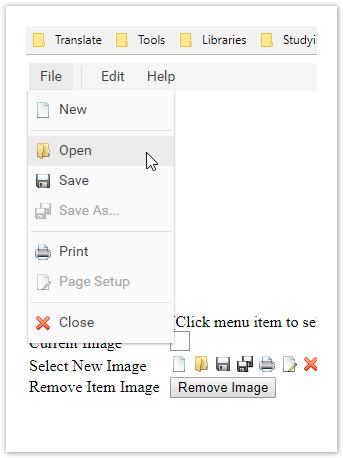
See the code below as an example:
import com.workfusion.odf2.compiler.BotTask;
import com.workfusion.odf2.core.task.AdHocTask;
import com.workfusion.odf2.core.task.TaskInput;
import com.workfusion.odf2.core.task.output.TaskRunnerOutput;
import com.workfusion.odf2.core.webharvest.rpa.RpaDriver;
import com.workfusion.odf2.core.webharvest.rpa.RpaFactory;
import com.workfusion.odf2.core.webharvest.rpa.RpaRunner;
import com.workfusion.rpa.driver.Driver;
import com.workfusion.rpa.helpers.RPA;
import com.workfusion.rpa.helpers.UiElement;
import com.workfusion.rpa.helpers.UiElementCollection;
import org.openqa.selenium.By;
import org.openqa.selenium.WebElement;
import org.openqa.selenium.support.ui.Select;
import org.slf4j.Logger;
import javax.inject.Inject;
import java.util.ArrayList;
import java.util.Arrays;
import java.util.List;
import java.util.Set;
import static com.workfusion.rpa.helpers.RPA.*;
import static com.workfusion.rpa.helpers.UiSelectors.byImage;
import static com.workfusion.rpa.helpers.UiSelectors.byText;


@BotTask(requireRpa = true)
public class AutomateWebElements implements AdHocTask {

  private final RpaRunner rpaRunner;
  private final Logger logger;

  @Inject
  public AutomateWebElements(RpaFactory rpaFactory, Logger logger){
    this.rpaRunner = rpaFactory
            .builder(RpaDriver.UNIVERSAL)
            .closeOnCompletion(true)
            .build();
    this.logger = logger;
  }

  @Override
  public TaskRunnerOutput run(TaskInput taskInput) {

    rpaRunner.execute(driver->{
      this.automateMouseHover(driver);
    });

    return taskInput.asResult()
            .withColumn("example_bot_task_output", "completed_successfully");
  }

  private void automateMouseHover(Driver driver){
    RPA.timeouts(40 * 1000);
    RPA.openChrome("https://rpa-tutorial.s3.amazonaws.com/trainings/dnd/samples/dhtmlxMenu/04_items/08_change_items_images.html");
    this.popAlert(driver," Mouse Hover Example ");
    this.popAlert(driver," Hovering over file and clicking on open ");
    $$(".top_level_text").get(0).hover();
    RPA.sleep(2000);
    $(byText("Open")).click();
    $(By.xpath("//*[@id='imgList']/span[7]/img")).click();

    RPA.sleep(2000);
    this.popAlert(driver,"Hovering over Edit and clicking on Select All ");
    $$(".top_level_text").get(1).hover();
    RPA.sleep(2000);
    $(byText("Select All")).click();
    $("input").click();

    RPA.sleep(2000);
    UiElementCollection items = $$(".top_level_text");
    this.popAlert(driver,"Hovering over File, Edit and Help options");
    for(UiElement item : items){
      item.hover();
      RPA.sleep(2000);
    }
  }
  private void popAlert(Driver driver,String popupMessage){
    driver.switchDriver("chrome");
    //Switch to default content inorder to work with alert if already on a IFrame
    RPA.switchTo().defaultContent();String script = popupMessage;
    driver.executeScript("alert(arguments[0])",script);
    RPA.sleep(3000);
    RPA.switchTo().alert().accept();
  }
}
Automate dynamic web elements
Expand to view more
Most of sites are dynamic and change the page content by JS scripts while a user interacts with a page.
import com.workfusion.bot.service.SecureEntryDTO;
import com.workfusion.odf2.compiler.BotTask;
import com.workfusion.odf2.core.cdi.Requires;
import com.workfusion.odf2.core.task.AdHocTask;
import com.workfusion.odf2.core.task.TaskInput;
import com.workfusion.odf2.core.task.output.TaskRunnerOutput;
import com.workfusion.odf2.core.webharvest.rpa.RpaDriver;
import com.workfusion.odf2.core.webharvest.rpa.RpaFactory;
import com.workfusion.odf2.core.webharvest.rpa.RpaRunner;
import com.workfusion.odf2.service.ControlTowerServicesModule;
import com.workfusion.odf2.service.vault.SecretsVaultService;
import com.workfusion.rpa.driver.Driver;
import com.workfusion.rpa.helpers.RPA;
import com.workfusion.rpa.helpers.UiElement;
import com.workfusion.rpa.helpers.UiElementCollection;
import org.openqa.selenium.Alert;
import org.openqa.selenium.By;
import org.openqa.selenium.Keys;
import org.openqa.selenium.WebElement;
import org.openqa.selenium.support.ui.Select;
import org.slf4j.Logger;
import javax.inject.Inject;
import java.util.ArrayList;
import java.util.Arrays;
import java.util.List;
import static com.workfusion.rpa.helpers.RPA.*;
import static com.workfusion.rpa.helpers.UiSelectors.byImage;
import static com.workfusion.rpa.helpers.UiSelectors.byText;

@BotTask(requireRpa = true)
@Requires({ControlTowerServicesModule.class})
public class AutomateWebElements implements AdHocTask {

  private final RpaRunner rpaRunner;
  private final Logger logger;
  private final SecretsVaultService secretsVault;

  @Inject
  public AutomateWebElements(RpaFactory rpaFactory, Logger logger, SecretsVaultService secretsVault){
    this.rpaRunner = rpaFactory
            .builder(RpaDriver.UNIVERSAL)
            .closeOnCompletion(true)
            .build();
    this.logger = logger;
    this.secretsVault = secretsVault;
  }

  @Override
  public TaskRunnerOutput run(TaskInput taskInput) {

    rpaRunner.execute(driver->{
      this.automateDynamicWebElements(driver);
    });

    return taskInput.asResult()
            .withColumn("example_bot_task_output", "completed_successfully");
  }

  private void automateDynamicWebElements(Driver driver){
    RPA.timeouts(100 * 1000);
    driver.switchDriver("chrome");
    RPA.openLinkInNewWindow("https://www.alibaba.com");
    $(By.xpath("//input[@class='search-bar-input']")).val("sword");
    $(By.xpath("//button[text()='Search']")).click();

    for(int i = 1 ; i<=5 ; i++) {
      UiElement elem = $(By.xpath("//a[contains(@class,'pages-next')]")); //Switching to next 5 pages
      elem.click();
      RPA.sleep(5 * 1000);
    }
  }
}
In the example above, you access http://alibaba.com, enter a product name, and try to swap the page in the loop. If you run this Bot Task, it finishes with the exception: "unknown error: Element <a href="javascript:void(0)" class="next" data-role="next">...</a> is not clickable at point (1320, 994). Other element would receive the click..."
The exception occurs as the bot produces actions like a human. It moves the cursor to the element and sends a signal that the mouse button is pressed. This variant works in most cases, but not for this site. While the mouse cursor moves to the Next Page button, the site loads more elements, and the button changes its coordinates, so a click is sent to another UI element.
There are two main variants how to avoid errors: by using the
hover() method or JavaScriptExecutor.
Click by JS
Expand to view more
You can write a JS script that presses the button. That method is preferable since the button is pressed without scrolling and moving the cursor.
import com.workfusion.bot.service.SecureEntryDTO;
import com.workfusion.odf2.compiler.BotTask;
import com.workfusion.odf2.core.cdi.Requires;
import com.workfusion.odf2.core.task.AdHocTask;
import com.workfusion.odf2.core.task.TaskInput;
import com.workfusion.odf2.core.task.output.TaskRunnerOutput;
import com.workfusion.odf2.core.webharvest.rpa.RpaDriver;
import com.workfusion.odf2.core.webharvest.rpa.RpaFactory;
import com.workfusion.odf2.core.webharvest.rpa.RpaRunner;
import com.workfusion.odf2.service.ControlTowerServicesModule;
import com.workfusion.odf2.service.vault.SecretsVaultService;
import com.workfusion.rpa.driver.Driver;
import com.workfusion.rpa.helpers.RPA;
import com.workfusion.rpa.helpers.UiElement;
import com.workfusion.rpa.helpers.UiElementCollection;
import org.openqa.selenium.Alert;
import org.openqa.selenium.By;
import org.openqa.selenium.Keys;
import org.openqa.selenium.WebElement;
import org.openqa.selenium.support.ui.Select;
import org.slf4j.Logger;
import javax.inject.Inject;
import java.util.ArrayList;
import java.util.Arrays;
import java.util.List;
import static com.workfusion.rpa.helpers.RPA.*;
import static com.workfusion.rpa.helpers.UiSelectors.byImage;
import static com.workfusion.rpa.helpers.UiSelectors.byText;

@BotTask(requireRpa = true)
@Requires({ControlTowerServicesModule.class})
public class AutomateWebElements implements AdHocTask {

  private final RpaRunner rpaRunner;
  private final Logger logger;
  private final SecretsVaultService secretsVault;

  @Inject
  public AutomateWebElements(RpaFactory rpaFactory, Logger logger, SecretsVaultService secretsVault){
    this.rpaRunner = rpaFactory
            .builder(RpaDriver.UNIVERSAL)
            .closeOnCompletion(true)
            .build();
    this.logger = logger;
    this.secretsVault = secretsVault;
  }

  @Override
  public TaskRunnerOutput run(TaskInput taskInput) {

    rpaRunner.execute(driver->{
      this.automateDynamicWebElementsByJS(driver);
    });

    return taskInput.asResult()
            .withColumn("example_bot_task_output", "completed_successfully");
  }

  private void automateDynamicWebElementsByJS(Driver driver){
    RPA.timeouts(600 * 1000);
    driver.switchDriver("chrome");
    RPA.openLinkInNewWindow("https://www.alibaba.com");
    $(By.xpath("//input[@class='search-bar-input']")).val("sword");
    $(By.xpath("//button[text()='Search']")).click();

    for(int i = 1 ; i<=5 ; i++) {
      UiElement element = $(By.xpath("//a[contains(@class,'pages-next')]"));
      driver.executeScript("arguments[0].click();", element); //Switching to next 5 pages using JS
      RPA.sleep(5 * 1000);
    }
  }
}
Use hover() method
Expand to view more
You can use the hover() method for loading extra elements before you click the button.
Move the cursor to the element before clicking:
    UiElement elem = $(By.xpath("//a[contains(@class,'pages-next')]")).hover();
    elem.click();
However, it doesn't help as the bot needs more time to update its cash. Add sleep or wait to the code:
    UiElement elem = $(By.xpath("//a[contains(@class,'pages-next')]")).hover();
    sleep(1000);
    elem.click();
It still generates an exception: "stale element reference: element is not attached to the page document."
The error occurs because the page was changed, but the bot tries to access the element presented on the previous page and needs some time to reevaluate XPath. Add another sleep.
import com.workfusion.bot.service.SecureEntryDTO;
import com.workfusion.odf2.compiler.BotTask;
import com.workfusion.odf2.core.cdi.Requires;
import com.workfusion.odf2.core.task.AdHocTask;
import com.workfusion.odf2.core.task.TaskInput;
import com.workfusion.odf2.core.task.output.TaskRunnerOutput;
import com.workfusion.odf2.core.webharvest.rpa.RpaDriver;
import com.workfusion.odf2.core.webharvest.rpa.RpaFactory;
import com.workfusion.odf2.core.webharvest.rpa.RpaRunner;
import com.workfusion.odf2.service.ControlTowerServicesModule;
import com.workfusion.odf2.service.vault.SecretsVaultService;
import com.workfusion.rpa.driver.Driver;
import com.workfusion.rpa.helpers.RPA;
import com.workfusion.rpa.helpers.UiElement;
import com.workfusion.rpa.helpers.UiElementCollection;
import org.openqa.selenium.Alert;
import org.openqa.selenium.By;
import org.openqa.selenium.Keys;
import org.openqa.selenium.WebElement;
import org.openqa.selenium.support.ui.Select;
import org.slf4j.Logger;
import javax.inject.Inject;
import java.util.ArrayList;
import java.util.Arrays;
import java.util.List;
import static com.workfusion.rpa.helpers.RPA.*;
import static com.workfusion.rpa.helpers.UiSelectors.byImage;
import static com.workfusion.rpa.helpers.UiSelectors.byText;

@BotTask(requireRpa = true)
@Requires({ControlTowerServicesModule.class})
public class AutomateWebElements implements AdHocTask {

  private final RpaRunner rpaRunner;
  private final Logger logger;
  private final SecretsVaultService secretsVault;

  @Inject
  public AutomateWebElements(RpaFactory rpaFactory, Logger logger, SecretsVaultService secretsVault){
    this.rpaRunner = rpaFactory
            .builder(RpaDriver.UNIVERSAL)
            .closeOnCompletion(true)
            .build();
    this.logger = logger;
    this.secretsVault = secretsVault;
  }

  @Override
  public TaskRunnerOutput run(TaskInput taskInput) {

    rpaRunner.execute(driver->{
      this.automateDynamicWebElementsByHover(driver);
    });

    return taskInput.asResult()
            .withColumn("example_bot_task_output", "completed_successfully");
  }

  private void automateDynamicWebElementsByHover(Driver driver){
    RPA.timeouts(600 * 1000);
    driver.switchDriver("chrome");
    RPA.openLinkInNewWindow("https://www.alibaba.com");
    $(By.xpath("//input[@class='search-bar-input']")).val("sword");
    $(By.xpath("//button[text()='Search']")).click();

    for(int i = 1 ; i<=5 ; i++) {
      UiElement element = $(By.xpath("//a[contains(@class,'pages-next')]"));
      driver.executeScript("arguments[0].scrollIntoView(true);", element); //Switching to next 5 pages by scrolling to next button element
      element.hover();
      RPA.sleep(5 * 1000);
      element.click();
      RPA.sleep(2 * 1000);
    }
  }
}
Automate dynamic web tables
Expand to view more
A table is a kind of HTML data displayed with the help of the <table> tag in conjunction with the <tr> and <td> tags. Although there are other tags for creating tables, these are the basics for creating a table in HTML:
<tr>defines a row.<td>specifies a column cell of a table. Each cell in the Excel sheet can be represented as<td>in the HTML table. The<td>elements are the data containers that can enclose all sorts of HTML elements like text, images, lists, other tables, and so on.
An Excel sheet is a simple example of table structures. Whenever you put some data to Excel, you add some heading as well. In HTML, the <th> tag is used for headings.
Expand to view code for table without heading
<table border="1" width="100%">
        <tbody>
                <tr>
                        <td>Automation Tool</td>
                        <td>Licensing</td>
                        <td>Notes</td>
                </tr>
                <tr>
                        <td>RPA Express</td>
                        <td>Free</td>
                        <td>Can be extended with multiple bots</td>
                </tr>
                <tr>
                        <td>WorkFusion SPA</td>
                        <td>Commercial</td>
                        <td>Contains Cognitive component</td>
                </tr>
        </tbody>
</table>
The <th> tag stands for a table cell heading and is used instead of <td> when the cell content is a heading instead of the actual cell data.
It is the obvious choice inside the <thead> element that can contain, for example, the first row of your table, but you can also use it for the first column to indicate table row headings.
The <tfoot> table footer is always displayed under the <tbody>, even if its code is before the table body. A table can have a name given using the <caption> tag.
Expand to view code for table with heading
<table border="1" width="100%">
        <caption>Sample Table</caption>
        <thead>
                <tr>
                        <th>Automation Tool</th>
                        <th>Licensing</th>
                        <th>Notes</th>
                </tr>
        </thead>
        <tfoot>
              <tr>
                <td colspan="3"><em>Public Info</em></td>
              </tr>
        </tfoot>
        <tbody>
                <tr>
                        <td>RPA Express</td>
                        <td>Free</td>
                        <td>Can be extended with multiple bots</td>
                </tr>
                <tr>
                        <td>WorkFusion SPA</td>
                        <td>Commercial</td>
                        <td>Contains Cognitive component</td>
                </tr>
        </tbody>
</table>
To handle dynamic web tables, first, inspect the table cell and get its HTML location. In most cases, tables contain text data, and you can extract the data given in each row or column of the table.
Sometimes, tables have links or images. You can perform any action on those elements if you find the HTML location of the containing cell. For a sample, refer to the automation practice table page.
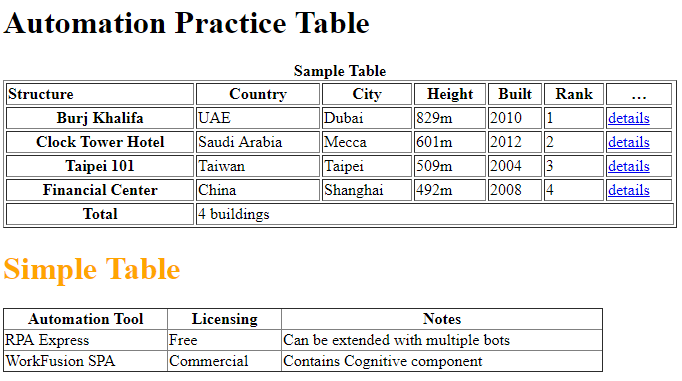
Expand to view examples
Example 1
Let’s take the above table and choose Row 2 Column 3 cell (Dubai):
//*[@id="content"]/table/tbody/tr[1]/td[2]
If you divide the XPath into three different parts, you have:
- Table location on the web page:
//*[@id="content"]/. - Table body (data):
table/tbody/. - Table row 1 and table column 2 (the first visible row is in
<thead>, and the first visible column is<th>):tr[1]/td[2]
If you use this XPath, you get the specified table cell. To get the "Selenium" text from the table cell, use the getText() method of the WebDriver element:
RPA.open("https://rpa-tutorial.s3.amazonaws.com/trainings/table-automation.html");
String cellText = $(By.xpath("//*[@id='content']/table/tbody/tr[1]/td[2]")).getText();
Example 2
Tables can contain a large amount of data, and you may need to pass rows and columns dynamically.
In that case, build your XPath using variables:
RPA.open("https://rpa-tutorial.s3.amazonaws.com/trainings/table-automation.html");
int sRow = 1;
int sCol = 2;
String cellText = $(By.xpath("//*[@id='content']/table/tbody/tr[" + sRow + "]/td[" + sCol + "]")).getText();
Example 3
If the row and columns are dynamic, and all you know is the Text value of any cell, take out the corresponding values of that particular cell.
For example, you have to record all possible values in the "Licensing" column from the above example:
import com.workfusion.odf2.compiler.BotTask;
import com.workfusion.odf2.core.task.AdHocTask;
import com.workfusion.odf2.core.task.TaskInput;
import com.workfusion.odf2.core.task.output.TaskRunnerOutput;
import com.workfusion.odf2.core.webharvest.rpa.RpaDriver;
import com.workfusion.odf2.core.webharvest.rpa.RpaFactory;
import com.workfusion.odf2.core.webharvest.rpa.RpaRunner;
import com.workfusion.rpa.driver.Driver;
import com.workfusion.rpa.helpers.RPA;
import com.workfusion.rpa.helpers.UiElement;
import com.workfusion.rpa.helpers.UiElementCollection;
import org.openqa.selenium.By;
import org.openqa.selenium.WebElement;
import org.openqa.selenium.support.ui.Select;
import org.slf4j.Logger;

import javax.inject.Inject;
import java.util.ArrayList;
import java.util.Arrays;
import java.util.List;
import java.util.Set;

import static com.workfusion.rpa.helpers.RPA.*;
import static com.workfusion.rpa.helpers.UiSelectors.byImage;
import static com.workfusion.rpa.helpers.UiSelectors.byText;


@BotTask(requireRpa = true)
public class AutomateWebElements implements AdHocTask {

  private final RpaRunner rpaRunner;
  private final Logger logger;

  @Inject
  public AutomateWebElements(RpaFactory rpaFactory, Logger logger){
    this.rpaRunner = rpaFactory
            .builder(RpaDriver.UNIVERSAL)
            .closeOnCompletion(true)
            .build();
    this.logger = logger;
  }

  @Override
  public TaskRunnerOutput run(TaskInput taskInput) {

    rpaRunner.execute(driver->{
      this.automateDynamicWebTablesExample3(driver);
    });

    return taskInput.asResult()
            .withColumn("example_bot_task_output", "completed_successfully");
  }

  private void automateDynamicWebTablesExample3(Driver driver){
    RPA.timeouts(15 * 1000);
    RPA.openChrome("https://rpa-tutorial.s3.amazonaws.com/trainings/table-automation.html");
    this.popAlert(driver," Dynamic Web Tables Example 3 ");
    String colHeading = "Licensing";
    List<String> columnValues = new ArrayList<>();
    String tBodyXpath = "//*[@id='main']/div[2]/div/div[2]/table/tbody";
    int totalRows = $$(By.xpath(tBodyXpath+"/tr")).size();

    for(int i=1;i<=3;i++) {

      String sValue = $(By.xpath(tBodyXpath+"/tr[1]/th[" + i + "]")).getText();

      if(sValue.equalsIgnoreCase(colHeading)) {
        // If the sValue match with the description, it will initiate one more inner loop for all the columns of 'i' row
        for(int j=2; j<=totalRows; j++){
          String tempVal = $(By.xpath(tBodyXpath+"/tr["+ j + "]/td["+ i+ "]")).getText();
          columnValues.add(tempVal);
        }
        break;
      }
    }
    this.popAlert(driver,columnValues.toString());
  }
  private void popAlert(Driver driver,String popupMessage){
    driver.switchDriver("chrome");
    //Switch to default content inorder to work with alert if already on a IFrame
    RPA.switchTo().defaultContent();String script = popupMessage;
    driver.executeScript("alert(arguments[0])",script);
    RPA.sleep(3000);
    RPA.switchTo().alert().accept();
  }

}
Example 4
Click the Detail link of the first row and the last column.
RPA.open("https://rpa-tutorial.s3.amazonaws.com/trainings/table-automation.html");
$(By.xpath("//*[@id='content']/table/tbody/tr[1]/td[6]/a")).click();
Example 5
Get the value from the Dubai cell using a dynamic XPath.
Print all the column values of the Clock Tower Hotel row.
import com.workfusion.odf2.compiler.BotTask;
import com.workfusion.odf2.core.task.AdHocTask;
import com.workfusion.odf2.core.task.TaskInput;
import com.workfusion.odf2.core.task.output.TaskRunnerOutput;
import com.workfusion.odf2.core.webharvest.rpa.RpaDriver;
import com.workfusion.odf2.core.webharvest.rpa.RpaFactory;
import com.workfusion.odf2.core.webharvest.rpa.RpaRunner;
import com.workfusion.rpa.driver.Driver;
import com.workfusion.rpa.helpers.RPA;
import com.workfusion.rpa.helpers.UiElement;
import com.workfusion.rpa.helpers.UiElementCollection;
import org.openqa.selenium.By;
import org.openqa.selenium.WebElement;
import org.openqa.selenium.support.ui.Select;
import org.slf4j.Logger;

import javax.inject.Inject;
import java.util.ArrayList;
import java.util.Arrays;
import java.util.List;
import java.util.Set;

import static com.workfusion.rpa.helpers.RPA.*;
import static com.workfusion.rpa.helpers.UiSelectors.byImage;
import static com.workfusion.rpa.helpers.UiSelectors.byText;


@BotTask(requireRpa = true)
public class AutomateWebElements implements AdHocTask {

    private final RpaRunner rpaRunner;
    private final Logger logger;

    @Inject
    public AutomateWebElements(RpaFactory rpaFactory, Logger logger){
        this.rpaRunner = rpaFactory
                .builder(RpaDriver.UNIVERSAL)
                .closeOnCompletion(true)
                .build();
        this.logger = logger;
    }

    @Override
    public TaskRunnerOutput run(TaskInput taskInput) {

        rpaRunner.execute(driver->{
            this.automateDynamicWebTablesExample5(driver);
        });

        return taskInput.asResult()
                .withColumn("example_bot_task_output", "completed_successfully");
    }

    private void automateDynamicWebTablesExample5(Driver driver){
        RPA.timeouts(15 * 1000);
        RPA.openChrome("https://rpa-tutorial.s3.amazonaws.com/trainings/table-automation.html");
        this.popAlert(driver," Dynamic Web Tables Example 5 ");
        int sRow = 1;
        int sCol = 2;
        List<String> sColumnValue = new ArrayList<>();

        //Here we are locating the xpath by passing variables in the xpath
        String sCellValue = $(By.xpath("//*[@id='content']/table/tbody/tr[" + sRow + "]/td[" + sCol + "]")).getText();
        this.popAlert(driver," Cell Value row 1 and col 2 " + sCellValue);
        String sRowValue = "Clock Tower Hotel";

        //First loop will find the 'ClOCK TOWER HOTEL' in the first column
        for (int i=1; i<=5; i++) {
            String sValue = "";
            sValue = $(By.xpath(".//*[@id='content']/table/tbody/tr[" + i + "]/th")).getText();
            if(sValue.equalsIgnoreCase(sRowValue)){
                // If the sValue match with the description, it will initiate one more inner loop for all the columns of 'i' row
                for (int j=1; j<=5; j++){
                    String temp = $(By.xpath(".//*[@id='content']/table/tbody/tr[" + i + "]/td["+ j +"]")).getText();
                    sColumnValue.add(temp);
                }
                break;
            }
        }
        this.popAlert(driver,sColumnValue.toString());
    }

    private void popAlert(Driver driver,String popupMessage){
        driver.switchDriver("chrome");
        //Switch to default content inorder to work with alert if already on a IFrame
        RPA.switchTo().defaultContent();String script = popupMessage;
        driver.executeScript("alert(arguments[0])",script);
        RPA.sleep(3000);
        RPA.switchTo().alert().accept();
    }
}
Example 6
Get the HTML Table Example table.
Put each table row into Export as a separate column (variable).
<?xml version="1.0" encoding="UTF-8"?> <config xmlns="http://web-harvest.sourceforge.net/schema/1.0/config" scriptlang="groovy"> <robotics-flow> <!-- Internet explorer driver --> <robot name="webDriver" driver="internet explorer" close-on-completion="true" start-in-private="true"> <script></script> </robot> </robotics-flow> <var-def name="xmlSource"> <html-to-xml> <script return="pageSource" /></script> <loop item="rowXml" index="idx"> <list> <xpath expression="//tr"> <script return="tableXml" /></script> <loop item="valString"> <list> <xpath expression="//td/text()"> <var name="rowXml" /> </xpath> </list> <body> <script></script> </body> </loop> <script></script> </body> </loop> <!-- Export values to the output CSV file --> <export include-original-data="true"> <loop item="rpaVar"> <list> <script return="keys"> keys = new ArrayList(rpaVariables.keySet()) </script> </list> <body> <single-column name="${rpaVar}"> <template>${rpaVariables.get(rpaVar.toString())}</template> </single-column> </body> </loop> </export> </config>
Execute Groovy script
Expand to view more
The feature allows executing GroovyScript on a Bot machine (Windows RPA Server), not in Control Tower. For more details, see the JavaDoc link.
You can optionally pass a timeout and parameters for your GroovyScript. The possible variants of the executeGroovyScript() method are as follows:
executeGroovyScript(script)executeGroovyScript(script, timeout)executeGroovyScript(script, scriptParams)executeGroovyScript(script, timeout, scriptParams)
You can create the scriptParams object using the following syntax:
import com.workfusion.rpa.helpers.ScriptParams;

// initializing the object
ScriptParams scriptParams = new ScriptParams(['fileSuffix':'.txt', 'fileData':fileData]);

// adding one property
scriptParams.add("filePrefix","temp-");

// adding multiple properties
scriptParams.addAll(["key1":"val1", "key2":"val2"]);
Execute JavaScript
Expand to view more
JavaScript is the preferred language inside the browser to interact with an HTML document object model (DOM). It means that a Browser has a JavaScript implementation in it and understands the JavaScript commands. You can disable it using browser options in your browser. The web driver still uses JavaScript to perform some actions.
For example, the XPath element search is implemented in JavaScript for Internet Explorer for you to overcome the lack of an XPath engine in this browser.
executeJavaScript(script, arguments)
JavaScriptExecutor comes separately and also comes under the WebDriver, but both do the same thing.
Expand to view code
import com.workfusion.odf2.compiler.BotTask;
import com.workfusion.odf2.core.task.AdHocTask;
import com.workfusion.odf2.core.task.TaskInput;
import com.workfusion.odf2.core.task.output.TaskRunnerOutput;
import com.workfusion.odf2.core.webharvest.rpa.RpaDriver;
import com.workfusion.odf2.core.webharvest.rpa.RpaFactory;
import com.workfusion.odf2.core.webharvest.rpa.RpaRunner;
import com.workfusion.rpa.driver.Driver;
import com.workfusion.rpa.helpers.RPA;
import com.workfusion.rpa.helpers.UiElement;
import com.workfusion.rpa.helpers.UiElementCollection;
import org.openqa.selenium.By;
import org.openqa.selenium.WebElement;
import org.openqa.selenium.support.ui.Select;
import org.slf4j.Logger;

import javax.inject.Inject;
import java.util.ArrayList;
import java.util.Arrays;
import java.util.List;
import java.util.Set;

import static com.workfusion.rpa.helpers.RPA.*;
import static com.workfusion.rpa.helpers.UiSelectors.byImage;
import static com.workfusion.rpa.helpers.UiSelectors.byText;


@BotTask(requireRpa = true)
public class AutomateWebElements implements AdHocTask {

  private final RpaRunner rpaRunner;
  private final Logger logger;

  @Inject
  public AutomateWebElements(RpaFactory rpaFactory, Logger logger){
    this.rpaRunner = rpaFactory
            .builder(RpaDriver.UNIVERSAL)
            .closeOnCompletion(true)
            .build();
    this.logger = logger;
  }

  @Override
  public TaskRunnerOutput run(TaskInput taskInput) {

    rpaRunner.execute(driver->{
      this.executeJavaScriptExample(driver);
    });

    return taskInput.asResult()
            .withColumn("example_bot_task_output", "completed_successfully");
  }

  private void executeJavaScriptExample(Driver driver){
    RPA.openChrome("https://rpa-tutorial.s3.amazonaws.com/trainings/dnd/samples/dhtmlxTree/02_checkboxes/05_tree_checkboxes.html");
    RPA.sleep(2000);
    driver.switchDriver("chrome");
    RPA.switchTo().defaultContent();

    this.popAlert(driver," About to select all the Checkboxes of Books ");

    // selecting a tree element and checking its branch
    driver.executeScript(
            "document.querySelector('#treeboxbox_tree table table tr:nth-child(1) > td > span').click();" +
                    "document.querySelector('body > table > tbody > tr:nth-child(1) > td:nth-child(2) > a:nth-child(9)').click();"
    );
    RPA.sleep(2000);

    // invoking alert in JS and passing parameters to script
    List<String> messages = new ArrayList<>(Arrays.asList("Hello ","From "));
    driver.executeScript("alert(arguments[0][0] + arguments[0][1] + arguments[1])", messages,"JS");
    RPA.sleep(2000);
    RPA.switchTo().alert().dismiss();
    // getting a node value using JS
    Object element = driver.executeScript("return document.querySelector('body > p').textContent;");
  }

  private void popAlert(Driver driver,String popupMessage){
    driver.switchDriver("chrome");
    //Switch to default content inorder to work with alert if already on a IFrame
    RPA.switchTo().defaultContent();
    String script = popupMessage;
    driver.executeScript("alert(arguments[0])",script);
    RPA.sleep(3000);
    RPA.switchTo().alert().accept();
  }

}
You can use Java scripts to find an element by XPath:
Object value = driver().executeScript("return document.evaluate( '//body//div/iframe' ,document, null, XPathResult.FIRST_ORDERED_NODE_TYPE, null ).singleNodeValue;");
The document.evaluate() command is the Xpath evaluator in JavaScript. The signature of the function is as follows:
document.evaluate( xpathExpression, contextNode, namespaceResolver, resultType, result );
Mind the following parameters:
xpathExpression: a string containing the XPath expression to be evaluated.contextNode: a node in the document against which thexpathExpressionshould be evaluated, including all its child nodes. The document node is the most commonly used.NamespaceResolver: a function passed any namespace prefixes contained withinxpathExpressionthat returns a string representing the namespace URI associated with that prefix.resultType: a constant that specifies the desired result type to be returned as a result of the evaluation. The most commonly passed constant isXPathResult.ANY_TYPEthat returns the results of the XPath expression as the most natural type.result: if an existingXPathResultobject is specified, it is reused to return the results. Specifying a null creates a newXPathResultobject
The actions you can perform are as follows:
Find any element on a page.
WebElement element = $(By.id("some-id"));You can do the same thing using JavaScript:
Object element = driver().executeScript("return document.getElementById('gsc-i-id1');")Change the element attribute style. You can change the style property of elements to modify the element rendered view.
executeScript("document.getElementById('text-4').style.borderColor = 'Red'");Coloring elements can also help you take screenshots with visual markers to identify problematic elements.
Get any value of valid element attributes.
$(By.id("some-id")).getAttribute("Class");The code gets the value of the element class attribute with
id = gsc-i-id1.You can execute the same thing in JavaScript:
Object className = driver().executeScript("return document.getElementById('gsc-i-id1').getAttribute('class');");Get frames in a browser. To know the total number of frames on a web page in JavaScript, use the following syntax:
Object numberOfIframes = driver().executeScript("return document.frames.length;");tip
For more information on iFrames, refer to Handle iFrames
Add an element to the DOM.
driver().executeScript("var btn = document.createElement('BUTTON'); document.body.appendChild(btn);")Get the window size. The size of inner browser window is the size of the window in which you see a web page:
Object height = driver().executeScript("return window.innerHeight;");
Object width = driver().executeScript("return window.innerWidth;");
Navigate to a different page.
executeScript("window.location = 'https://wikipedia.org'");Generate an alert pop window.
executeScript("alert('hello world');");Click an action.
executeScript("arguments[0].click();", element);Refresh a browser.
executeScript("history.go(0)");Get web page inner text.
String sText = (String) driver().executeScript("return document.documentElement.innerText;").toString()Get a web page title.
String sText = (String) driver().executeScript("return document.title;").toString()Scroll a page.
driver().executeScript("window.scrollBy(0,150)");Similarly, you can execute practically any JavaScript command.
Execute script asynchronously and return result
executeAsyncScript(script, arguments) allows executing the JavaScript code asynchrously.
import com.workfusion.bot.service.SecureEntryDTO;
import com.workfusion.odf2.compiler.BotTask;
import com.workfusion.odf2.core.cdi.Requires;
import com.workfusion.odf2.core.task.AdHocTask;
import com.workfusion.odf2.core.task.TaskInput;
import com.workfusion.odf2.core.task.output.TaskRunnerOutput;
import com.workfusion.odf2.core.webharvest.rpa.RpaDriver;
import com.workfusion.odf2.core.webharvest.rpa.RpaFactory;
import com.workfusion.odf2.core.webharvest.rpa.RpaRunner;
import com.workfusion.odf2.service.ControlTowerServicesModule;
import com.workfusion.odf2.service.vault.SecretsVaultService;
import com.workfusion.rpa.driver.Driver;
import com.workfusion.rpa.helpers.RPA;
import com.workfusion.rpa.helpers.UiElement;
import com.workfusion.rpa.helpers.UiElementCollection;
import org.openqa.selenium.Alert;
import org.openqa.selenium.By;
import org.openqa.selenium.Keys;
import org.openqa.selenium.WebElement;
import org.openqa.selenium.support.ui.Select;
import org.slf4j.Logger;
import javax.inject.Inject;
import java.util.ArrayList;
import java.util.Arrays;
import java.util.List;
import static com.workfusion.rpa.helpers.RPA.*;
import static com.workfusion.rpa.helpers.UiSelectors.byImage;
import static com.workfusion.rpa.helpers.UiSelectors.byText;

@BotTask(requireRpa = true)
@Requires({ControlTowerServicesModule.class})
public class AutomateWebElements implements AdHocTask {

  private final RpaRunner rpaRunner;
  private final Logger logger;
  private final SecretsVaultService secretsVault;

  @Inject
  public AutomateWebElements(RpaFactory rpaFactory, Logger logger, SecretsVaultService secretsVault){
    this.rpaRunner = rpaFactory
            .builder(RpaDriver.UNIVERSAL)
            .closeOnCompletion(true)
            .build();
    this.logger = logger;
    this.secretsVault = secretsVault;
  }

  @Override
  public TaskRunnerOutput run(TaskInput taskInput) {

    rpaRunner.execute(driver->{
      this.executeScriptAsynchronouslyExample(driver);
    });

    return taskInput.asResult()
            .withColumn("example_bot_task_output", "completed_successfully");
  }

  private void executeScriptAsynchronouslyExample(Driver driver){
    String script = "var callback = arguments[arguments.length - 1];"+
            "return callback(document.getElementsByTagName('a')[1].href) ";

    RPA.openChrome("https://rpa-tutorial.s3.amazonaws.com/trainings/iframe/form.html");
    this.popAlert(driver,"Asynchronous Example ");
    Object result = driver.executeAsyncScript(script);
    this.popAlert(driver," Result " + (String)result );
  }

  private void popAlert(Driver driver,String popupMessage){
    driver.switchDriver("chrome");
    //Switch to default content inorder to work with alert if already on a IFrame
    RPA.switchTo().defaultContent();
    String script = popupMessage;
    driver.executeScript("alert(arguments[0])",script);
    RPA.sleep(3000);
    RPA.switchTo().alert().accept();
  }

}
Handle JavaScript alerts and popup boxes
Expand to view more
An alert is a pop-up window that comes up on the screen. There are many user actions that can result in alerts. For example, a user clicks a button that displays a message, and a web page asks for some extra information.
tip
For a sample, refer to a test page for alerts.
Alerts differ from regular windows. They block any action on an underlying web page if they are present on the web page, and you get the following exception:
UnhandledAlertException: Modal dialog present
UnhandledAlertException: unexpected alert open
To reproduce the exception, you can use this code:
<?xml version="1.0" encoding="UTF-8"?>
<config xmlns="http://web-harvest.sourceforge.net/schema/1.0/config" scriptlang="groovy">
    <robotics-flow>
        <robot name="ie" driver="chrome" close-on-completion="true">
            <script><![CDATA[

                open('https://rpa-tutorial.s3.amazonaws.com/trainings/alert.html')

                //This step will result in an alert on screen
                $(byText('Simple Alert')).click()

                //Once alert is present try to click on any button on the page
                $(byText('Confirm Pop up')).click()

            ]]></script>
        </robot>
    </robotics-flow>
    <export include-original-data="false" />
</config>
JavaScript provides mainly three types of alerts:
Simple alert
document.alert("This is a simple alert");
//or
alert("This is a simple alert");
Confirmation alert
var popuResult = confirm("Confirm pop up with OK and Cancel button");Prompt alert
var person = prompt("Do you like RPA?", "Yes/No");
To handle alerts, the RPA driver provides the alert interface (switchTo().alert()) that presents the following methods:
accept()accepts the alert.dismiss()dismisses the alert.getText()gets the text of the alert.sendKeys()writes some text to the alert.
Simplified API methods that do not require switching to an alert are as follows:
confirm()accepts (clicks Yes or Ok) in the existing confirmation dialog (JavaScriptalertorconfirm).confirm(String expectedDialogText)is the same as previous. If not null,expectedDialogTextchecks that the confirmation dialog displays this message (case-sensitive).dismiss()dismisses (clicks No or Cancel) in the existing confirmation dialog (JavaScriptalertorconfirm).dismiss(String expectedDialogText)is the same as previous. If not null,expectedDialogTextchecks that the confirmation dialog displays this message (case-sensitive).
import com.workfusion.odf2.compiler.BotTask;
import com.workfusion.odf2.core.task.AdHocTask;
import com.workfusion.odf2.core.task.TaskInput;
import com.workfusion.odf2.core.task.output.TaskRunnerOutput;
import com.workfusion.odf2.core.webharvest.rpa.RpaDriver;
import com.workfusion.odf2.core.webharvest.rpa.RpaFactory;
import com.workfusion.odf2.core.webharvest.rpa.RpaRunner;
import com.workfusion.rpa.driver.Driver;
import com.workfusion.rpa.helpers.RPA;
import com.workfusion.rpa.helpers.UiElement;
import com.workfusion.rpa.helpers.UiElementCollection;
import org.openqa.selenium.By;
import org.openqa.selenium.WebElement;
import org.openqa.selenium.support.ui.Select;
import org.slf4j.Logger;

import javax.inject.Inject;
import java.util.ArrayList;
import java.util.Arrays;
import java.util.List;
import java.util.Set;

import static com.workfusion.rpa.helpers.RPA.*;
import static com.workfusion.rpa.helpers.UiSelectors.byImage;
import static com.workfusion.rpa.helpers.UiSelectors.byText;


@BotTask(requireRpa = true)
public class AutomateWebElements implements AdHocTask {

  private final RpaRunner rpaRunner;
  private final Logger logger;

  @Inject
  public AutomateWebElements(RpaFactory rpaFactory, Logger logger){
    this.rpaRunner = rpaFactory
            .builder(RpaDriver.UNIVERSAL)
            .closeOnCompletion(true)
            .build();
    this.logger = logger;
  }

  @Override
  public TaskRunnerOutput run(TaskInput taskInput) {

    rpaRunner.execute(driver->{
      this.handleJavaScriptAlertsAndPopupBoxes(driver);
    });

    return taskInput.asResult()
            .withColumn("example_bot_task_output", "completed_successfully");
  }

  private void handleJavaScriptAlertsAndPopupBoxes(Driver driver){
    RPA.openChrome("https://rpa-tutorial.s3.amazonaws.com/trainings/alert.html");
    this.popAlert(driver," Popup Alert Example ");

    // Confirming a simple alert
    $(byText("Simple Alert")).click();
    RPA.sleep(2000);
    RPA.confirm("A simple Alert");

    // Getting text and dismissing a Confirm popup
    $(By.xpath("//td[2]/button")).click();
    String alert_text = RPA.switchTo().alert().getText();
    RPA.sleep(2000);
    RPA.dismiss();


    // Typing into a Prompt popup and confirming
    RPA.switchTo().defaultContent();
    $("td:last-child > button").click();
    RPA.sleep(2000);
    RPA.switchTo().alert().sendKeys("Sure");
    RPA.sleep(2000);
    RPA.confirm();
  }

  private void popAlert(Driver driver,String popupMessage){
    driver.switchDriver("chrome");
    //Switch to default content inorder to work with alert if already on a IFrame
    RPA.switchTo().defaultContent();
    String script = popupMessage;
    driver.executeScript("alert(arguments[0])",script);
    RPA.sleep(3000);
    RPA.switchTo().alert().accept();
  }

}