
View Automation Business Process
Automation BP Definition
Automation BP includes two possible flows: model training and automated documents processing, where a Manual Task is substituted with analogical automated task for information extraction or classification. Training flow will be launched first, so that model can learn to process specific documents. Once model training is finished, the Automation BP will be used in Production mode for automated document processing. Production flow becomes available when Automation Available label appeared and user applied recommendations using Automation Chart.
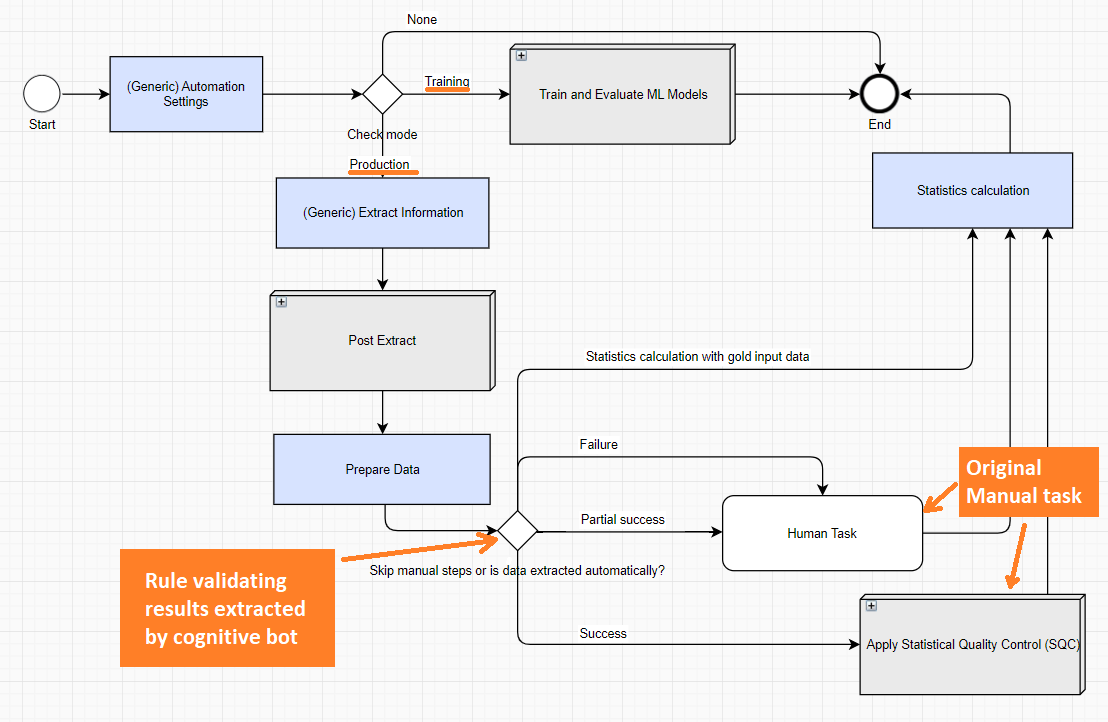
The Automation BP has the following structure:
- BP parameters are configured on the first Automation Settings step.
- The Check mode rule determines whether this is a Training or Extraction (Production) process.
- In case of Extraction, BP records go through the Production branch.
- ML algorithms try to extract data automatically
- The Post Extract step does Post-Processing and Normalization of data extracted by ML Model.
- A special Composite Rule Skip manual steps or is the data extracted automatically? checks the Extract Information step results:
- In the case of a failure or partial success, Records are sent to Human Workers.
- In the case of a success, apply Statistical Quality Control (SQC). If SQC is enabled and inspection is required, send a batch of Records to human Workers.
- If a BP uses Gold Data (documents tagged by Human SMEs), the execution goes directly to the Statistics Calculation step without SQC.
- The Statistics Calculation step provides calculations for quality statistics and saves results to a Data Store.
Confirgure Automation settings
It is a Bot step which initializes base parameters for the Production flow, so they are not used in Training flow. This step is based on an ETL config and has the following parameters:
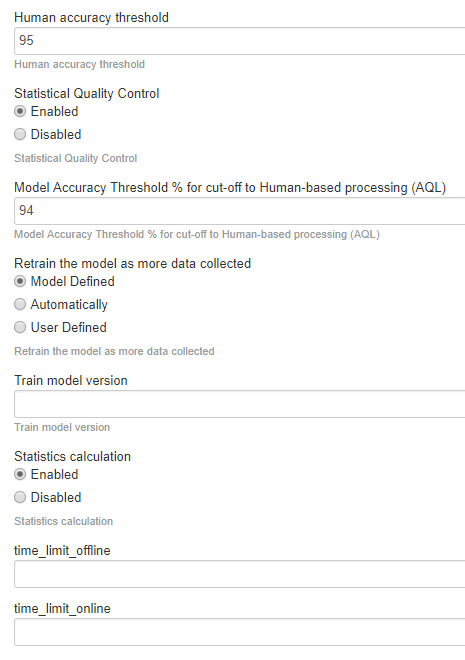
Enter Human Accuracy Threshold. The parameter is intended to filter out human worker answers with low confidence from the Training Set.
When workers are tagging or classifying documents AND the task Adjudication Rule is different from default one (1 + 0), each document needs to be completed at least by two different persons. The WorkFusion engine compares answers (tags) from these workers and sets the Confidence parameter for each answer.
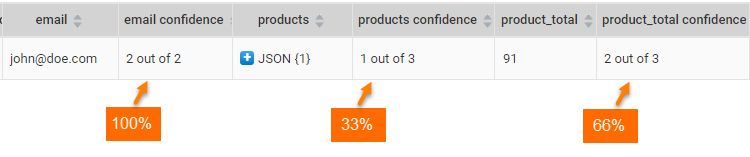
In the task results above, you can see the following confidence for tags:
- email (2 out of 2) = 100%. Human Accuracy Threshold is 50%, so this tag will be added to the Training Set.
- products (1 out of 3) = 33%. Human Accuracy Threshold is 50%, so this tag will NOT be added to the Training Set, because 3 human workers provided different answers.
- product_total (2 out of 3) = 66%. Human Accuracy Threshold is 50%, so this tag will be added to the Training Set.
Enable or disable SQC (Statistical Quality Control).
Enter Model Accuracy Threshold: the same parameter is set on the Automation Chart. Once you click the Apply Recommendation button, the Accuracy Threshold set on Automation Chart appears here.
Select the Model Retraining options: define a condition when the model is retrained.
- Model defined (recommended): You have predefined configuration in model configuration. If this option is selected, once the amount is reached, the model starts retraining automatically.
- Automatically: Once you have new documents available in Control Tower, the retraining process starts automatically.
- User defined: You can define the amount of documents to cause retraining.
Train model version: If you want to train or use for extraction of a specific version, input the version here. Leave this field blank, if the latest version should be used.
Enable or disable Statistics Calculation: This option is used to define whether the statistics related to model results should be saved to Data Stores. This statistics is further used to display Cognitive Automation Breakdown Widgets on Dashboards, showing the field extraction statistics and comparison to gold data.
time_limit_offline: currently not used.
time_limit_online: currently not used.
Train and evaluate ML model
The training flow provides a possibility to train and retrain a model. The Automation BP is launched in the training mode for model training when:
- A Manual Task is completed.
- The Min docs limit is reached. The limit depends on the selected and is about 100 documents, i.e. if Workers submit 20 tasks in WorkSpace, the model training starts.
- Force training is applied, which is the Evaluate Automation action ignoring the limitations.
The Automation BP is launched in the training mode for model retraining when:
- The Min delta limit is reached: a number of new documents to re-train the model. Once Delta is reached (the training set updated with the required number of documents), the retraining starts automatically. Delta amount is defined within a ML Model.
Upload training set
On this step, the model bucket is created on S3 with the [answer unique code ]_runUUID name. The Training Set is uploaded to the model training folder on vds-resources > [model folder] > input > training set for further processing within the model training.
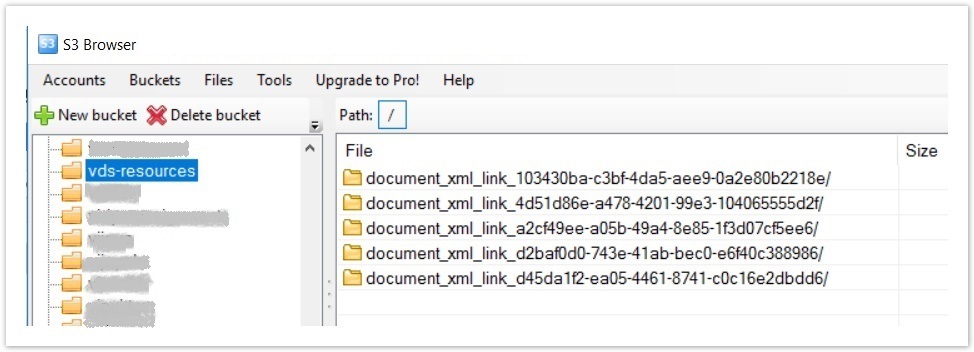
Once the training set is uploaded to S3 its status changes from New to Evaluate. Training sets can be seen on Campaigns > Automation Training Sets.
Upload dictionaries
During the step, Dictionaries used in a Manual Task are saved on
S3 to vds-resources > [model folder] > input > training set > dictionaries for further usage in the Model training.
Start training and evaluation
The bot step generates a request to the VDS-service to enable the model training. For that purposes, the automation_start_eval plugin is called.
The information about the training status is saved to a Data Store and can be found in Campaigns > Data Store with the WFML_Job_Data filter:
- If the model training starts successfully, the training status is set to In Progress.
- If the model training fails, the training status is set to Error.
Check training and evaluation results
The bot step checks model training results using the automation-get-eval-result plugin that is called every 60 seconds by default:
- If the model training finishes successfully, the training status is set from In Progress to Completed, and the training set status is set from Evaluate to Production.
- If the model training is not finished, the training status remains In Progress, and the training set status remains Evaluate.
- If the model training fails, the training status is set to Failed, and the training set status set from the Evaluate to New.
- If the Automation BP is stopped by using the Actions button, the training status is set to Force Stop.
- If the VDS training fails to provide data, the training status is set to Error.
The detailed results of training process are stored on S3: vds-resources
[model folder]>output. Also, the results are saved in the ML database, and WorkFusion generates the Automation chart according to the data stored in the ML database: Task or BP > View Results > Automation.
Extract information
The Extract Information step is processed once the Automation BP leads to the Production flow after the Check mode rule.
The bot step consumes input data uploaded for extraction and provides it to VDS, so that the previously trained ML Model handles it. For this purposes, the automation-extract plugin is called. The step provides the following results:
- Provides values extracted by the model, documents tagged by a model, score, and estimated accuracy per field, amd so on.
- Checks whether gold data provided within input data and saves a result.
- Defines extraction results (Success, Failure or Partial Success for the
_sys_automation_extract_statusparameter) used in the Skip manual steps or is the data extracted automatically? rule.
The extraction result is defined according to the following logic:
- Success status is set when two conditions are met:
- All required fields are extracted by a model.
- Extracted fields have the accuracy >= the accuracy applied on the Automation Chart.
- Failure status is set if:
- All required fields are extracted by a model.
- But extracted fields have the accuracy < the accuracy applied on the Automation Chart.
- Partial Success is set if a model fails to extract at least one required field without checking the accuracy value.
In case of the Failure and Partial Success results, a Manual Task is submitted on WorkSpace, so that you can check what is wrong, adjust tagged results if they are not correct, or add tags missed by a model.
To view the extraction information step results, go to Results > Data > Extract Information Task.
Post Extract
The Post Extract sub-process сonsists of two steps: Post-Processing and Normalization. Post-Processing and Normalization will be applied to all fields regardless results of extraction (Success, Failure or partial Success) and accuracy which was returned per field.
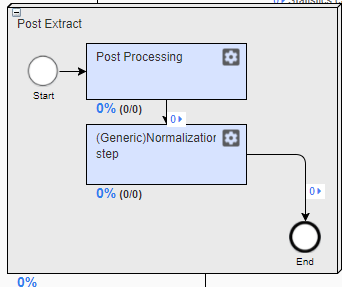
Post-Processing
The Post-Processing step is empty by default and is intended for custom code for post-processing results extracted by a ML model. You can find more details in which cases post-processing and normalization should be applied. Since post-processing rules are applied after the model provides statistics calculation, and post-processing cannot influence the statistics, all enhancements done within the post-processing step will not be seen on the Automation chart.
Normalization
The bot step that does normalization of the extracted data. This step is based on an ETL config and has the following parameters:
- Format Dates. You can define appropriate format for date fields.
- Format Numbers. You can adjust numbers format depending on your requirements.
- Format Percent. Using this option you can define whether an input number or string should be converted to a number with percent sign, for example, fifty seven percents > 57%.
- Format Dictionary Based Values. Using this option, you can define whether extracted values should be converted to an appropriate dictionary value, for example, $ > USD.
If normalization fails for any field with _sys_automation_extract_status = "Success", _sys_automation_extract_status is set to "Partial Success".
Prepare Data
The bot step prepares data for the Statistics Calculation step.
Check Extraction rule
The rule checks the Extract Information step results in the following columns:
_sys_skip_human_stepstruefalse
_sys_automation_extract_statussuccessfailurepartial_success
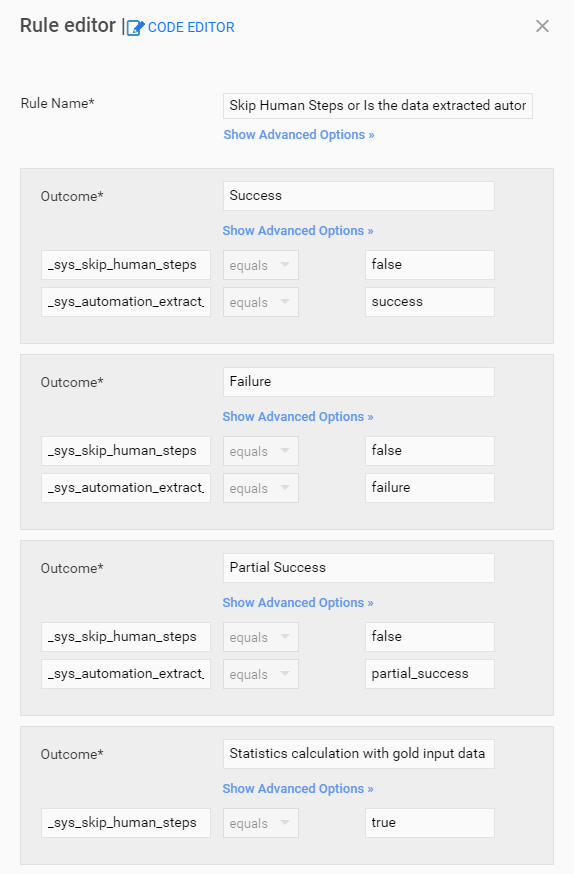
The _sys_skip_human_steps parameter is set due to the Statistics
Calculation option and input data provided on the Extract Information step.
The _sys_automation_extract_status parameter is defined by results of the Extraction Information step. Based on the column values, the rule allocates documents to appropriate steps: Statistics Calculation, Human task, or Apply Statistical Quality Control (SQC).
Success
A document is processed on the Apply Statistical Quality Control (SQC) step in the following cases:
- Input data provided on Extract Information step is not Gold data that is why the
_sys_skip_human_stepsparameter is set toFalse. - The
_sys_automation_extract_statusparameter is set toSuccesson the Extract Information step, i.e. the model successfully extracts data.
Failure and Partial Success
A document is pushed to a Manual Task when the following conditions are met:
- Input data provided on the Extract Information step is not Gold data that is why the
_sys_skip_human_stepsparameter is set toFalse. - The
_sys_automation_extract_statusparameter is set toFailureorPartial Successon the Extract Information step, i.e. the model fails to extract data or extracts data partially.
In case of the Failure and Partial Success results, a Manual Task is submitted to WorkSpace, so that you can check what is wrong, adjust tagged
results if they are not correct, or add tags missed by the model.
Statistics calculation with Gold input data
A document is processed on the Statistics Calculation step if the following conditions are met:
- The Statistics Calculation option is enabled on the Automation Settings step.
- The Gold input data is provided on the Extract Information step.
Since two conditions above are met, the _sys_skip_human_steps parameter is set to True.
Manual Task
This is an automated original Manual Task. Human workers need to complete it if the automatical extraction fails or is incomplete.
SQC sub-process
Statistical Quality Control can be enabled or disabled on the first BP step (Automation Settings).
The step maintains automation quality by selecting a batch of correctly extracted Records and verifying these results by human experts.
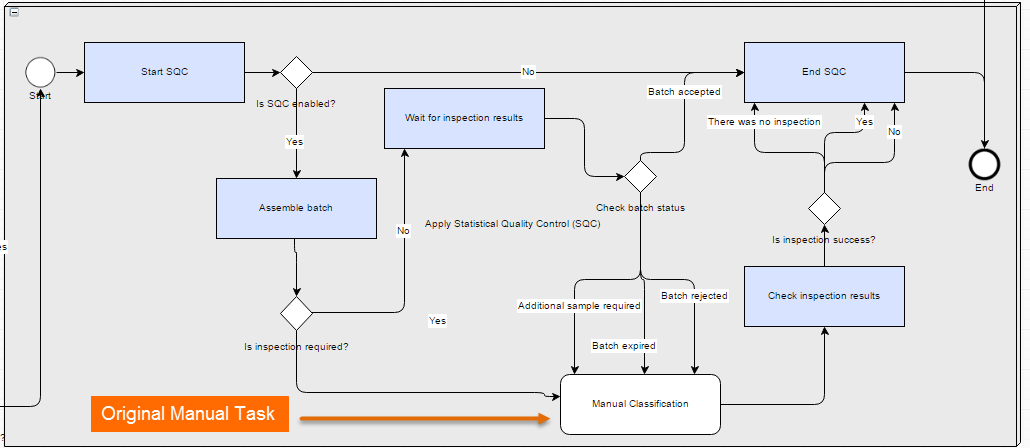
On the first run, approximately 20% of Records are processed through the SQC. If the quality of automatically extracted data remains high enough, the amount of Records taken to SQC process decreases. Therefore, you need to pay less for the human work.
To check that SQC works correctly:
- Open the BP Diagram and expand the SQC Sub Process.
- Check the amount of Records processed by Humans
- View the number of Records on each Outcome of the Is inspection success Rule:
- Yes (should be > 0)
- No (should be 0, or a small value)
If the Accuracy drops under the SQC acceptable level, you get an email notification. In that case, try to perform the following actions:
- Check the input data quality, typ, or format.
- Review your Human Workers' Qualification.
- Check if you have selected the appropriate ML model and Automation BP Use Case pair.
Statistics calculation
The Statistics Calculation step available from version 8.4.4.
The step makes statistics calculations and saves calculated data to a Data Store with the automation_stat_[bp campaign uuid] table name. The visualized statistics can be found on Dashboard > Cognitive Automation Breakdown.
The step is processed in different ways depending on the provided input data:
- If Statistics Calculation is disabled on the Automation Settings step, the calculations are skipped and none of the calculation data is saved.
- If Statistics Calculation is enabled and Gold data is provided as input, the Statistics Calculation step is processed, where Gold data is compared with model's answers (after Post-Processing and Normalization). Rules used to provide statistics can be found on the Information Extraction Results section.
- If Statistics Calculation is enabled and human answers retrieved on the manual step or SQC step are compared with model's answers (after Post-Processing and Normalization).
- If Extract Information finishes with the Failure status because the model didn't provide experimental data, Statistics Calculation is skipped even if Statistics Calculation is enabled on the Automation Settings step.
To view calculated results, go to Campaigns > Data Stores. Statistics Calculation can be enabled or disabled on the Automation Settings step. By default, this calculation is DISABLED.