Business Process 2: Initial training set collection
attachments
Import package to Control Tower and create deep copy of it
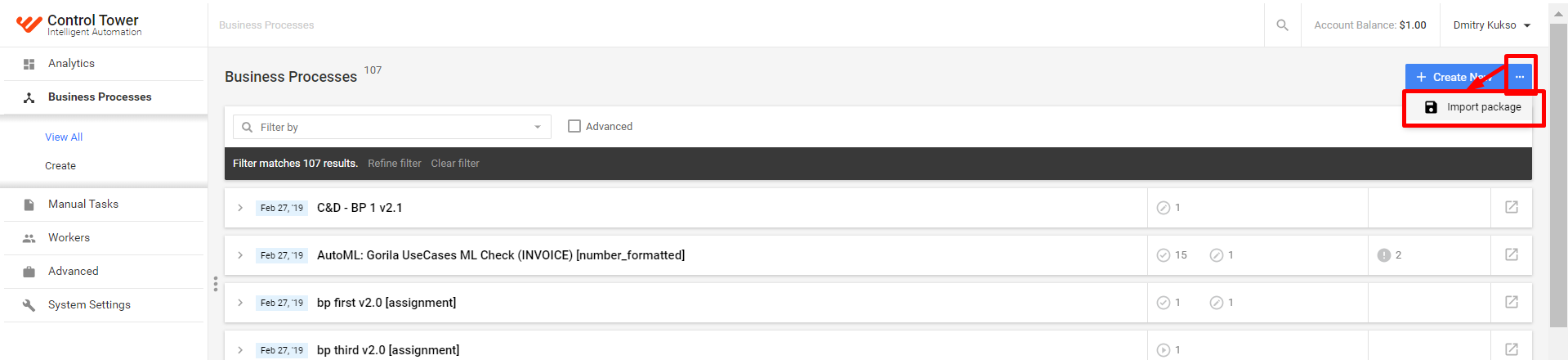
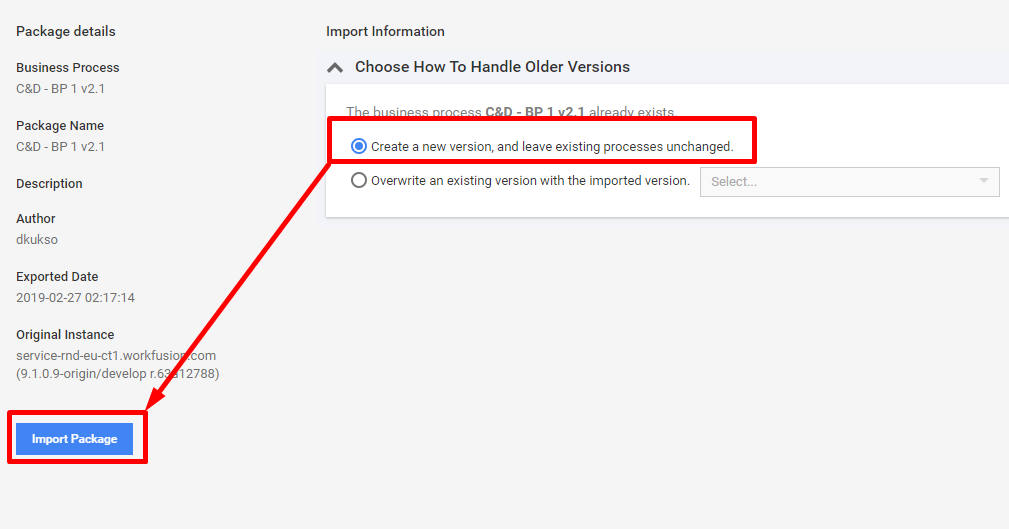
Import the Business Process package
Create deep copies of imported packages to preserve your settings from changing by other users on CT.
When you import the downloaded package on the instance where other users can use the same processes as you do, your Business Process steps have the same name as other users' step names, so when they change some parameter, for example, a name of the Settings Data Store, it is automatically changed in your BP, and vise versa.
To preserve yourself and others from being confused, do as follows:
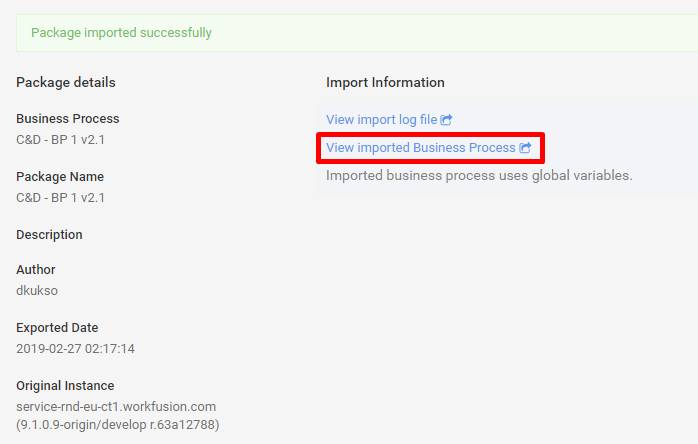
Import the package to Control Tower.
Provide some data to make the Run tab available:
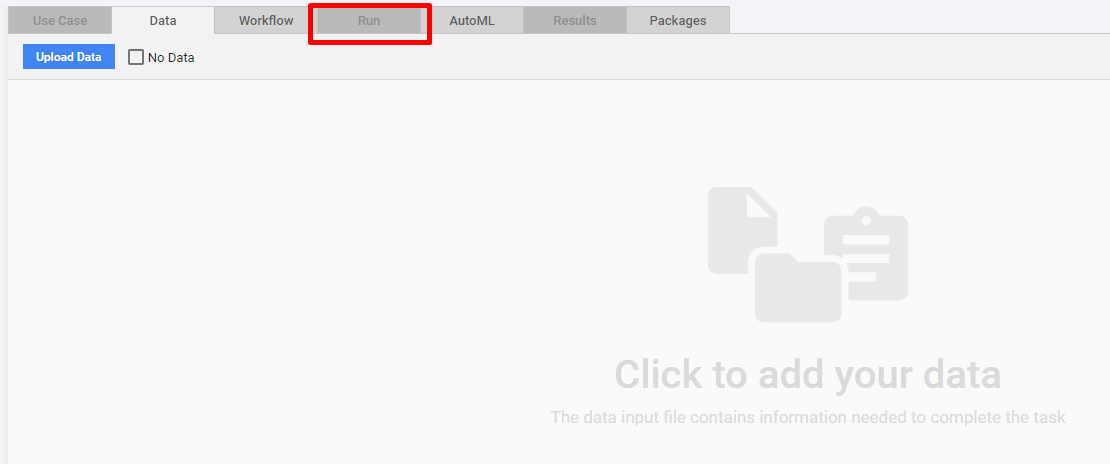
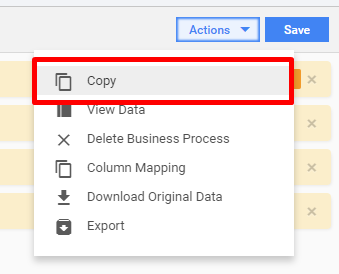
On the Run tab, select Copy from Actions.
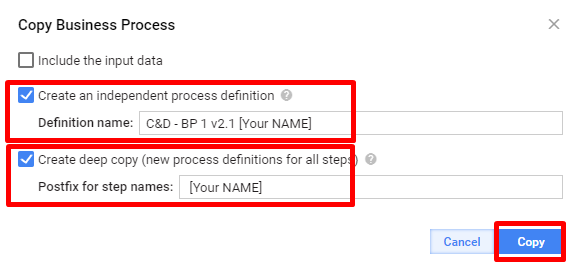
Specify a new Process Name and Postfix for step names. Copy the process.
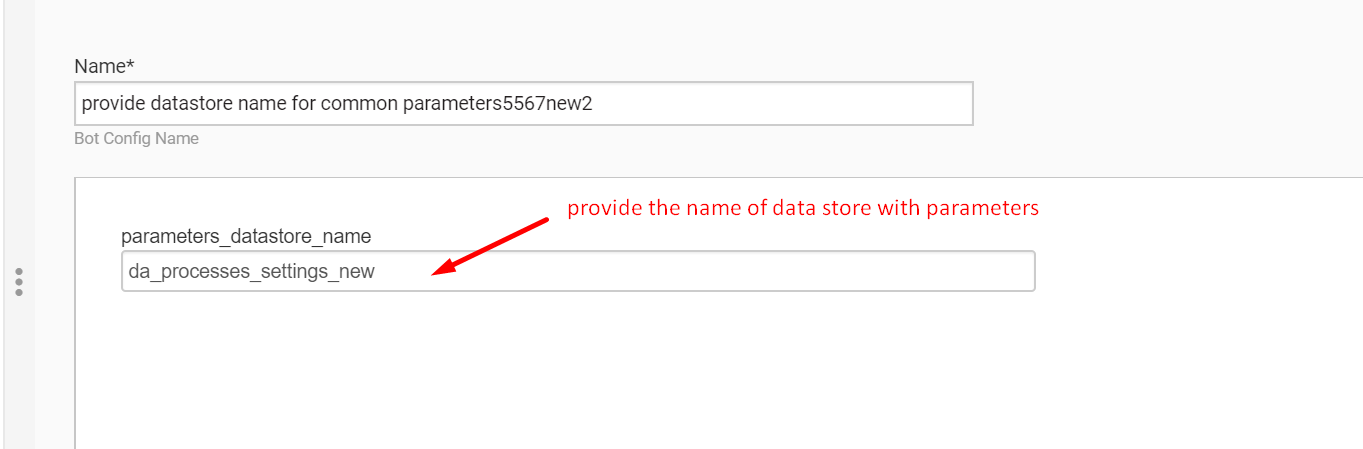
Specify Settings Data Store name
In the first bot step, provide your unique name of the Data Store with settings where all parameters are stored.
Reconfigure Manual Task for initial training set tagging
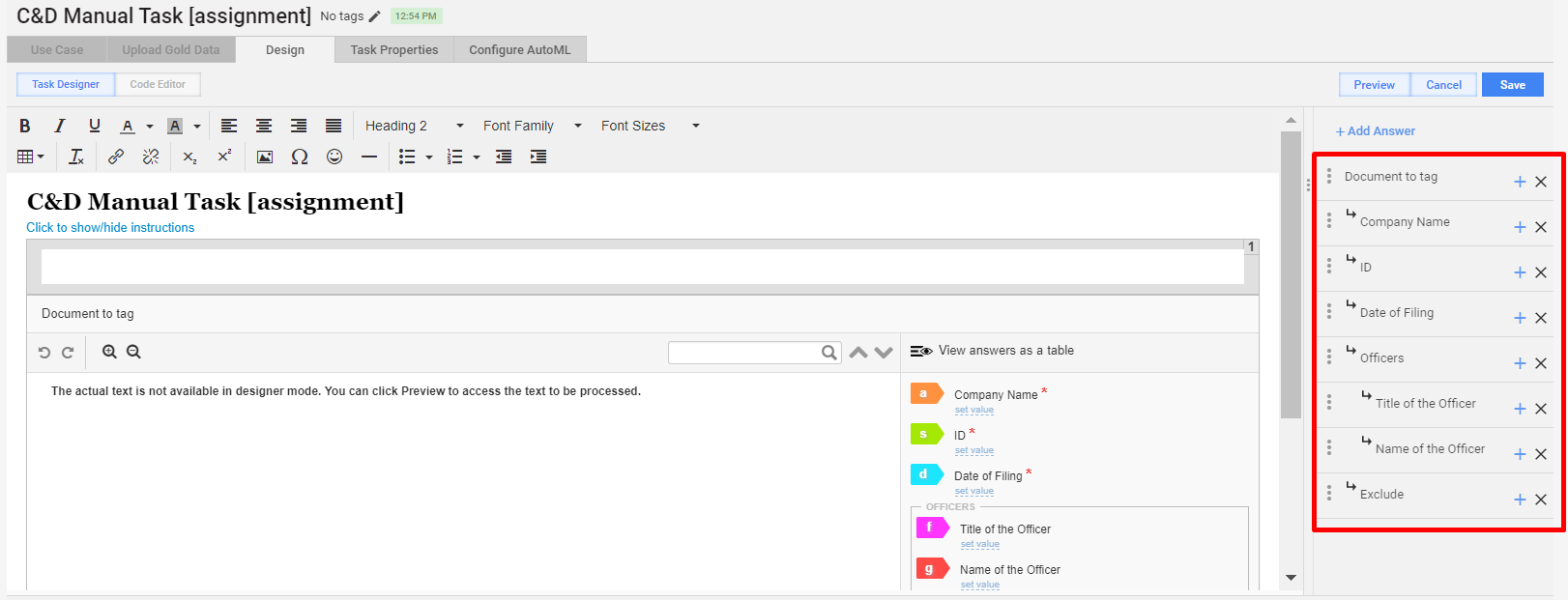
Correct sub-answers in the Design tab of the C&D Manual Task to the fields for extraction from your Use Case and save changes.
caution
Do not delete the Exclude sub-answer. This option was added to remove inappropriate documents during tagging. The documents with this mark will not be added to training set.
Run Business Process
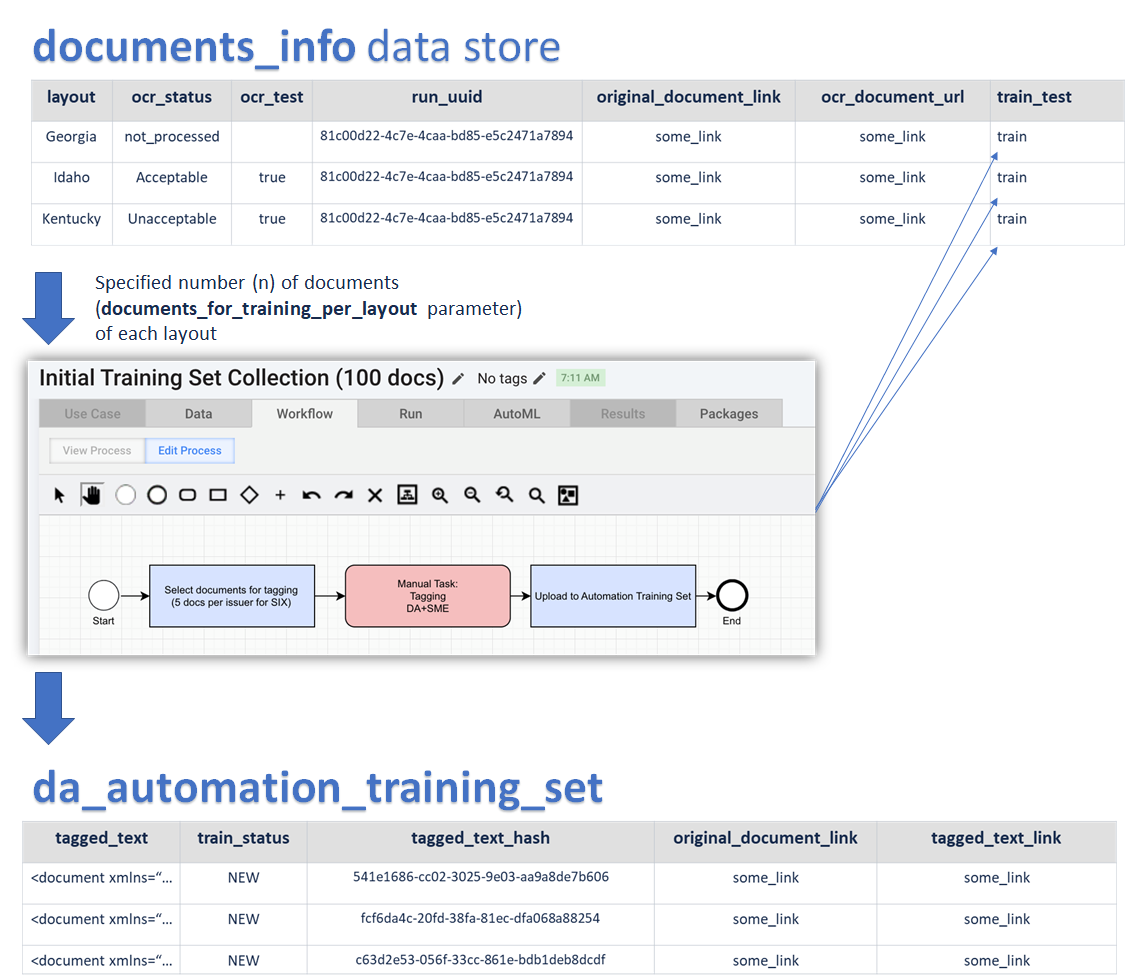
The Business Process will automatically send (N) documents of each layout_type to the Manual Task. N is the
documents_for_training_per_layoutparameter set in the Settings Data Store.Complete the Manual Task in Workspace. You can find it in the Miscellaneous Tasks category:
There are two options to follow:
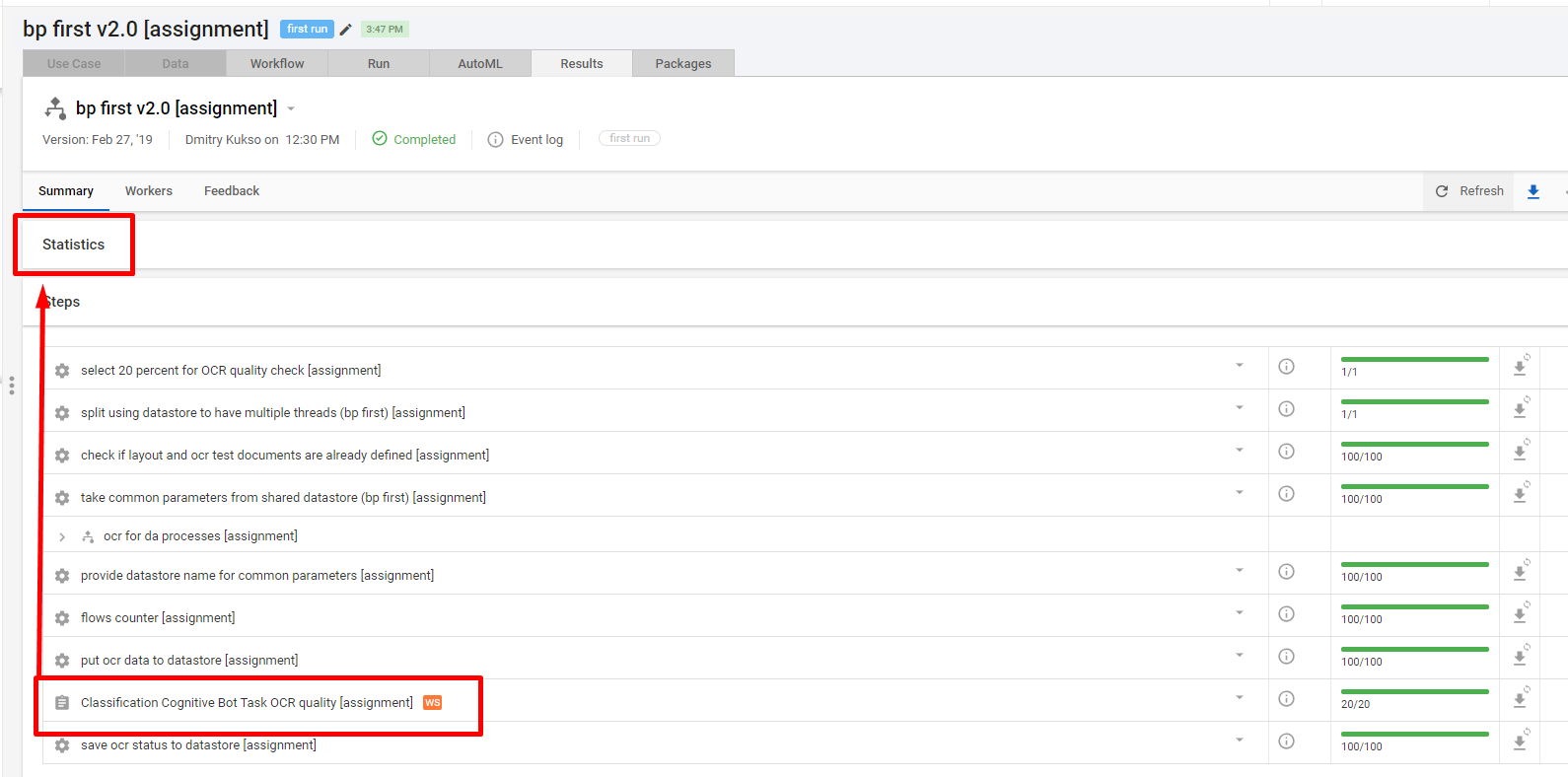
In the Results tab of the Business process, expand Steps, select your Manual Task, and expand Statistics:
After this, you will see the link:
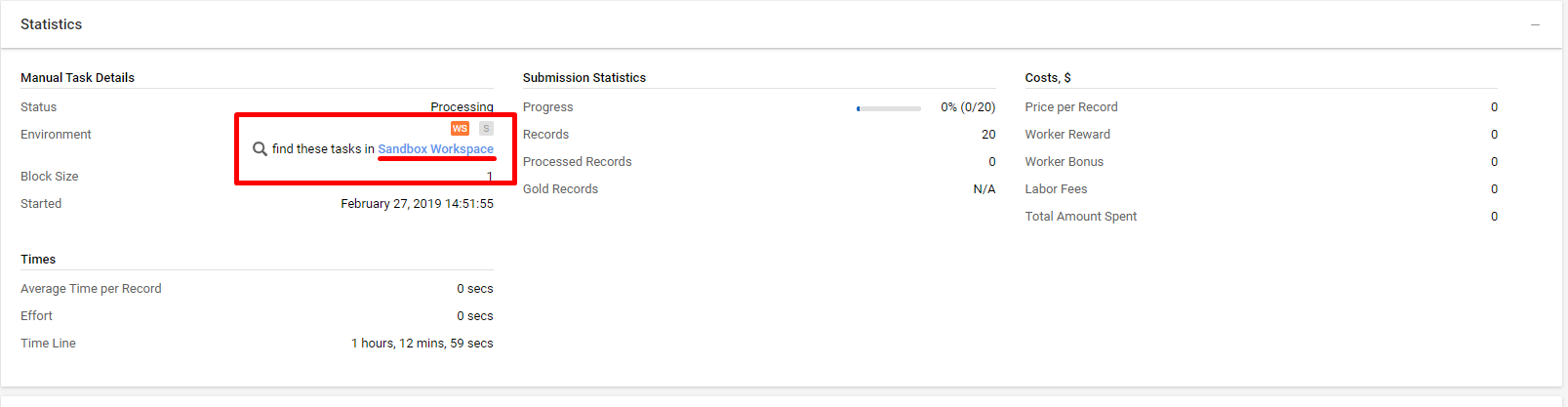
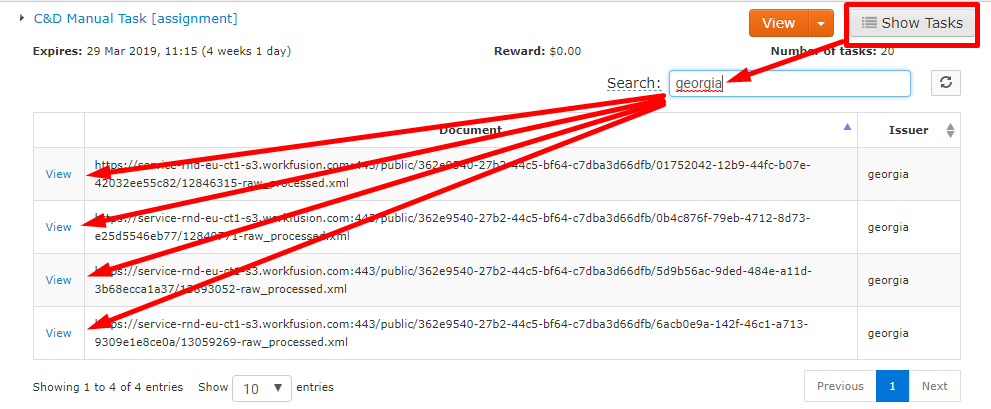
Find your task in the list of Manual Tasks.
These documents should be tagged by DA (i.e. with very high quality of tagging) in cooperation with SME. Submitted documents will be used as an initial training set for the model training. Note that the Workspace Preview option is on, so you can tag documents of one layout by viewing and accepting each:
Submitted tasks will be automatically put to the automation training set specified in the
da_automation_training_setparameter.
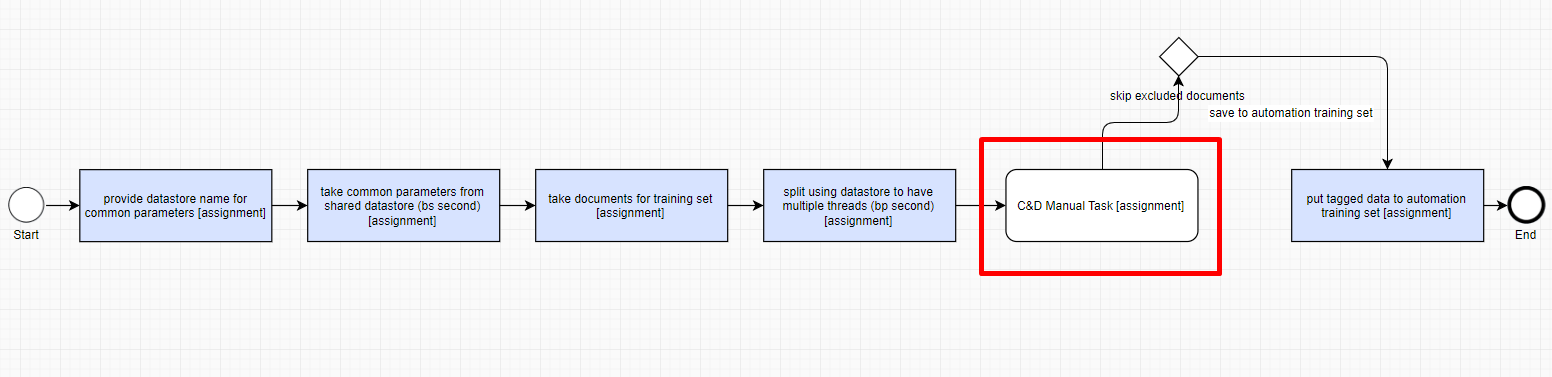
View Business Process 2 brief scheme