Run Generic Model
Below you can find a step-by-step instruction on how to implement quick check on Generic model configuration, which includes HPO configuration check. Unlike Presentation Models, Generic Model initiates involvement of more resources. That is why separate check for Generic model is needed. This check takes about 30 minutes, so that you can ensure that Generic model is setup correctly.
Check assets
Before creating automated Manual Tasks and Processes, you need to check that your Control Tower has all the Training Sets and Use Cases needed for HPO model check.
Training sets
Go to the Main menu (left sidebar) > Campaigns > Automation Training Sets.
Check that a Training Set with the following name exists:
ie_cognitive_automation_training_set_<wf_version>.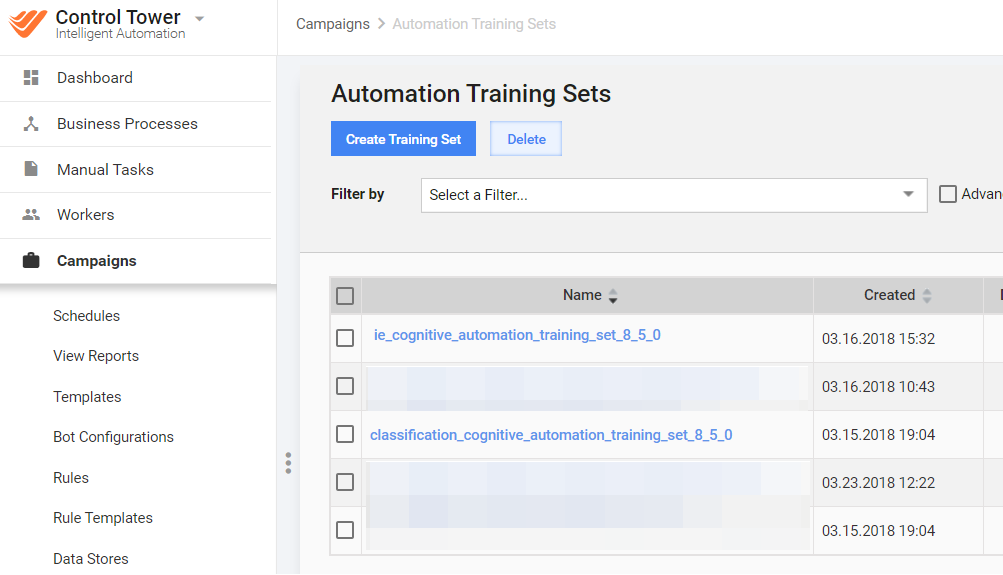
Data Stores
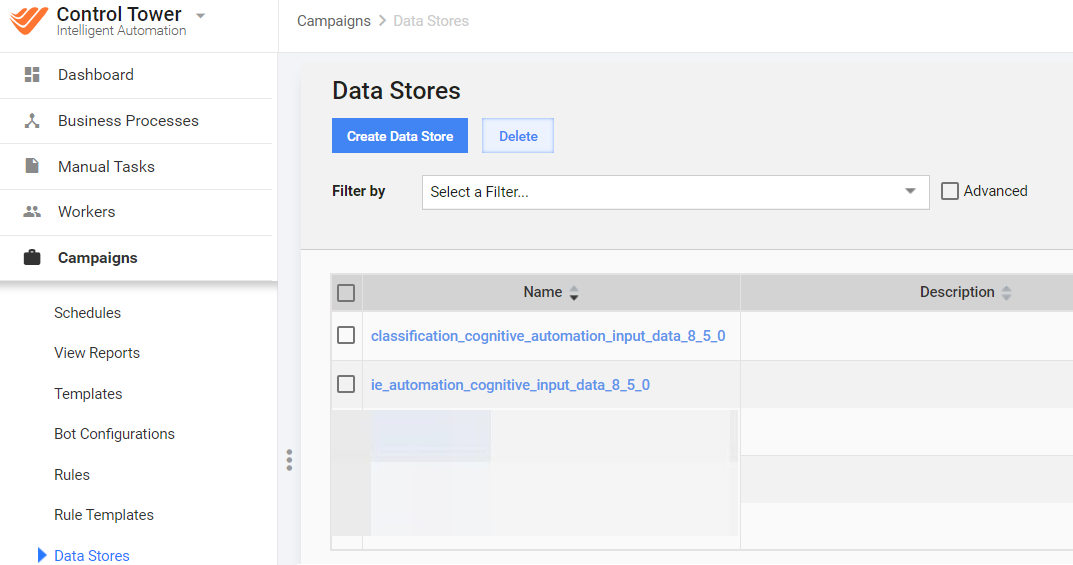
- Go to the Main menu (left sidebar) > Campaigns > Data Stores.
- Download the following Data Store as a CSV file:
ie_cognitive_automation_input_data_<wf_version>.
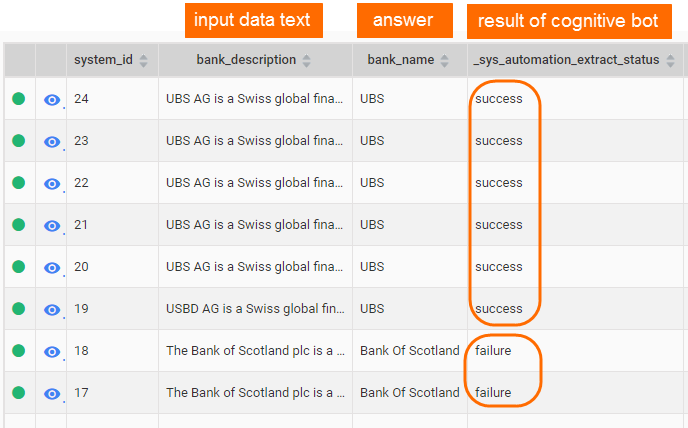
This CSV file is used as input data for a Manual Task and a Cognitive BP:
Use Cases
Go to the Main menu (left sidebar) > Configuration > Use Cases.
On the Business Process tab, check that the following Use Case exists:
Cognitive Automation Business Process <wf_version>.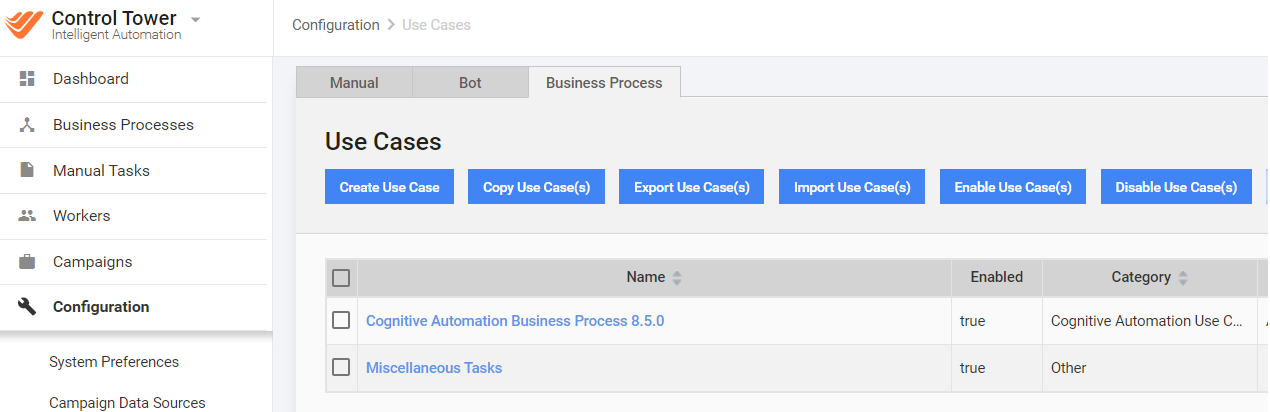
On the Manual tab, check that the following Use Case exists:
IE Cognitive Automation Task <wf_version>.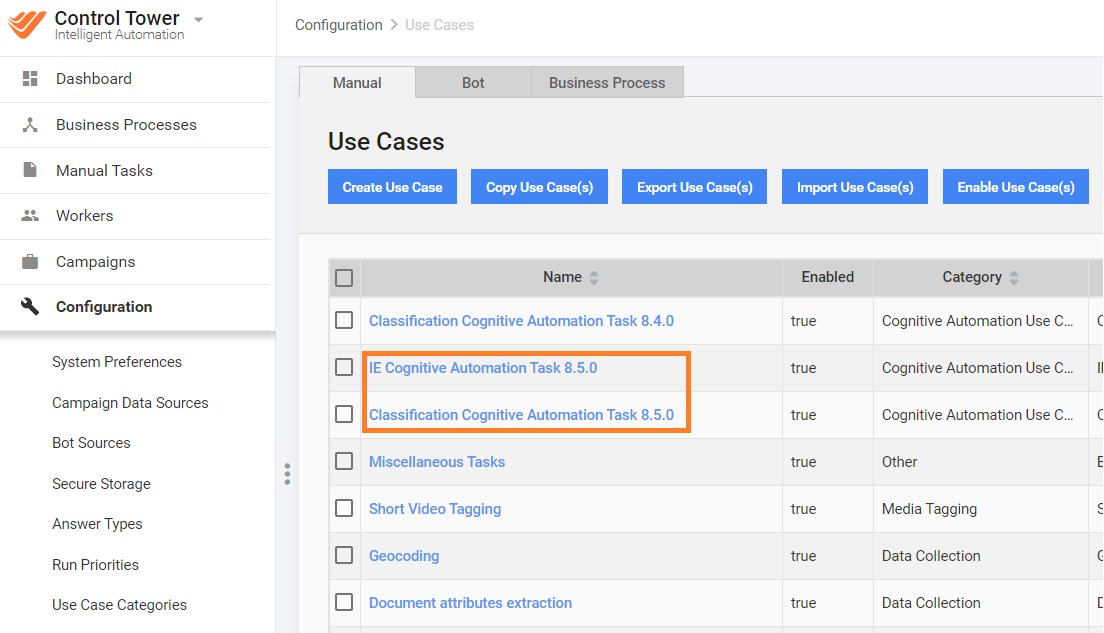
Hypermodels on S3
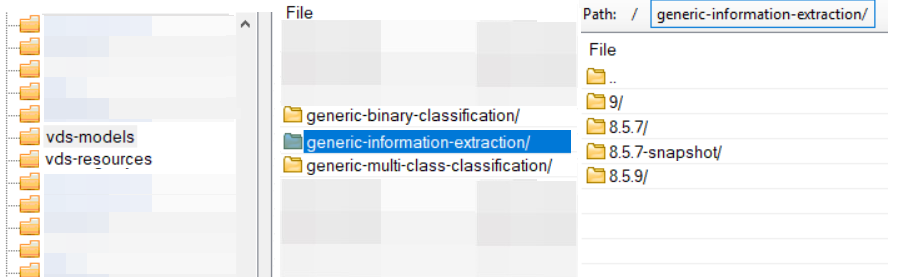
Open the S3 (cloud or on-premise) > the vds-models bucket.
Check that the following folders contain models with an appropriate version (subfolders):
generic-binary-classificationgeneric-multi-class-classificationgeneric-information-extraction
Testing Cognitive Automation
If all assets are available, you are ready to create a Manual Task, start model training and extraction.
The guide shows the Information Extraction (IE) use case example.
Create Manual Task
Go to Manual Tasks > Create Manual Task.
Select Cognitive Automation Use Cases >
IECognitive Automation Task <wf_version>.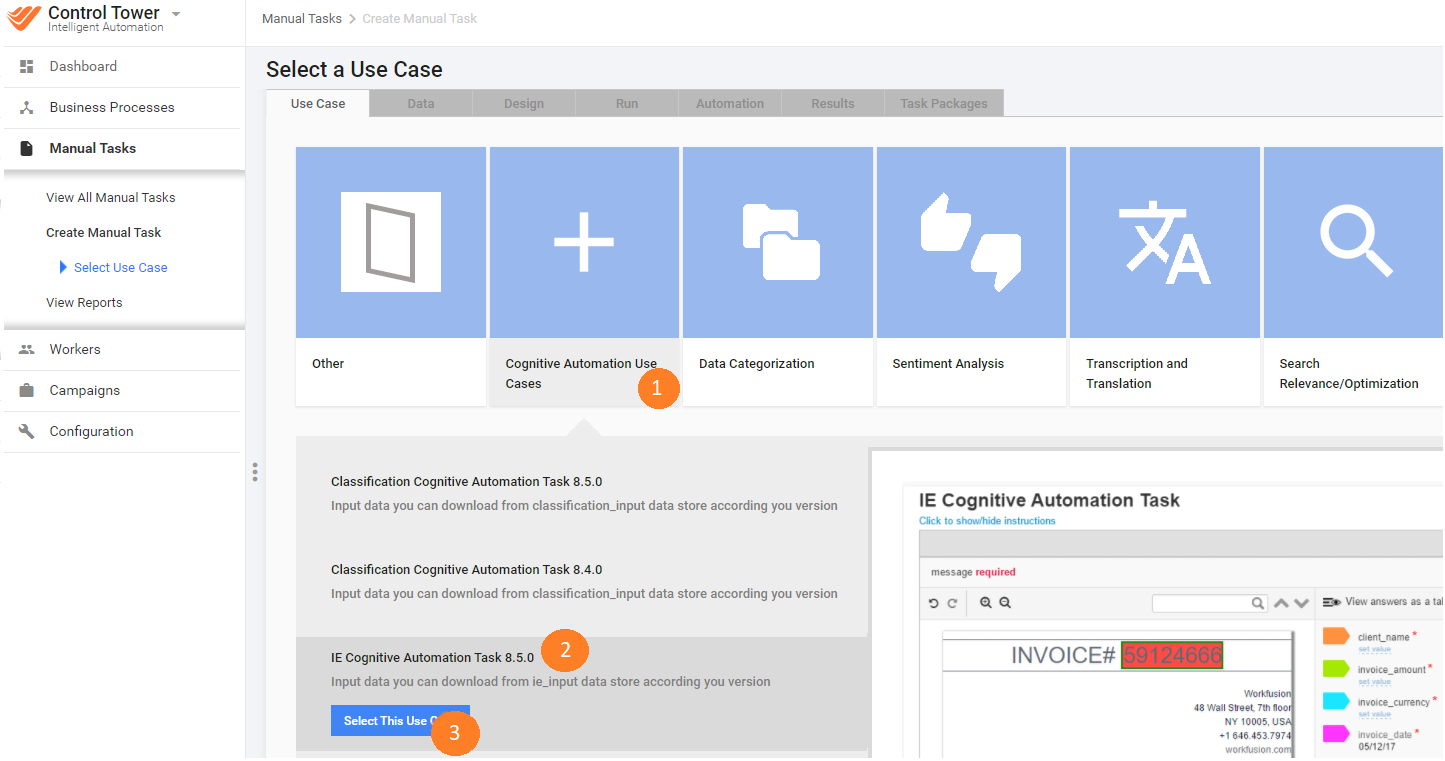
Click Select this Use Case.
On the Data tab, click Upload Data and select a CSV file downloaded from the
ie_cognitive_automation_input_data_<wf_version>Data Store.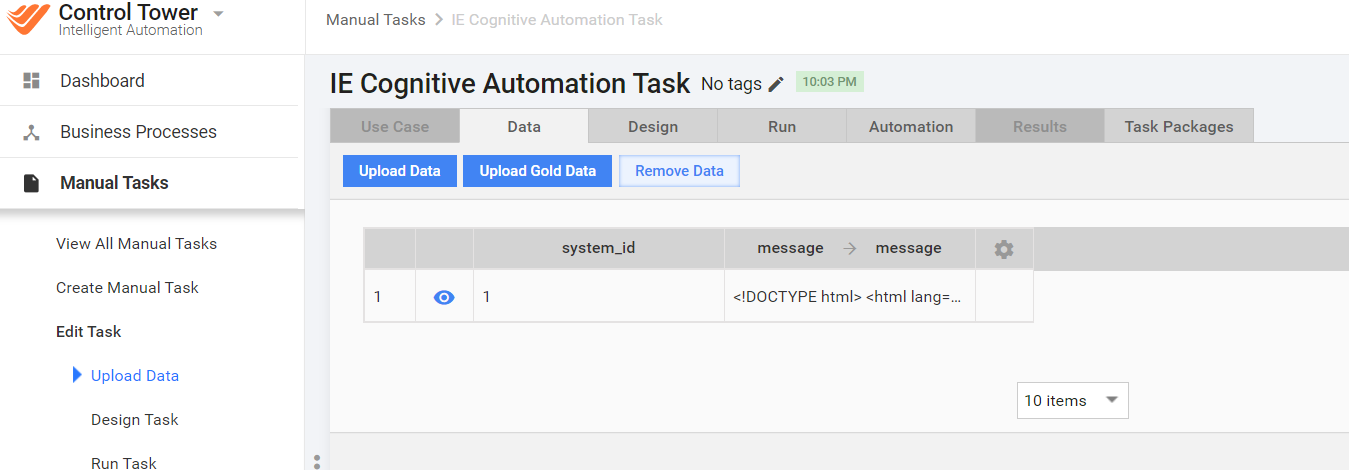
On the Design tab, click Save button to save Manual Task. Three are 16 predefined invoice sub-answers. Running Generic model for the whole set of invoice fields can take about three hours, that's why we decrease number of fields to be checked. Let's remove all of them except Message and Client Address answers.
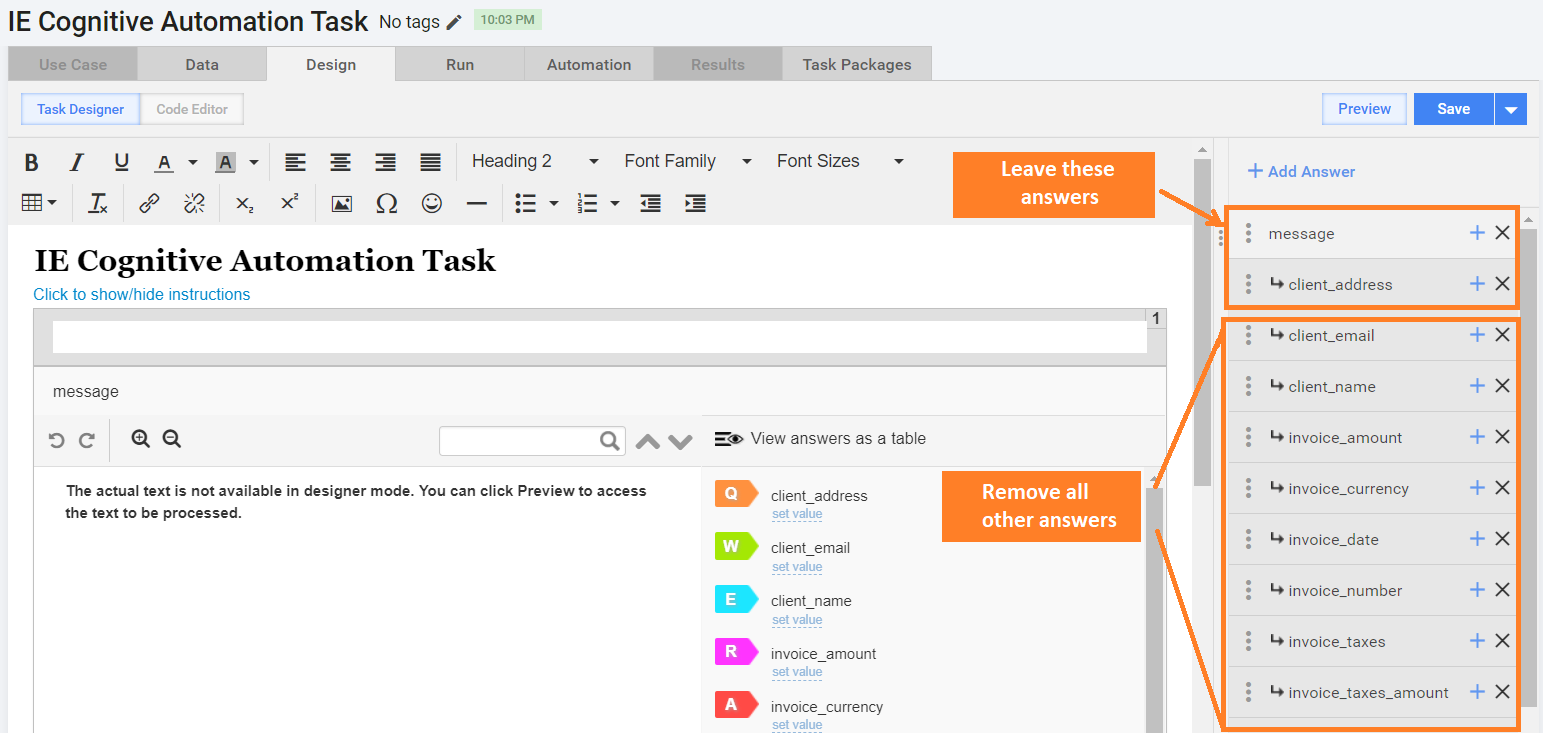
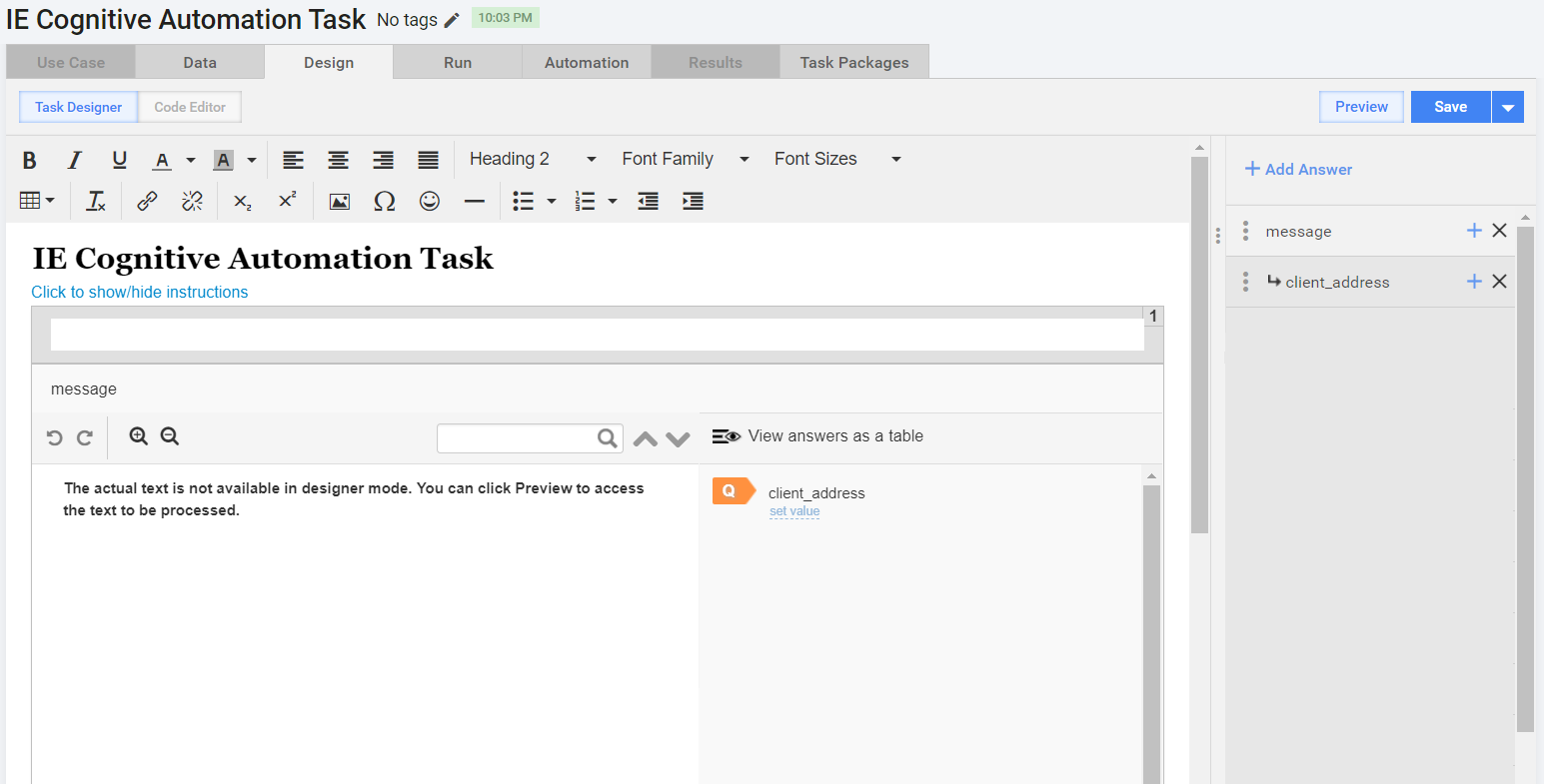
The Design tab should look like this.
On the Run tab, click Advanced Options > the Automation tab:
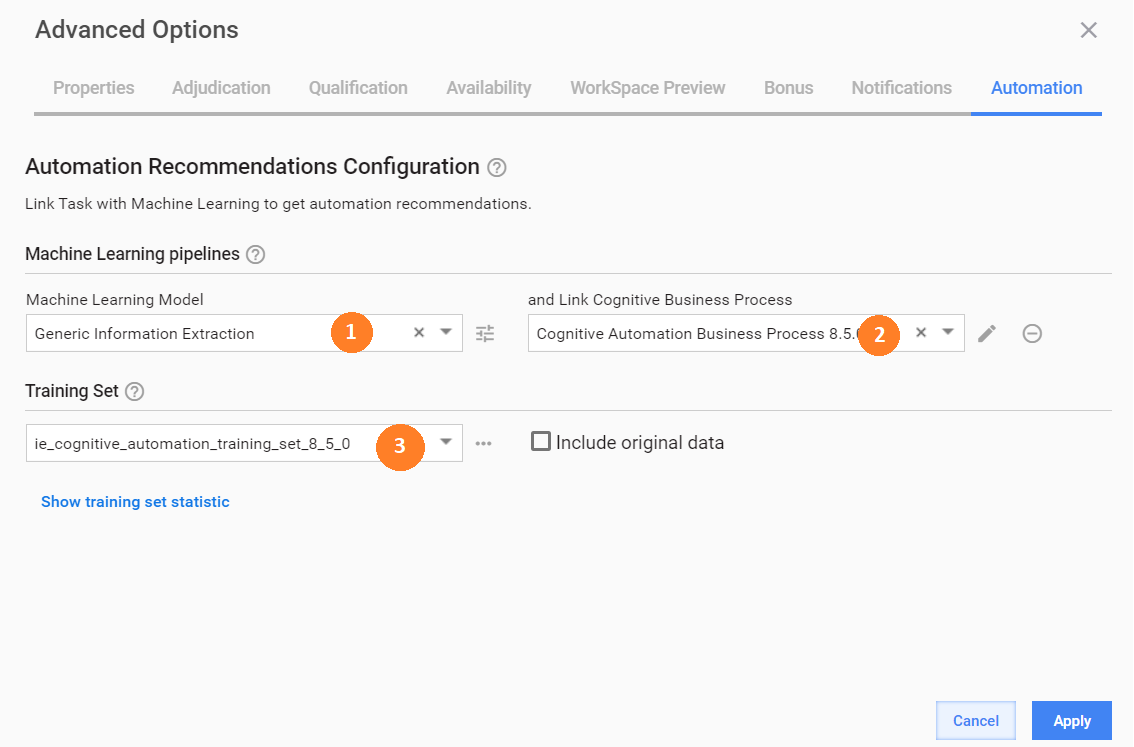
- Select an ML Model: Generic Information Extraction
- Select a BP Use Case:
Cognitive Automation Business Process <wf_version> - Select a Training Set:
ie_cognitive_automation_training_set_<wf_version>. The resulting page should look like this one:
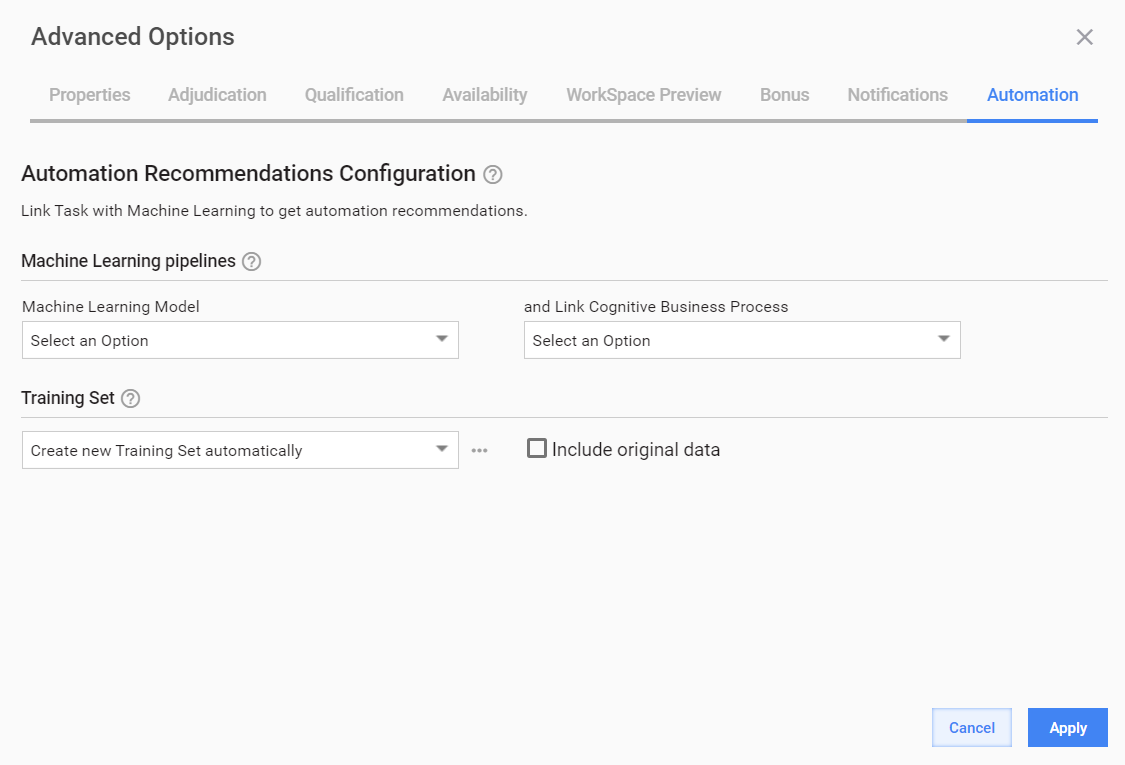
- Reset the Training Set by clicking the arrow icon and Reset Data Status.
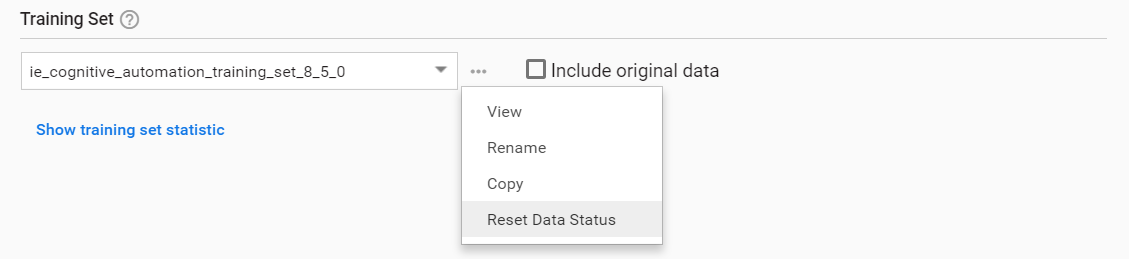
Confirm by clicking Reset.

- Click OK and save the Task.
Starting training process
Now, you are ready to start the training process.
On the Run tab, click Run This Task.
In the Actions drop-down menu, click Stop.
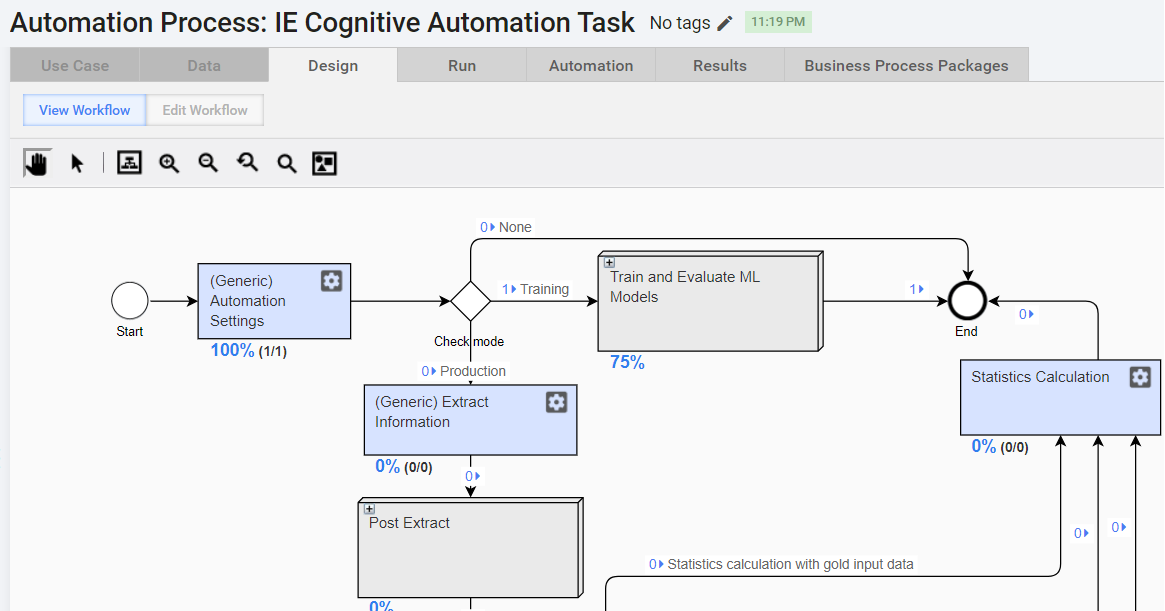
Go to the list of BPs, select the Automation Training filter and check that Automation BP is created and the training is started.
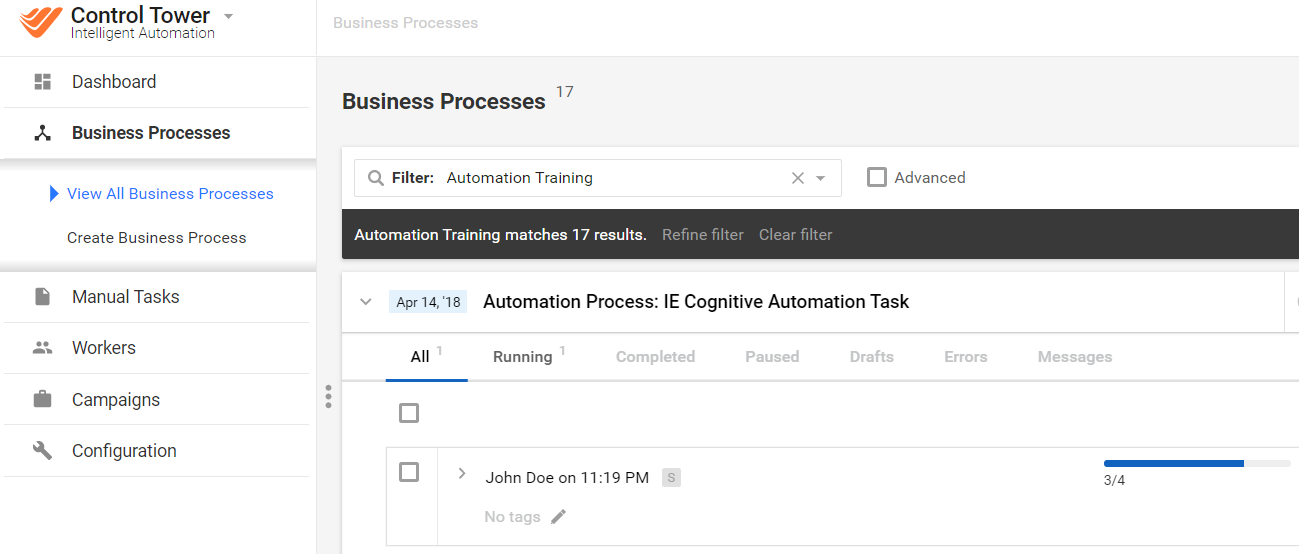
The training BP should have records that passed the Training branch.
(Optional) Check Mesos for message_** jobs present for a vds user.
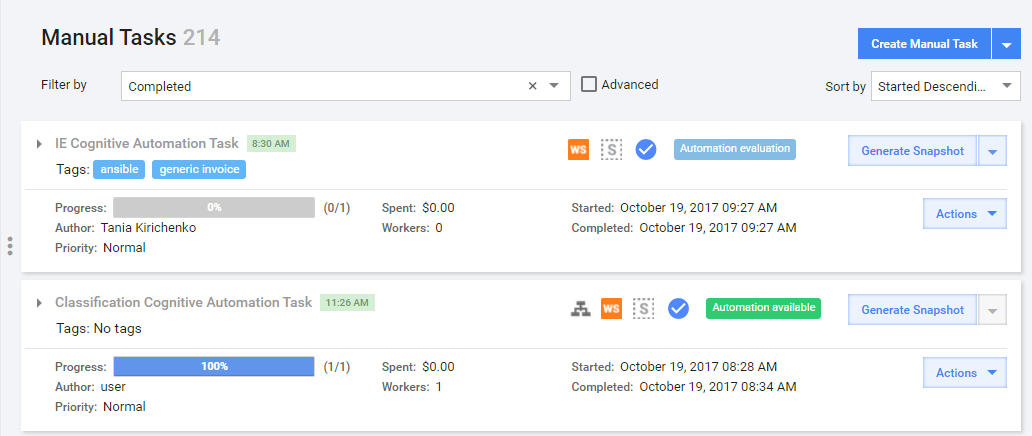
Go to View All Manual Tasks:
- Your Task should have the AUTOMATION EVALUATION label.
- Wait until the training is finished (~35 minutes for information extraction). Your task should have the AUTOMATION AVAILABLE label.
Set up Automation Chart
Click the AUTOMATION AVAILABLE label. You are redirected to the Automation tab.
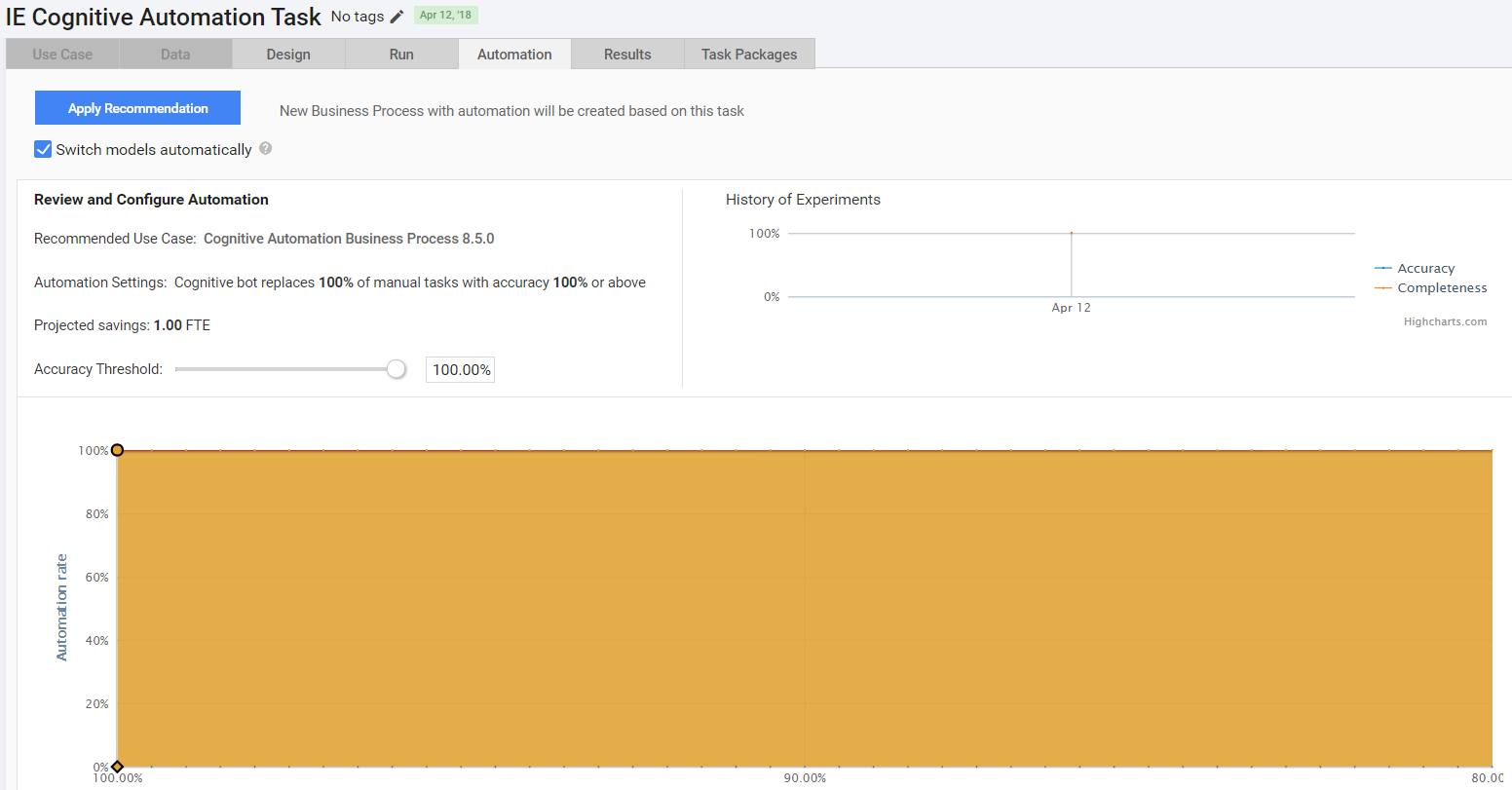
Set the Accuracy Threshold.
Click Apply Recommendation. You are redirected to the Cognitive Business Process creation wizard.
Run Cognitive Business Process
Upload the same input data CSV downloaded from the
ie_cognitive_automation_input_data_<wf_version>Data Store. You can also use the CSV file downloaded from theie_cognitive_automation_training_set_<wf_version>Training Set, but this requires more time for extraction.Run the Cognitive Automation BP.
Check the BP Results. The record(s) should pass the Extract Information step:
- BP Design tab:
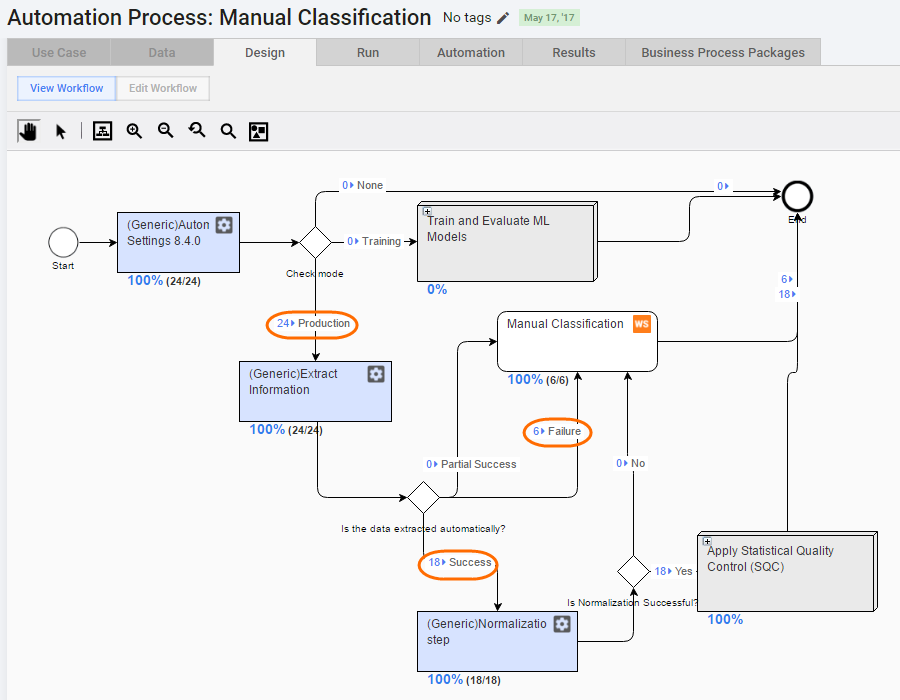
- Results > Data: