
Migrate packages of Tasks and BPs
The best way to migrate a Process or a Task from one WorkFusion environment to another, for example, from DEV to UAT or PROD, is to create a Package and import it. Let’s assume source is a DEV environmentand destination is a UAT environment.
A Package is a zip archive containing:
- XML file with Task or BP export information (design, settings)
- All Data Stores that are used in a Task or BP steps
- Meta information
important
You should have the Import and Export permission to view, import, and export Packages.
Prerequisites
BCB Configuration
caution
Skip this step if no BCB is used for the Business Process.
Bot Config Bundle (BCB) configuration—source code located in Java project—should be deployed to GIT or SVN.
Use the Maven command to deploy the latest code to DEV environment:
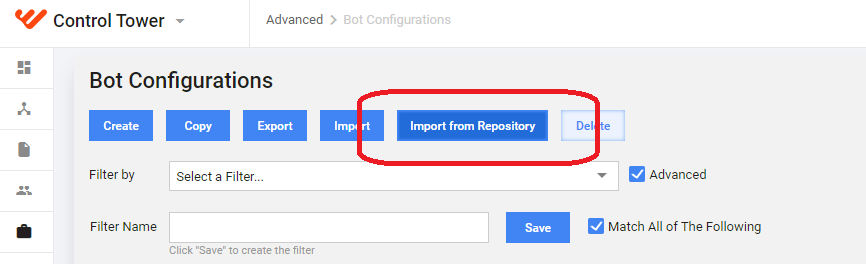
mvn clean package deployUpdate BCB from Control Tower: Advanced > Bot Configurations > Import from Repository.
AutoML Use Case
caution
Skip this step if no automation is applied to Manual Tasks.
If automation is applied to Manual Tasks, it is required to apply AutoML Automation Use Case to existing Business Process.
If the latest version of Business Process contains AutoML Use Case:
- Create a new Business Process copy with the new name/version.
- Replace all AutoML Use Cases with appropriate Manual Tasks.
- Save Business Process without any AutoML use cases inside.
If any Manual Task contains AutoML settings, automation can be applied on destination environment for already imported Business Process.
When exporting and importing the model, its Training Configuration settings (see Business Process > Configure AutoML) are not preserved and reset to default.
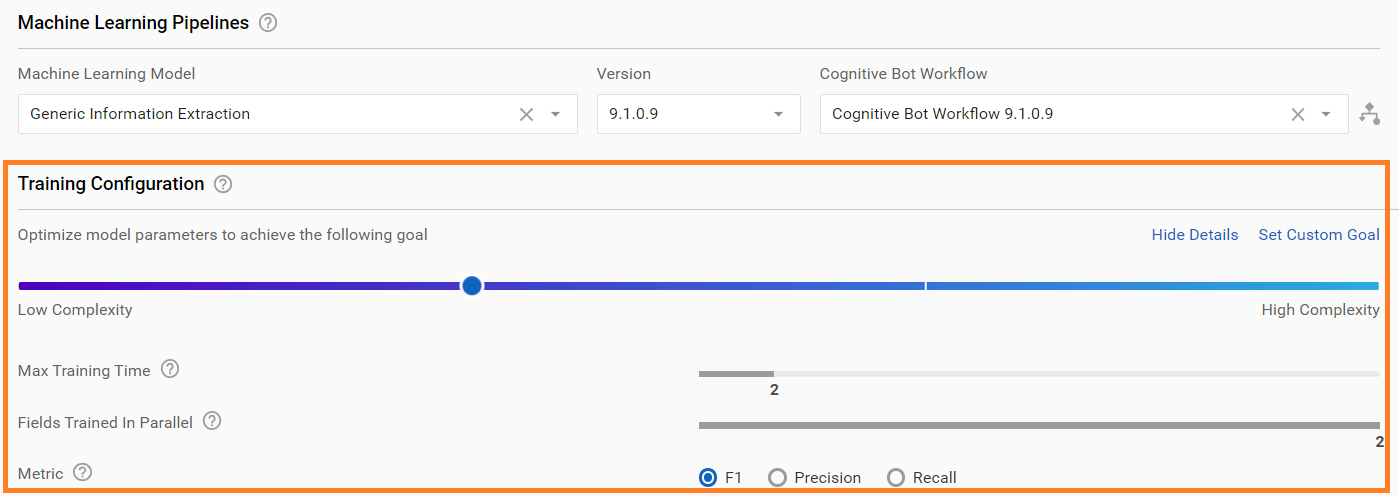
Machine Learning Pipelines are preserved as is.
note
SPA version 9.2 and newer have Search Engine 2.0 with all parameters already optimized.

Custom AutoML Use Case
If AutoML Use Case is a custom one and has completed changes on a source environment:
Create a new Business Process using as an AutoML Use Case template in the Cognitive Bot Use Cases section:
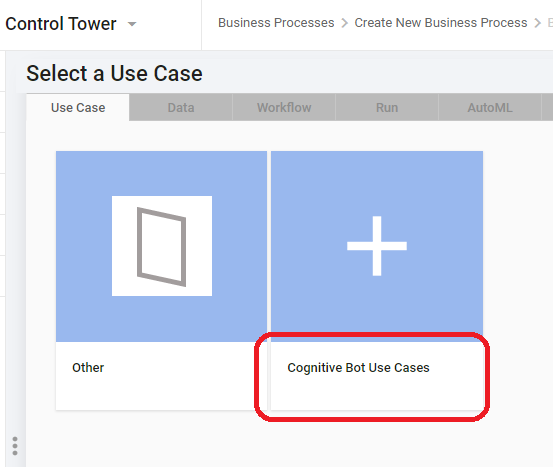
Open Workflow for this Business Process.
Drag and drop the original Manual Task from the left pane to replace the empty task by it.
Save the Business Process. There should be no validation errors.
Prepare Package for export to the destination environment.
Import the package to the destination environment.
Open the imported Business Process and select Workflow diagram.
Replace Manual Task inside it by the empty Manual Task:
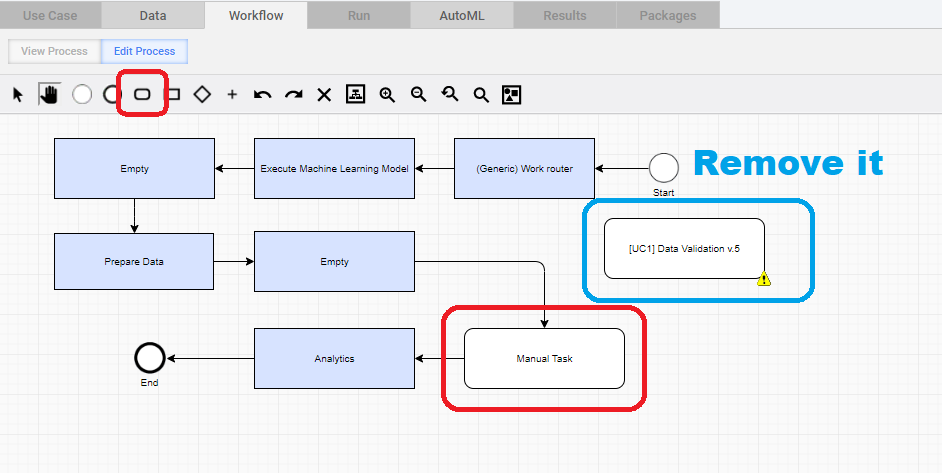
Save the BP.
Create a new Auto ML Use Case from Use Cases menu on the Business Process tab.

To avoid conflicts during the import and export, create a new version or name for the source Business Process.
Copy ML artifacts
If Business Process has a Machine Learning model linked to Manual Task, migrate a binary model and a pretrained model.
important
Migration is required for each model linked to a Manual Task.
Create package
Go to View all Business Processes (or Tasks) > the Packages tab (the last one).
Click the New Package button.
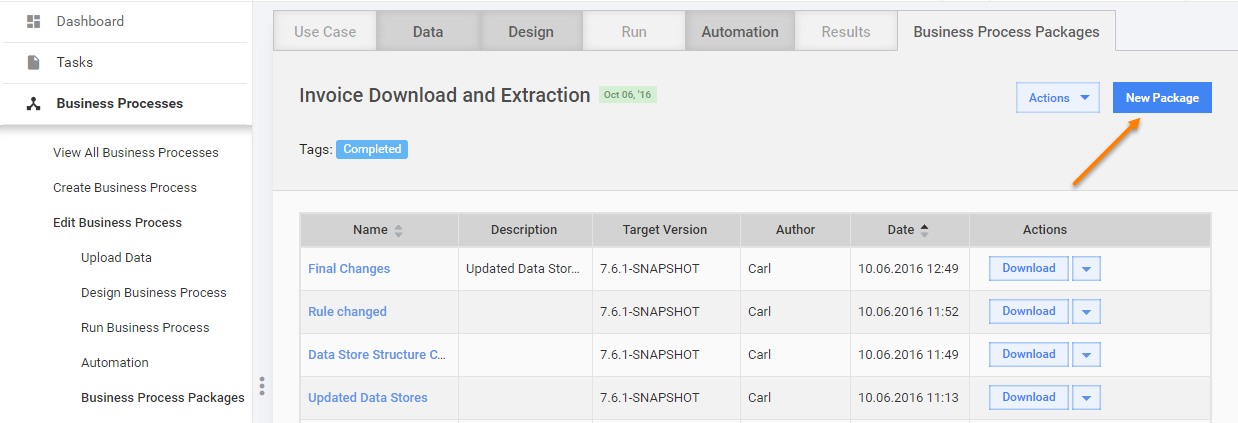
Enter a meaningful Name and Description for the Package.
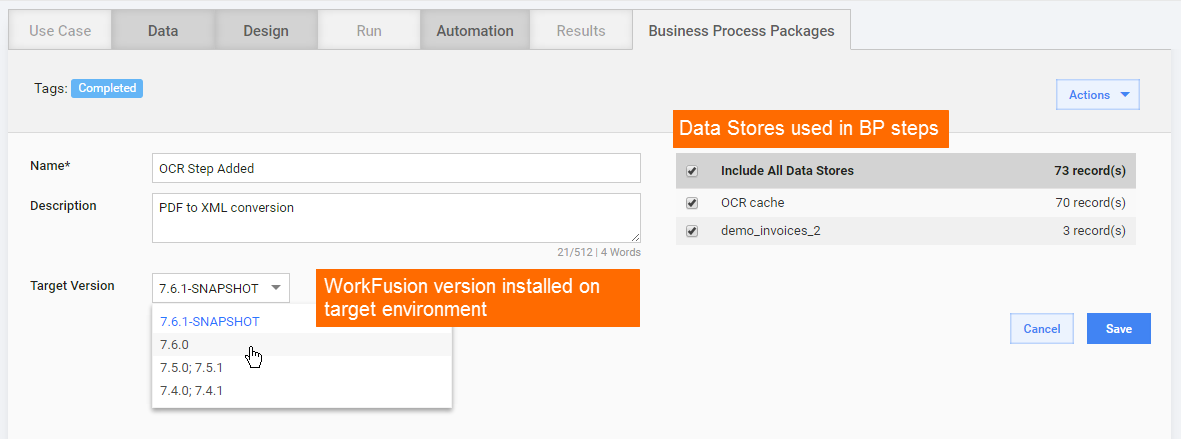
Choose Data Stores to include in the Package by ticking the appropriate checkboxes.
The list contains all Data Stores used in BP Tasks (Manual or Bot). You can uncheck a Data Store if you are sure that the target WorkFusion environment contains one with the same name and appropriate data.
Choose the Target Version for current Package. This feature helps move processes from instances with older WF version installed to new instances and vice versa.
Click the Save button.
Download package
To download a Package to your local machine, click the appropriate Download button in the Actions grid column.
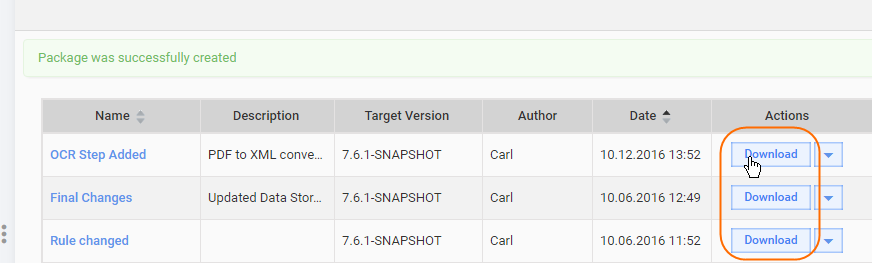
As a result, the Package will be downloaded as a zip file.
You can delete a Package if it is not needed anymore. Click an arrow icon near the Download button and select the Delete action.
Import Package
Log in to the target WorkFusion environment, for example, PROD or UAT.
Go to Business Processes (Tasks) and click Import Package in the top right corner.

Upload the Package zip archive downloaded from the source environment and click the Preview Package button.
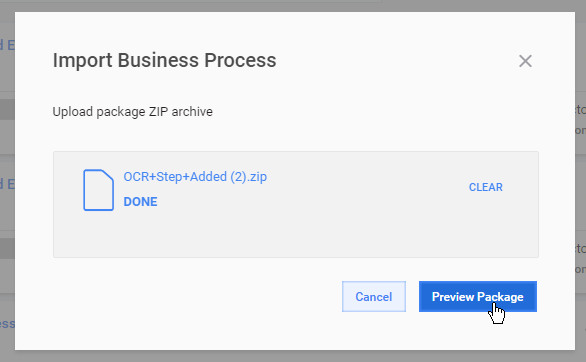
The Package Import page is shown. Resolve all possible conflicts:
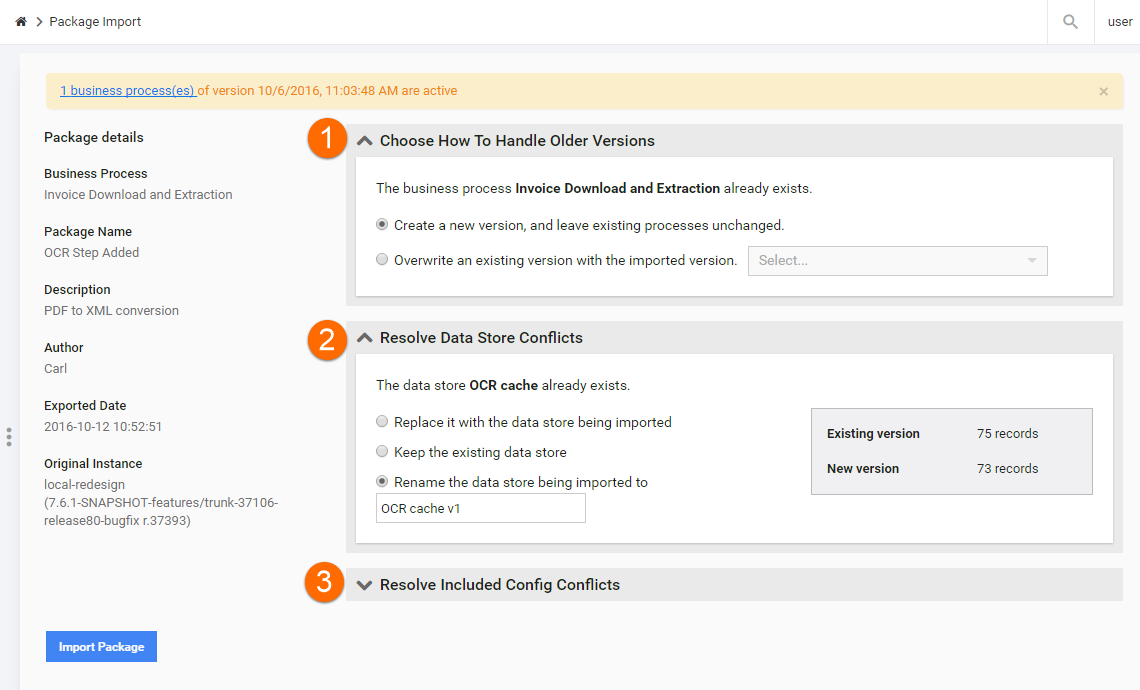
You could see the following warnings:
"<N> business processes of version <date> are active": In this case, you need to decide whether you want to overwrite active processes or not. You can optionally pause or stop active processes.
"The package was exported from WF version <XXX>. This environment has WF version (YYY)": In this case, the import can potentially cause some issues. You should check its results in the generated log file.
AutoML conflicts
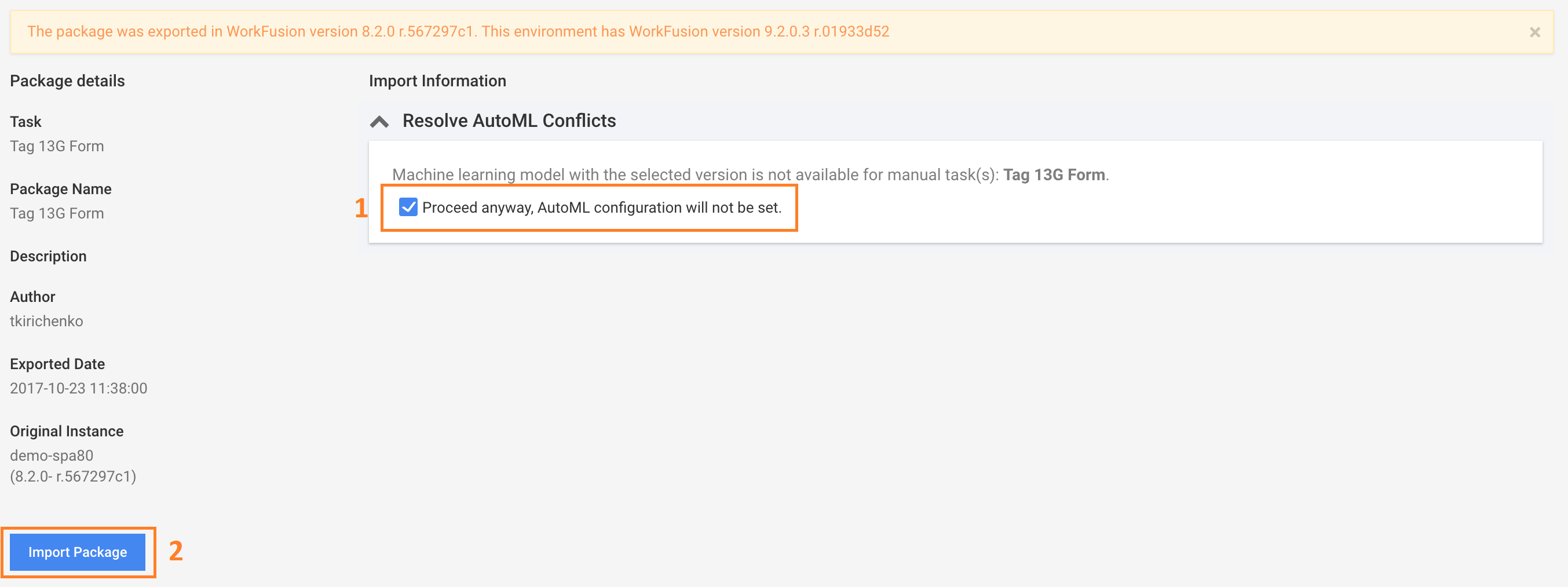
If the Machine Learning model (same name and model version) from the package is not available on your production environment, you will get the following message: "Machine learning model with the selected version is not available for manual task(s)".
You have to acknowledge that AutoML configuration is not set (1) to import your package (2).
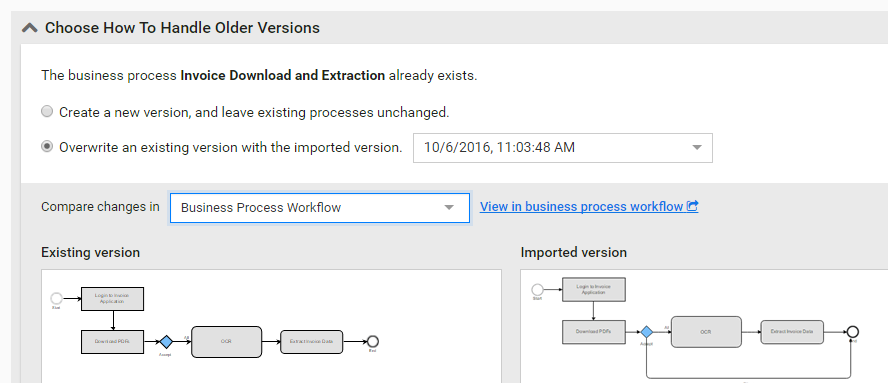
If you are importing the same Package more than once, you need to create
a new version or overwrite a particular version of this Task (BP).
When overwriting an existing process version, you can have a diff
view for process structure and each process step. This function can help
make a decision whether to rewrite a process or not.
After applying overwrite in import, the following changes are applied:
- Completed tasks and processes will have an old version.
- Draft tasks and processes will have a new version.
- Processing tasks and processes without significant changes (steps added, deleted, or substituted with other steps) will have a new version.
- Schedules are switched to a new version.
If the imported and existing process versions have significant differences (steps added, deleted, or substituted with other steps), you will need a special Advanced Package Import permission to make such potentially dangerous overwrite. See the Role management topic.
This import type can be required when there is a need to update active process runs, avoid schedule re-creation, or reuse the already configured start-task plugins (by UUID).
When importing a Package with a modified process structure, the following notifications are shown:
- Amount of added or removed process steps and rules
- Amount of active process runs
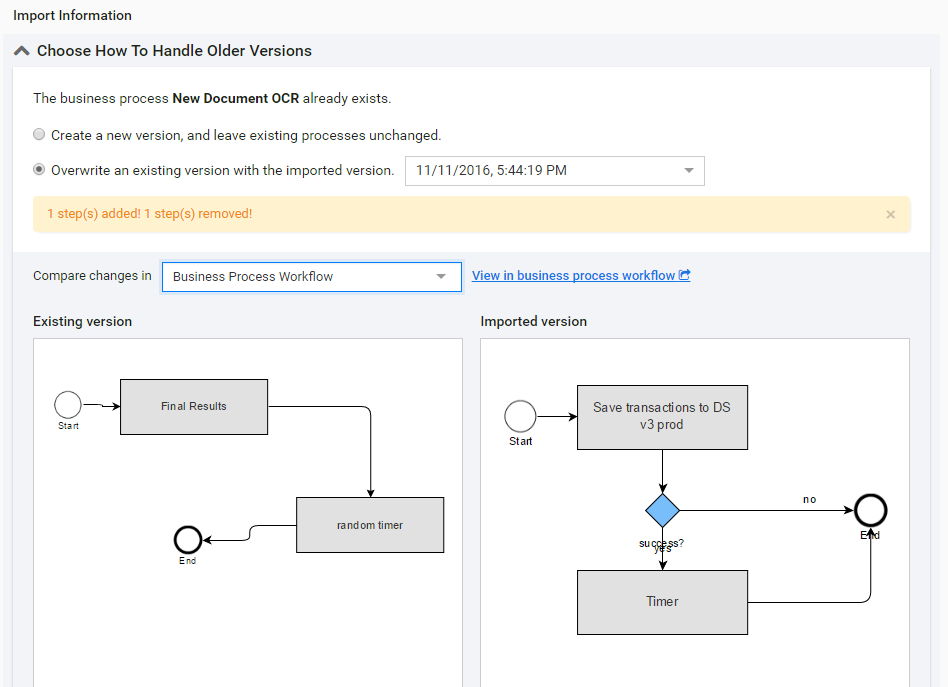
When you overwrite an active process run, its result data can be inconsistent because of added/removed/changed steps and rules.
If your package contains Data Stores and/or included Bot Configs, you can get the following Resolve Import Conflict section(s):
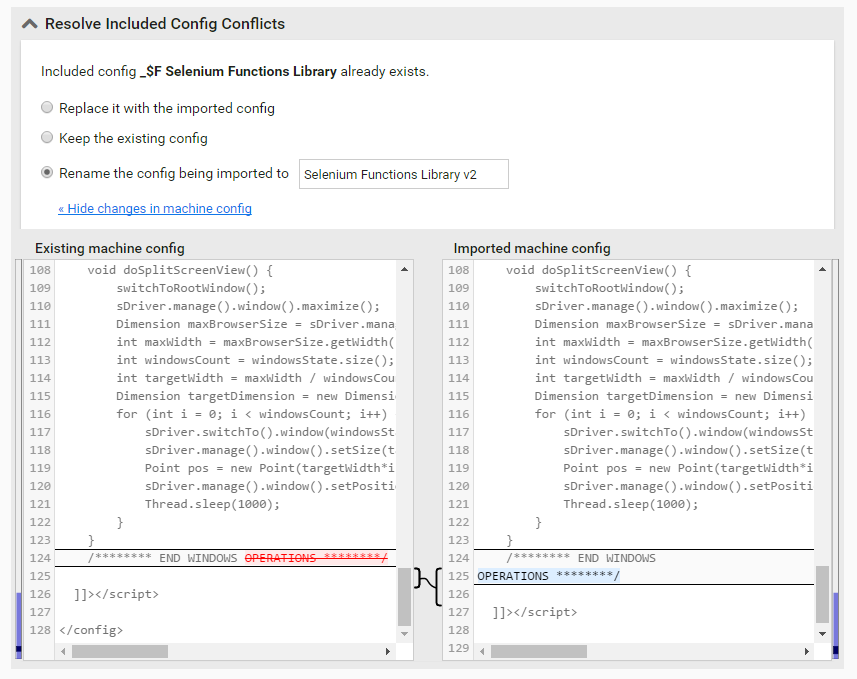
Choose one of the options for each conflict section: Replace, Keep, or Rename.
Data Stores are compared by structure and number of records.
For included Bot configs, you can toggle a diff view.
When all import conflicts are resolved, click the Import Package button in the bottom left corner.
If the Package has been successfully imported, you will see the import result message.
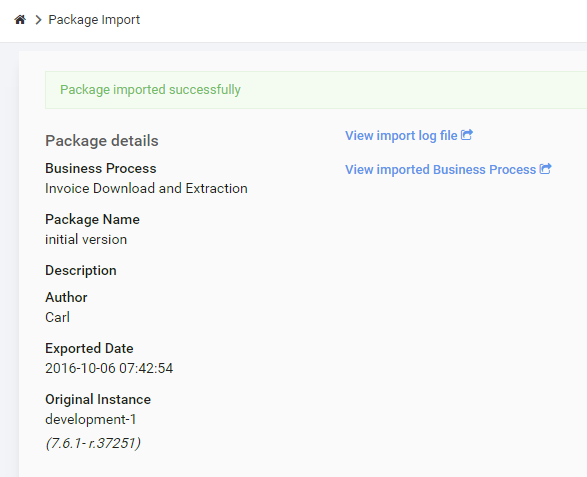
- You can download a detailed import Report by clicking the View import log file link. This log can be useful in case some issues are found after import.
- When a Package has been imported, WorkFusion checks its structure and displays useful notes and action items to be done before running the imported Task or Process, for example, Define global variables.
View the imported BP (Task) or navigate elsewhere using the main menu.
The imported BP or Task will create a Run in a Draft state.
When a new version of a Task is imported to a target WorkFusion environment, Automation settings, Workforce, and Prices parameters will be copied from the previous version that already exists on this environment.
Apply ML model
If a Business Process was copied with the AutoML Use Case and model, apply AutoML settings.
Import BCB project
If a source Business Process was developed using BCB project, deploy and import it.
Create a new Business Process copy with the same name to update all BCB configs, if the BCB is used for Business Process.
Version labels
Let's assume that you have a BP and:
- Created the first Package for this BP and imported this Package to the PROD environment.
- Edited the BP and saved it.
- Created the second Package for this BP and imported this Package to the PROD environment.
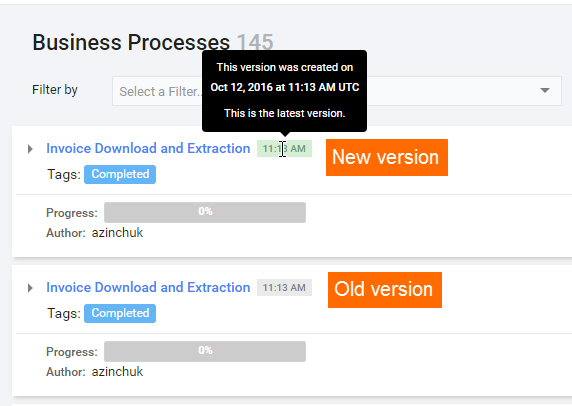
As a result, each new imported Package creates a BP or Task Run that is automatically labeled by a timestamp.
The latest version is marked with green color, other versions have grey color.
The following Task and BP settings are NOT included in a Package:
- Workforce for each Manual task (when importing, these settings will be taken from target instance defaults)
- Global variable values (when importing, respective columns are created in the "Global Variables" datastore, but with empty values)
- Bonus Rules
- Custom Attributes
- Priority
- Permanent open tasks
- Forcefully complete option