
Configure WorkFusion repository
WorkFusion Repository is a feature that allows packaging Bot Tasks in WorkFusion Studio IDE and publishing them to a repository in the WorkFusion instance for inclusion in Business Processes. These artifacts contain everything needed to run a Bot Task, including Java and Groovy classes, input data, Data Stores, and any required settings.
glossary
Bot Config Bundle (BCB) is a bundled Java library containing a bot config and the Java code used in this config.
Deployment options
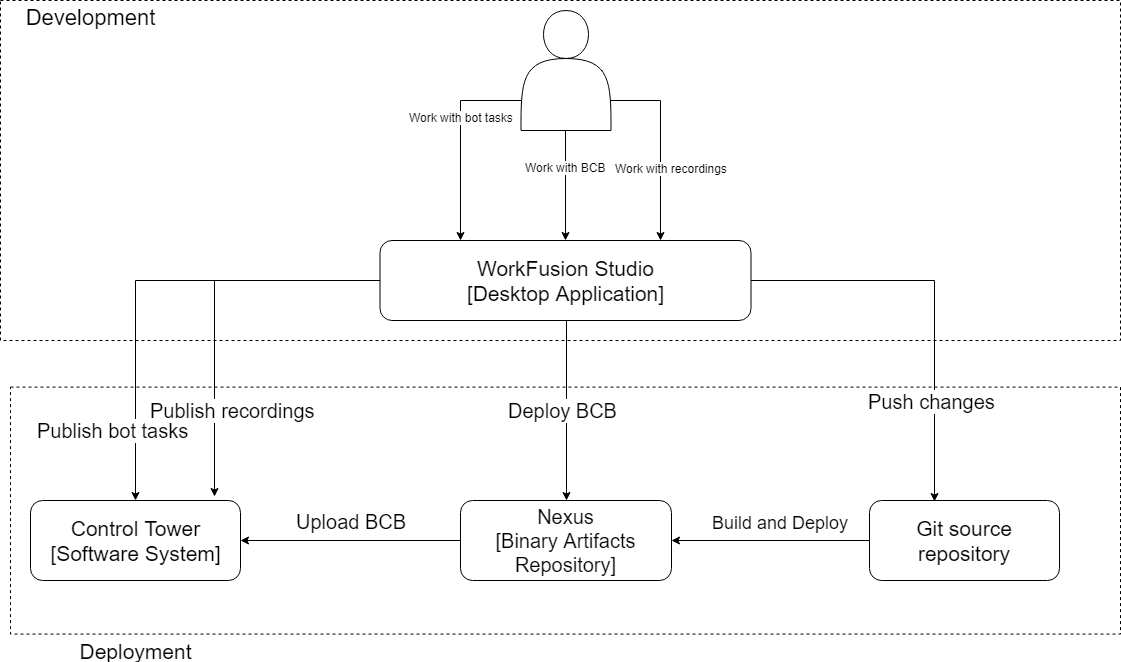
The article describes how to automatically build and deploy a BCB project from local WorkFusion Studio to the remote server-based Control Tower.
Configure Maven and kickstart Archetype
Maven is used to build projects for publishing, so first you need to set some preferences for Maven archetypes and provide their URLs. Archetypes define a special WorkFusion project structure which can be compiled into a java archive, uploaded to a Nexus repository and automatically published into WorkFusion instance, ready for integration testing and production usage.
Open WorkFusion Studio IDE.
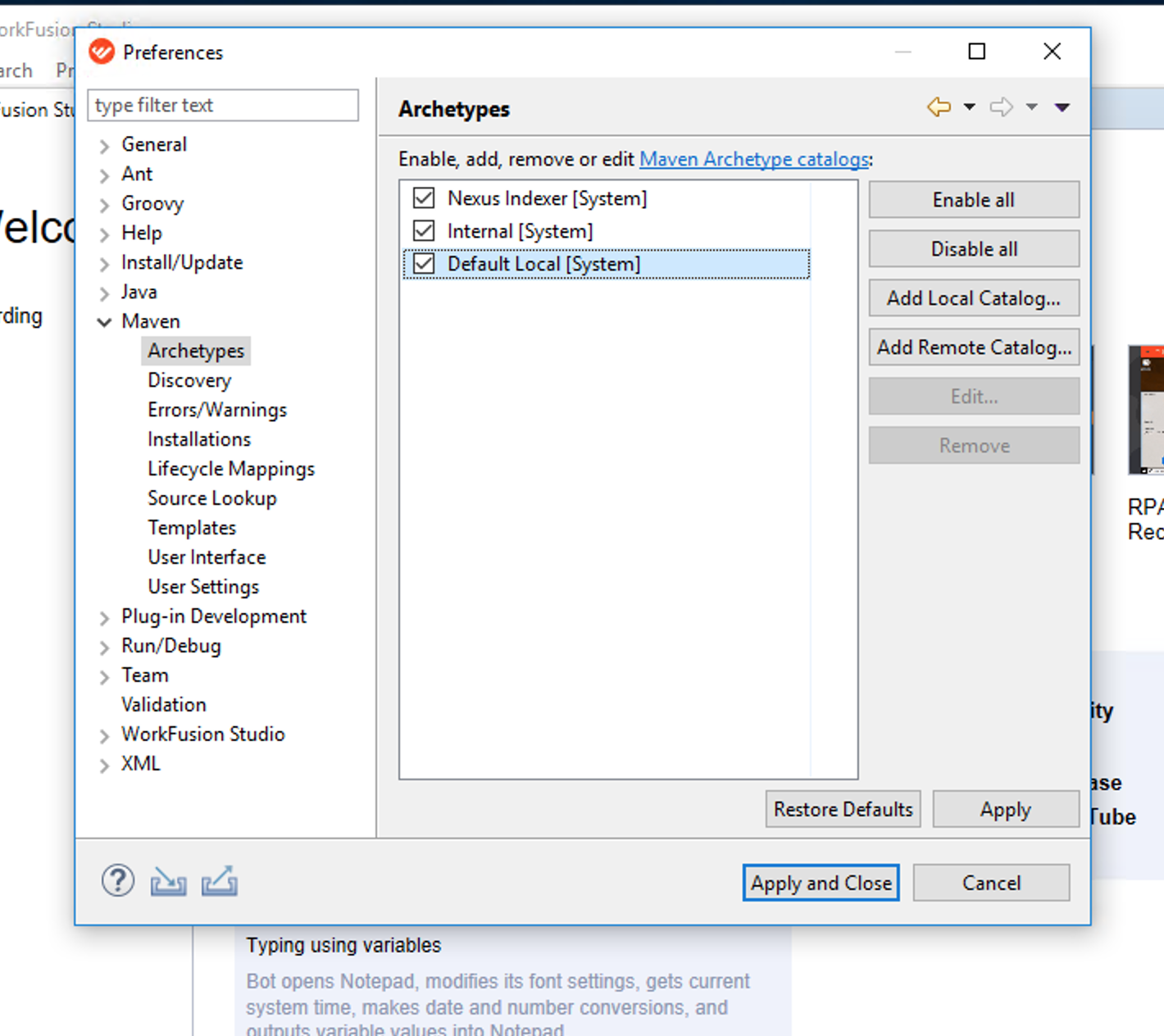
Go to Window > Preferences > Maven > Archetypes:
Add two Remote Catalogs by clicking the Add Remote Catalog button:
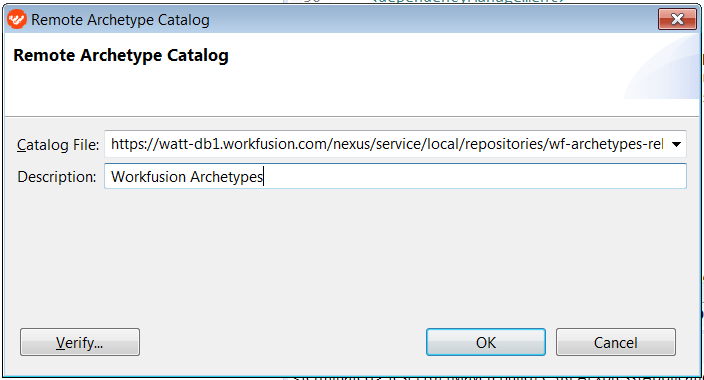
Use the following Remote Archetype Catalog settings for training: Catalog File.
Description: Workfusion Archetypes
If there is no Internet access, edit Maven
settings.xmlfile. It is located in the%user home%/.m2folder. For example, if your username isUser, the path is:C:/Users/User/.m2) and should look as follows:settings.xml:<mirrors> <mirror> <id>local-nexus</id> <name>Local Nexus</name> <url>http://{host}:{port}/nexus/service/local/repositories/{repository}/content</url> <mirrorOf>central</mirrorOf> </mirror> </mirrors>Where
{repository}stands for the repository name with Maven dependencies required for goals execution.To resolve Bot Config Bundle (BCB) dependencies during training, you can use Nexus from WATT training instance. To point your Maven to it, edit the
settings.xmlfile as follows:<settings xmlns="http://maven.apache.org/SETTINGS/1.0.0" xmlns:xsi="http://www.w3.org/2001/XMLSchema-instance" xsi:schemaLocation="http://maven.apache.org/SETTINGS/1.0.0 https://maven.apache.org/xsd/settings-1.0.0.xsd"> <servers> <server> <id>mcb-repo</id> <username>bcbdeploy</username> <password>Workfusion!5</password> </server> </servers> <profiles> <profile> <id>wf-repo</id> <repositories> <repository> <id>mcb-repo</id> <url>https://watt-db1.workfusion.com/nexus/content/repositories/local-mcb-repo/</url> </repository> </repositories> </profile> </profiles> <activeProfiles> <activeProfile>wf-repo</activeProfile> </activeProfiles> </settings>Click the Verify button to test connection and the repository contents.
Finally, click Apply and OK.
On-premises configuration
Configure Maven repository
To proceed, add Maven dependencies. It can be done in two ways:
Using the
settings.xmlfile:settings.xml
<settings> ... <profiles> <profile> <id>profile-id</id> <repositories> <repository> <id>repo-id</id> <url>https://{host}:{port}/nexus/content/repositories/repo/</url> </repository> </repositories> </profile> </profiles> <activeProfiles> <activeProfile>profile-id</activeProfile> </activeProfiles> ... </settings>or, alternatively,
Using
pom.xml:pom.xml
<project> ... <repositories> <repository> <id>repo-id</id> <url>https://{host}:{port}/nexus/content/repositories/repo/</url> </repository> </repositories> ... </project>
For example, you configure for the following repository: https://watt-db1.workfusion.com/nexus/service/local/repositories/wf-machine-config-bundle/content/
The configuration for this repository has the following outlook:
pom.xml:
<project>
...
<repositories>
<repository>
<id>watt</id>
<url>https://watt-db1.workfusion.com/nexus/service/local/repositories/wf-machine-config-bundle/content/</url>
</repository>
</repositories>
...
</project>
Configure Maven repository user
If your Nexus repository requires authentication, configure your Nexus credentials for Maven.
By default, Maven looks for settings in the following file: C:/Users/UR_WINDOWS_USER]/.m2/settings.xml
You can create it using following content:
<settings xmlns="http://maven.apache.org/SETTINGS/1.0.0" xmlns:xsi="http://www.w3.org/2001/XMLSchema-instance" xsi:schemaLocation="http://maven.apache.org/SETTINGS/1.0.0 https://maven.apache.org/xsd/settings-1.0.0.xsd">
<servers>
<server>
<id>repo-id</id>
<username>repo-user</username>
<password>Password99</password>
</server>
</servers>
</settings>
The server ID should match repository id defined in settings.xml or pom.xml.
If you get the "Authentication ERROR" exception during deployment, the
possible reason is that the updated settings.xml file was not linked to
WorkFusion Studio. To manually link it, do as follows:
- Select Update Settings.
- Select your
settings.xmlin Window > Preferences > Maven > User Settings.
Create BCB project
Now, you can create a new project with a special type: WorkFusion Bot Config Bundle (BCB):
Create a new project by pressing
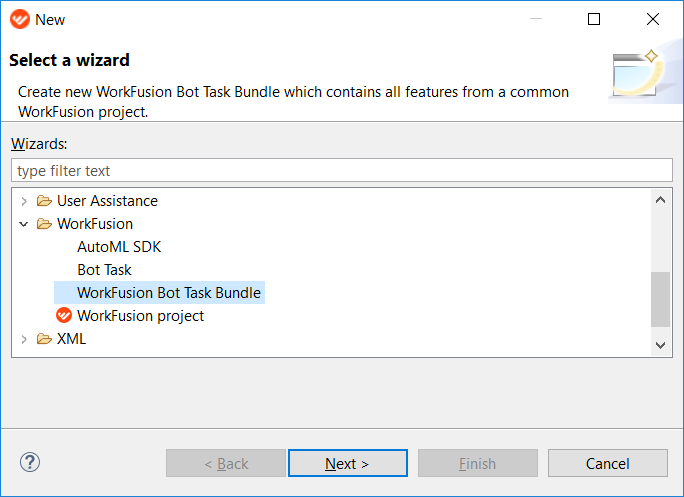
CTRL + N.Select the WorkFusion > WorkFusion Bot Task Bundle item and click Next.
Select an Archetype:
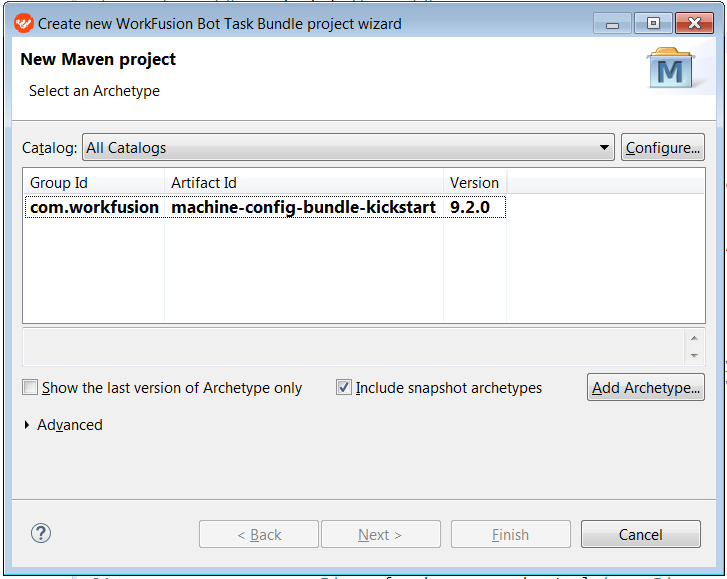
If WATT runs SPA 9.2.0, the archetype version should be 9.2.0.
- The kickstart archetype contains a set of demo files and working config examples. It is perfect for understanding and testing the entire development workflow.
- The simple archetype contains only bare BCB project structure.
Enter the Archetype parameters:
- Group Id
- Artifact Id
- Version
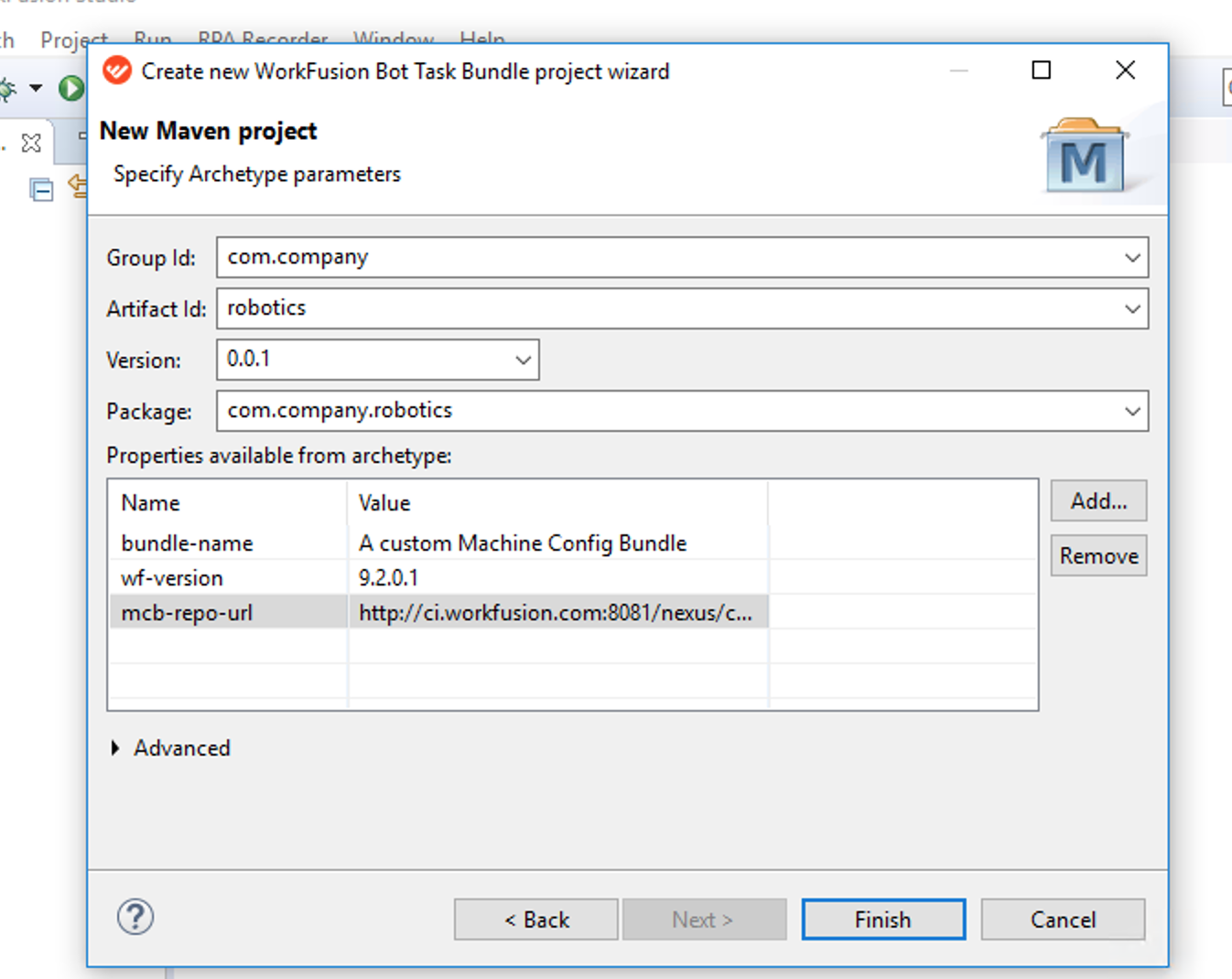
(Optional) Modify the following project properties if needed:
bundle-name: name of the project.wf-version: version of your WorkFusion instance.mcb-repo-url: Nexus repository URL for BCB deployment.
Click Finish.
As a result, a new project is created and displayed in the project explorer.
Here is an overview of the BCB project structure:
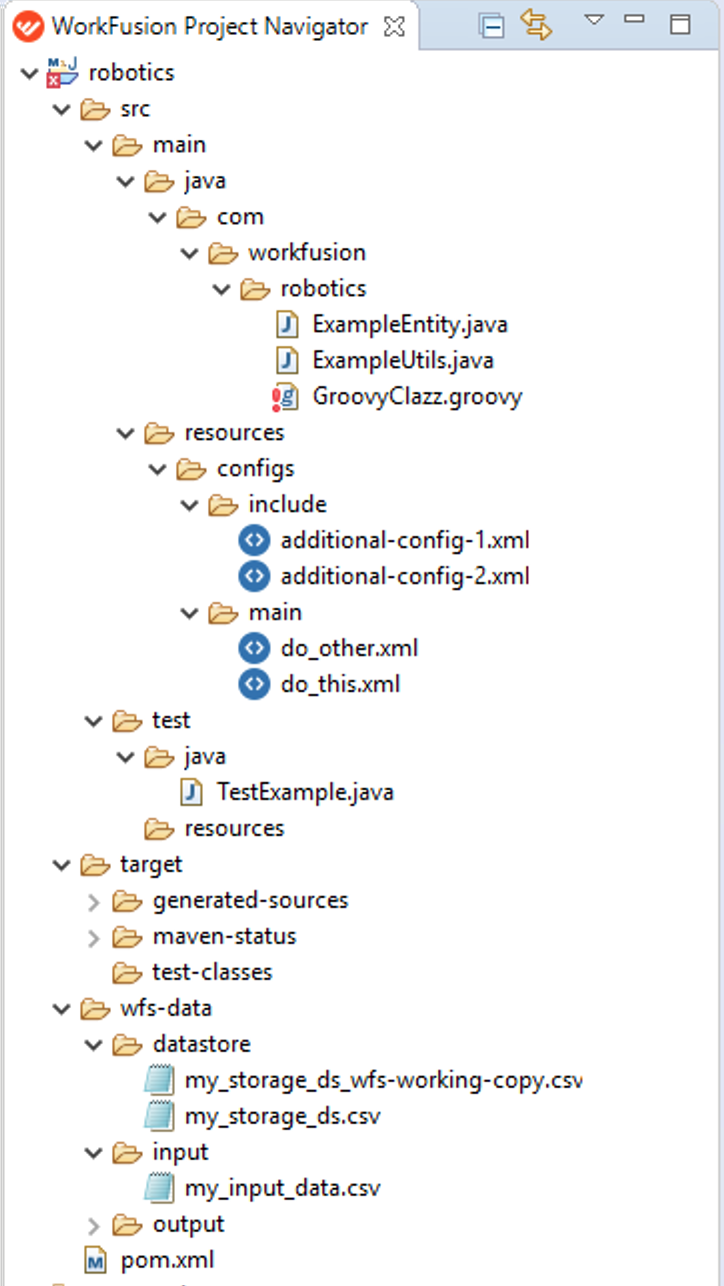
- The
srcJava folder contains Java and Groovy classes. - Included and main Bot configs are in the
resourcesfolder. In a Bot config bundle, you can create your custom Java and Groovy classes and import them into Bot configs. - By default, all results are written to the
target/outputfolder. - The
wfs-datafolder contains datastores and input CSV files. - The
pom.xmlfile stores all information about the project and the URL to Nexus repository.
Run and develop Bot Configs
The config development process is the same as the standard WorkFusion Studio projects process. You can edit configs code, use include-config, run, and debug configs.
The BCB project allows:
Creating custom Java and Groovy classes in the
src/main/javafolder. For example,ExampleEntity.java,ExampleUtils.java.Importing these classes in the
src/main/resources/configsBot configs in the<script>sections.Using properties and methods from custom Java and Groovy classes in the
<script>sections.<script></script>
When a Bot configuration was tested, run the project as a Maven build and set the clean deploy command as a target. Maven creates a Bot Config Bundle (BCB): a JAR file in the target folder that contains main and included Bot configs together with Java and Groovy classes and uploads this bundle to the Nexus repository.
Deploy BCB to Nexus repository
Deploying BCB means pushing a Maven Artifact into a Maven Nexus repository.
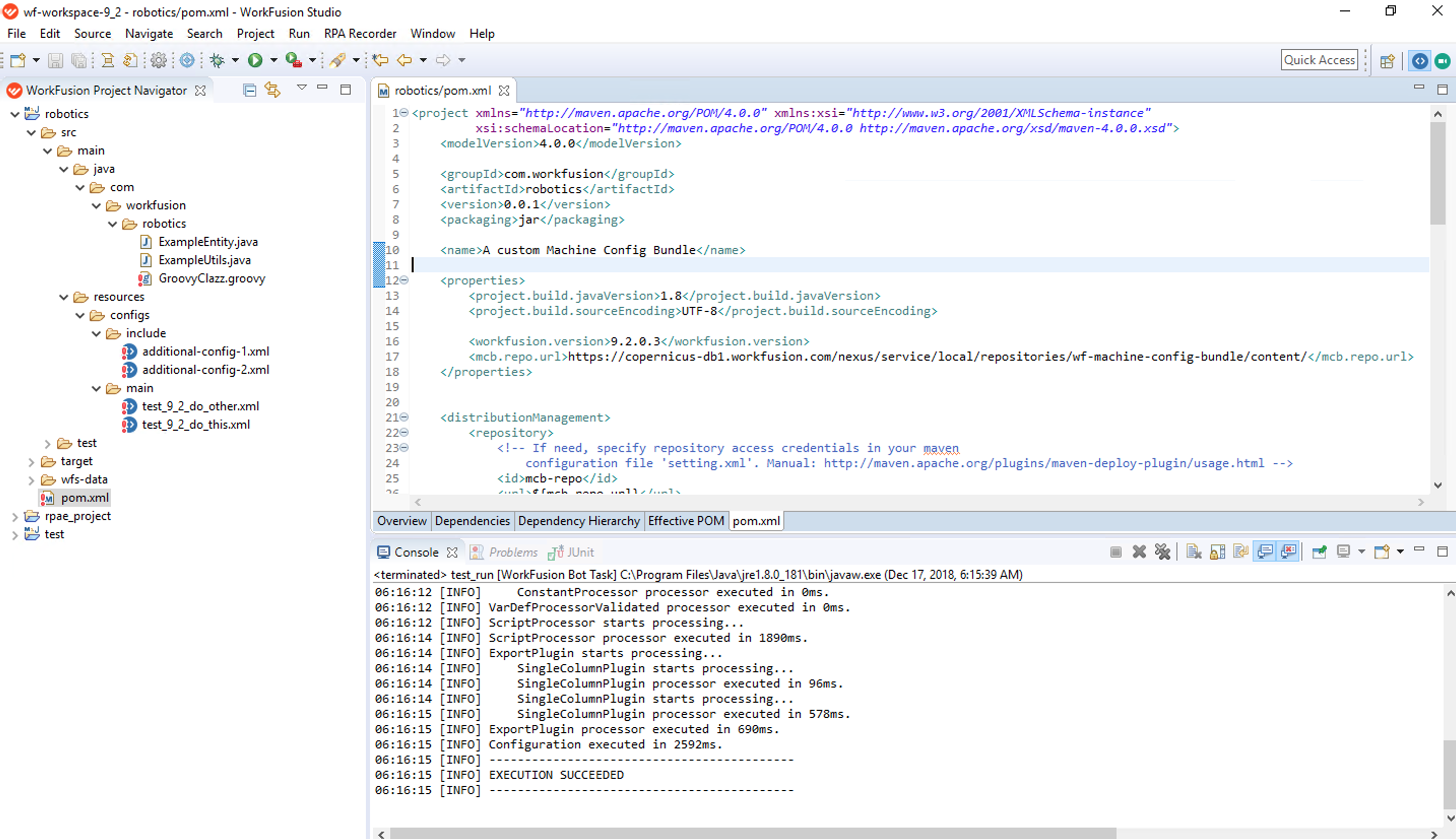
The URL can be provided by changing the mcb.repo.url property during the
project creation or by modifying the pom.xml file.
To deploy into the WATT training Maven repository, change mcb.repo.url as follows:
<mcb.repo.url>https://watt-db1.workfusion.com/nexus/content/repositories/wf-machine-config-bundle/</mcb.repo.url>
The BCB repository should come from the archetype.
For example, you have the following repository: https://watt-db1.workfusion.com/nexus/service/local/repositories/wf-machine-config-bundle/content/
The link to no Internet section:
<mirrors>
    <mirror>
        <id>local-nexus</id>
        <name>Local Nexus</name>
        <url>http://{host}:{port}/nexus/service/local/repositories/{repository}/content</url>
        <mirrorOf>central</mirrorOf>
    </mirror>
</mirrors>
If your Nexus repo requires authentication, set up it using the following instruction.
To deploy the BCB to Nexus, do as follows:
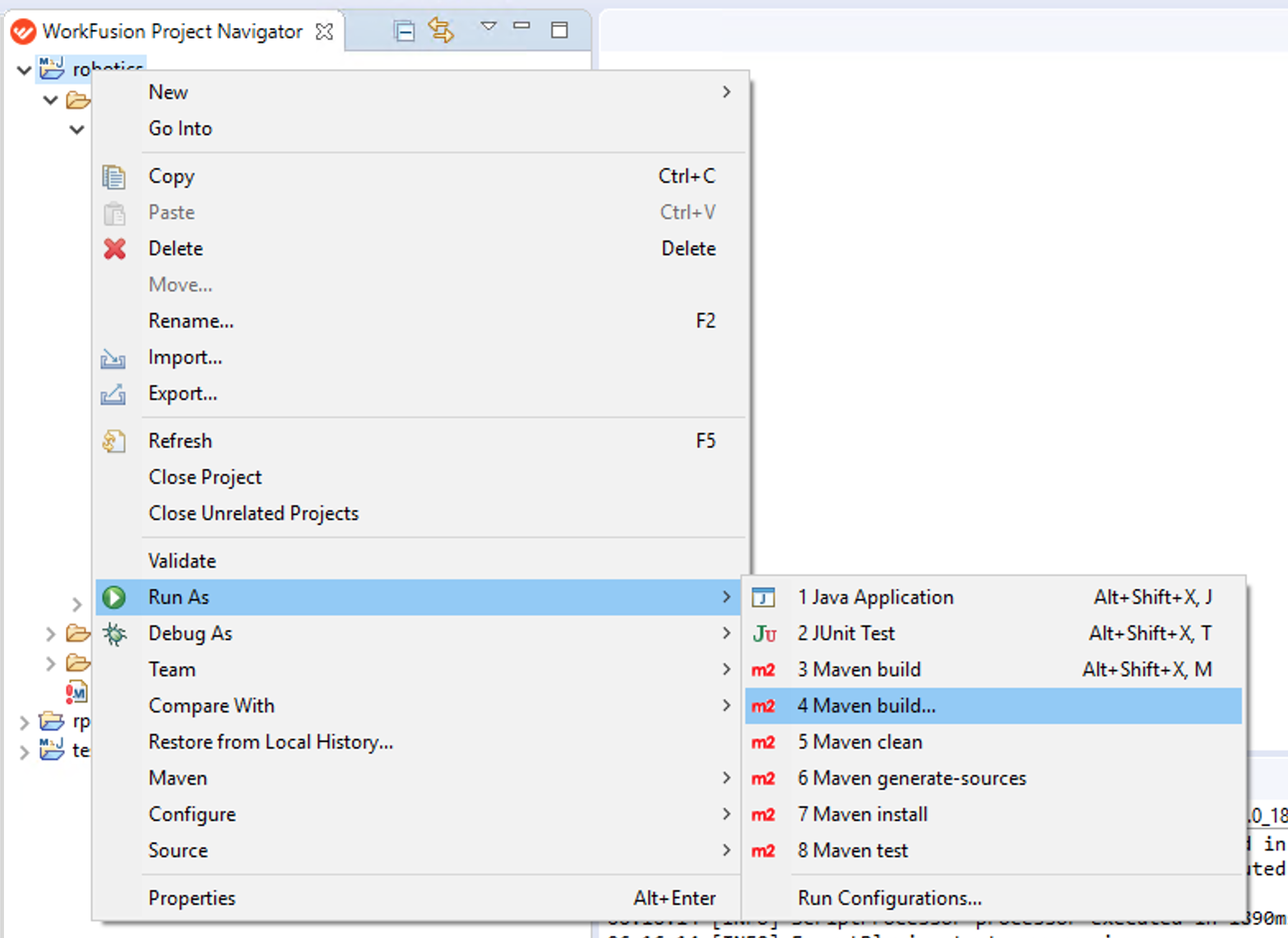
Right-click the project folder > Run As > Maven Build.
In the Goals field, enter the
clean deploycommand.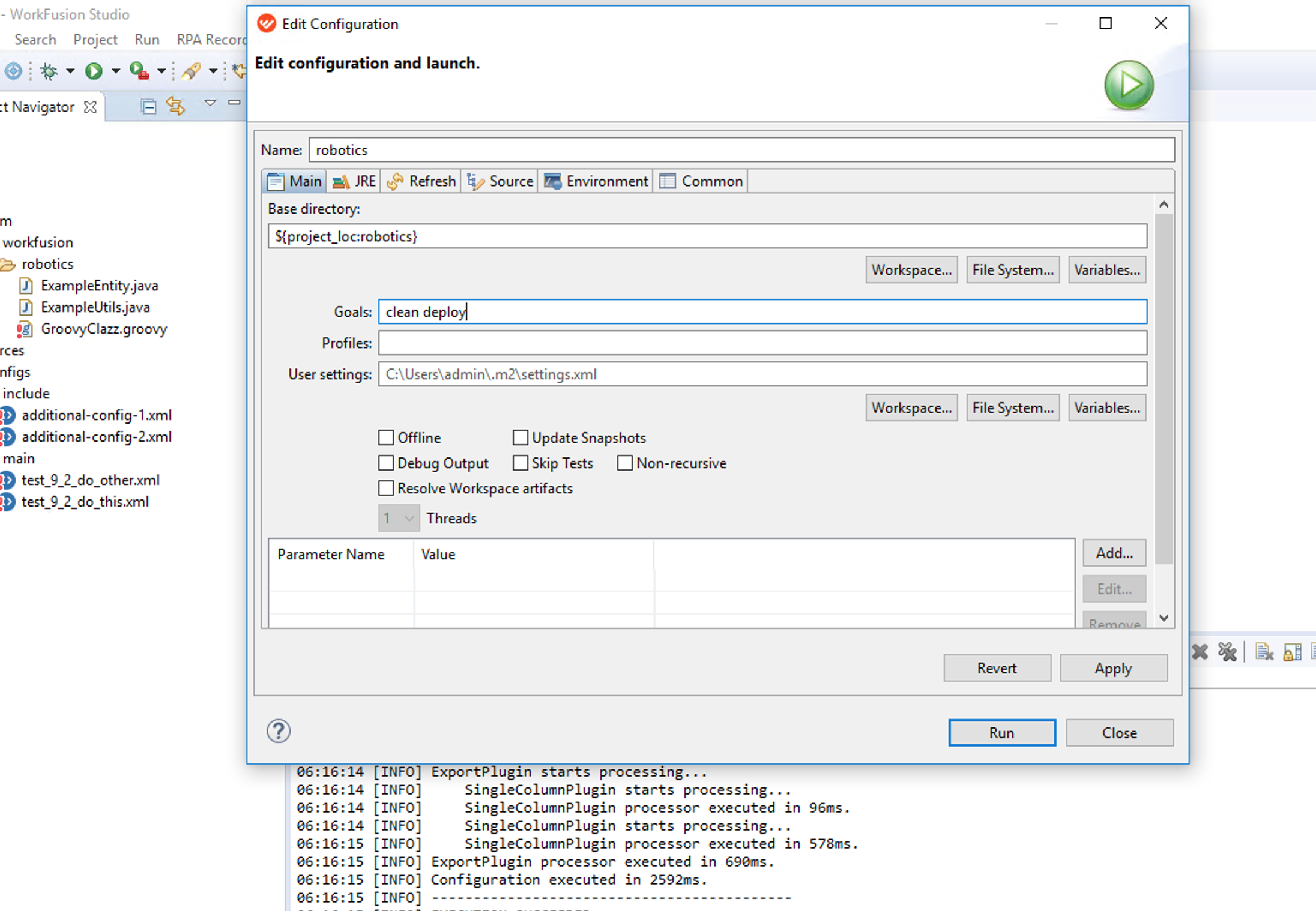
Click Run.
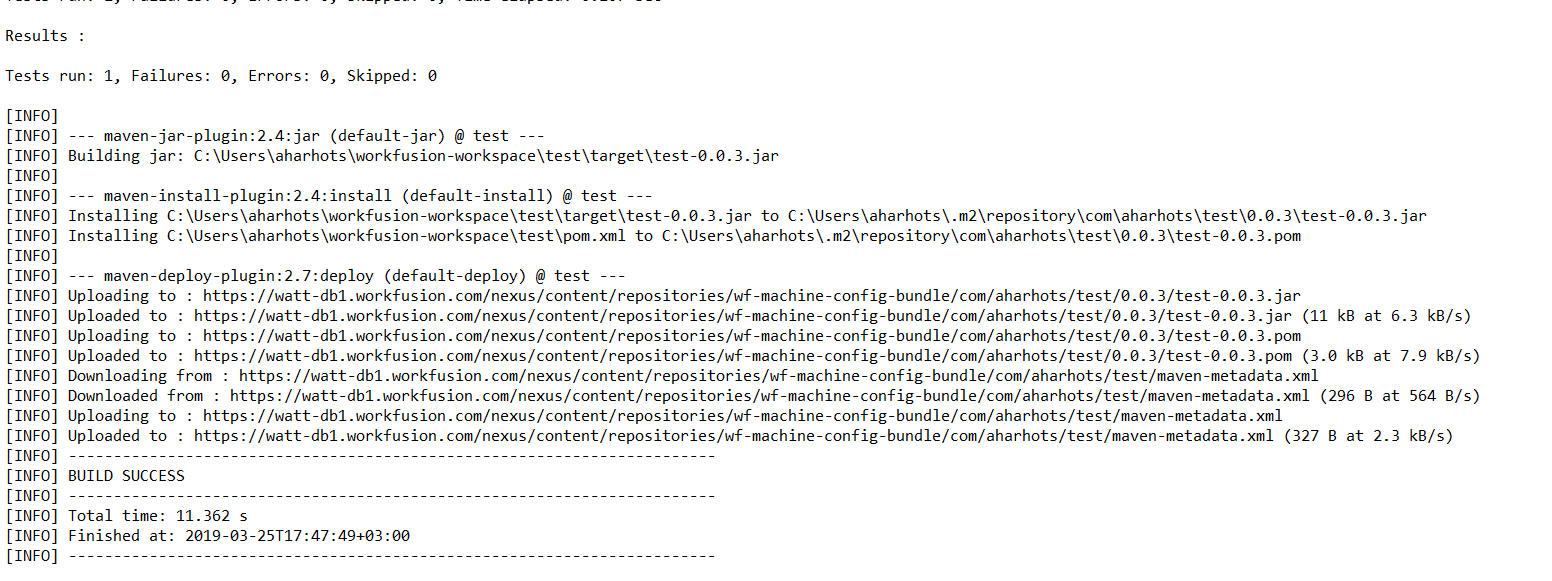
Watch the build process logs. If the build is successful, you see the following result:
Import BCB to SPA
There is an option in Control Tower to enable Bot Config Bundles update and plugins update from a Nexus repository. This option can be enabled in the WorkFusion Secure Properties.
Secure Properties are as follows:
nexus.url: URL to a server where Nexus is located.nexus.user: username to access Nexus (the user should have the read permission in the respective repository).nexus.password: user password.
Example:
nexus.url=https://edu.workfusion.com/nexus
nexus.user=nexus-api-user
nexus.password=nexus-api-password
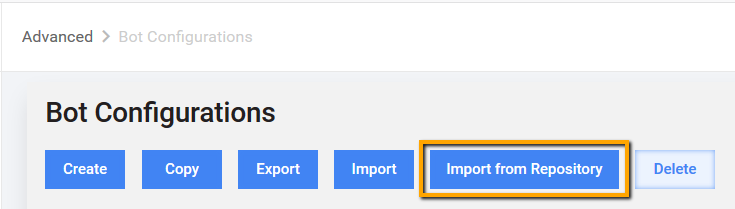
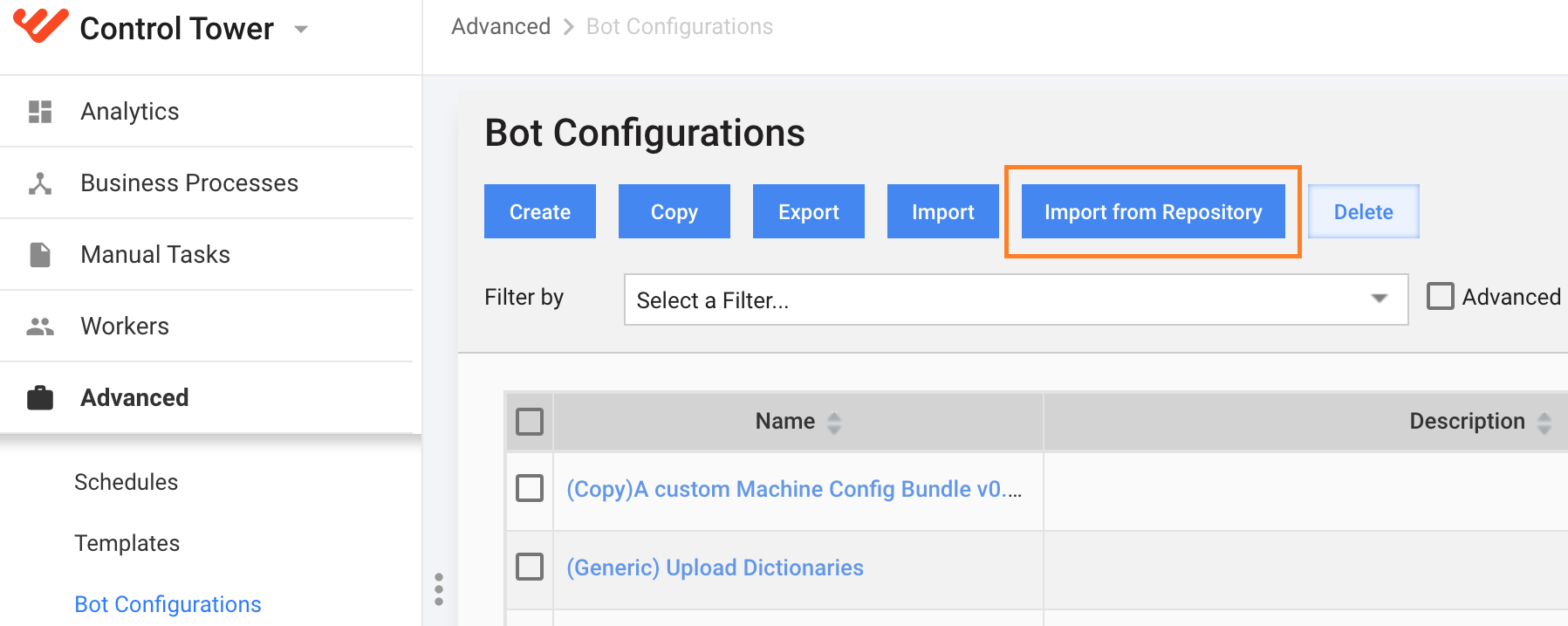
When the access to a Nexus repository is configured as described above, the Import from Repository button in Advanced > Bot Configurations is enabled:
Additional parameters of the import function are defined in the Platform Configuration properties (the workfusion.properties file).
Platform Configuration Properties are as follows:
webharvest.plugins.dir: local directory to store the downloaded plugins.webharvest.plugins.repo: Nexus repository to download the plugins from.webharvest.machine.config.bundle.dir: local directory to store the downloaded Bot config bundles.webharvest.machine.config.bundle.repo: Nexus repository to download the Bot config bundles from.
The default values of the properties are as follows:
webharvest.plugins.dir=${webapp.root}/../crowdcontoldata/plugins/
webharvest.plugins.repo=webharvest-plugins

webharvest.machine.config.bundle.dir=${webapp.root}/../crowdcontoldata/machine-config-bundle/
webharvest.machine.config.bundle.repo=wf-machine-config-bundle
Automatic import from Nexus
Control Tower scans through the configured Nexus repository and imports new versions of Bot Config Bundles on a predefined schedule in Platform Configuration properties.
Manual import
To import all Bot config bundles manually, perform the following steps:
Open the Campaigns > Bot Configurations menu in Control Tower.
Click the Import from Repository button that obtains all the new config versions from Nexus.
Wait for some time until the repository is indexed and a new config appears in the list:
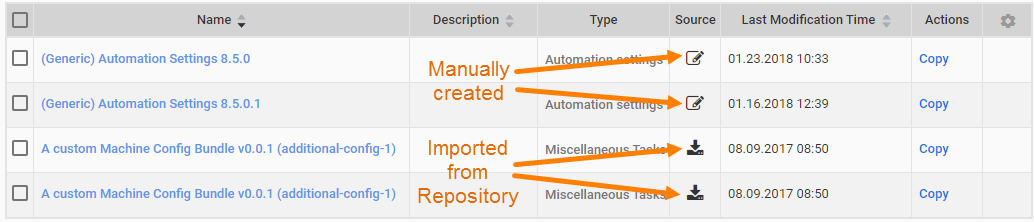
When a BCB has been imported from Nexus, the WorkFusion engine automatically creates a Bot campaign, and your Bot Tasks are available in the process Designer.
Afterwards, you can create new versions of the same project, make changes, and upload them to Nexus where they are version-controlled.
Troubleshooting
Dependencies load from central Maven repository instead of Nexus
Click to learn more
Problem: On-premise installation: dependencies load from the central Maven repository instead of Nexus.
Solution: Go to Preferences > Maven > Installations and add you local Maven installation where you configured settings.xml with the mirror.
No JDK compiler in environment
Click to learn more
Problem: Error during Maven goals execution:
[ERROR] Failed to execute goal org.apache.maven.plugins:maven-compiler-plugin:31:compile (default-compile) on project trial1: Compilation failure [ERROR] No compiler is provided in this environment. Perhaps you are running on a JRE rather than a JDK?[ERROR] -> [Help 1]
Solution:
- Check Preferences > Java > Installed JREs.
- Add JDK and switch configuration to it.
Artifact does not appear in WorkFusion
Click to learn more
Problem: An artifact does not appear in WorkFusion.
Solution: Possible reasons:
Your artifact is not deployed to the right repository in Nexus. WF scans the following folder by default:
http://{host}:{port}/nexus/service/local/repositories/wf-machine-config-bundle/content/Your artifact has not loaded automatically yet. Artifacts are synchronized by a background job to synchronize artifacts but it launched once a day by default. You can import artifacts manually: Bot Configurations > the Import from Repository button
Your artifact already exists in SPA. If you redeploy the artifact to Nexus and do not change
groupId,artifactId, and version (gav), SPA will not update this artifact as it checks if thisgavexists in the application and downloads only artifacts with nonexistentgav.
Wrong URL setup
Click to learn more
Problem: On-premise installation yields the following error:
[ERROR] Plugin org.apache.maven.plugins:maven-clean-plugin:2.5 or one of its dependencies could not be resolved: Failed to read artifact descriptor for org.apache.maven.plugins:maven-clean-plugin:jar:2.5: Could not transfer artifact org.apache.maven.plugins:maven-clean-plugin:pom:2.5 from/to internal-repository (http://{host}:{port}/nexus/service/local/repositories): Not authorized , ReasonPhrase: Unauthorized. -> [Help 1]
Solution: Check the mirror setup in Maven settings.xml. The error points out to the wrong URL setup.