
Configure online learning for IE
Preparation
- Add
onlineLearningApplicationURLto JNDI and install the REST controller for online learning if needed. - Check if your WorkFusion instance has appropriate Automation Use Case (Offline + Online Model) and ML Model (Tabular).
Create Manual Task with IE Answer
After designing the Information Extraction Task, configure its automation parameters:
Open the Run Task tab > Advanced Options > the Automation tab.
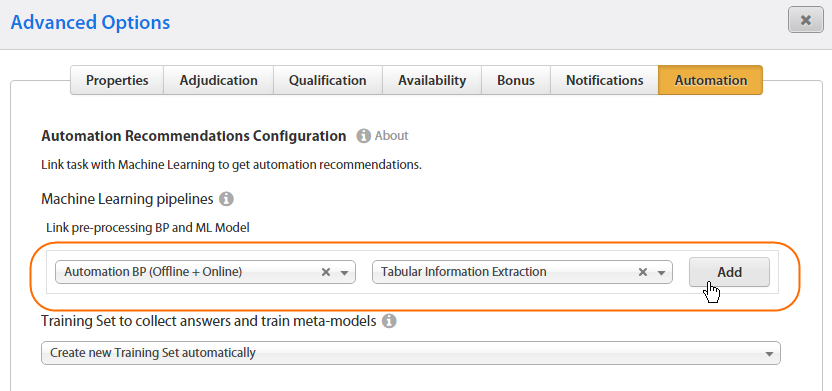
Select Automation Use Case = Automation BP (Offline + Online).
Select ML Model = Tabular Information Extraction.
Click the Add button.
(Optional) If you have some historical data for training the ML model, you can upload this data to the Automation Training Sets.
Remember to set
train_status = NEW. You can do it manually or by clicking Actions > Reset Training Data Status.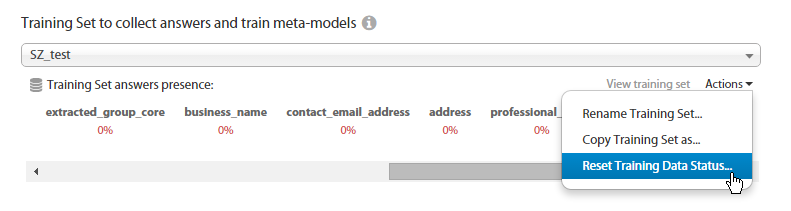
Run IE Task
Save your Task and Run it.
Do one of the following actions depending on your previous actions:
If you have provided historical data by uploading it to Automation Training Sets and selecting it in Task Automation Options, stop the Task.
If you have no historical data, wait until Workers accept and submit a minimum number of Tasks (about 20; it depends on the ML model used).
Training process starts in background automatically when the minimum number of Records required for model training is reached.
When the Automation training has started, you will see the AUTOMATION EVALUATION icon on the View All Tasks page.
Wait until the Automation training is completed. On the View All Tasks page, the Task will have the AUTOMATION AVAILABLE icon.
Copy IE Task
- Copy the completed IE Task.
- Upload new Data.
- Save the new Task.
Check online learning functions
After you complete all the previous steps, open the IE Task Preview and check the following functions:
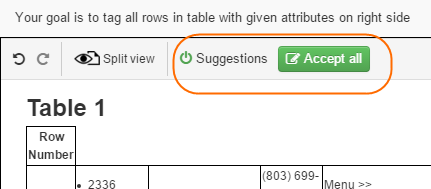
Top toolbar has new elements (the Suggestions toggle, the Accept All button):
As you start tagging, WorkFusion provides tag suggestions (auto-tags):
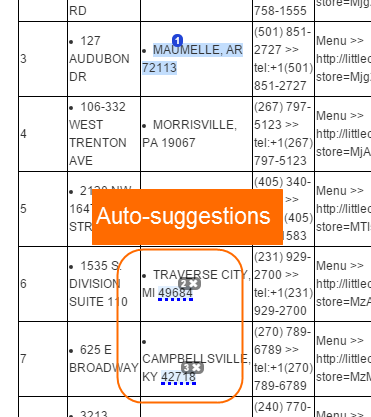
See full instructions on how to use tag suggestions here.