
Run scheduled training
If one Mesos instance is used for both production extraction and training, you need to run training after company working hours to avoid extraction slowdown.
Follow these steps to configure scheduled training, for example, a night training.
Configure Bot Source
In System Settings > Bot Sources, select your source to edit it.
In Availability field, indicate the hours for model training in the following format: (hours)|(days of week).
Hours are in the 24 hour format, in the range from 0 to 24. You need to indicate start and end hour. Days of week are in three letter format and separated by comma. Say, you need to run model training on Wednesdays after 8 PM. In this case, your Availability settings should be: 20-24|Wed.
In Timezone field, indicate your local timezone, otherwise it will be GMT+0.
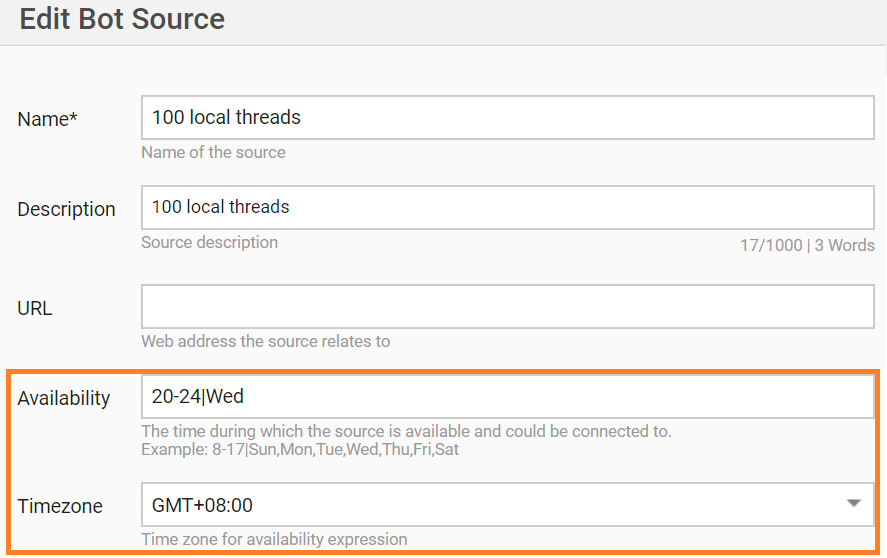
Save your Bot Source. If your availability expression is not in suitable format, you will get the Could not parse availability expression error.
Add Bot Source to Business Process
Open System Settings > Use Cases, select Business Process tab, and select your Automation use case.
Select your campaign and edit it.
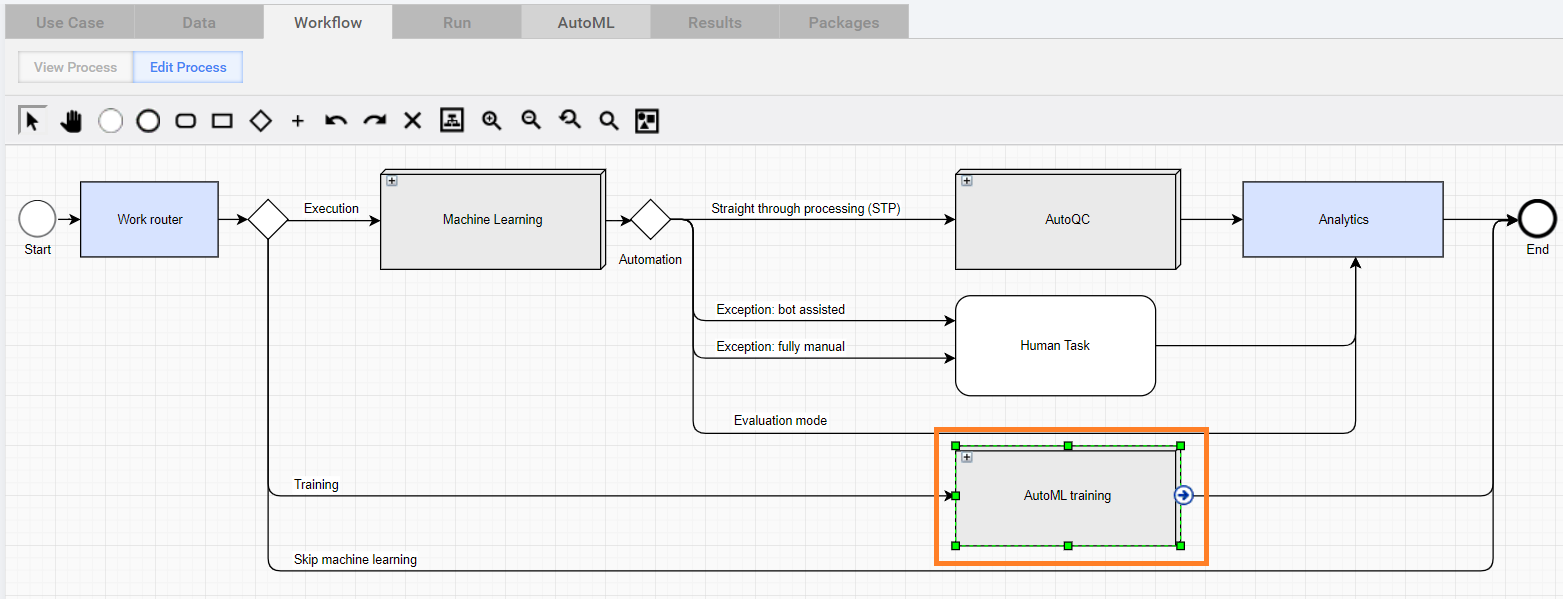
On the Workflow tab, find AutoML training step and expand it.
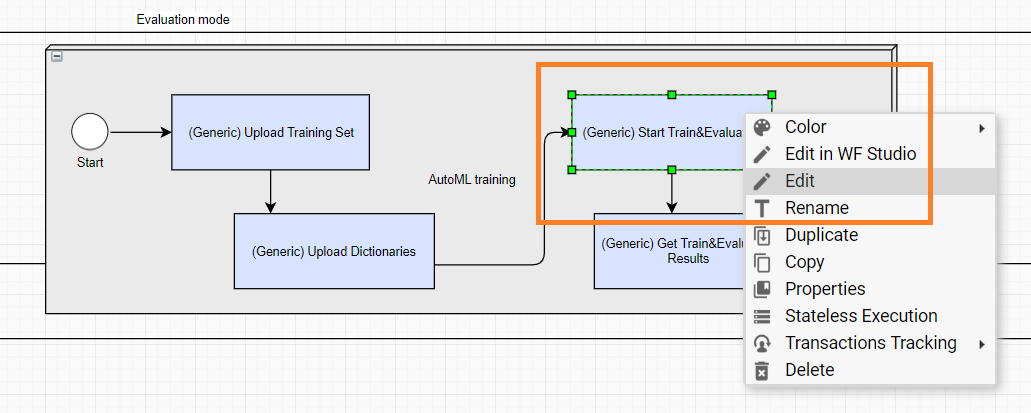
Find (Generic) Start Train&Evaluation bot and select Edit.
Select your Bot Source from Step 1.
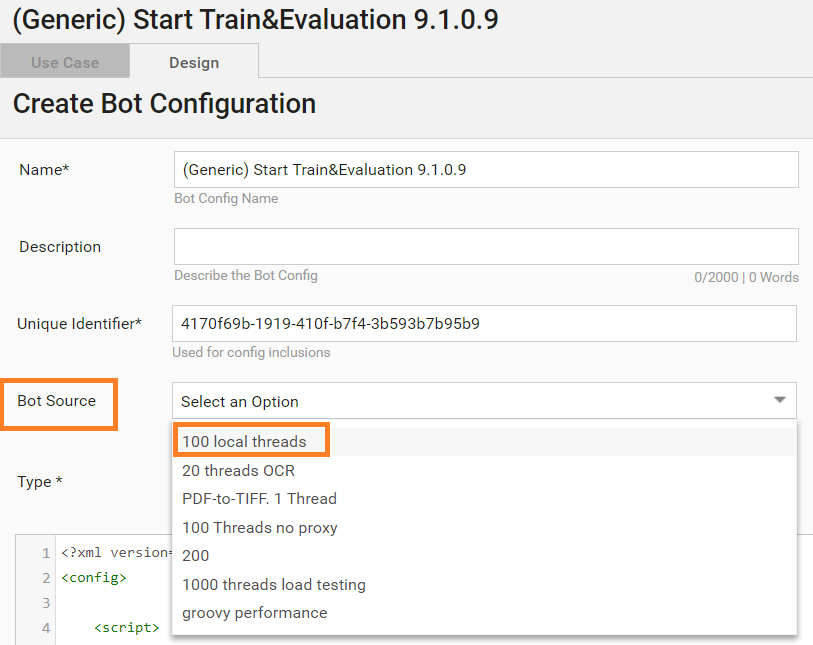
Save the Bot, the Business Process, and the Use Case.
Create Manual Task with configured bot
- Create a Manual Task.
- Select Cognitive Bot Workflow you created in the previous steps.
- Proceed with creating a Manual Task.
- Run a training. All steps are processed immediately, but the training step is launched according to the Bot Source timeframe option you determined.