
Automate mainframe applications
A typical application looks like the one on the screenshot below:
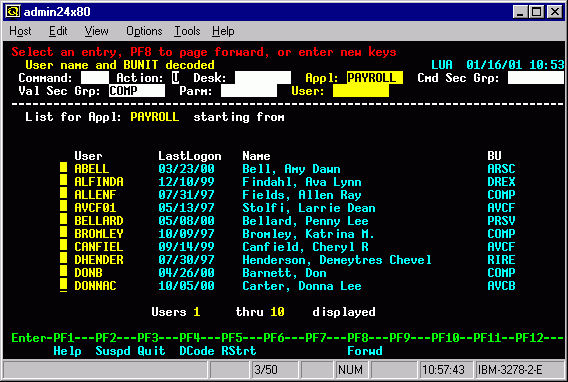
The main RPA goals when automating mainframe applications are as follows:
- Enter information into a mainframe application. Usually, to navigate to application input fields or views, there will be a legend of keys used on the bottom of an application. Simulating keystrokes by
sendKeys(), you can put a cursor into the desired field. The same API is used to enterStringdata into a field. - Collect information from a mainframe application. A WorkFusion RPA tool can only fetch the whole current application state as
String. It is split into multiple lines. Thus, you have to develop algorithms for parsing and fetching required portions of data from the entire content.
Preconditions
- Download and set up Windows SSH and Telnet client PuTTY.
- If the script doesn't work, make sure the path to
putty.exeis added to Environment Variables.
Example of SSH automation via Putty (Edit text file remotely)
<?xml version="1.0" encoding="UTF-8"?>
<config xmlns="http://web-harvest.sourceforge.net/schema/1.0/config" scriptlang="groovy">
    <robotics-flow>
        <robot driver="desktop" name="aDriver" close-on-completion="true">
            <capability name="SEARCH_ALL_WINDOWS">true</capability>
            <script><![CDATA[
                open("putty.exe -ssh traning@traning-ssh.workfusion.com -pw dEFgEmzL")
                sleep(15 * 1000)

                switchTo().window("[CLASS:PuTTY]")
                sleep(2000)

                sendKeys('vim the-new-file.txt{ENTER}')
                sleep(1000)

                // copy all console content into variable
                windowContent = copyPuttyWindowText()
                sleep(1000)

                // delete row command
                sendKeys('aaaaaaa')
                sendKeys('{TAB}{ENTER 2}')
                sendKeys('{UP}{UP}{DOWN}{DOWN}')

                // switch to edit mode
                sendKeys('i');
                sleep(1000);

                // edit text file
                sendKeys('{UP}{DOWN}{RIGHT}{RIGHT}{TAB}{TAB}')
                sendKeys('Hello, Robot{!}')
                sendKeys('{CTRLDOWN}c{CTRLUP}')
                sendKeys(':q{!}')
                sendKeys('{ENTER}')
                sleep(1000)
                sendKeys('{CTRLDOWN}d{CTRLUP}')
            ]]></script>
        </robot>
    </robotics-flow>
    <export include-original-data="false">
        <single-column name="putty_text" value="${windowContent}" />
    </export>
</config>
The supported console actions are as follows:
copyPuttyWindowText()selects and returns console text from PuTTY.selectAllTextAndCopy()selects and returns all console text.copySelectedText()returns currently selected console text.clipboardText()returns all clipboard text.setClipboardText(String text)sets text to the RPA agent clipboard.
Logging into system and working with sessions
<?xml version="1.0" encoding="UTF-8"?>
<config xmlns="http://web-harvest.sourceforge.net/schema/1.0/config" scriptlang="groovy">
    <robotics-flow>
        <robot driver="desktop" name="aDriver" close-on-completion="true">
            <!-- Capability to make all windows searchable, so the collapsed window will be visible -->
            <capability name="SEARCH_ALL_WINDOWS">true</capability>
            <script><![CDATA[

                def puttyPath = 'C:\\temp\\putty.exe -ssh user'

                open(puttyPath)
                switchTo().window("[CLASS:PuTTY]")
                sleep(3000)

                // Login to any system
                sendKeys('sendkeys sample')
                sendKeys('{ENTER}')
                sleep(3000)

                sendKeys('{ENTER}')
                sleep(3000)

                sendKeys('login sample')
                sendKeys('{ENTER}')
                sleep(3000)

                sendKeys('password sample')
                sendKeys('{ENTER}')
                sleep(3000)

                // Checking the last session is available and if so kill it
                def checkContent = 'Do you want to kill the earlier session for this relogin? (y/n) : n'

                if (SampleClass.checkScreenContent(copyPuttyWindowText(), checkContent)) {
                    sendKeys('y{ENTER}')
                    sendKeys('y{ENTER}')
                    copyPuttyWindowText()
                }

                // Confirmation to continue
                Pattern pattern = Pattern.compile("Press \"(.+?)\" key to continue")
                Matcher matcher = pattern.matcher(copyPuttyWindowText())
                def keyToSend = ''
                if (matcher.find()) {
                    keyToSend = matcher.group(1)
                    // do here stuff to continue automate putty
                }
            ]]></script>
        </robot>
    </robotics-flow>
    <export include-original-data="false" />
</config>