
Import and export UTF-8 data
Many tasks involve data requiring UTF-8 encoding, especially for foreign languages (Chinese, Hebrew, Arabic, etc.).
This topic describes importing and exporting UTF-8 data to WorkFusion while creating Tasks, BPs or downloading snapshots.
Importing
Problem
Sometimes while trying to upload data with Spanish, German, Chinese characters (¿, ñ, ë, 木) to the platform, WorkFusion will not upload a .xls or .xlsx file.
Saving as .txt or .csv eliminates the Chinese characters.
Saving as Unicode text preserves the characters but the file will not upload.
Solution
The easiest work-around is to copy/paste from Excel into a text editor, and save the text file from there.
For example, from Excel to Notepad:
Save the Excel file as Unicode Text.
Open this file in Notepad (Sublime or Notepad++).Or just copy all the data from Excel and paste it to a new Notepad document.
Save the notepad file as a TXT file, being sure to update the encoding to UTF-8.
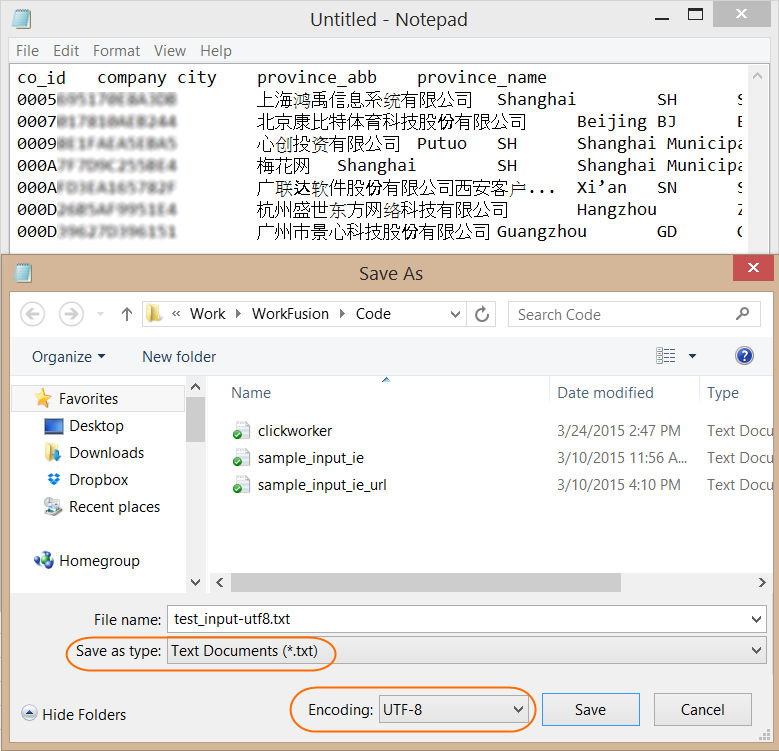
Upload the file in WorkFusion, and it will adjust the upload to UTF-8 and tab-delimited.
Detailed instructions can be found here.
Exporting
Problem
You uploaded a file to WorkFusion as TEXT (.txt) in UTF-8, but it is exporting as CSV and the characters are jumbled.
Solution
In this case, the data is fine but Excel does not display it correctly.
If you want to view it in Excel:
- Create a new blank book in Excel.
- On the top ribbon, select Data > From Text.
- Change the File Origin to Unicode (UTF-8) and finish the import process.